













 AIIllustrative image: AI-generated
🔁 How to create reusable content blocks in WordPress
Do you copy the same disclaimer to the end of every post? Manually insert a subscription form on each page? This eats up time better spent on content.
WordPress has long supported reusable blocks: create once, insert in a dozen places with a couple of clicks. The only question is which tool suits you best.
Below are three working methods: from built-in Gutenberg to professional templates in WP Bakery and Elementor. No fly-by-night plugins, only what actually gets used on sites in 2026.
💡 Quick overview:
- Create a reusable block in Gutenberg, free, built into WordPress 5.0+ core, suitable for text, buttons, and simple repeating elements
- Install Templatera for WP Bakery, a paid add-on for full layout templates with role-based access control
- Save a template in Elementor, works even in the free version, with hundreds of ready-made layouts in Pro
1. Gutenberg, WordPress built-in tool
If you have WordPress 5.0 or higher, the Gutenberg editor is already in core. People still argue about it, but the fact remains: out of the box you get a block-based page building system and the ability to save your own reusable blocks.
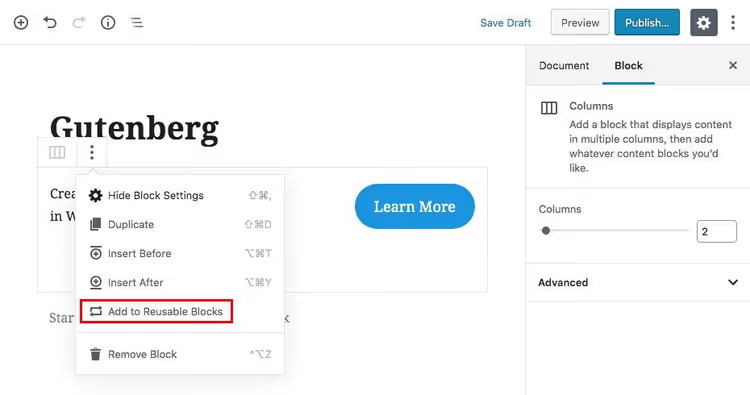
Create the content you plan to reuse. This can be text, an image, a button, or a combination in a single row. Then click the three-dot icon in the block toolbar.
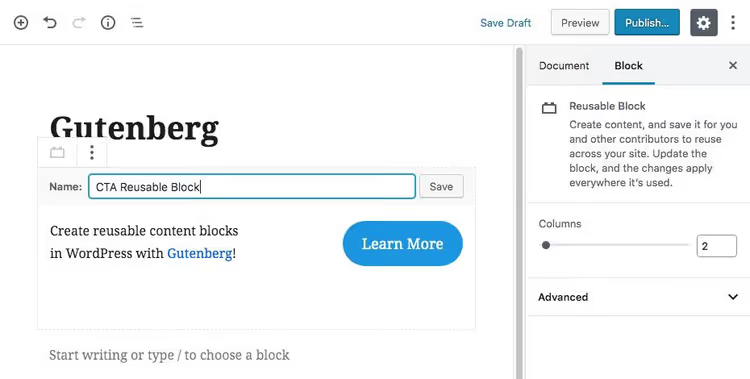
Select "Add to Reusable blocks" and give it a name. Save.
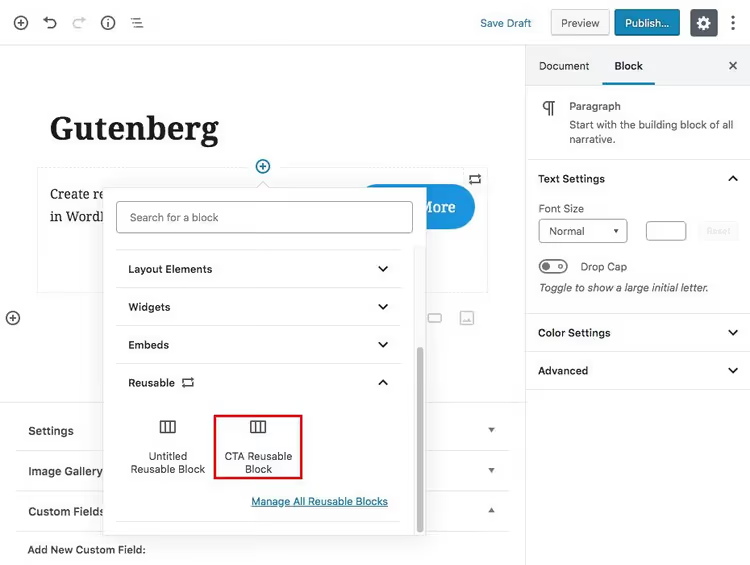
Now when adding a new block on any page or post, simply enter the saved block name in the search, or find it in the "Reusable" category. Note: all block elements must be in a single row, otherwise saving will not work correctly.
Pros: free, no plugins, built into WordPress core, instant insertion into any post. Cons: only for content within a single row; no full page template management.
2. WP Bakery + Templatera, full layout templates
WP Bakery Page Builder (formerly Visual Composer) is one of the most popular page builders for WordPress. Block reuse is not built in by default, but there is an official add-on for this: Templatera.
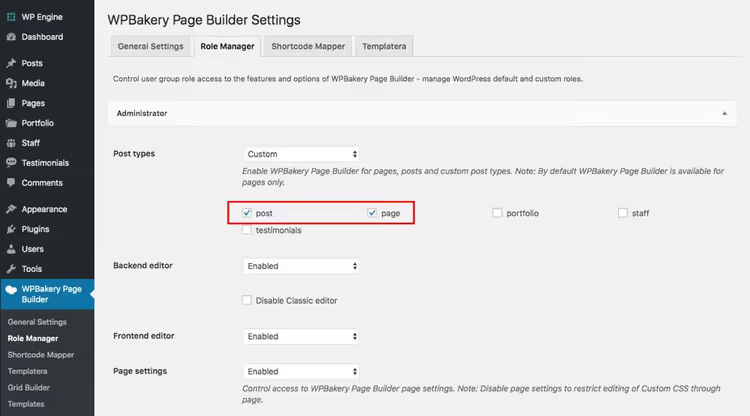
After installing and activating WP Bakery and Templatera, go to "Role Manager" and make sure the builder is enabled for all post types you work with.
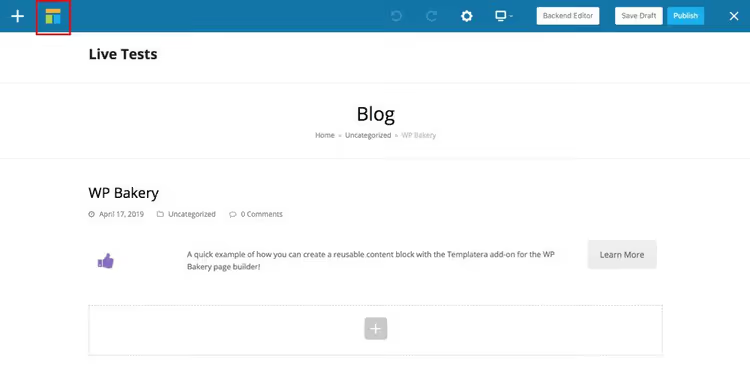
Now create a page with the desired layout. When the layout is ready, click the Templatera icon in the upper left corner of the editor. In some themes (not from WPExplorer) the WP Bakery logo appears instead.
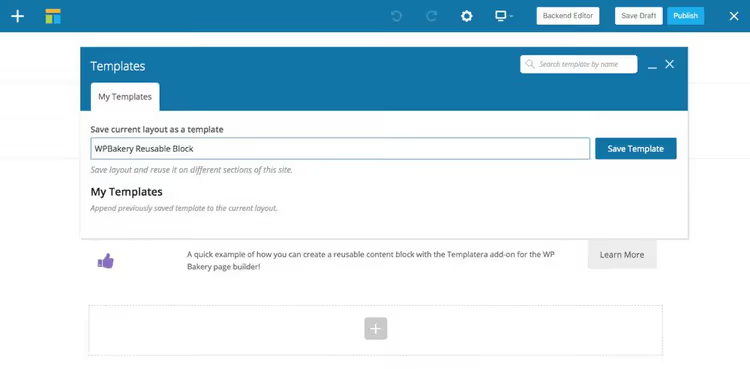
Give the template a name and save.
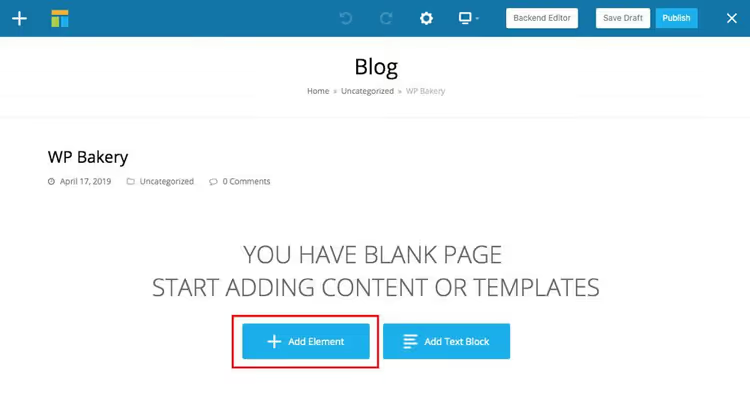
To insert the template into a new page or post, click "Add Element" in the WP Bakery editor.
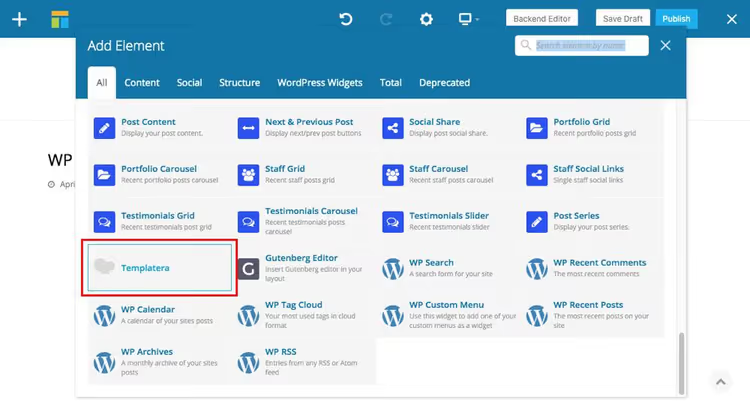
Scroll down the block list and select "Templatera."
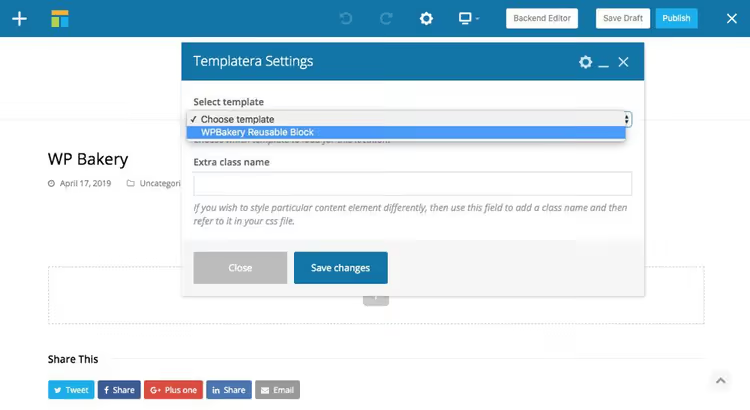
Choose the template you need and save. The finished block can be dragged anywhere on the page or surrounded by other content.
Pros: templates for entire pages, not just single rows; role-based access control; WP Bakery integration. Cons: Templatera is a paid add-on (from $23 per year); works only with WP Bakery.
3. Elementor, free templates out of the box
Elementor is another flagship page builder, and unlike WP Bakery the template saving feature is available immediately, even in the free version of the plugin.

To create a reusable block, click the arrow next to the save button in the bottom panel of the editor and select "Save as Template."
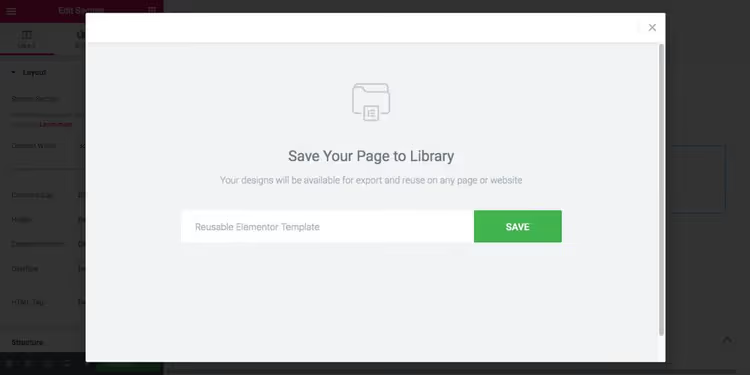
In the popup window, enter the template name and click "Save."
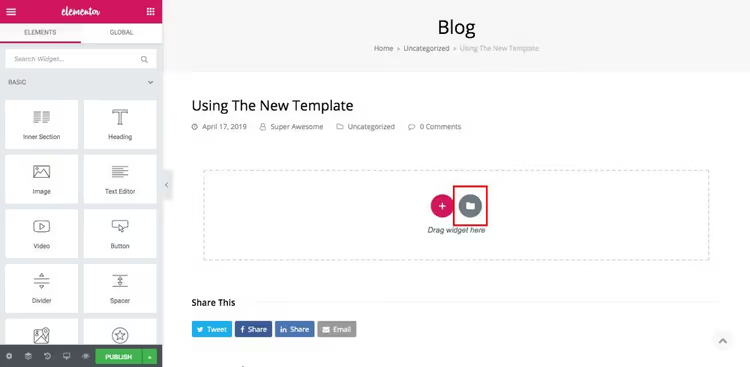
To insert the template on a new page, click the folder icon in the editor to open the Elementor template library.
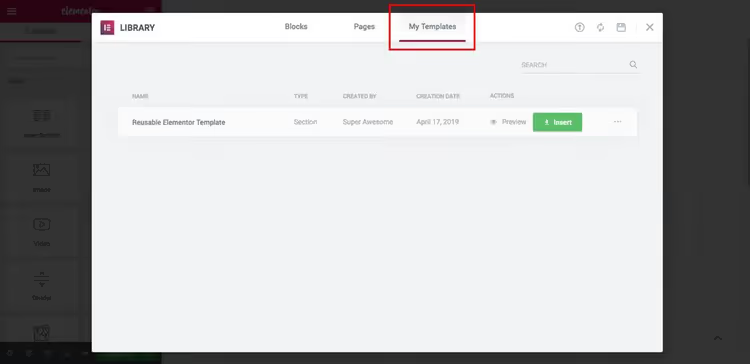
Go to the "My Templates" tab, select the block you need, and insert. Done. In the Pro version, the library expands to hundreds of ready-made layouts, significantly speeding up assembly of typical pages.
Pros: free in Elementor core; simpler and faster than Templatera; hundreds of ready-made layouts in Pro. Cons: requires active Elementor on the site; Pro version from $59 per year.
🔗 Elementor on WordPress.org | 🔗 Live demo
Video: saving templates in Elementor in one minute
Watch how it works in practice: a short video with step-by-step template saving and reuse.
⁉️🤔 Frequently asked questions
Can I edit a reusable block after saving?
Yes. In Gutenberg all your reusable blocks are in a separate editor tab: click on the block, make changes, and save. Changes will apply everywhere that block is inserted. If you need to modify a specific instance without affecting others, convert it to a regular block through the same three-dot menu. In Elementor, simply open the template library, edit the template, and resave. Templatera works similarly through its interface.
What if Gutenberg reusable blocks are not showing?
Most often the problem is user permissions or a conflict with optimization plugins. Check that your role has access to edit reusable blocks (this is a separate entity in WordPress). Disable caching plugins while editing. If blocks disappeared after an update, check the trash: when you delete a reusable block in Gutenberg it goes to the trash, just like regular posts.
Which method is fastest for a beginner?
Gutenberg. No installation needed, the feature is already in WordPress core. Creating a block takes three clicks: create content → three dots → "Add to Reusable blocks." For typical repeating elements (disclaimer, signature, subscription form) this is enough. Elementor is more convenient for visual layouts, but requires installing and learning the builder.
What is the difference between Gutenberg reusable blocks and Elementor templates?
Gutenberg reusable blocks are blocks within the WordPress editor: text, images, buttons in a single row. Elementor templates are entire sections and pages: you can save a finished landing page with a dozen sections and insert it on another page in a second. Gutenberg is suited for micro-content, Elementor for page-level layouts.
Are reusable blocks preserved when switching themes?
Yes. Gutenberg reusable blocks and Elementor templates are stored in the WordPress database and are not tied to the theme. When switching themes they will remain available, but styling may change if the new theme handles CSS for blocks differently. We recommend reviewing your saved blocks after a theme change and checking display on a test site.
Which block reuse method to choose for your task
In short: use Gutenberg for simple repeating elements and Elementor for visual layouts. WP Bakery + Templatera makes sense only if you are already heavily invested in WP Bakery and do not plan to migrate.
For text disclaimers, signatures, buttons, and simple inserts, Gutenberg solves the task completely free. For landing pages, complex pages, and repeating sections, Elementor offers more capabilities with a minimal learning curve.
Try both free options on a test site. Make one reusable block in Gutenberg and one template in Elementor: after five minutes of practice the question "how does this work" will answer itself.

A professional team of writers and editors specializing in creating quality content.