














🛠 How to create a hotel website on WordPress with online booking
A hotel website that accepts direct bookings without phone calls or correspondence is a reality, not a fantasy. You collected guests through a search engine, they chose a room, paid by card, and received confirmation by email while you were busy with other things.
The problem is that the market offers dozens of solutions: from proprietary SaaS systems with monthly fees of hundreds of dollars to free plugins with limited functionality. Which path should you choose to avoid overpaying and get a full-featured booking mechanism right on WordPress?
Below is a step-by-step guide from choosing an approach to accepting online payments. The foundation is the MotoPress Hotel Booking plugin: it has been on WordPress.org since 2013, has 50,000+ active installations, and in version 6.0 (2025) received property management at the Booking.com level. All screenshots are from the actual admin panel, and each step can be reproduced in a couple of minutes.
💡 Quick overview:
- We analyze two approaches: a ready-made theme with built-in booking or any template + a separate plugin.
- We go through the complete MotoPress Hotel Booking setup in 10 steps: from accommodation types to payment gateways.
- We compare costs and limitations of each option in a table.
- We answer frequently asked questions from hotel and hostel owners.
Two approaches to a hotel website on WordPress
Before installing plugins and configuring rates, decide on the foundation. WordPress offers two fundamentally different paths to a working hotel website with booking.
Ready-made themes: fast but limited
The shortest route is to buy a WordPress theme labeled "hotel booking." But here it's important to distinguish between two scenarios, because the word "booking" in a theme description can mean completely different levels of automation.
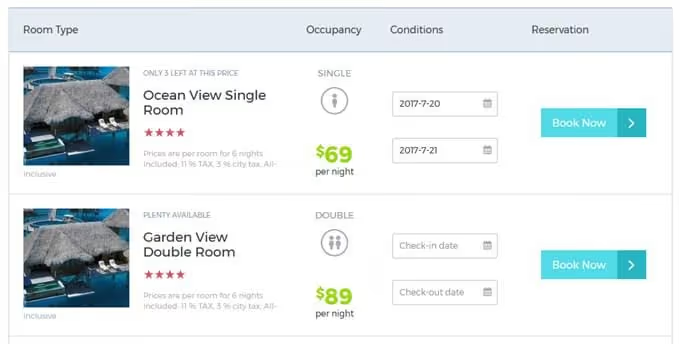
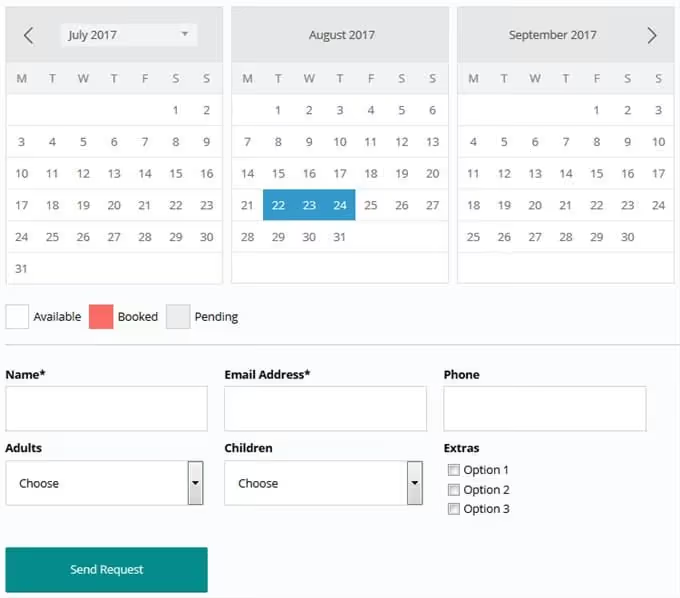
Themes with a booking request form. It looks like a room search: check-in/check-out dates, room type, number of guests. The guest fills out the form, but instead of instant confirmation receives "we'll contact you," and the request goes to the administrator by email.
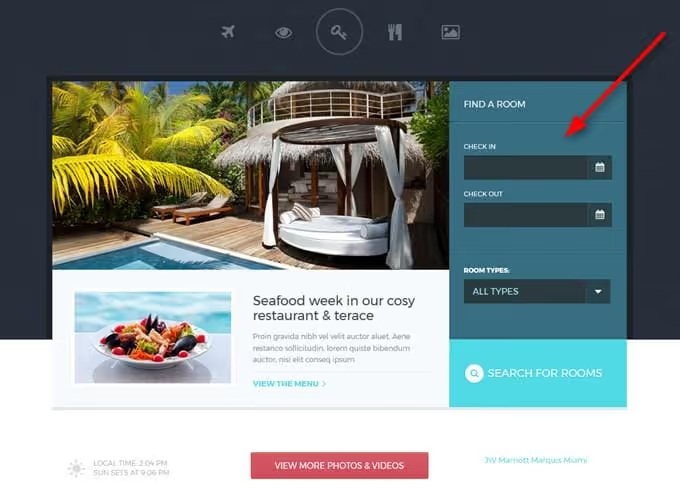
The guest enters dates and sees available options with prices:
After selecting a room, a request form with contacts and preferences appears:
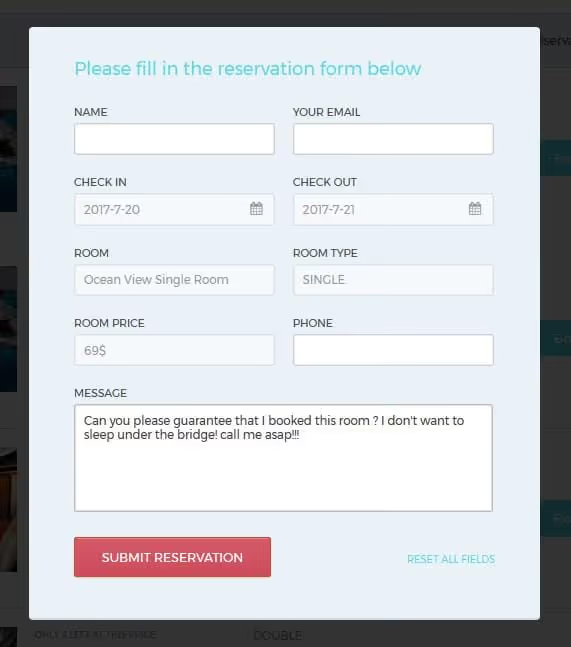
For the guest it looks like a booking, but in fact the room is not booked until manual confirmation. For small hotels with low traffic, this option is acceptable. For those who want to accept bookings without administrator involvement, it is not.
Themes with built-in booking engine. Here a third-party plugin is already working under the hood, and the theme provides ready-made styling for it. For example, the Bellevue theme uses a booking plugin with WooCommerce Payments:
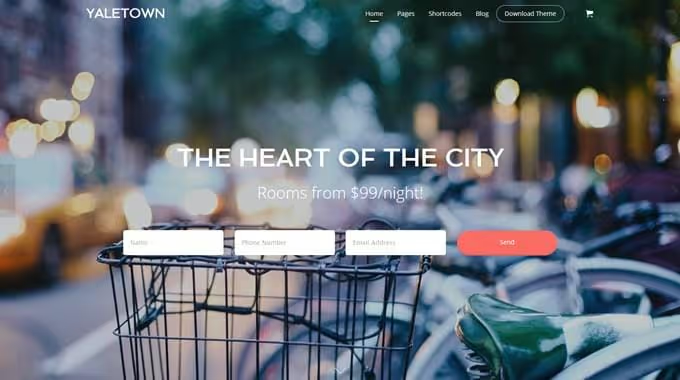
The guest adds a room to the cart and pays by card through PayPal or Stripe:
The advantage of this approach is seamless integration: plugin styles match the theme design, and the plugin itself is often included in the price (no need to buy separately). The disadvantage is that you are tied to the booking system chosen by the theme developer. You can replace it, but then the whole point of buying such a theme is lost.
Booking plugin: maximum flexibility
You take any WordPress theme and connect a booking plugin to it. Both a specialized hotel theme without built-in booking and a universal one (for example, Astra or Kadence) will work:
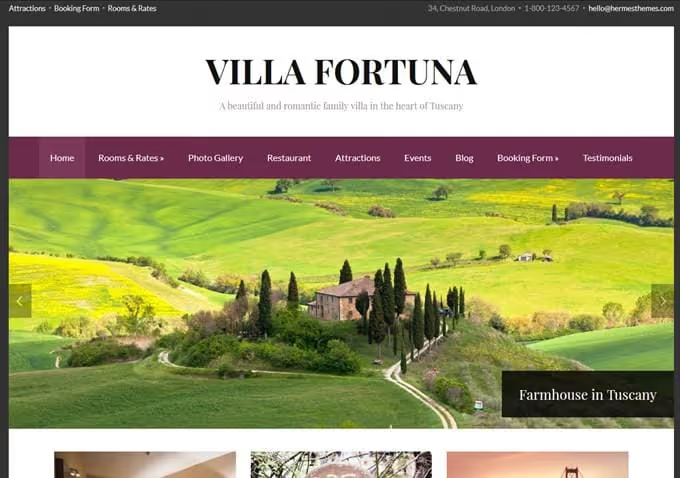
The main advantage is that you don't depend on a single vendor. You can change the theme at any time, and the booking mechanism will remain. This is exactly the approach we will analyze step by step below.
Criterion | Ready-made theme (email form) | Ready-made theme (engine inside) | Plugin + any theme |
|---|---|---|---|
Instant confirmation | No | Yes | Yes |
Online payment | No | Yes | Yes |
Theme change without losing bookings | No | No | Yes |
Choice of booking system | No | No | Yes |
Setup complexity | Low | Medium | Medium |
Cost (one-time/year) | $59-79 | $59-79 (plugin inside) | $0-199/year for plugin |
Step-by-step MotoPress Hotel Booking setup
🔗 MotoPress Hotel Booking on WordPress.org is one of the most functional booking plugins for WordPress. The free version in the catalog covers basic scenarios: accommodation, search, booking. The paid version adds payments, OTA synchronization, and advanced rates.
Here's what an apartment agency website built on this plugin looks like:
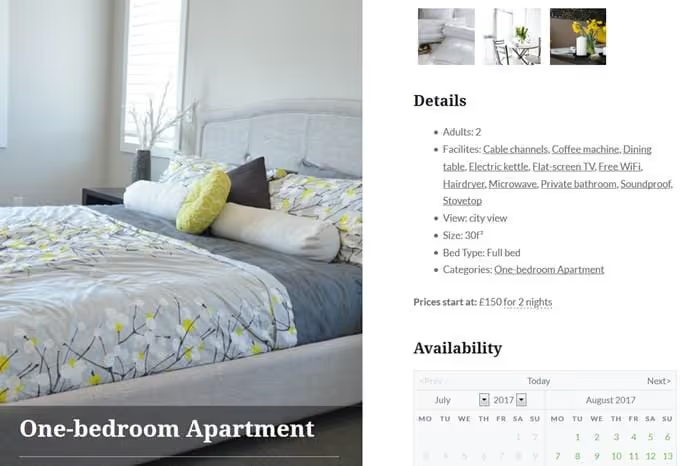
The plugin works on the "everything in WordPress admin" principle: you install it, activate it, and get two new menus, "Accommodation" and "Bookings." Now step by step.
After installation, open the demo panel and go through the menu in parallel with the instructions, so each setting immediately falls into a specific place in the interface.
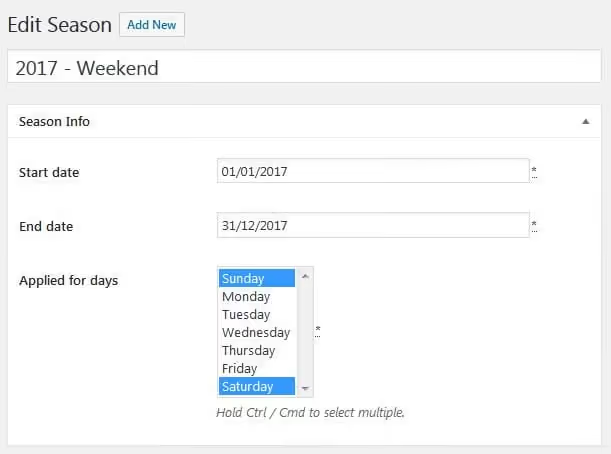
Step 1. Seasonal prices. Create different price periods: Christmas holidays, summer season, weekends. These are dates for which the price differs from the base price.
Step 2. Additional services. Add what can be booked along with the room: parking, transfer, breakfast, babysitting services. Each service has its own price and frequency (one-time, per night, per guest). They are assigned to specific accommodation types in the next step.
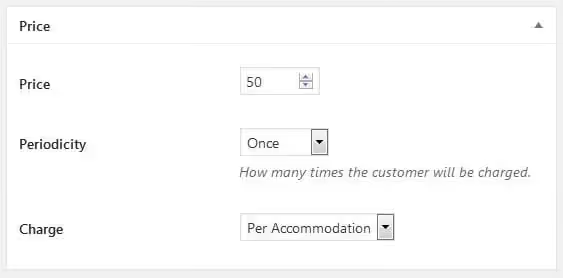
Step 3. Accommodation types. The main setup screen. Create cards: standard room, suite, apartment, villa. For each, fill in the description, category, amenities, and photo gallery.
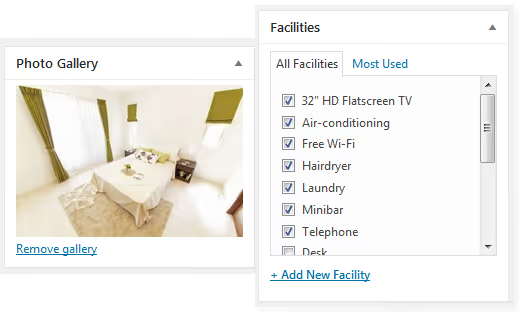
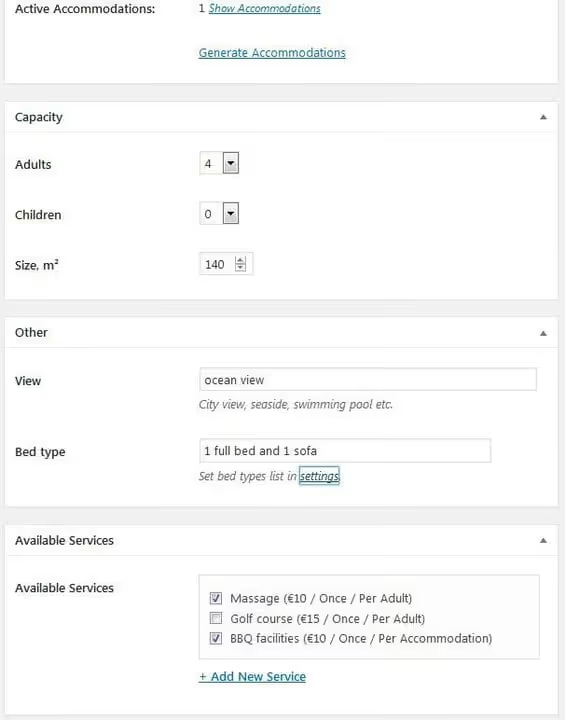
Room parameters (capacity for adults + children, size, view, bed types) are specified here:
Starting from version 3.0, the plugin supports unlimited custom attributes. The logic is simple: you create an attribute (for example, "Location") with tags (New York, San Francisco, Miami) and assign tags to specific properties.
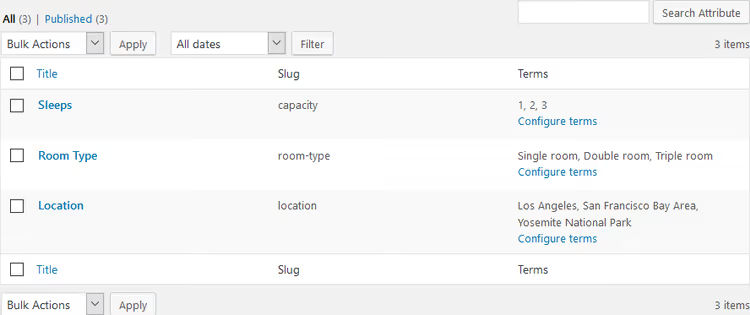
If you add the "Location" attribute as a field in the search form, the guest will be able to filter rooms by city:
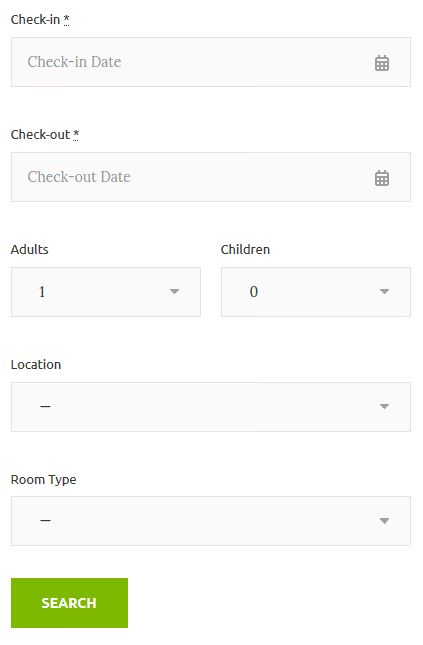
This is a flexible system: attributes adapt to your business (room type, short/long-term rental, city district).
Step 4. Rates. Different prices for the same accommodation type depending on conditions. The main scenario is refundable and non-refundable rates:
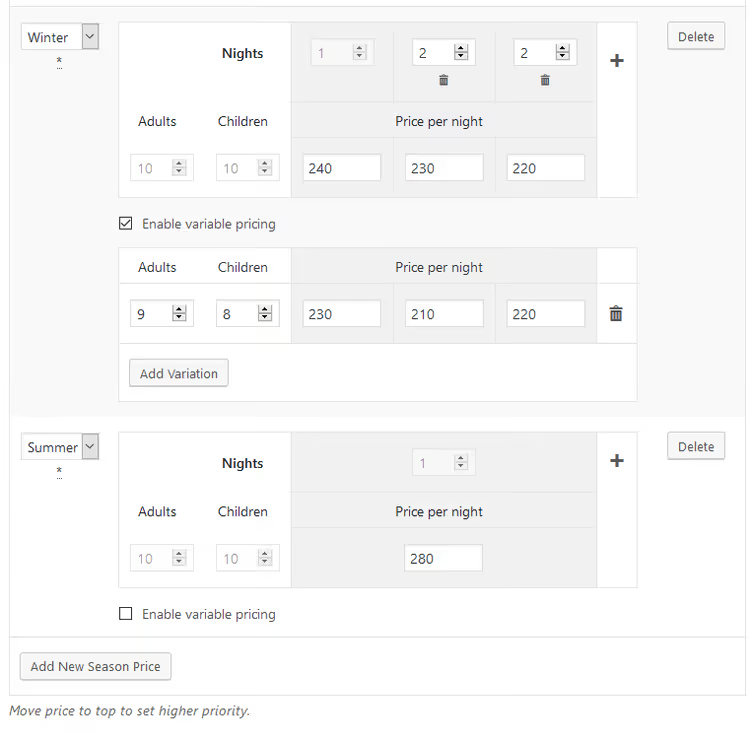
The plugin offers multi-level pricing. The base rate changes depending on the number of guests, length of stay (automatic discounts for week stay), season, and selected conditions.
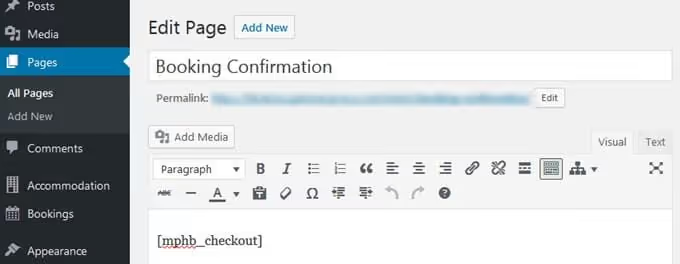
Step 5. System pages. The plugin provides ready-made shortcodes. Create pages through the admin panel: "Search Results," "Availability," "Complete Booking," "Booking Confirmation," "Cancel Booking," and insert the corresponding shortcode into each.
Step 6. General settings. Here everything the guest sees is configured: currency and its position, date format, check-in and check-out times. As well as fundamental settings:
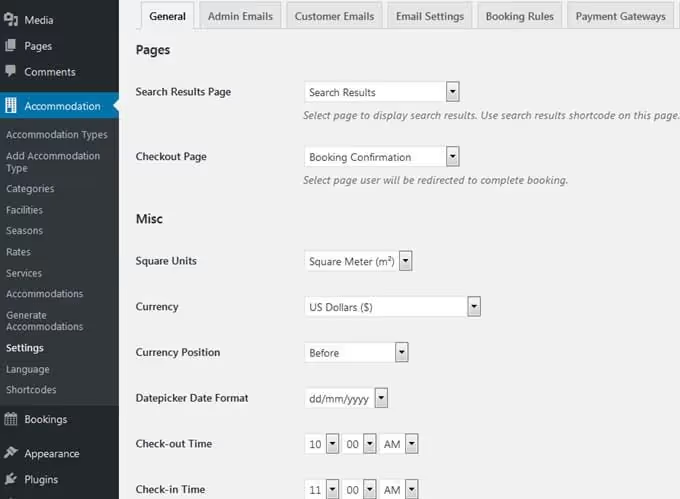
- Enabling/disabling the search form with room selection based on number of guests
- Enabling online booking (can be disabled and only leave the request form)
- Confirmation mode: by client via email, manually by administrator, or automatically upon payment
- Maximum capacity in the search form
- Availability calendar theme (Light Coral, Dark Red, matches any design)
Step 7. Email notifications. Configure email templates for administrator and guest using macros: booking confirmation, cancellation, check-in reminder.
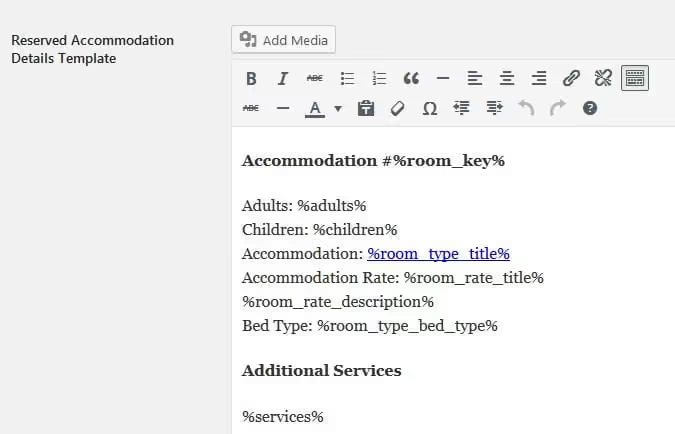
You can specify multiple recipients, for example, the manager and housekeeping staff. Each will receive their own notification for a new booking.
Step 8. Payment gateways. The free version includes PayPal, 2Checkout, Stripe, Braintree, Beanstream/Bambora. The paid WooCommerce Payments add-on expands the list.
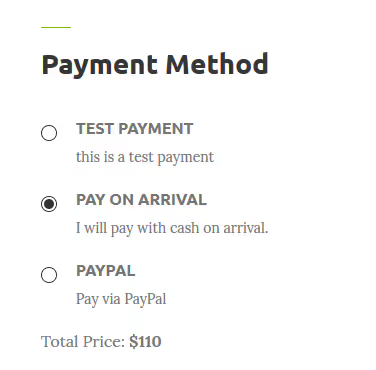
You can choose to charge the full amount or a deposit (fixed or percentage), specify system pages and the default payment gateway. If you don't want to accept payments online, enable the "Pay on Arrival" method, and the system will record the booking while the administrator enters the payment manually when the guest checks in.
Step 9. Language settings. The plugin is translated into 14 languages. For a Russian site, just select the locale in the settings. Additional text edits can be made through any WordPress translation plugin. MotoPress is officially compatible with WPML, which allows you to build a multilingual hotel website.
Step 10. Booking management. The "Bookings" menu is the operations center. Here you create discount coupons, check-in/check-out rules, and minimum/maximum stay rules.
Coupons can be monetary (fixed discount per room) or percentage-based. A fixed coupon applies either per room per day or for the entire stay:
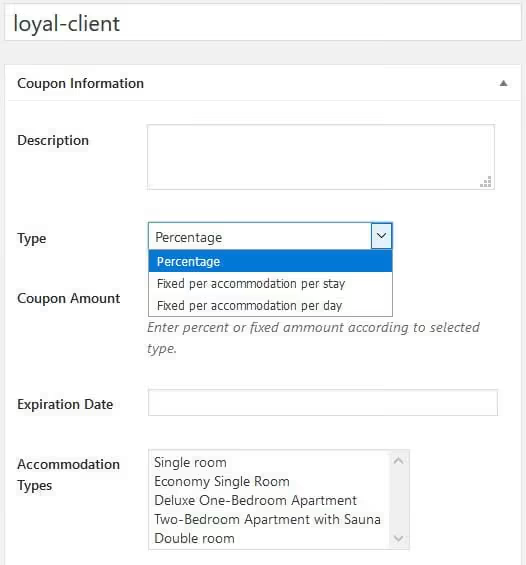
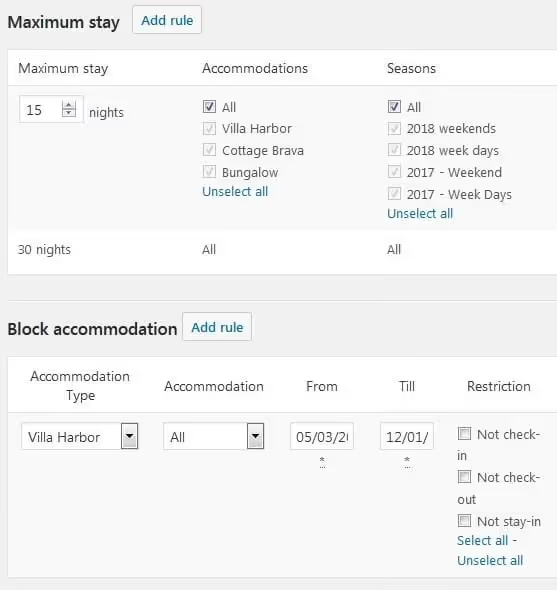
Booking rules are set for the entire hotel or specific rooms: check-in/check-out days, minimum and maximum number of nights, room blocking for a selected period:
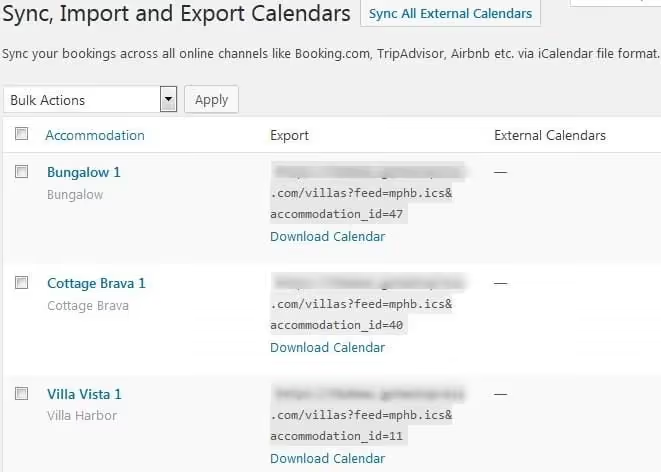
OTA synchronization. If rooms are also rented through Airbnb, Booking.com, or Expedia, the plugin synchronizes calendars via iCal, preventing double bookings:
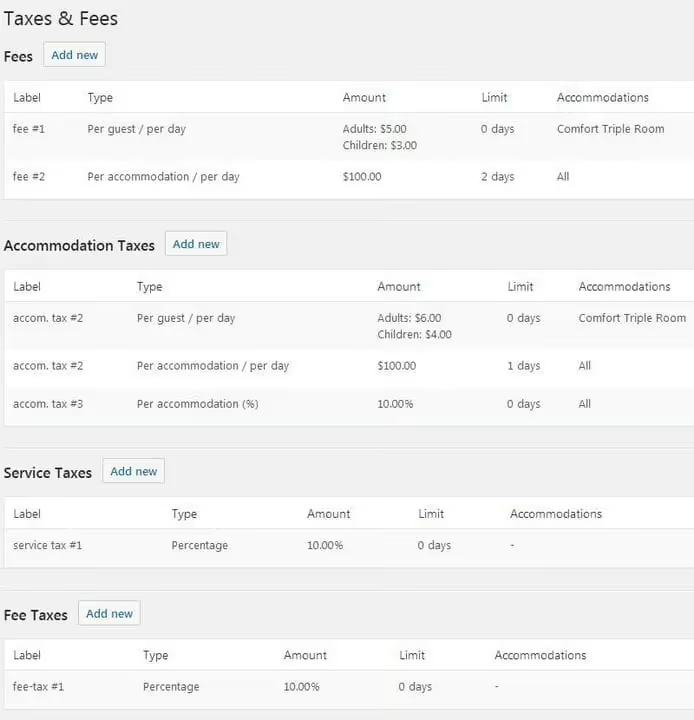
Taxes and fees are added to all properties and services from a single panel:
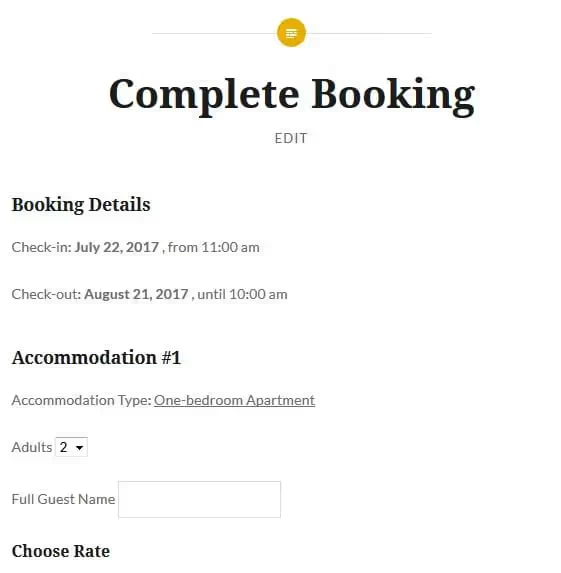
From the guest's side, the booking process is a step-by-step form: personal details, rate and service selection, payment method:
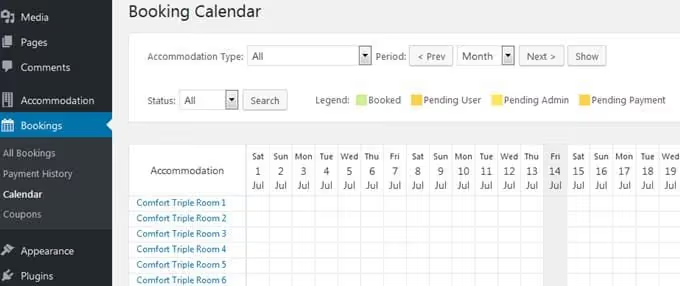
All bookings are stored in the admin panel with status filtering:
For cash payments, the administrator adds the payment manually:
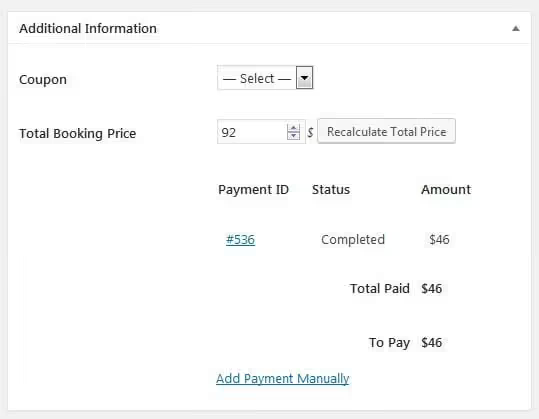
When managing incoming bookings, you see all requests with and without payments, statuses, logs, and guest data. To check only payments, there's a quick link to "Payment History."
⁉️🤔 Frequently asked questions
Is the paid version of MotoPress required for accepting online payments?
Yes. The free version on WordPress.org includes search, booking, rates, and seasons. Payment gateways (Stripe, PayPal, Braintree, 2Checkout) are in the paid version from $199/year. If online payments are not needed, the free version is sufficient: the guest books, and the administrator confirms manually.
Can I use another booking plugin instead of MotoPress?
Yes. The "any theme + booking plugin" scheme is universal. VikBooking, HBook, WP Hotel Booking, and others work. Choose based on your specific needs: VikBooking is convenient for synchronization with Booking.com, WP Hotel Booking is minimalist for small hotels. MotoPress is the golden mean in terms of functionality and admin panel refinement.
Are bookings lost when changing the WordPress theme?
If bookings are stored in the plugin and not in the theme, no. The plugin creates its own tables in the database, independent of the active theme. This is exactly why the "any theme + plugin" approach is more reliable than a ready-made theme with a built-in engine: when changing the design, all bookings remain in place.
What if a guest wants to book multiple rooms at once?
MotoPress supports this out of the box: the search form takes into account the number of guests and selects a combination of available rooms. One guest can add multiple rooms to a single booking, and the system does not limit capacity.
How do I synchronize bookings with Airbnb and Booking.com?
Through iCalendar file exchange. In MotoPress admin: go to the "Calendars" section → export your website's calendar link → paste it into the synchronization settings on the Airbnb/Booking.com side → import external calendars back. Orders are synchronized automatically, and double bookings are prevented.
What to choose for your hotel: the bottom line
The path covered: from a simple email form to a full-featured PMS with OTA synchronization. The specific recommendation depends on scale.
If you have a small hotel with 5-10 rooms and the booking flow allows processing requests manually, start with the free MotoPress Hotel Booking Lite on any modern theme (Astra, Kadence, GeneratePress). Setup following the steps above will take a couple of hours, and as the load grows, payment gateways can be activated with a single license.
If you have a hotel with high traffic, multiple rate plans, and the need to synchronize with Booking.com/Airbnb, get the full MotoPress version with payments and synchronization. It pays for itself within the first ten direct bookings without OTA commission.
If for some reason MotoPress is not suitable (you need deeper integration with a specific PMS, you work only with Booking.com via iCal), look at VikBooking or WP Hotel Booking. The setup principle is the same: installation → room types → rates → payments → system pages.
🔗 MotoPress Hotel Booking Lite (free) on WordPress.org | 🔗 MotoPress website (full version)
Have you built a hotel website on WordPress? Which booking system did you choose and what challenges did you face? Share your experience in the comments.

A professional team of writers and editors specializing in creating quality content.