













 AIIllustrative image: AI-generated
🔍 How to find and replace text across your entire WordPress site
You've been writing a WordPress post for half an hour, fingers flying, thoughts flowing. You hit publish and… notice you spelled a plugin name wrong. Not in one place. Throughout the entire text. Then you remember: you've been writing that name this way for the past six months across a hundred other articles.
Open each post manually and hunt for typos? Maybe if there are five. But what if there are five hundred?
WordPress doesn't offer a "find and replace" button out of the box, not in the editor, not across the database. But this is fixable with free plugins and one code snippet. No phpMyAdmin, no raw SQL queries, no risk of crashing your site with a wrong command.
💡 Quick overview:
- Build search and replace right into the editor: the Advanced Editor Tools plugin adds a Find and Replace button to the visual editor in 2 minutes
- Replace text across your entire database: Better Search Replace searches and replaces strings in all tables with preview and serialized data support
- Set up automatic replacement rules: Real-Time Find and Replace swaps text "on the fly" when the page renders, without touching the database
- Add auto-links by keyword: a PHP function in
functions.phpwraps specified words in links across all posts at once
The video below demonstrates search and replace in WordPress content:
Search and replace text in the WordPress editor
The classic WordPress editor has no "Find and Replace" button, unlike Google Docs, Word, and almost any other word processor. The Gutenberg block editor doesn't have one either. But you can add it.
The Advanced Editor Tools plugin handles this (formerly called TinyMCE Advanced). It extends the visual editor toolbar, and one of the available buttons is Find and Replace.
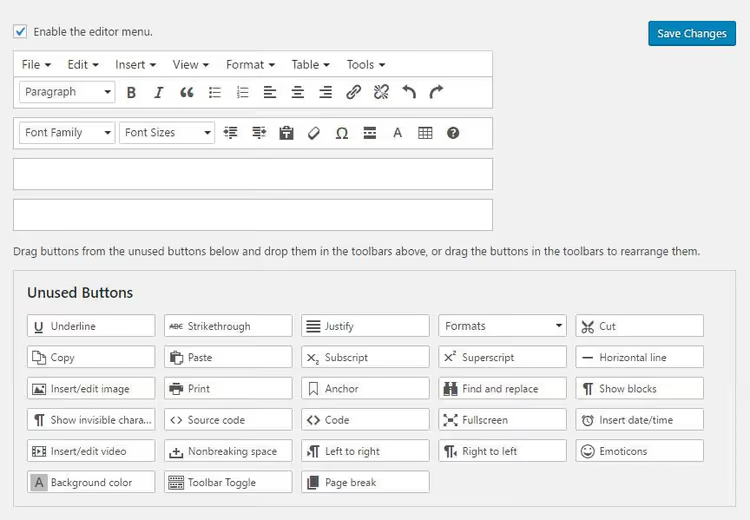
Installation is standard: "Plugins" → "Add New" → search "Advanced Editor Tools" → "Install" → "Activate". After activation:
- Go to Settings → Advanced Editor Tools
- Find Find and Replace among the unused buttons
- Drag it onto the editor toolbar
- Save changes
Done. Now when editing any post in the visual editor, a search and replace button appears at the top. Enter the text to find, enter the replacement, the plugin highlights matches, and you can replace one at a time or all at once.
The downside: it only works within a single post. If you need to go through hundreds of articles, you need a more powerful tool.
Search and replace across the entire database with Better Search Replace
When an error is scattered across dozens or hundreds of records, manually editing each post turns into a week-long job. For this, there's Better Search Replace, a free plugin from WP Engine that searches and replaces text directly in the WordPress database.
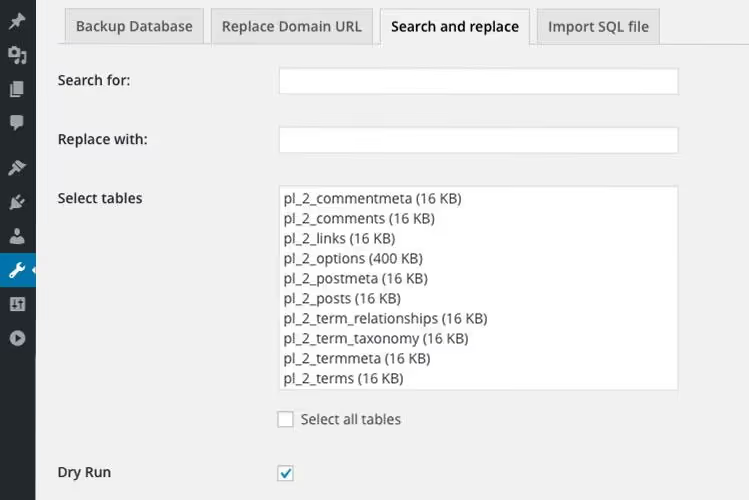
Features:
- Search the entire database or selected tables (
wp_posts,wp_postmeta, etc.) - Serialized data support: the plugin correctly handles arrays and objects without breaking them
- Dry Run mode: a test run without making changes; you see how many cells will be affected, then decide whether to apply the replacement
- Multisite support
How it works: "Tools" → "Better Search Replace" → enter the search string and replacement string → select tables → run Dry Run → review the result → if everything looks good, uncheck Dry Run and run the actual replacement.
Before any database operations, make a backup. Better Search Replace doesn't undo changes. If you make a mistake with the replacement string, you can only restore data from a backup.
The plugin is updated regularly: version 1.4.10 was released in January 2025. The author is the WP Engine team, with 543 reviews on WordPress.org and an average rating above 4 stars. Active installations exceed one million.
Automatic text replacement on the fly with Real-Time Find and Replace
Sometimes you don't need a one-time typo fix but a permanent rule: for example, replacing profanity in comments, swapping an ad placeholder for JavaScript code, or automatically correcting a rebranded service name in all existing and future publications.
Word Replacer used to handle this, but the plugin is closed and hasn't been updated in 12 years. The current alternative is Real-Time Find and Replace.

How it works: the plugin swaps text at the moment the page renders, before it reaches the user's browser. The database remains unchanged. All rules live in the plugin settings, and you can disable or modify any rule at any time without consequences.
What the free version can do:
- Replace text and HTML code by exact match
- Support regular expressions (regex) for complex patterns
- Replace content in themes and other plugins without editing their files
- Work with AJAX content and content loaded via jQuery
- 70,000+ active installations, tested up to WordPress 7.0
The Pro version (lifetime license under $15) adds filters by post type, URL, and referrer, rule import/export, and the ability to replace text on admin pages.
Typical scenario: you want the word "computer" to always become a link to your affiliate store. Create a rule: Find = computer, Replace = <a href="https://shop.example.com">computer</a>. The plugin applies it to all posts, pages, and comments on the fly.
Automatic keyword links via PHP
If you don't want to install a separate plugin for a dozen links, a code snippet in your theme's functions.php solves the problem. It goes through each post's content, finds specified words, and wraps them in links.
When working with your theme's
functions.php, use a child theme so your changes don't get wiped during updates. And make a backup of the file before editing.
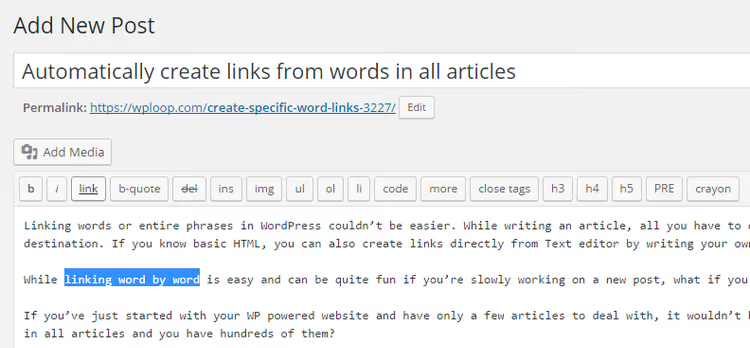
Add this code to functions.php:
1 function techblog_auto_link_words( $text ) { 2 $replace = array( 3 'wordpress' => '<a href="https://wordpress.org">WordPress</a>', 4 'php' => '<a href="https://www.php.net">PHP</a>', 5 ); 6 $text = str_replace( array_keys( $replace ), $replace, $text ); 7 return $text; 8 } 9 add_filter( 'the_content', 'techblog_auto_link_words' ); 10 add_filter( 'the_excerpt', 'techblog_auto_link_words' );
How it works: the str_replace function searches for the keys of the $replace array in the post text and substitutes them with the values (links). The the_content and the_excerpt filters apply the replacement to the full post text and the excerpt respectively.
You can expand the $replace array: add a new pair 'keyword' => '<a href="...">anchor</a>', and the rule starts working immediately.
Limitations: the replacement is case-sensitive, triggers on exact matches, and doesn't know how to exclude words inside tags or attributes. If the text already had a link with the same anchor, you'll end up with a nested link. For complex scenarios, use Real-Time Find and Replace described above.
⁉️🤔 Frequently asked questions
Can I find and replace text in WordPress without plugins?
Yes, with a direct SQL query to the database. The command looks something like:
UPDATE wp_posts SET post_content = REPLACE(post_content, 'old', 'new'). But this method doesn't handle serialized data, requires access to phpMyAdmin or WP-CLI, and provides no preview. A mistake in the query can corrupt the database. Better Search Replace does the same thing but more safely.
What should I do if the site breaks after a replacement?
First, don't panic. If you enabled Dry Run before the replacement, you know exactly which tables were affected. If not, restore the database from a backup (you did make a backup before the operation, right?). Better Search Replace doesn't create its own backups in the free version, so a backup is critical.
Does Real-Time Find and Replace slow down the site?
With a reasonable number of rules (up to 50), no. The plugin performs the replacement before page output, on the server side, without additional database queries. If you use caching, the impact is even smaller. Problems may arise only with complex regex rules containing syntax errors.
What's the difference between Real-Time Find and Replace and Better Search Replace?
Better Search Replace modifies data in the database: changes are permanent. Real-Time Find and Replace swaps text at render time: the database remains untouched. The first is for one-time fixes (typos, domain changes). The second is for permanent rules (censorship, ad insertions, auto-links). They're not competitors but tools for different tasks.
Which method should I choose for domain replacement when migrating a site?
Only Better Search Replace. Domain replacement means editing thousands of URLs in the database (in content, meta fields, settings). Real-Time Find and Replace won't work: it doesn't physically change data, and a domain change requires actually writing to the database. Plus Better Search Replace correctly handles serialized arrays where the string length is encoded along with the value.
What to use for your task
The task determines the tool. There's no universal "find and replace" in WordPress, but there's a ready solution for each scenario:
- Need to fix a few phrases in one draft: Advanced Editor Tools, the Find and Replace button in the editor
- A typo spread across a hundred posts: Better Search Replace, one database query with preview
- Want a client logo to automatically wrap in a link to the client's site across all content: Real-Time Find and Replace, an on-the-fly rule
- Need to add links to a dozen keywords without installing plugins: PHP snippet in
functions.php, 10 lines of code
Before any replacement: backup. Before replacing in the database: Dry Run. These two habits save days of recovery.

A professional team of writers and editors specializing in creating quality content.