













📸 NextGEN Gallery plugin review: from installation to selling photos
The default WordPress gallery handles three to five photos in a blog just fine. But open a portfolio with a hundred shots or try selling prints directly from your site, and the standard block falls apart. Agencies need a private section for client proofing; photographers need watermarks and eCommerce without middleman fees. Switching themes or moving to a page builder just for a gallery costs time and budget that could be spent smarter.
This is where NextGEN Gallery comes in. Since 2007, the plugin has covered everything WordPress cannot do with images out of the box. According to WordPress.org data as of June 2026, it has over 400,000 active installations and more than 30 million downloads in total. The developer is Imagely, a company that transformed the plugin into a full-fledged subscription platform.
We break down the current version 4.2.2: key modules, pitfalls of upgrading to v4, pricing from free to Ultra, and an honest verdict on who still needs this plugin and who should look at alternatives.
💡 Quick overview:
- Install the free version from the WordPress.org directory
- Learn the three basic gallery styles (slideshow, thumbnails, ImageBrowser) and two album formats
- For eCommerce and proofing, get a paid plan (Starter through Ultra)
- Create your first gallery via the editor block: upload, configure, insert on a page
- Check the FAQ at the end for common v4 issues
What is NextGEN Gallery and who needs it

NextGEN Gallery is a WordPress gallery plugin from Imagely. In short, it turns standard image uploads into a professional tool for displaying, managing, and selling photos. On WordPress.org, the plugin holds a 4.3 out of 5 rating based on 4,337 reviews.
The free version covers basic scenarios: three gallery styles, two album formats, watermarks, and batch uploads. Paid tiers (Starter, Plus, Pro, and Ultra) add proofing, eCommerce, Adobe Lightroom integration, and automated printing through the White House Custom Colour photo lab.
Who this plugin is for:
- Photographers and visual artists who sell prints directly from their site.
- Agencies that need private client access to portfolios.
- Owners of content-heavy sites with large media libraries, where the built-in WordPress gallery stops coping after a couple hundred images.
For those who just need a nice feed of five photos in a blog, the plugin is overkill. The built-in Gallery block will be more than enough.
Key features
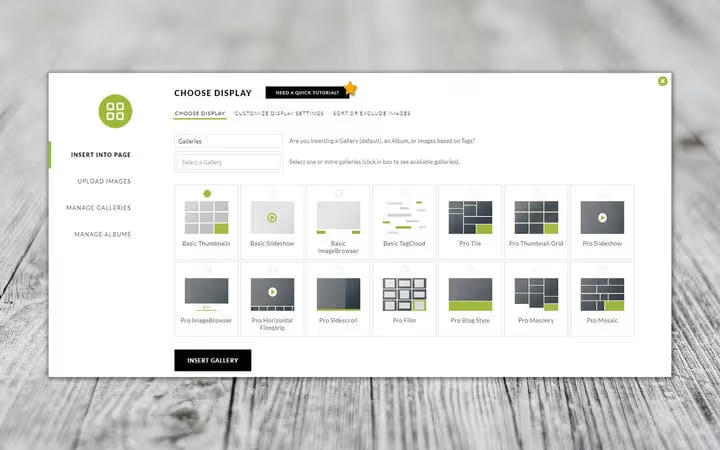
Functionally, the plugin is divided into several modules. Each handles a specific stage of working with images, from uploading to selling. Below is an analysis of what is actually useful versus what looks good on a feature list but is rarely enabled in practice.
Album and gallery styles

An album is a collection of galleries. A gallery is a collection of images. The free version offers three gallery styles: thumbnails, slideshow, and ImageBrowser. For albums, compact and extended are available.
Paid tiers unlock seven more styles: mosaic, masonry, tiled, film strip, filmstrip, side-scroll, and blog-style. In practice, a photographer typically needs a combination of thumbnails, Masonry, and slideshow. The remaining styles serve design purposes rather than workflow needs.
Each style is highly configurable: thumbnail size, spacing, number of columns, transition animation. The number of settings can sometimes be overwhelming.
Settings and customization
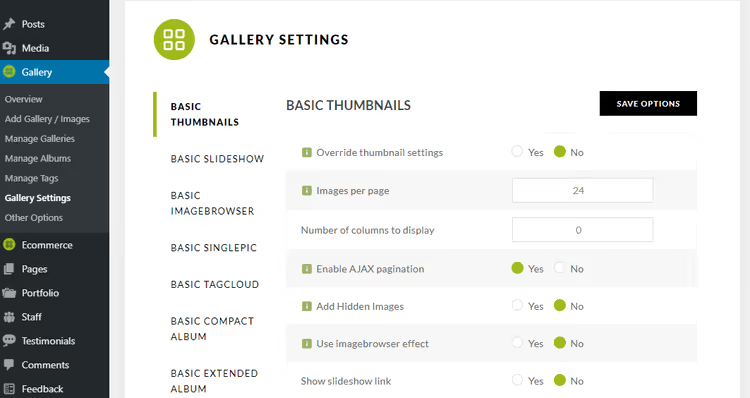
The plugin lets you set global parameters for all galleries at once and override them for specific ones. You can change sizes, crop thumbnails, add watermarks, exclude individual photos, edit metadata, configure autoplay, and set transition styles.
Uploads are flexible: one file at a time, by folder, or via ZIP archive. Importing from the WordPress media library and syncing with Adobe Lightroom (paid tiers only) are also supported.
The downside of this abundance is that a beginner can get lost in the settings for half an hour. The documentation helps, but the learning curve is steeper than with alternatives like Envira Gallery.
Updated interface
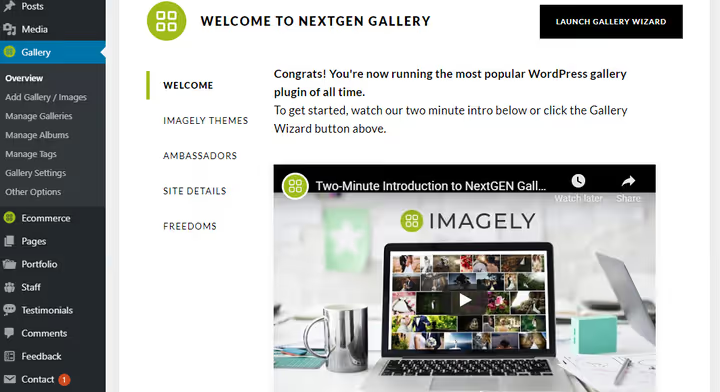
Starting with version 4.0, the interface was completely redesigned. A step-by-step gallery creation wizard was added: installation, photo upload, page insertion, all through the visual editor, no shortcodes required.
Not all users liked the update. Some WordPress.org reviews from 2026 say outright: "don't upgrade to v4, the old interface was more convenient." Objectively, the new UI is cleaner and more modern. But if you have been working with NextGEN for years, expect a couple days of relearning.
Client proofing
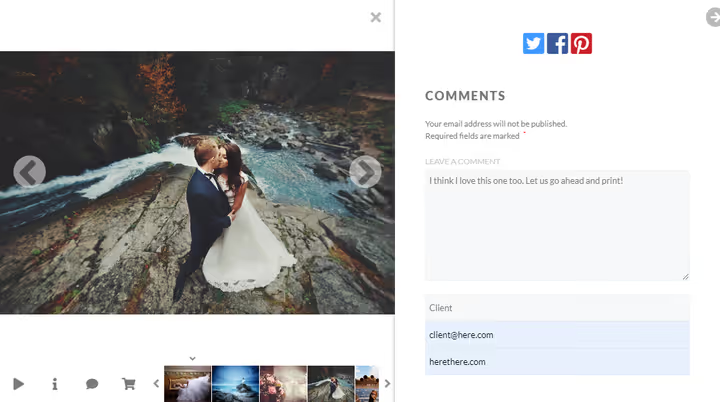
Proofing is a scenario where a client (for example, newlyweds) selects shots from a wedding shoot, marks favorites, and leaves comments on specific photos. Previously, this was done in person or via email, which was slow and inconvenient.
In NextGEN, the client enters a private gallery, clicks a star on selected frames, and writes a note in the comment field. The photographer sees the results in the admin panel. The system works without third-party services, all within WordPress.
This feature is available starting with the Pro tier (from $139.50/year).
eCommerce
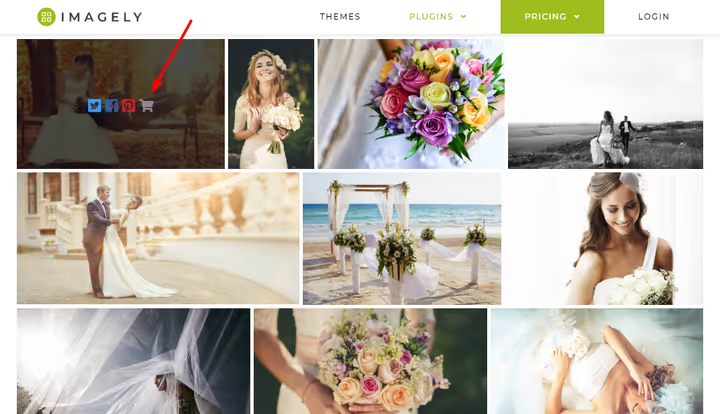
The plugin allows you to sell digital copies and physical prints directly from your site. Stripe, PayPal, and checks are supported. Imagely does not take a commission on sales, unlike platforms such as SmugMug or Photoshelter, which take a percentage of each transaction.
Price lists are assigned to an entire gallery, not individual shots, saving time with large volumes. Coupons (fixed amount or percentage), automatic tax calculation via TaxJar, and customizable checkout are available.
Print orders are automatically sent to White House Custom Colour, one of the largest photo labs in the US. There are no international printing partners yet, which is a drawback for photographers outside the States.
How to create a gallery in 5 minutes
Let us walk through the basic scenario: installation, photo upload, and inserting a finished gallery on a page. The entire process takes about five minutes, even on your first time using the plugin.
First, install the free version via Plugins → Add New, search for "NextGEN Gallery", click "Install" and "Activate".
Uploading images
Go to Gallery → Add Gallery / Images:
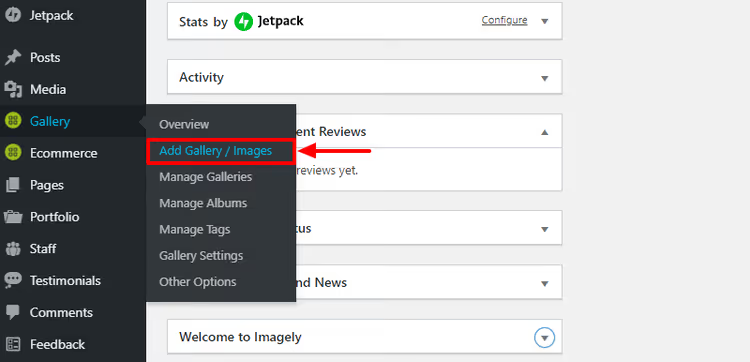
You have three options: upload from your computer, import from the media library, or import a folder from the server. For the first time, choose "Upload Images".
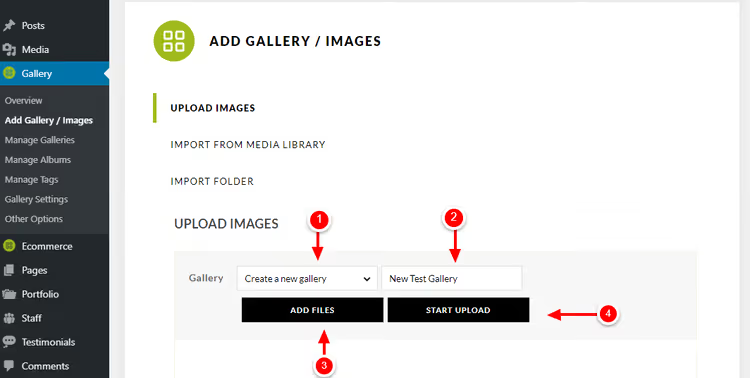
Next, select "Create a new gallery", give it a name, add files, and click "Start Upload":
A successful upload looks like this:
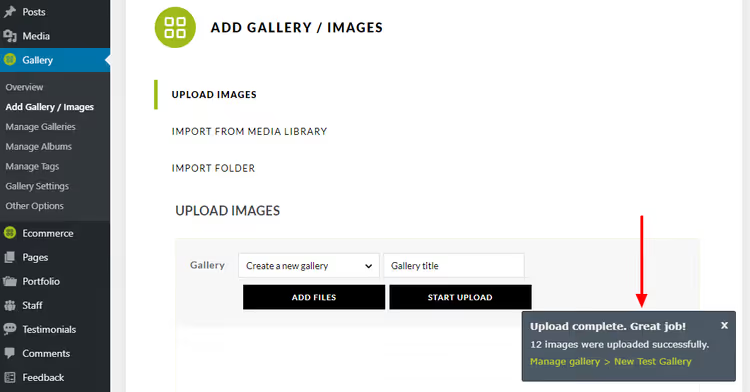
If needed, you can go directly to gallery management via the "Manage Gallery" link, but we continue to insert the gallery on a page.
Inserting a gallery on a page
Open Pages → Add New (or edit an existing one):

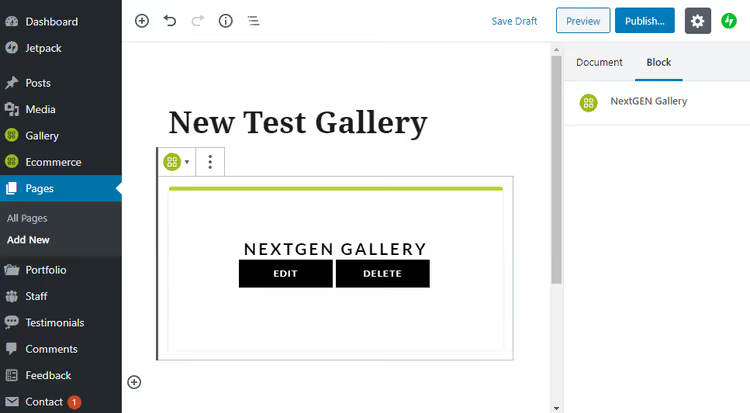
Add a title and press Enter for a new block. Click the "+" icon and find the NextGEN Gallery block:
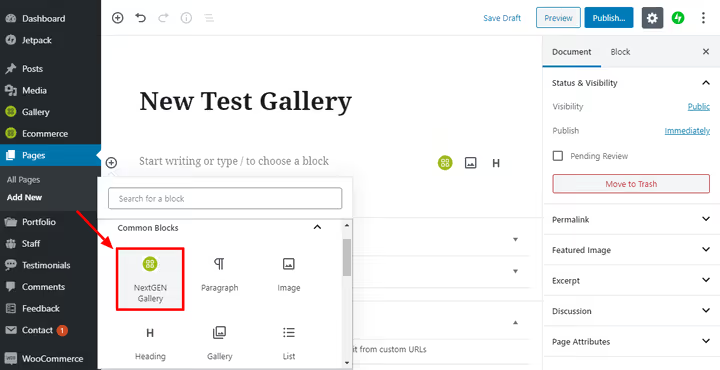
Inside the block, click "Add NextGEN Gallery":
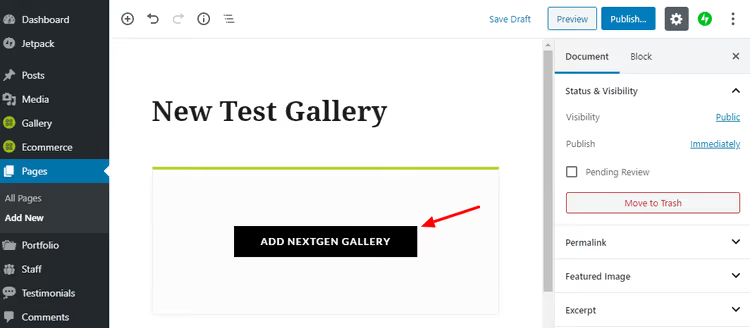
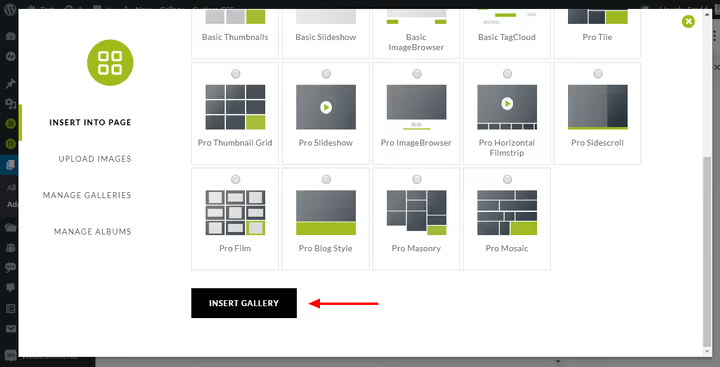
An insertion window will open. Select the Galleries tab (1), then the desired gallery (2) and display style (3), for example, Pro Tile:
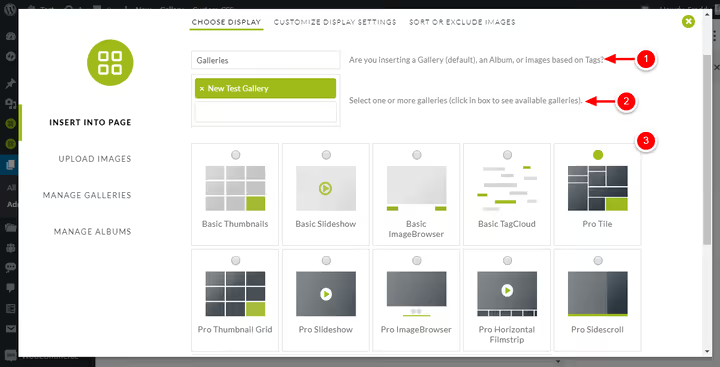
Scroll down and click "Insert Gallery". Publish or save the draft:
The result on a test site with the Total theme:

Responsiveness
Galleries are responsive; we tested on a smartphone, here is the same page:

The layout does not break; thumbnails adjust to the screen width. The Pro lightbox supports mobile gestures: swipes and pinch-to-zoom.
Pricing: from free to Ultra
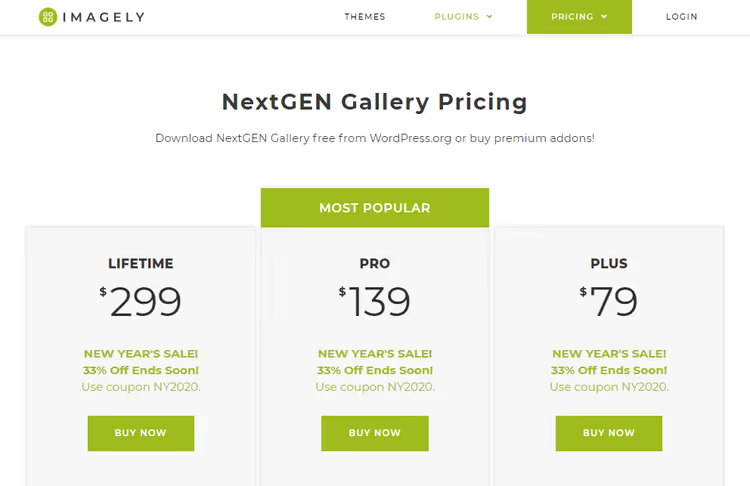
Prices are current as of June 2026. All tiers are annual, with a 50% discount on the first payment; the full price applies on renewal:
Tier | First year price | Full price | Sites | Key difference |
|---|---|---|---|---|
Free | $0 | $0 | ∞ | 3 gallery styles, 2 albums, watermarks |
Starter | $69.50 | $139 | 1 | Lightbox, retina, infinite scroll |
Plus | $99.50 | $199 | 3 | Image protection, social sharing, fullscreen lightbox |
Pro | $139.50 | $279 | 5 | eCommerce, proofing, printing, Lightroom |
Ultra | $199.50 | $399 | 25 | Multisite, premium support |
The free version covers the needs of a blog or small portfolio. Starter and Plus are for those who need image protection and advanced gallery styles. Pro is the minimum tier for selling photos. Ultra is for agencies and photographers with multiple sites.
Important note: paid tiers require you to first install the free version from the WordPress.org directory, as it serves as the engine. Premium add-ons are activated with a separate key.
🔗 NextGEN Gallery on WordPress.org | 🔗 Pricing on Imagely.com
What users are saying
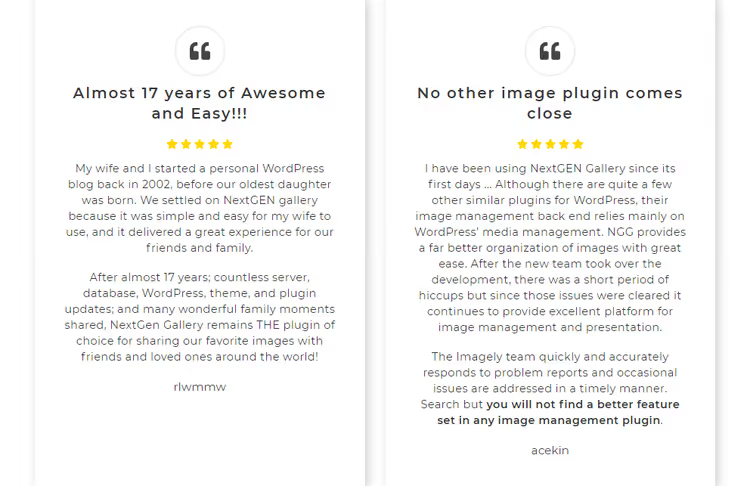
Most reviews on WordPress.org are positive, but the picture is mixed. Long-time users who have worked with the plugin for 10-15 years praise its stability and functionality. Users who experienced the v4 transition complain about broken HTML links in descriptions, album display issues, and an unfamiliar interface.
Here is what real users write:
Over the last 15 years I have tried several gallery plugins, and NEXTGEN GALLERY is, unequivocally, THE most user-friendly, versatile, and effective one. Thank you!, Mark Jordan Photography
We have been using NextGEN Gallery on various sites for many years. Great feature set, the plugin is always up to date, support has resolved every issue., David J. Johnson
This plugin is exactly what I was looking for in my art portfolio. Customizable sorting, backup of originals, and right-click disable., GabiClayton
On the other hand, the v4 update triggered a wave of criticism. User scratchy101 notes: "This is essentially a downgrade, the familiar NextGen look is gone. Gallery titles in albums are truncated, HTML in descriptions is broken." The developers are actively patching: version 4.2.1 from May 15, 2026 closed vulnerabilities, and 4.2.2 from May 27 added Google Photos and Dropbox integration.
Conclusion: if you are installing NextGEN for the first time, the v4 interface will seem logical. If you are upgrading from v3, be prepared to rebuild your workflows.
Support, documentation, and verdict
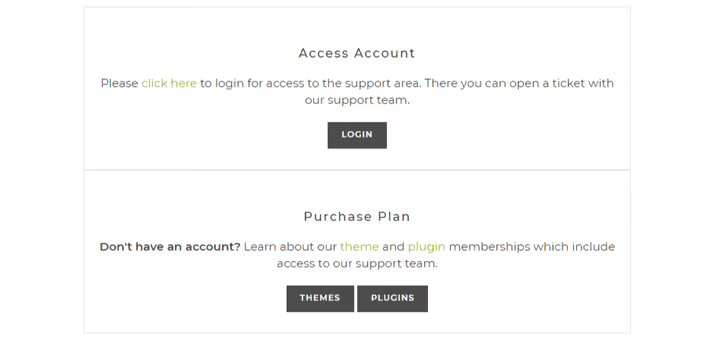
Imagely has several support channels:
- Official documentation, step-by-step setup guides.
- Imagely blog, product news, case studies, version announcements.
- WordPress Photography podcast, discussion of the WordPress photography industry.
- Ticket system for paid tier owners, through your account on Imagely.com.
- WordPress.org support forum, for free version users.
In our experience, the documentation covers the vast majority of questions. The ticket system responds within one business day, which user reviews also confirm. The WordPress.org forum is active; most threads receive a response within 24 hours.
What to choose and who to pay
NextGEN Gallery remains the most powerful gallery plugin for WordPress, and the most bloated at the same time. It solves tasks that the built-in gallery cannot handle: from proofing to automated printing. But the price for functionality is interface complexity and a controversial v4 update.
In short:
- Get the free version if you need gallery styles, watermarks, and batch uploads. It covers most scenarios for blogs and portfolios.
- Get Pro (from $139.50/year on the Imagely site) if you sell photos or work with client proofing. The built-in eCommerce without commissions pays for itself after the first or second order.
- Do not get it if you just need a nice photo feed and nothing more; the standard Gallery block or lightweight Envira Gallery will suffice.
Want to compare NextGEN with other gallery plugins? Read our review of 20 WordPress portfolio and gallery plugins. And if you are new to the block editor, start with our step-by-step Gutenberg guide.
⁉️🤔 Frequently asked questions
Is NextGEN Gallery suitable for beginners?
Yes, but with a caveat. You can create and insert a basic gallery in five minutes; the step-by-step wizard will guide you through the entire process. The difficulty starts in the settings: hundreds of parameters, global and local styles. Set aside an hour to study the documentation; after that, the plugin will stop being intimidating.
How does NextGEN differ from Envira Gallery?
Envira is lighter and easier to configure, but lacks NextGEN's tools for photo business: no proofing, automated printing, or Lightroom integration. If you are a photographer selling prints, NextGEN offers more. If you just need a beautiful gallery without commerce, consider Envira.
Does NextGEN work with Gutenberg?
Yes. The plugin provides two blocks for the editor: Imagely Main Block and Imagely Nextgen Gallery. Shortcodes are also supported for those accustomed to the old approach.
Does the plugin slow down the site?
The galleries themselves serve optimized thumbnails and support lazy loading; there are no slowdowns on desktop. On mobile devices with large galleries (50+ photos per page), there may be some lag. This can be resolved by reducing the number of images per page through pagination.
Can I sell photos in hryvnia or other currencies?
The Stripe and PayPal payment gateways support multi-currency payments; the buyer sees the price in their own currency. The interface does not allow direct price entry in hryvnia, but the currency is converted automatically on the gateway side.
What should I do if galleries broke after upgrading to v4?
First, clear your site and browser cache. Then check the URL paths to CSS and JS; when migrating a site, these sometimes do not update, and the lightbox stops opening. The official documentation covers this issue in a separate article. If that does not help, roll back to v3 via backup and wait for the next patch.
Having problems with your gallery after the update? Or found an alternative that outperformed NextGEN? Let us know in the comments; we will test it.

A professional team of writers and editors specializing in creating quality content.