














🔧 Open Server won't start: port 443 occupied by VMware, solution
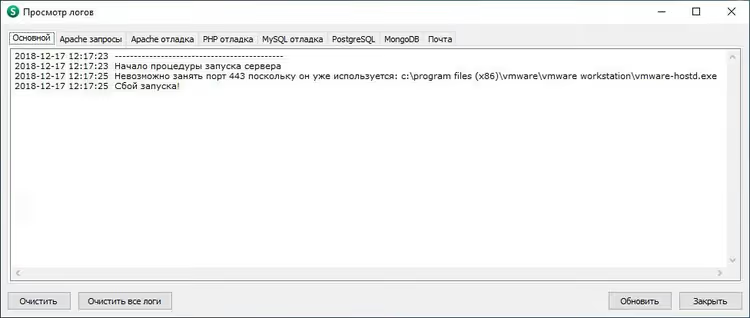
Sound familiar: you launch Open Server, and it crashes with an error. The logs say port 443 is occupied, Apache won't start. Yet you haven't installed any other web servers.
The culprit is VMware Workstation. After installation, its vmware-hostd.exe service takes port 443 by default for Shared VMs (shared access to virtual machines). For Open Server, which tries to start Apache on the same port, this means a hard conflict.
Good news: the fix takes two minutes and doesn't require reinstalling either program. Below is a step-by-step solution that brings Open Server back to life without losing VMware functionality.
💡 Quick overview:
- Exit Open Server and close it completely
- Go to VMware Workstation settings and disable Shared VMs
- Restart Open Server, green flag, Apache on port 443 works
1. Close Open Server
Before any port manipulations, completely exit Open Server. Right-click the icon in the system tray and select "Exit". If the program freezes, terminate the ospanel.exe process through Task Manager (Ctrl+Shift+Esc → "Processes" tab).
Make sure no Open Server icon remains in the tray. Only then proceed to VMware settings.
2. Disable Shared VMs in VMware Workstation
Shared VMs is a mechanism for remote access to virtual machines through VMware Host Agent. Its service vmware-hostd.exe listens on port 443 and creates a conflict with Open Server.
If you don't use remote access to your VMs (and on a local machine it's usually unnecessary), disabling Shared VMs is the cleanest solution.
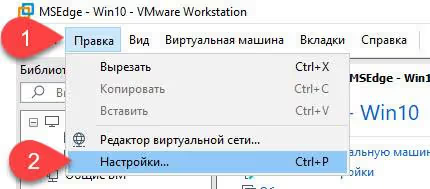
First, open VMware Workstation and go to Edit → Preferences. In the left column, select the "Shared VMs" section.
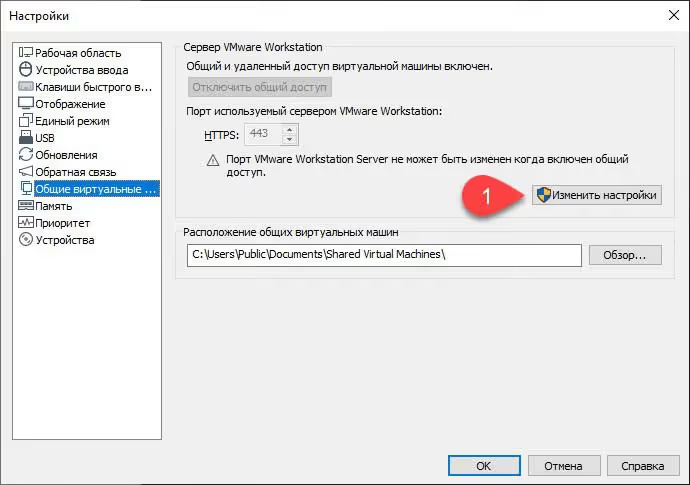
If the "Change Settings" button is inactive (grayed out), click it. The system will request administrator rights. Agree.
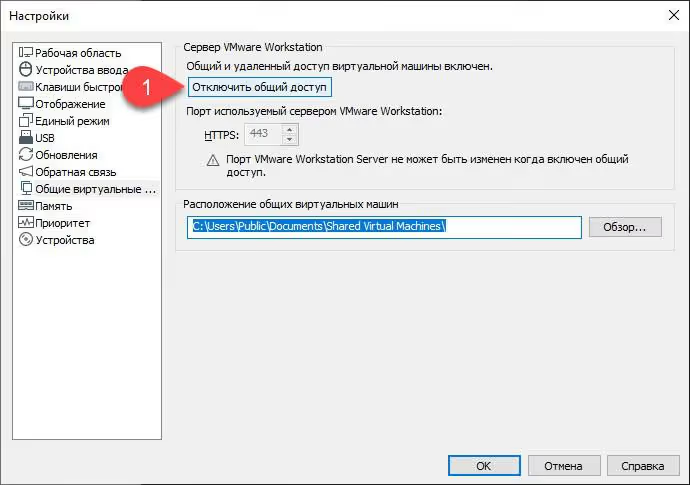
Now you see the main Shared VMs settings screen. We're interested in "Enable virtual machine sharing and remote access". Uncheck the box.
Click "OK" to save. VMware may pause for a few seconds, this is normal, the vmware-hostd service is restarting with new settings.
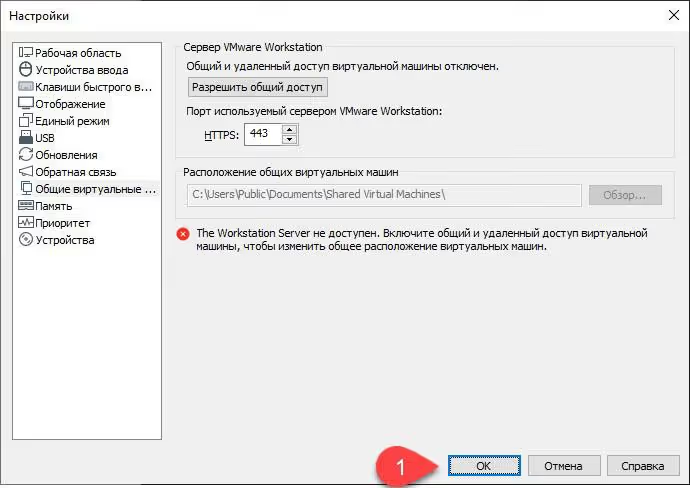
Done. You can close VMware Workstation, Shared VMs is disabled, port 443 is free.
If you actually need shared access to virtual machines
There are scenarios where Shared VMs is actually used (for example, on a test server with remote connection to VMs). In this case, don't disable Sharing, but change the HTTPS port in the same settings window.
Instead of the default 443, specify any free port in the 8443-9443 range (for example, 8443). After saving the setting, vmware-hostd.exe will move to the new port, and 443 will be freed for Open Server.
The downside of this approach: when connecting to a Shared VM from outside, you'll need to explicitly specify the non-standard port. But if remote access to VMs isn't critical for you, it's easier to disable Sharing completely.
3. Start Open Server
Launch Open Server again (as administrator, this is important). The logs should show no port conflict messages. After a few seconds, a green flag will appear in the system tray.
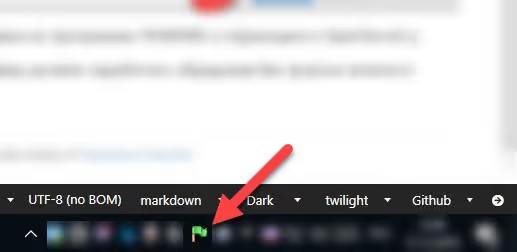
To verify completely, open a browser and go to https://localhost. If you see the Open Server start page or your local site, the conflict is resolved.
📺 Video: the Shared VMs disabling process visually
If text instructions aren't enough, watch a short video where the entire process from entering Preferences to the green Open Server flag is shown on screen:
4. Diagnostics: what else might occupy port 443
If disabling Shared VMs didn't help and netstat shows that port 443 is still occupied, check other programs. Most often these are:
IIS (Internet Information Services). The built-in Windows web server that listens on port 443 by default. Disable the "World Wide Web Publishing Service" through
services.mscif you don't use IIS.Skype (older versions). Classic Skype used ports 80 and 443 as fallback. In settings: Tools → Options → Advanced → Connection → uncheck "Use port 80 and 443".
Microsoft Teams. During installation, it may occupy port 443 for incoming connections. Completely close Teams (in the tray too) and restart Open Server.
Another Apache/nginx instance. If you have XAMPP, WampServer, or Docker with port 443 forwarded installed, stop them before starting Open Server.
Command for exact diagnostics (run as administrator):
1 netstat -ano | findstr :443
In the PID column, you'll see the process identifier. Find it in Task Manager (Ctrl+Shift+Esc → "Details" tab → sort by PID) and identify the culprit program. For a system process (PID 4), the culprit is usually IIS or the HTTP.sys service.
⁉️🤔 Frequently asked questions
Why does VMware occupy port 443 at all?
The VMware Host Agent service (
vmware-hostd.exe) starts a web server on port 443 for the Shared VMs feature, which provides remote access to virtual machines. By default, this feature is enabled or gets enabled when you first create a shared VM, even if you don't use it. VMware Workstation startsvmware-hostd.exealong with Windows, and the service listens on port 443 in the background. When Open Server tries to start Apache on the same port, a conflict occurs, and Apache crashes. Disabling Shared VMs through Preferences completely stops this service and frees the port.
Can I just kill the vmware-hostd.exe process through Task Manager?
You can, but it's a temporary solution. Force-terminating
vmware-hostd.exein Task Manager will free port 443 instantly, and Open Server will start. However, the service is set to start automatically, after Windows restarts it will occupy the port again, and the problem will repeat. The correct approach: Edit → Preferences → Shared VMs → uncheck Enable sharing. This is a one-time action with a permanent effect.
Does this solution work for any VMware version?
Yes, for VMware Workstation 8.x and newer (including the current 17.x), according to Broadcom documentation. VMware Player doesn't have the Shared VMs feature, so there's no port 443 conflict there. The Shared VMs mechanism appeared in VMware Workstation 8.0 and is present in all subsequent versions: 9, 10, 11, 12, 14, 15, 16, 17. The Preferences interface has barely changed: Edit → Preferences → Shared VMs → Enable sharing checkbox. If a conflict occurred on Player, check other programs (IIS, Skype, another web server bundle).
What should I do if port 443 is still occupied after disabling Shared VMs?
Open a command prompt as administrator and run
netstat -ano | findstr :443. In the PID column, you'll see the identifier of the process listening on the port. Find it in Task Manager ("Details" tab) and identify the program. If it's IIS, disable the "World Wide Web Publishing Service" throughservices.msc. If it's Skype, uncheck "Use port 80 and 443" in the settings. If it's Microsoft Teams, close the program completely (including the tray icon). After freeing the port, restart Open Server.
Does disabling Shared VMs affect the virtual machines themselves?
Not at all. The virtual machines themselves continue to work as usual: they start, stop, and can be paused. Only the ability to remotely connect to them from another computer through VMware Host Agent is disabled. Shared VMs is exclusively a network add-on for remote access. Local launch of virtual machines, snapshots, guest OS network settings, shared folders between host and guest: all of this works independently and isn't affected by unchecking the box. You're simply removing a background web server that was sitting on port 443 doing nothing.
The port is freed, but Open Server still won't start Apache. What's wrong?
Run Open Server strictly as administrator (right-click the shortcut → Run as administrator). Check your antivirus: some (especially Avast and NOD32) block local web servers, add the Open Server folder to exceptions. If that doesn't help, open
ospanel.iniin the Open Server root folder and make sure that in the[apache]section the port is specified as443, not80or another value. Check Apache configuration integrity: in the Open Server menu → Advanced → Check configuration.
Bottom line: conflict resolved in a minute
The "port 443 occupied by VMware" problem is solved in two clicks and requires no sacrifices: no Open Server reinstallation, no VMware removal. The algorithm that will work in the vast majority of cases:
- Closed Open Server
- VMware Workstation → Edit → Preferences → Shared VMs → unchecked Enable sharing
- OK → restarted Open Server as administrator
If your situation differs (VMware Player, needed netstat, alternative port helped), write in the comments, we'll figure it out. And if this material saved you an evening of reinstallations, save it to bookmarks, it'll come in handy.

A professional team of writers and editors specializing in creating quality content.