













 AIIllustrative image: AI-generated
📱 9 best plugins for optimizing mobile WordPress sites in 2026
More than half of visitors open websites from their phones. If a page takes longer than three seconds to load, people leave. On a mobile network with an unstable signal, this threshold is even lower.
WordPress by itself does not make a site fast on mobile. A theme may break on a narrow screen, images may load at full size, and menus may turn into an unreadable mess. Plugins fix these issues, each for its own task: one adapts the layout, another compresses images, a third turns the site into a PWA app.
Below are nine tools we selected based on tests on live sites. From mobile themes to lazy loading, take what you are missing.
💡 Quick overview:
- Identify the main problem: slow loading, inconvenient menu, or lack of a mobile version altogether.
- For speed, start with image compression (EWWW or Smush) and lazy loading (a3 Lazy Load).
- For interface adaptation, install WPtouch, or Super Progressive Web Apps if you want a PWA app.
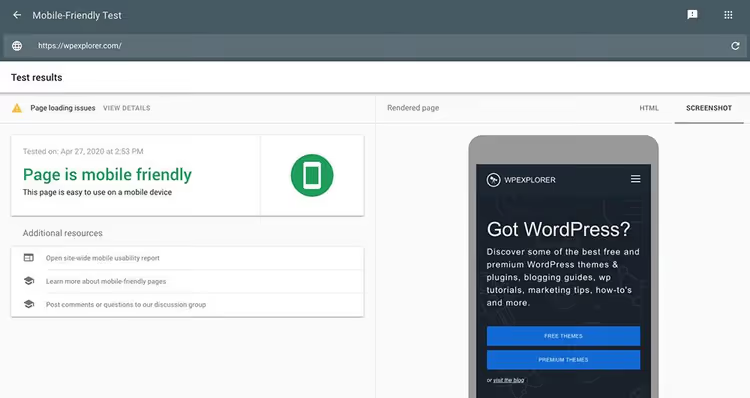
- After setup, check the result through Google PageSpeed Insights and Mobile-Friendly Test.
Plugin | Task | Price | Feature |
|---|---|---|---|
Super Progressive Web Apps | PWA app | Free / Pro | Offline access, home screen |
WPtouch | Mobile theme | Free / Pro from $79 | Themes for WooCommerce |
AMP | AMP pages | Free | Official Google plugin |
a3 Lazy Load | Lazy loading | Free | AMP compatibility |
EWWW Image Optimizer | Image compression | Free / Pro | No size limit |
1. Super Progressive Web Apps: your site as a phone app

This plugin turns a WordPress site into a Progressive Web App: users can add it to their smartphone home screen and open it like a regular app. It works offline, and pages the visitor has already opened are cached via Service Worker.
In practice, the difference from a regular mobile site is immediately noticeable: no browser address bar, loading is almost instant, and the icon on the home screen looks like a native app. For content projects and blogs, this is a serious boost to return visits.
- Pros: setup in a minute (192×192 icon + splash screen color), offline caching, integration with AMP plugins, OneSignal support for push notifications.
- Cons: on iOS, PWA capabilities are limited by Apple (no native "Add to Home Screen" prompt), Pro version is paid.
- Price: Free in the WordPress.org directory, Pro with analytics and APK generator.
- Download: 🔗 Super Progressive Web Apps on WordPress.org
2. WPtouch: a ready-made mobile theme without editing code
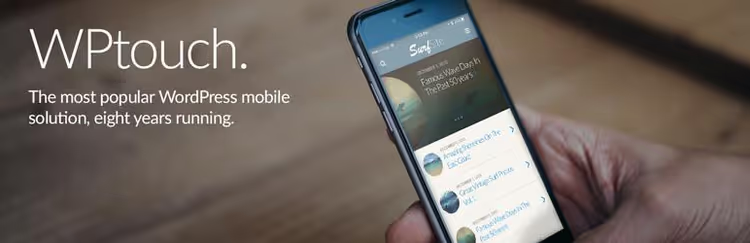
WPtouch wraps your existing site in a mobile theme that follows Google's design recommendations. The main theme remains unchanged: on desktop, visitors see one thing, on mobile, an optimized version with large buttons and readable typography.
The Pro version adds themes for blogs, business sites, and WooCommerce. Extensions are sold individually (caching, mobile ads, web app mode), prices are listed on the WPtouch website. Paying for Pro is worth it for online stores and sites with high mobile traffic.
- Pros: simple installation (activate and it works), does not touch the desktop theme, several ready-made mobile templates.
- Cons: Pro extensions are purchased separately, costs add up; the free version is limited to one template.
- Price: Free / Pro from $79 per year, extensions from $10.
- Download: 🔗 WPtouch on WordPress.org | 🔗 Live demonstration
3. AMP: the official Google plugin for accelerated pages

AMP no longer stands for "Accelerated Mobile Pages"; it is now a full web component framework that also works on desktop. The official plugin from the AMP team automatically generates valid AMP markup and supports three modes: Standard (entire site on AMP), Transitional (two versions of pages), and Reader (separate AMP theme).
In practice, Standard mode requires a fully AMP-compatible theme and plugins. Most sites choose Transitional: visitors from mobile devices get the AMP version with the same theme, while desktop users get the regular one.
- Pros: official Google support, built-in markup validator, setup wizard with hints.
- Cons: in Reader mode, the AMP version design differs from the main theme; some plugins are incompatible and are disabled on AMP pages.
- Price: Free.
- Download: 🔗 AMP on WordPress.org
4. AMP for WP: accelerated pages with ads and customization
Unlike the official AMP, this plugin focuses on ready-made layouts and monetization: three AMP page design options, ad block settings, calls to action, rating stars, and structured data out of the box. Compatible with Yoast SEO, Elementor, Contact Form 7, and Gravity Forms.
Choose it if the official AMP seemed too minimalist. The downside is that customization happens through the plugin settings, not through the customizer; on complex sites, some edits will require CSS.
- Pros: 3 ready-made layouts, ad blocks, push notifications, custom translations, integration with popular plugins.
- Cons: unofficial (third-party AMP implementation), layouts may break when the vendor updates.
- Price: Free / Pro extensions.
- Download: 🔗 AMP for WP on WordPress.org
5. Responsive Menu: adaptive menu with 150+ settings
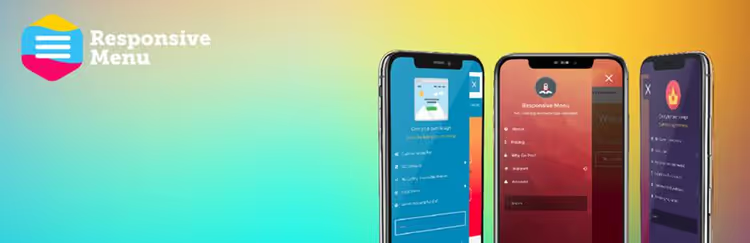
On desktop, navigation is expanded; on mobile, it is a hamburger. Responsive Menu gives you full control over that hamburger: colors, fonts, background images, opening animations, built-in search, RTL support. Over 150 options let you build a menu matching your brand style without a single line of code.
Install it if the standard theme menu looks sloppy on mobile. For simple sites, 10 minutes of setup is enough.
- Pros: visual builder, animations, in-menu search, RTL languages.
- Cons: on low-end phones, abundant animations may cause lag.
- Price: Free / Pro.
- Download: 🔗 Responsive Menu on WordPress.org
6. WP Mobile Menu: a simple mobile menu in 5 minutes
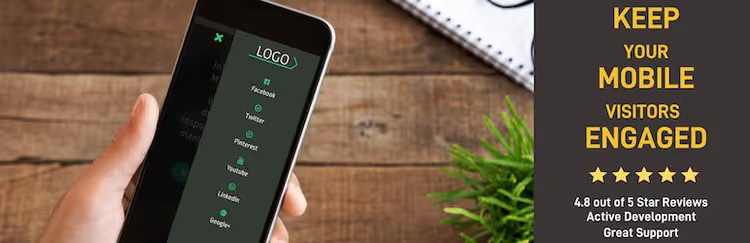
If Responsive Menu seems overloaded, WP Mobile Menu is a lighter alternative. Fewer options, but setup takes literally five minutes: pick colors, specify the menu, done. Suitable for projects where speed of implementation matters more than depth of customization.
- Pros: quick setup, minimalist interface, does not conflict with themes.
- Cons: fewer design options than Responsive Menu; no built-in search in the free version.
- Price: Free / Pro.
- Download: 🔗 WP Mobile Menu on WordPress.org
7. EWWW Image Optimizer: image compression with no size limit

Images are usually the heaviest resource on a page. EWWW compresses JPG and PNG with or without loss, supports bulk optimization (all existing images at once), and auto-optimizes new ones. Unlike competitors, there is no file size limit in the free version.
In practice, the difference before and after bulk compression on a site with 500+ images is a noticeable reduction in page weight. For mobile, this is critical: fewer megabytes means faster loading on 4G.
- Pros: no file size limit, bulk optimization, WebP conversion.
- Cons: spartan interface, AVIF requires the Pro version.
- Price: Free / Pro from $7 per month.
- Download: 🔗 EWWW Image Optimizer on WordPress.org
8. Smush: image optimization with lazy load out of the box

Smush from the WPMU DEV team does the same as EWWW but with a different approach: built-in lazy loading, resizing, and bulk compression of up to 50 images at a time. The free version limits input files to 5 MB, which is a bit small for photos from a camera, but enough for screenshots and optimized images.
The Pro version promises twice the compression and removes the limit. If you already use other WPMU DEV products, Smush will fit into the ecosystem.
- Pros: built-in lazy load, bulk compression, automatic optimization on upload.
- Cons: 5 MB file limit in the free version, Pro is a WPMU DEV subscription.
- Price: Free / Pro as part of WPMU DEV.
- Download: 🔗 Smush on WordPress.org
9. a3 Lazy Load: deferred loading of everything that slows you down

Images, videos, iframes, embedded posts: a3 Lazy Load defers loading of any heavy content until the visitor scrolls to it. On mobile, this gives double savings: both traffic and time to page interactivity.
The plugin uses the Lazy Load XT script, supports preloader effects, AMP compatibility, and WebP. Selective settings by content type allow you to disable lazy loading for the first screen so the main image does not flicker.
- Pros: lazy loading of videos and iframes, AMP compatibility, preloader effects.
- Cons: on sites with dozens of iframes, may increase the number of HTTP requests.
- Price: Free.
- Download: 🔗 a3 Lazy Load on WordPress.org
How to check the result after setup
After installing plugins, open Google PageSpeed Insights and enter your site URL. The service shows two scores: for mobile and for desktop, and more importantly, specific recommendations. Is the server slow? Compress images. Is a script blocking rendering? Set up deferred loading. Is the layout getting in the way? Change the mobile menu.
If PageSpeed shows 90+ on mobile, everything is done correctly. A score below 50 means you should return to the first step of the Quick overview and go through the list again.
A video with a step-by-step breakdown of mobile optimization, from plugins to manual theme setup. We recommend watching before installing plugins from the list: it is visually clearer which tool is responsible for what.
⁉️🤔 Frequently asked questions
Do I need to install all 9 plugins?
No, and we do not recommend doing so. The plugins in this collection solve different tasks: mobile theme, image compression, menu, AMP, PWA. Choose 2-3 to address your specific gaps. Installing several plugins with the same function (for example, two image optimizers) creates conflicts and slows down the admin panel.
Which plugin will give the most noticeable speed boost?
Start with image compression: EWWW or Smush. According to HTTP Archive data, images account for more than half the weight of a typical page. Bulk compression through EWWW noticeably lightens the page without visible quality loss, and this immediately raises the PageSpeed Insights score by 10-15 points.
How is PWA better than a regular mobile site?
A PWA app can be opened offline, does not reload the page during navigation, and occupies a place on the home screen like a native app. For blogs and news sites, this directly increases return visits: the reader sees the icon, taps it, and is already inside without a browser tab. The downside is limited support on iOS.
Is AMP still relevant in 2026, or is it a dead technology?
AMP is alive, but its role has changed. It is no longer a mandatory pass to Google's top rankings, but a framework for fast page rendering. Core Web Vitals are now more important than having an AMP version. Nevertheless, for news sites and content projects with mobile traffic, AMP pages deliver consistently high speed metrics.
Which menu plugin to choose, Responsive Menu or WP Mobile Menu?
If you need to set it up once and forget about it, go with WP Mobile Menu: five minutes and done. If you like precise customization (colors, animations, fonts, search), Responsive Menu will give you more control. Both plugins are free in their basic version; test them one after another and keep the one that fits your theme better.
💎 Summary: what to install for your task
There is no universal set; everything depends on the initial state of the site. Run Google PageSpeed Insights, look at the main issues, and build a stack to address them.
- If the mobile theme breaks on a narrow screen, WPtouch or Super Progressive Web Apps.
- If speed drops because of images, EWWW Image Optimizer or Smush plus a3 Lazy Load.
- If the menu on mobile is unreadable, Responsive Menu or WP Mobile Menu.
- If you want to deliver content instantly via Google, AMP or AMP for WP.
Start with one plugin and measure the result. Optimization is iterative: compress images, check speed, add lazy load, check again, enable PWA, see improved returns. If you install everything at once, you will not understand what worked.
Which plugin from the list are you already using? Write in the comments; we are especially curious how Super Progressive Web Apps performed compared to the old WordPress Mobile Pack.

A professional team of writers and editors specializing in creating quality content.