













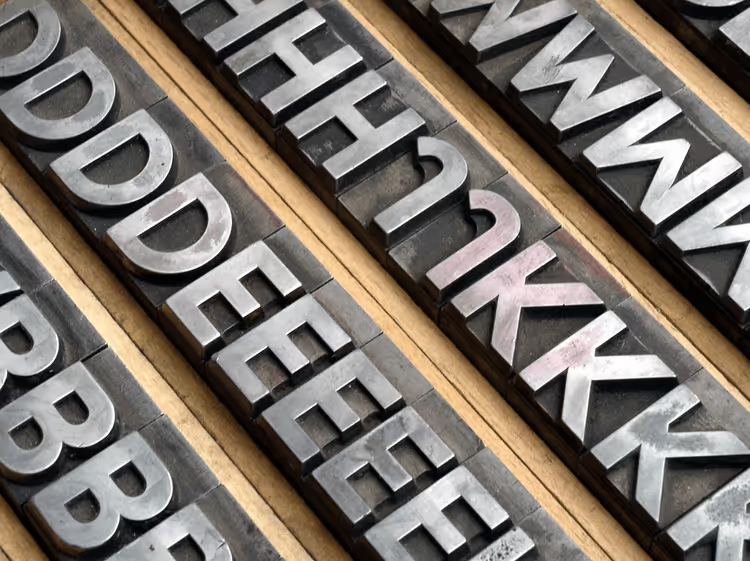
🔤 9 ways to identify a font from an image and on a website: services, extensions and uploading to a site
You've seen it happen: you're browsing a site and suddenly, you stop. The font in the heading is so good that you're already picturing how it would look in your project. But what's it called? The site owner didn't respond, the source code has obfuscated CSS, and googling "nice serif font with a weird G" can take you until morning.
Designers fall into this trap constantly. Sifting through gigabytes of collections hoping for a match is a lottery. And what if the font isn't there at all?
Fortunately, 2026 gives us a set of tools that solve the problem in seconds. Some work with uploaded images, others work directly on live pages. We're covering 9 ways to identify a font: from classic services to bookmarklets that weigh zero megabytes.
💡 Quick overview:
- Upload a screenshot with text to WhatTheFont or WhatFontIs, and get the font name (often with a free alternative).
- Install the Fonts Ninja or WhatFont extension, hover your cursor over text on a site and see the name, size, line height, and color.
- Don't even have a screenshot, open Identifont, answer 5-10 questions about letter shapes and get a match.
- Found the font, upload it to the site via CSS @font-face (or a plugin for WordPress) and use it.
Online services: identifying fonts from uploaded images
These four tools work on a unified principle: you give them an image with text, and they run it through a database of hundreds of thousands of fonts and return matches.
1. WhatTheFont, the gold standard from MyFonts
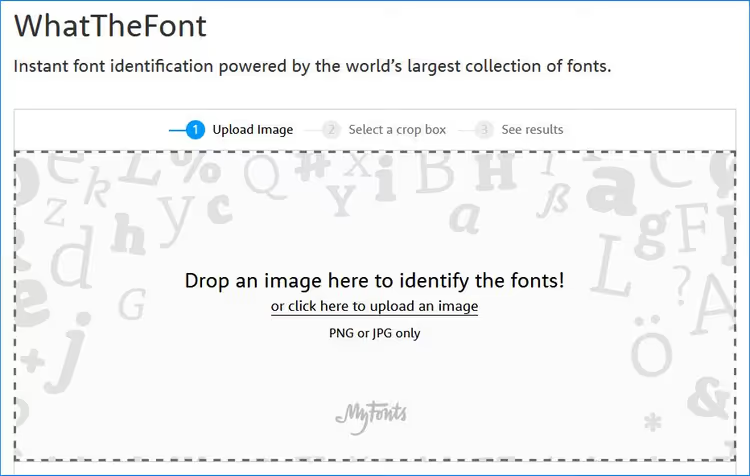
WhatTheFont from MyFonts is the most accurate font identifier in 2026. Under the hood, deep learning based on a database of 233,000+ font styles. Upload an image, click on the text, get a list of matches. The database leans toward commercial fonts, but almost always offers free alternatives as well.
Pros: excellent accuracy on standard typefaces, mobile app for iOS and Android, no registration required. Cons: weak on handwritten and heavily stylized fonts, built-in cropper sometimes cuts off ascenders and descenders.
2. WhatFontIs, largest database (900,000+ fonts)
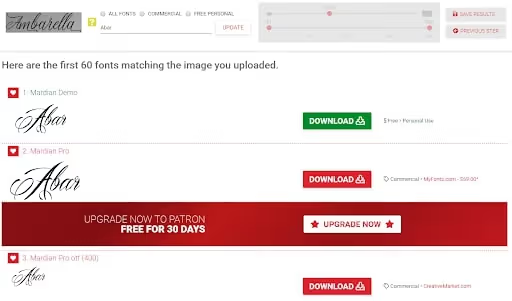
WhatFontIs maintains the largest database, over 900,000 fonts. Run it second if WhatTheFont didn't give a confident result.
Main feature: automatic selection of free alternatives from Google Fonts to paid matches. For a web project budget, this is an hour of saved time.
Pros: largest index, suggestions for free alternatives, browser extension. Cons: free version is stuffed with ads, you need to manually mark symbols before searching.
3. Fontspring Matcherator, accuracy on OpenType
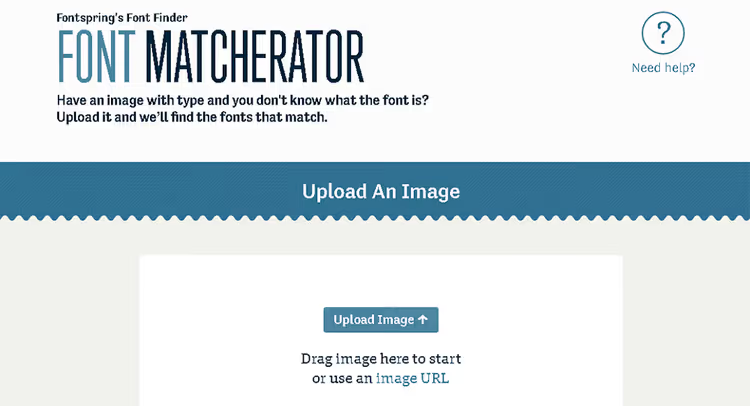
Fontspring Matcherator is a favorite of designers with independent foundries. Unlike WhatTheFont (MyFonts catalog), Matcherator covers indie fonts, detects OpenType features (ligatures, alternate glyphs) and supports drag-and-drop.
Pros: free, strong on web fonts, side-by-side match comparison. Cons: database smaller than MyFonts, sensitive to image quality.
4. Font Squirrel, free fonts and zero ads
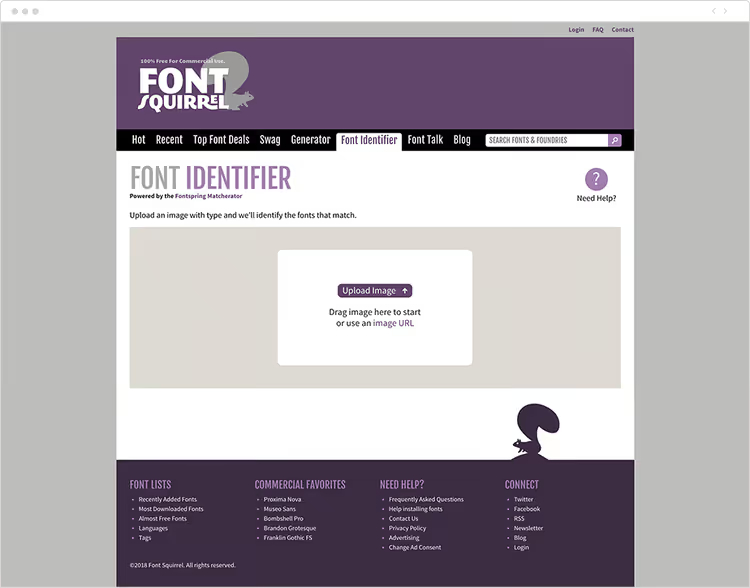
Font Squirrel built its reputation on curating free fonts for commercial use. Its Matcherator is the most minimalist: upload, crop, get results. No ads, no popups. Signature feature is image rotation: if the font is at an angle, Font Squirrel handles it where others fail.
Pros: cleanest interface, free fonts, fast results. Cons: database is small, almost never finds commercial fonts.
Browser extensions: identifying fonts directly on sites
Online services are good for images. But if the font is right in front of you now, on a live web page, browser extensions give you an answer in seconds. No screenshots, no new tabs.
5. Fonts Ninja, try, buy, download

Fonts Ninja (formerly FontFaceNinja) is the undisputed leader among browser font identifiers. The extension is available for Chrome, Firefox, Safari and Edge.
Hover your cursor over text, you see the font name, size, line height, color, and letter spacing. But most importantly, Fonts Ninja lets you try the font: type your own text and see it in real time in that same font. And if you like it, you immediately download the free version or proceed to purchase the commercial one.
Bonus: a mask button that hides all ads and images on the page, leaving only typography in pure form. For a designer evaluating layout, this is invaluable.
Pros: complete set, identify, try, download; works on 4 browsers. Cons: for advanced filters (letter shapes, license type) you need registration.
🔗 Fonts Ninja on Chrome Web Store
6. WhatFont, hover and learn everything
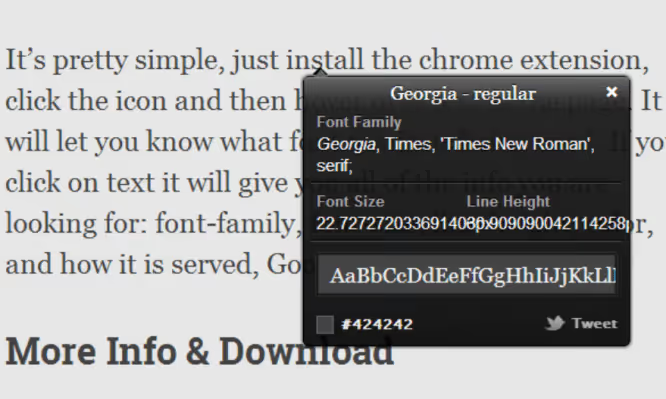
WhatFont is an extension recommended by Wired and loved by web developers for its simplicity. Available for Chrome and Firefox.
Hover your cursor, the font name pops up. Click, you get a complete map of CSS properties: family, weight, size, line height, color in HEX. This isn't just an identifier, it's a typography inspector. If the font is from the Google Fonts catalog, WhatFont gives a direct download link.
Pros: instant result, deep CSS analysis, links to Google Fonts. Cons: doesn't identify fonts in images (only live text on the page), doesn't let you try the font with your own text.
🔗 WhatFont on Chrome Web Store
7. Typ.io, font pairings and inspiration
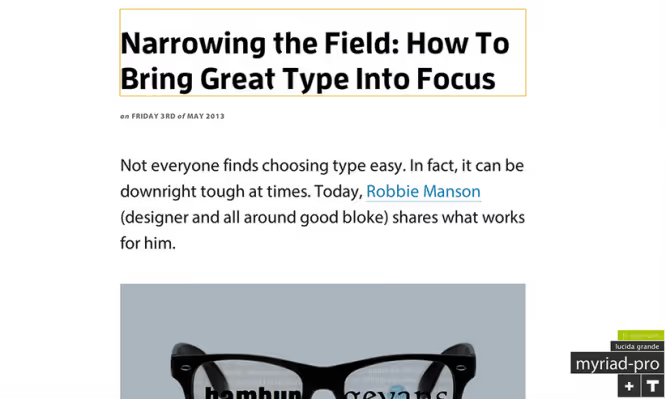
Typ.io solves the task one step further: it's not enough to identify the font, you want to understand what it pairs with. After installing the extension, a "T" button appears in the browser corner. Click it, and you see all the page fonts as a separate list. Click a name, go to the font card with pairing examples: "this font is used together with..."
The Typ.io site itself is a database of real design decisions: the community uploads screenshots of sites with breakdowns of font combinations. For those who want not just to find a font, but to understand the context of its use.
Pros: font pairing selection, database of real examples. Cons: extension only shows font names (without CSS details), full functionality requires registration.
8. Fount, a bookmarklet that weighs zero
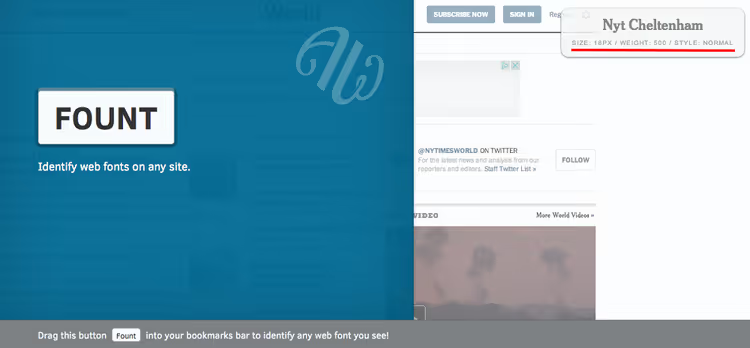
Fount isn't an extension, it's a bookmarklet. You add a button to your browser bookmarks, go to any site, click this bookmark, and the cursor turns into a crosshair. Click on text, a window appears with the font name, size, weight and style. Click the bookmark again to turn off the mode.
Ideal choice for those who don't want to clutter their browser with extensions. Works in Safari, Chrome, Firefox and IE8+. Requires no updates, collects no data, uses no background processes. It just works.
Pros: ultra-lightweight, cross-platform, nothing to install. Cons: only identifies what actually rendered in the font-stack (not what's intended in CSS), no details like color.
Special method: when there's no image or site
9. Identifont, identifying fonts by description

Identifont is the oldest tool in this collection (since 2000), but still indispensable. It doesn't accept images and doesn't scan sites. Instead, it asks questions: does the letter "Q" have serifs? Are the loops of lowercase "g" connected? What does the "&" sign look like?
You answer 5-10 questions, Identifont narrows the circle and gives a match. Sounds archaic, but it's the only working method when you have neither a screenshot nor a URL, only a memory of what the font looked like.
Pros: works without any image at all, trains typographic eye. Cons: slow (5+ minutes to search), site design hasn't been updated in decades, database inferior to modern services.
Comparison table: what to choose
Tool | Type | Free? | Font database | Accuracy | Unique feature |
|---|---|---|---|---|---|
WhatTheFont | Online service | Yes | 233,000+ | High | Mobile app |
WhatFontIs | Online service | Yes (free tier) | 900,000+ | Medium-high | Free alternatives from Google Fonts |
Fontspring Matcherator | Online service | Yes | Medium | High | OpenType feature detection |
Font Squirrel | Online service | Yes | Small | Medium | Image rotation |
Fonts Ninja | Extension | Yes | Medium | High | Try font with your own text |
WhatFont | Extension | Yes | Small | High | Full CSS analysis |
Typ.io | Extension | Yes | Medium | Medium | Font pairing selection |
Fount | Bookmarklet | Yes | N/A | Medium | Zero weight, nothing to install |
Identifont | Online quiz | Yes | Small | Medium | Works without image |
There's no single perfect tool. Pro scheme: upload image to WhatTheFont, second pass to Fontspring Matcherator, and look at the intersection. Whichever name repeats is the truth.
How to upload the found font to a site

Identified the font, downloaded the file, now you need to add it to the site. The most universal method is @font-face.
Step 1. Download the font in .ttf or .otf format.
Step 2. Convert to web formats via Font Squirrel Webfont Generator. The output gives you .woff, .woff2 and .ttf, plus a ready-made CSS file. WOFF2 is the main format for the web in 2026, it's supported by 98% of browsers.
Step 3. Upload font files to the server via FTP or hosting file manager, to the /wp-content/themes/your-theme/fonts/ folder.
Step 4. Write @font-face in CSS:
1 @font-face { 2 font-family: 'MyCustomFont'; 3 src: url('fonts/MyCustomFont.woff2') format('woff2'), 4 url('fonts/MyCustomFont.woff') format('woff'); 5 font-weight: 400; 6 font-style: normal; 7 font-display: swap; 8 }
The font-display: swap directive is critical: the browser first shows the system font, and when the custom one loads, it swaps it. Without it, text will be invisible until the font downloads.
Step 5. Apply the font to elements:
1 h1, h2, h3 { 2 font-family: 'MyCustomFont', sans-serif; 3 }
WordPress: the Custom Fonts plugin provides a visual interface for uploading any fonts. Or write @font-face in the child theme's functions.php via the wp_head hook.
Before any theme file edits, make a backup. An error in @font-face or functions.php can crash the site.
Watch a short video showing the entire process, from screenshot to finished font name, using WhatTheFont:
⁉️🤔 Frequently asked questions
Why doesn't WhatTheFont find my font?
Three main reasons: poor image quality, text rotated at an angle, or the font is handwritten. Take a larger screenshot, on a contrasting background and horizontally. Didn't help, try Fontspring Matcherator and WhatFontIs. For handwritten fonts, an exact match often doesn't exist in principle: they're unique.
Can you identify a font from a PDF file?
Yes, if the text isn't rasterized. Open the PDF, select the text and take a screenshot. Upload to any service from the first four. For scans, the result depends on resolution: 150 DPI and higher give acceptable accuracy.
The font was identified, but it's paid. Where to get a free alternative?
WhatFontIs automatically offers free alternatives from Google Fonts under each paid match. Manually: go to fonts.google.com, enter the name of the found font and look at visually similar ones. Free replacements: with serifs, Playfair Display, Lora, Merriweather; sans-serif, Inter, Roboto, Manrope.
What font format to use for the web in 2026?
WOFF2 is the main one, WOFF is fallback for older browsers. TTF and OTF shouldn't be used on the web: they weigh 2-3 times more without compression. The Font Squirrel generator (mentioned above) converts everything to WOFF2+WOFF with one click.
What to use in 2026: final breakdown
Nine tools doesn't mean you need to use all of them. Here's a simple selection matrix:
- Have a screenshot → WhatTheFont, then Fontspring Matcherator for double-checking.
- Need a free alternative → WhatFontIs (auto-selection from Google Fonts).
- Font on a live site → Fonts Ninja or WhatFont (extension in 5 seconds).
- Nothing available, only memory → Identifont.
- Don't want to install extensions → Fount (bookmarklet in bookmarks).
And if no tool worked, open DevTools (F12 → Inspect → Computed → font-family). Inconvenient, but reliable. And nobody canceled the r/identifythisfont subreddit: live designers name the font in a couple of minutes.
A good font changes the perception of a site faster than relaying out three blocks. Now you have everything you need to find that one and put it on your project.

A professional team of writers and editors specializing in creating quality content.