













🔍 How to identify a website font: DevTools, extensions and online services
A font is not just "pretty letters." It controls attention, sets the mood, and directly affects readability. A poor font pushes visitors away from a site within seconds, even if the content inside is excellent.
Sometimes you visit a website and notice that the text looks expensive and stylish. You want to find out what font is being used, for your own project or simply out of professional curiosity. But site owners don't label their typography, and some intentionally rename fonts in CSS to make identification harder.
Good news: identifying a font from any website is possible. You don't need to be a front-end developer or designer; three approaches cover virtually all scenarios. From the browser's built-in inspector to one-click extensions and services for fonts in images.
💡 Quick overview:
Open DevTools (F12) and find font-family in the Computed tab
Install Whatfont or Fontanello and hover over text
Upload a screenshot to Font Squirrel Matcherator or WhatTheFont
1. Built-in browser inspector
The most accessible method that requires no installation whatsoever. Every modern browser (Chrome, Firefox, Edge, Safari) contains developer tools (DevTools). Among them is an inspector that shows CSS properties for any element on the page, including the font.
How to open it. On Windows, press Ctrl + Shift + I; on Mac, Cmd + Shift + I. Or right-click on the text and select "Inspect" / "View code." The DevTools panel will open.
On the left side of the panel you'll see the HTML structure; on the right, the CSS rules. But the fastest path to the font is through the Computed tab. Scroll through the list of properties to font-family; this is the typeface name. Next to it, the browser shows the specific font file being rendered on the page.
There's also an alternative route for those who want to see all the site's fonts at once. In Chrome DevTools, open the Application tab → Frames section → Fonts folder. The browser will display a list of every loaded font file with its URL and format (woff2, ttf). It's slower, but it reveals what's hidden in @font-face.
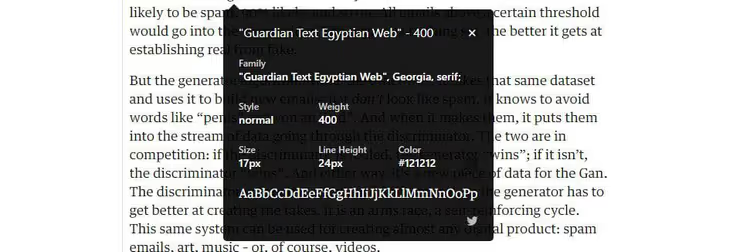
Pros: free, requires no extensions, shows the exact font name and its style (weight, style, size). Cons: requires several clicks; the method doesn't work on mobile devices.
2. Browser extensions
If you frequently check fonts, an extension will save you hours. The principle is simple: you hover over text, and the extension displays the font name and its CSS parameters in a tooltip.
2.1 Whatfont

The most popular solution in this niche. Recommended by Wired, Lifehacker, and SwissMiss. Installation from the Chrome Web Store takes one click.
After installation, click the extension icon in the upper right corner of the browser to activate detection mode. Now, when you hover over any text, Whatfont displays the typeface directly above the cursor. Clicking on the text reveals the full card: family, weight, size, line height, and color.
The extension also works on Firefox and Safari (via a port). Free, no registration required, open source on GitHub.
🔗 Whatfont in Chrome Web Store
2.2 Fontanello

While Whatfont shows information on hover, Fontanello works via right-click. Select text on a site, press the right mouse button, and choose Fontanello from the context menu. A panel appears with complete information: font name, weight, size, color, and even the text's contrast ratio against the background (an accessibility criterion).
Fontanello is available for Chrome and Firefox. An added bonus: the extension doesn't burden the page with constant tracking; it only activates when you request it.
🔗 Fontanello in Chrome Web Store
2.3 Fonts Ninja

A more powerful tool with a "font DNA" feature: a proprietary algorithm that analyzes typeface files for more accurate results. Beyond identifying fonts on hover, Fonts Ninja can bookmark found fonts and display a summary of all typefaces used on a page.
There's a caveat: bookmarks and some features require registration. But basic font identification works without an account. The extension is paid (with a trial), so it's worth considering if you work with typography professionally.
🔗 Fonts Ninja in Chrome Web Store
3. How to identify a font from an image
The inspector and extensions are powerless when the font is part of an image: a logo, banner, or meme. Text in an image is not an HTML element, meaning it has no CSS properties. Specialized services exist for such cases.
3.1 Font Squirrel Matcherator

A free tool from Font Squirrel, proven over years. How it works:
- Upload a screenshot or text fragment to the Matcherator interface
- Select the area containing the letters (blue marker in the toolbar)
- Click "Matcherate It!"
The service analyzes the character shapes and returns a list of closest matches from its database. If there's no exact match, it suggests visually similar alternatives with a similarity percentage. It even works with handwritten fonts, as long as the letters aren't touching.
3.2 WhatTheFont by MyFonts

WhatTheFont uses deep learning and a database of more than 233,000 fonts. Upload an image, click on the desired letter, and the algorithm finds matches. Its main advantage over Matcherator: WhatTheFont handles connected scripts where letters flow into each other. This is a serious technical capability that older services lack.
For best results, upload horizontal text with good resolution on a contrasting background.
Video: identifying a font in one minute
A short demonstration of how to install the Identify Font extension and find a font on any website without opening DevTools:
⁉️🤔 Frequently asked questions
Can you identify a font on a mobile site?
Yes, but with limitations. Extensions aren't available on mobile browsers, and DevTools isn't either. The working approach: take a screenshot of the text on your phone and upload it to WhatTheFont or Font Squirrel Matcherator via a computer. If the text on the site is large and clear, the service will recognize the typeface from the screenshot just as successfully as from a desktop image.
What if the site owner renamed the font in CSS?
Some developers change
font-familyin styles to an arbitrary name, even though they're actually loading a specific font file. In this case, the DevTools method through the Application tab (Frames → Fonts) will show the actual font file URLs. From the file name (for example,Inter-Regular.woff2) you can easily identify the typeface. Extensions like Fonts Ninja with "DNA analysis" also bypass renaming by analyzing the file itself rather than the CSS property.
Which method is the most accurate?
For text on a page: the Whatfont or Fontanello extension; one hover and you have the exact name. For images: WhatTheFont with its neural network engine is more accurate than Matcherator for connected and decorative fonts. For complete certainty with renamed CSS: DevTools → Application → Fonts, where you see the actual font file URL; error is impossible here.
Do you need to pay to identify fonts?
No. All methods mentioned in this article are free. DevTools is built into the browser. Whatfont and Fontanello are free extensions with open source code. Font Squirrel Matcherator is a free web service. WhatTheFont is free (monetized through font sales, not identification). Fonts Ninja has a paid version, but basic font identification works without payment.
Can you automatically apply a discovered font to your own site?
Technically, yes, but legally it depends on the font's license. You can identify the typeface freely. However, you can only use it on your own site if the font has an open license (SIL Open Font License, Apache 2.0) or you've purchased a commercial license. Google Fonts, Font Squirrel, and Adobe Fonts are safe sources with clear usage terms.
Which font identification method to choose
If you're approaching this question for the first time, start with DevTools. It's free, takes 30 seconds, and requires no installation. For regular work with typography, install Whatfont: one hover instead of four clicks.
When a font is hidden in an image, upload a screenshot to WhatTheFont. It's the most technologically advanced free image-based search service. And if the typeface is renamed in CSS, reach the file through Application → Fonts in DevTools: this route reveals the truth regardless of any developer tricks.
Remember: finding a font is not difficult. The harder part is applying it correctly. Check the license, test readability on real content, and don't mix more than two typefaces in a single project. Good typography doesn't shout; it works.

A professional team of writers and editors specializing in creating quality content.