













 AIIllustrative image: AI-generated
🔍 How to find a website's IP address in Windows: nslookup, ping and other methods
You don't need a website's IP address every day. But when you do, there's no way around it: configure DNS, verify hosting, block access to a site via the hosts file, or simply figure out where the server physically resides.
Windows has built-in tools for this. No third-party software, no sign-ups required. Command Prompt and a couple of commands, and you have your answer.
Let's examine four working methods: from the simplest to the most advanced.
💡 Quick overview:
- Open Command Prompt:
Win + R→cmd→ Enter - Run
nslookup example.com, the most informative method - Alternative:
ping example.com, faster but shows only IPv4 - For PowerShell:
Resolve-DnsName example.com, more DNS data - If multiple IPs exist (Cloudflare, large sites),
tracertshows the route to the final server
What is a website's IP address and when do you need it
An IP address is the numeric identifier of a server on a network. While you type google.com in your browser, your computer queries DNS and finds the actual address like 142.250.74.46. Without this chain, websites won't open.
Most commonly, people look up IPs in three situations. First, site migration: the old hosting is down, DNS hasn't updated yet, and you can only verify whether the site works on the new server by IP. Second, blocking via hosts: you add 127.0.0.1 facebook.com and the site stops opening on that computer. Third, diagnostics: the site is down, and you're checking whether the problem is DNS or the server.

All methods below work in Windows 10 and 11 without installing additional software. Command Prompt and PowerShell are already in the system.
Method 1: the nslookup command
nslookup is the primary tool for DNS queries. It shows not only the IP but also which DNS server responded.
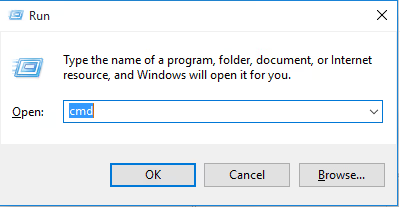
Press Win + R, type cmd, and press Enter. The Command Prompt window will open.
In the black window, type:
1 nslookup example.com
Replace example.com with the domain you need. After a second, you'll see the response:
1 Server: dns.google 2 Address: 8.8.8.8 3 4 Non-authoritative answer: 5 Name: example.com 6 Address: 93.184.216.34
The first line is the DNS server that answered the query. The Address line in the lower block is the website's IP address. If the site uses IPv6, the command will show that too.
What to do if there are multiple addresses. Large projects like YouTube or Amazon run on dozens of servers. nslookup in non-interactive mode (as in the example) shows only one or two addresses. To see all of them, enter interactive mode:
1 nslookup 2 > set type=a 3 > youtube.com
Interactive mode opens with just the nslookup command without parameters. The > prompt means you're inside. The set type=a command requests all A records, then you enter the domain. To exit, type exit.
Method 2: the ping command
ping is the fastest method. One command, one answer.
1 ping example.com
Result:
1 Pinging example.com [93.184.216.34] with 32 bytes of data: 2 Reply from 93.184.216.34: bytes=32 time=12ms TTL=56
The IP appears right in the square brackets on the first line. No need to search for it among other data.
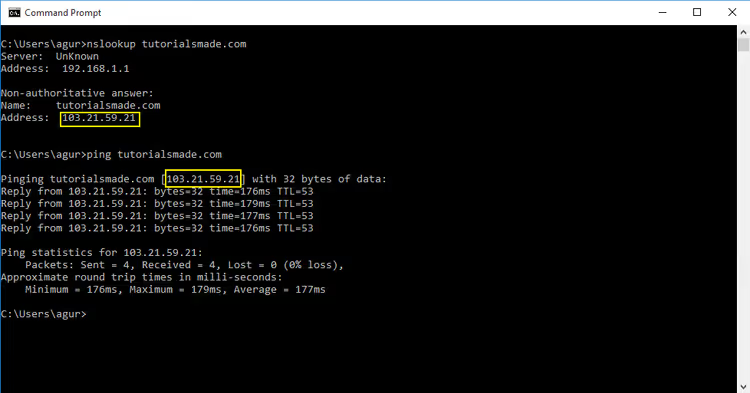
Limitation of ping. The command shows only the IPv4 address. If a site runs on IPv6 and has no IPv4 address, ping will return an error. nslookup is more reliable in this regard because it returns both addresses.
However, ping simultaneously checks server availability. If there's no response, the server isn't responding, meaning the problem isn't DNS.
Method 3: PowerShell and Resolve-DnsName
PowerShell offers more control. The Resolve-DnsName cmdlet is similar to nslookup but outputs structured objects.
Open PowerShell: Win + R → powershell → Enter. Then:
1 Resolve-DnsName example.com
PowerShell displays the response as a table: columns for Name (domain), Type (record type), TTL (time to live), and IPAddress. For sites with multiple IPs, all records are displayed, not just one or two.
Why PowerShell is more convenient than nslookup. First, you don't need to switch to interactive mode to get all A records, because PowerShell shows them immediately. Second, you can filter the results:
1 Resolve-DnsName example.com -Type A | Select-Object IPAddress
This one-liner returns a clean list of IP addresses without extra information. Convenient when you need the address for a script.
To check MX records (the domain's mail server), replace -Type A with -Type MX. For NS records, use -Type NS.
Method 4: tracert, the route to the server
tracert (trace route) shows the path a packet takes from your computer to the website's server. At each step, it displays the IP of an intermediate node. The last IP in the chain is the server's address.
1 tracert example.com
The output is long, but you only need the last line. For example:
1 9 12 ms 11 ms 12 ms 93.184.216.34
The number 9 is the hop number. The three values in milliseconds represent latency. The IP on the right is the server address.
When tracert is more useful than nslookup. Sites behind Cloudflare or another CDN return Cloudflare's edge server IPs via nslookup, not the actual hosting. tracert doesn't solve this problem (CDN masks the real IP regardless), but for sites without a CDN, it shows the actual address of the final server.
Online services: when you'd rather not open the console
If the command line is inconvenient, browser-based alternatives exist. You open a website, enter the domain, and get the IP. You don't even need Windows: it works from a phone or tablet.
Popular DNS utilities: dnschecker.org, whatismyip.com/dns-lookup, and nslookup.io. All are free, no registration required. Enter a domain and immediately see A records, NS, and MX.
The downside is obvious: you don't see what's happening on your computer. nslookup and ping show the response from the DNS server configured in your system (or specified manually). An online service uses its own DNS, so the result may differ if your provider's cache is outdated. Fine for a quick check; not for diagnosing DNS problems on your machine.
Video: nslookup in 5 minutes
This video covers three main nslookup commands: looking up a website's IP address (A record), finding mail servers (MX), and checking a domain's NS records. You can clearly see how to interpret the output and how interactive mode differs from regular mode.
⁉️🤔 Frequently asked questions
What's the difference between nslookup and ping?
nslookupqueries DNS records and shows all addresses (IPv4 and IPv6), whilepingchecks server availability via IPv4 and displays the IP in passing.pingis faster for a single address,nslookupis more informative for multiple addresses. If you just need to find an IP and check whether the server is alive, useping. If you need all A records, MX, and NS, usenslookupor PowerShell withResolve-DnsName. Both commands are built into Windows and don't require administrator privileges.
Can I find a website's IP without the command line?
Yes, through online services: dnschecker.org, nslookup.io, and whatismyip.com/dns-lookup. Open them in a browser, enter the domain, get the IP. Works on any platform. But the result may differ from what your computer sees: the online service uses its own DNS server, not the one configured in your network settings. For diagnosing DNS problems on a specific machine, the command line is more reliable.
Why does nslookup show multiple IP addresses?
Large websites distribute load across dozens of servers worldwide. DNS returns multiple addresses, and the browser selects the nearest one. If a site is behind Cloudflare or another CDN,
nslookupwill show Cloudflare's edge server IPs, not the actual hosting. Site owners deliberately hide the real IP for DDoS protection. Finding the real IP of a site behind Cloudflare through standard tools is impossible, as this is a core CDN feature. Cloudflare addresses belong to Cloudflare itself, not the site's hosting.
What do I do if the command returned multiple addresses and I need the right one?
For ordinary tasks, any address from the list will work because the site opens at any of them. If you're configuring the
hostsfile for blocking, add all addresses thatnslookupshowed. Otherwise, the site may open via an unblocked IP. This method doesn't work for bypassing IP blocks: site owners change addresses or add new ones. Blocking viahostsis only effective against small sites with a single server.
How do I find a website's IP on macOS or Linux?
On macOS and Linux, instead of
nslookupandping(which also work), people more often usedigbecause it shows more DNS record details. The commanddig example.com +shortremoves all extras and leaves only the IP. Without+short,digoutputs a full report. The utility is preinstalled on macOS and most Linux distributions.
Which method to choose for your task
Each of the four tools excels in its own situation.
ping is best when you need to instantly find an IP and simultaneously check whether the server responds. nslookup is the primary working tool for DNS queries: A records, MX, NS. Resolve-DnsName in PowerShell is ideal when you need the result for a script or filtering. tracert helps you see the route to the server and understand at which node packets are being lost.
Keep this cheat sheet handy. Opening the console takes 5 seconds. Typing the command takes another 5. After a few repetitions, you'll do this automatically.
And if you need not just to find an IP but to understand DNS more deeply, the complete guide to DNS in WordPress covers record management, hosting changes, and common errors.

A professional team of writers and editors specializing in creating quality content.