













 AIIllustrative image: AI-generated
🔍 Search and replace in phpMyAdmin: how to replace text and URLs in a WordPress database
💡 Quick overview:
- what search and replace in phpMyAdmin is and when you need it;
- step-by-step SQL query for replacing text across an entire WordPress database;
- how to bulk replace old URLs with new ones via phpMyAdmin;
- overview of two plugin alternatives, Better Search Replace and Search & Replace.
What search and replace in phpMyAdmin is and why you need it
Imagine you changed your domain, rebranded, or updated your permalink structure. Somewhere deep in the WordPress database, hundreds of old references remain in posts, meta fields, and theme settings. Open each record and fix it manually? On a five-page site, maybe. On two hundred pages, that's a lost day.
phpMyAdmin is a web interface for managing MySQL that comes bundled with cPanel on virtually any hosting. With it, you run an SQL query that finds and replaces a specified string across all database records in a single pass. No plugins, no extra code, just you, your browser, and the right query.
However, this method has a caveat: a syntax error can affect the wrong data. That's why we'll break down queries piece by piece, and at the end we'll show a couple of plugins that eliminate manual risk and provide a preview before replacement.
How to find and replace text via phpMyAdmin
The most common scenario is replacing a word or phrase across all posts at once. For example, an old company name with a new one, an outdated term, or a broken email. You need just one UPDATE query in phpMyAdmin.
Step 1: access phpMyAdmin through cPanel
Open your hosting cPanel, find the "Databases" section, and click the phpMyAdmin icon. Log in (usually the username and password are the same as for cPanel).
Step 2: select your site's database
After logging in, a list of databases appears on the left. Click the one that belongs to your WordPress site. If you don't remember the name, check the wp-config.php file: the line define('DB_NAME', 'database_name').
Step 3: go to the SQL tab
In the top toolbar, click the SQL button to open the query input window.
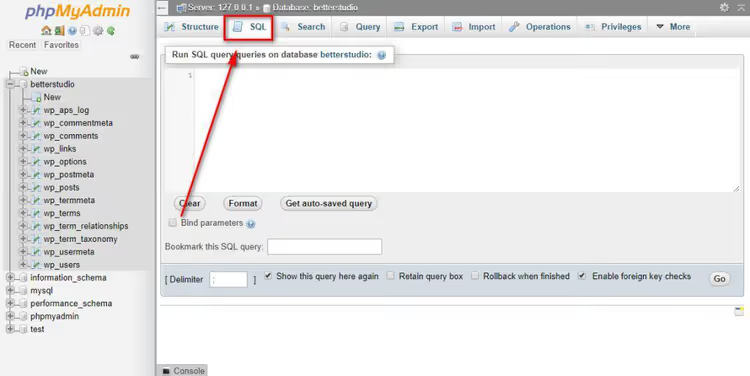
Step 4: enter the SQL query to replace text
The basic syntax looks like this:
1 UPDATE table_name SET field_name = 2 REPLACE(field_name, 'search_term', 'replacement_term');
To replace text across all WordPress posts, the query is:
1 UPDATE wp_posts SET post_content = 2 REPLACE(post_content, 'old text', 'new text');
Breaking it down: UPDATE wp_posts targets the posts table; SET post_content modifies the post_content field; REPLACE(post_content, 'A', 'B') is a function that finds substring A and replaces it with B. Important: the table prefix may not be wp_; check the $table_prefix value in wp-config.php.
⚠️ Before running the query, make sure to back up your database. In cPanel, use the Backup section, or use a plugin like UpdraftPlus. SQL queries are irreversible; there's no "undo" button.
Step 5: run the query
Click the "Go" button in the lower right corner. phpMyAdmin will execute the query and display a message with the number of affected rows (for example, "Rows affected: 47"). This means 47 records contained the search text and were updated.

Done. Browse through your site and check a few pages; the old text should be replaced.
How to replace URLs in a WordPress database via phpMyAdmin
Replacing URLs is more complex than replacing text because addresses are stored not in one table but scattered across several. Here's where to look:

- Posts and pages:
post_contentfield in thewp_poststable - Meta fields (custom fields):
meta_valueinwp_postmeta - Theme and plugin settings:
option_valueinwp_options - Comments:
comment_contentinwp_comments - Menus (legacy link manager):
link_urlandlink_imageinwp_links - User metadata:
meta_valueinwp_usermeta
To cover everything at once, run this set of queries (copy one at a time and click Go after each):
1 UPDATE wp_options SET option_value = 2 REPLACE(option_value, 'http://old-domain.com', 'https://new-domain.com') 3 WHERE option_name = 'home' OR option_name = 'siteurl'; 4 5 UPDATE wp_posts SET post_content = 6 REPLACE(post_content, 'http://old-domain.com', 'https://new-domain.com'); 7 8 UPDATE wp_postmeta SET meta_value = 9 REPLACE(meta_value, 'http://old-domain.com', 'https://new-domain.com'); 10 11 UPDATE wp_comments SET comment_content = 12 REPLACE(comment_content, 'http://old-domain.com', 'https://new-domain.com'); 13 14 UPDATE wp_links SET link_url = 15 REPLACE(link_url, 'http://old-domain.com', 'https://new-domain.com'); 16 17 UPDATE wp_usermeta SET meta_value = 18 REPLACE(meta_value, 'http://old-domain.com', 'https://new-domain.com');
⚠️ Once more: before running, create a full backup. If your site uses serialized data (most themes and plugins do), simple text replacement can break the structure. In that case, it's better to use plugins from the next section, which handle serialization correctly.
Plugins for search and replace in WordPress
The manual phpMyAdmin method is fast but unsafe for beginners. Plugins solve two main problems: they provide a preview before replacement (dry run) and correctly handle serialized data. Let's look at two proven options.
Better Search Replace

Better Search Replace is the most popular free plugin for this task, with over a million active installations. It's built on the open-source interconnect/it Search Replace DB script and uses native WordPress functions rather than raw SQL queries.
How to use the plugin:
- Install and activate it from "Plugins → Add New."
- Go to "Tools → Better Search Replace."
- In the "Search for" field, enter the text or URL to find.
- In the "Replace with" field, enter the replacement.
- In the "Select tables" block, choose the required tables (or all of them).
- Enable "Run as dry run" for a test run without actual replacement. The plugin will show how many matches were found and in which tables.

After reviewing, disable "Dry run" and run the replacement again, this time with actual changes being saved.
Pros: correctly handles serialized data, so URLs won't break after replacement. Cons: doesn't create an automatic backup before replacement (do it yourself with UpdraftPlus or similar).
Price: free.
🔗 Better Search Replace on WordPress.org
Search & Replace

Search & Replace from the WP Media team is an alternative with built-in backup. Before replacement, the plugin can create a database dump and save it. If something goes wrong, you restore from the backup in two clicks.
Additional features:
- one-click domain/URL replacement (separate "Replace Domain / URL" tab);
- CSV support for batch replacement (format: "search term; replacement term");
- table prefix change;
- multisite support.
The plugin has 100,000+ active installations and a 4.3 rating. Officially it hasn't been tested with the latest WordPress versions, but user reviews confirm stable operation on WP 6.8 with PHP 8.2.
Cons: the interface is less intuitive than Better Search Replace, with a slightly higher learning curve.
Price: free.
🔗 Search & Replace on WordPress.org
What to choose: plugin or phpMyAdmin?
Quick guide: if you're replacing 1-2 words in post text and are confident with SQL syntax, phpMyAdmin is faster. If you're changing domains, working with serialized data, or don't want to touch the database manually, install Better Search Replace and run a dry run. If you need built-in backup and batch replacement, use Search & Replace.
⁉️🤔 Frequently asked questions
Can I undo a replacement after running an SQL query?
No, an SQL query in phpMyAdmin is irreversible. That's exactly why a full database backup is mandatory before any replacement. Create it via cPanel (Backup → Download MySQL Database) or with a plugin like UpdraftPlus. With a backup, you can always roll the database back to its previous state.
What is serialized data and why does simple URL replacement break it?
Serialization is a way of packing complex structures (arrays, objects) into a string for database storage. WordPress uses it for theme settings, plugin data, and widgets. The string
s:26:"http://old-domain.com"means "a string of 26 characters." If you replace the domain with a shorter or longer one, the length ins:26will no longer match the actual content, and WordPress won't be able to read the data. Plugins (Better Search Replace, Search & Replace) recalculate the length automatically. Direct SQL replacement does not.
Do I have to use phpMyAdmin or can I use WP-CLI?
WP-CLI is an excellent alternative if you have SSH access. The command
wp search-replace 'old-domain' 'new-domain'does the same thing but with automatic serialization handling. It's actually safer than phpMyAdmin because WP-CLI works through the WordPress API rather than directly with MySQL. However, not all hosting providers offer SSH access on cheaper plans, while phpMyAdmin is available almost everywhere.
Can I replace only in specific posts rather than the entire database?
Yes, add a
WHEREcondition to the SQL query. For example, to replace text only in posts from a specific category: first find the category ID, then:
1 > UPDATE wp_posts SET post_content = 2 > REPLACE(post_content, 'old', 'new') 3 > WHERE ID IN ( 4 > SELECT object_id FROM wp_term_relationships WHERE term_taxonomy_id = 12 5 > ); 6 > ```
1
plaintext
1 2 plaintext
plaintext
plaintext
But it's much easier to do a full replacement with a dry run in Better Search Replace; the plugin will show the table and number of matches, and you can manually uncheck unnecessary tables.
What should I do if the site stops loading after a URL replacement?
First, don't panic. Second, restore the database from your backup (you did make a backup, right?). Third, the likely cause is broken serialized data. Use the Better Search Replace plugin, which is specifically designed for domain replacement and handles serialization correctly. After restoring the database, run the replacement through it.
## Which search and replace method to choose: final summary
The choice depends on three factors: what you're changing, how large the site is, and your comfort level with SQL.
- Text in a few posts → phpMyAdmin with
UPDATE wp_posts. Fast, but no preview. - Full domain change or HTTPS migration → Better Search Replace. Dry run shows all affected rows before actual replacement, and built-in serialization handling prevents broken data. This is the gold standard for migrations.
- Need built-in backup → Search & Replace. Creates a database dump before replacement and can restore it.
The golden rule remains unchanged: backup, backup, and backup again before touching the database in any way. A single UPDATE command without a backup can take down your site, but with a backup it's just a working tool that saves hours of routine work.
1 2 plaintext
plaintext
1

A professional team of writers and editors specializing in creating quality content.