














🛠 Changing MySQL encoding in Laragon: from latin1_swedish_ci to utf8mb4_unicode_ci
You created a database in phpMyAdmin, deployed WordPress, and a week later noticed garbled text instead of readable characters in your tables. You open the settings and see latin1_swedish_ci. Everyone who works with Laragon on Windows eventually runs into this surprise.
The problem is that the MySQL build that Laragon installs out of the box inherits an ancient default: latin1 as the character set and latin1_swedish_ci as the collation. For Russian, this is a disaster: Cyrillic characters are written as question marks or gibberish, string sorting breaks, and plugins crash with errors.
Below are two changes in one file that will permanently solve this issue. It takes three minutes. Works on Laragon 6, 5, and even the ancient version 4.
💡 Quick overview:
- Open
my.inithrough the Laragon menu and add two lines to the[mysqld]section - Choose
utf8mb4_unicode_cias the optimal option for WordPress in 2026 (and we explain why) - Save the file, restart MySQL, and verify the result in phpMyAdmin
- Bonus: how to change the encoding of an existing database without losing data
Why the default encoding matters at all
MySQL works with a multi-level inheritance system: server → database → table → column. If latin1_swedish_ci is set at the server level, every new database will inherit it unless specified otherwise during creation.
For WordPress this is critical because:
- The core, themes, and most plugins store content in
utf8mb4 - When automatically creating a database through
wp-config.php, WordPress does NOT override the server default - Mismatched encoding between server and tables produces "unclear" errors:
???in the admin panel, broken characters in JSON REST API, crashes during export
According to W3Techs data, WordPress powers 43.5% of all websites on the internet, and the CMS itself has required utf8mb4 since version 4.2 for full emoji support. Laragon is one of the most popular local servers for Windows, but its MySQL build ships with a conservative default for backward compatibility. Hence the conflict.
Step 1: Open my.ini through the Laragon menu
The easiest way to access the MySQL configuration file is through Laragon's built-in menu:
- Right-click on the Laragon icon in the system tray
- Select Menu → MySQL → my.ini
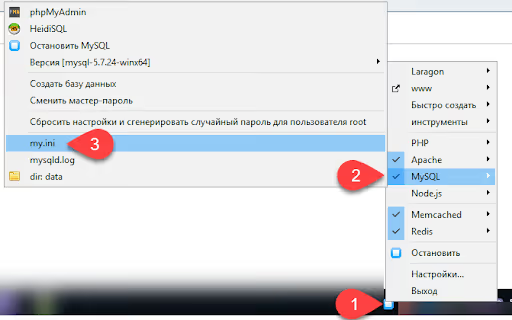
Notepad (or your default editor) will open with the full MySQL config. The file is divided into sections in square brackets: [client], [mysqld], and [mysqldump]. We are interested in [mysqld] (the MySQL daemon settings section).
If for some reason the menu does not open the file, find it manually: C:\laragon\bin\mysql\<version>\my.ini. In Laragon 6 builds, the path may be C:\laragon\bin\mysql\mysql-8.0.30-winx64\my.ini, depending on the installed version.
Step 2: Add two lines to the [mysqld] section
Scroll to the [mysqld] section and add the following two lines at the end (before the next section, if there is one):
1 character_set_server = utf8mb4 2 collation_server = utf8mb4_unicode_ci
What's happening here:
character_set_server = utf8mb4tells the server to use UTF-8 Multilingual Version 4 encoding by default, which supports ALL Unicode characters including emoji, Cyrillic, and hieroglyphscollation_server = utf8mb4_unicode_cisets the string comparison rule:_unicode_means "according to Unicode standard,"_cimeans case-insensitive comparison
You must add these lines to [mysqld] specifically, not to [client] or [mysqldump]. Using the wrong section is the most common reason why "nothing changed."
The full section after editing should look something like this:
1 [mysqld] 2 port=3306 3 socket=/tmp/mysql.sock 4 key_buffer_size=256M 5 max_allowed_packet=512M 6 character_set_server = utf8mb4 7 collation_server = utf8mb4_unicode_ci
Step 3: Save the file and restart MySQL
Save my.ini (Ctrl+S) and restart MySQL. In Laragon, this is done through the same menu:
- Right-click on the Laragon icon in the system tray
- Menu → MySQL → Stop
- Wait 3-5 seconds
- Menu → MySQL → Start
Alternatively, click Menu → Restart, and Laragon will stop and start all services at once.
After the restart, new databases will be created with utf8mb4_unicode_ci by default. Existing databases are NOT changed automatically. Read the "Frequently asked questions" section below to learn how to convert an existing database.
Step 4: Verify the result in phpMyAdmin
Open phpMyAdmin through the Laragon menu (Menu → MySQL → phpMyAdmin) and create a test database:
- Click "Create database"
- Enter any name
- Look at the "Collation" dropdown: it should now default to
utf8mb4_unicode_ci
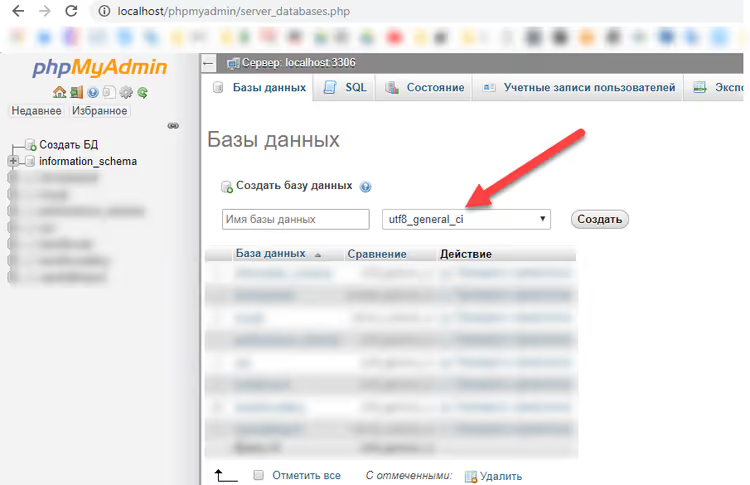
If the dropdown still shows latin1_swedish_ci, verify that the character_set_server and collation_server lines were added to the [mysqld] section (not [client]) and that there are no extra spaces between the parameter name and the = sign.
Quick verification via SQL query (run in phpMyAdmin on the SQL tab):
1 SHOW VARIABLES LIKE 'character_set_server'; 2 SHOW VARIABLES LIKE 'collation_server';
Both variables should return utf8mb4 and utf8mb4_unicode_ci respectively.
Which encoding to choose: comparing options
MySQL encoding has accumulated many myths, so let's break down three current options and one outdated one:
Encoding | MySQL version | Emoji | Sorting | Compatibility | Verdict |
|---|---|---|---|---|---|
| Any | ❌ No | Simplified, fast | Maximum | Outdated, do not use |
| 5.5.3+ | ✅ Yes | Unicode standard (UCA 4.0) | Excellent | Recommended for Laragon |
| 8.0+ | ✅ Yes | UCA 9.0, AI (accent-insensitive) | MySQL 8+ only | Modern standard, but limited support |
| 5.5.3+ | ✅ Yes | Simplified | Excellent | Speed vs. accuracy compromise |
Why we recommend utf8mb4_unicode_ci for local development in Laragon:
- Laragon ships with different MySQL versions (from 5.7 to 8.0+), and
utf8mb4_0900_ai_cionly appeared in MySQL 8.0 and is absent in MariaDB, which often comes in alternative builds utf8mb4_unicode_ciworks everywhere starting from MySQL 5.5.3 (2010)- The difference in sorting quality between
unicode_ciand0900_ai_ciis negligible for a typical WordPress site - Shared hosting plans often use MySQL 5.7. If you develop locally with
0900_ai_cibut it's missing on production, you'll get an error during migration
If you know for certain that your production server runs MySQL 8.0+ and your local Laragon uses MySQL 8.0, go with utf8mb4_0900_ai_ci. This is the modern standard recommended by Oracle, with better multilingual sorting support.
What about utf8_general_ci? It was relevant about ten years ago when utf8mb4 was not yet widely supported. Today it has two fatal flaws: it cannot store emoji (WordPress actively uses them in the admin panel) and it sorts extended characters incorrectly. There is no reason to use it in 2026.
Video: how to change MySQL database encoding through phpMyAdmin
Text instructions are great, but sometimes it's easier to see it once. This 4-minute video shows the complete process of changing the encoding of an existing database through the phpMyAdmin interface, from selecting tables to the final verification:
⁉️🤔 Frequently asked questions
I already have a database with latin1_swedish_ci. How do I change its encoding?
The safest way is through phpMyAdmin. Select the database on the left, go to the "Operations" tab, choose
utf8mb4_unicode_ciin the "Collation" block, and click "Go." phpMyAdmin will generate ALTER queries for each table. Before this operation, make sure to create a backup: "Export" tab → SQL format → "Go."
I changed my.ini, restarted MySQL, but phpMyAdmin still shows latin1_swedish_ci. What's wrong?
Three most common causes: (1) the lines were added to
[client]instead of[mysqld]. Check which square bracket section they are under. (2) MySQL did not restart. Open Windows Task Manager and verify that themysqld.exeprocess disappeared and reappeared. (3) There are multiple[mysqld]sections inmy.ini. This sometimes happens after several Laragon updates. Keep only one.
What's better for WordPress: utf8mb4_unicode_ci or utf8mb4_general_ci?
For WordPress, the difference is minimal.
utf8mb4_unicode_cisorts multilingual content more accurately (for example, German "ß" = "ss"), whileutf8mb4_general_ciis slightly faster on large volumes, but the difference is in milliseconds. Chooseunicode_ciand don't worry about it.
Can I just specify the encoding in wp-config.php?
define('DB_CHARSET', 'utf8mb4')anddefine('DB_COLLATE', 'utf8mb4_unicode_ci')inwp-config.phpaffect ONLY the tables that WordPress itself creates during installation. The server default remains unchanged, and any database created manually through phpMyAdmin will getlatin1_swedish_ci. That's why editingmy.iniis still necessary.
After changing the encoding, some text on the site turned into question marks. Is this reversible?
Yes, but you need to proceed carefully. Question marks appear when data was written in
latin1but is being read asutf8. The solution: export the database with the--default-character-set=latin1flag, then import with--default-character-set=utf8mb4. The exact command depends on your MySQL version, so refer to the official documentation.
Summary: what to add to my.ini right now
If you use Laragon for local WordPress development, the two lines below will solve the encoding problem once and for all:
1 character_set_server = utf8mb4 2 collation_server = utf8mb4_unicode_ci
This option works on any MySQL version from 5.5 to 8.4 and on all current MariaDB builds. It correctly stores Cyrillic, emoji, and does not create surprises when migrating the database from local to production, regardless of which hosting runs your production server.
Have questions about a specific Laragon version or non-standard configuration? Check out the thread on the Laragon forum, where developers discuss encoding configuration nuances, including Docker builds and custom ports. And if this article saved you an evening, share it with colleagues who are also struggling with latin1_swedish_ci.

A professional team of writers and editors specializing in creating quality content.