













 AIIllustrative image: AI-generated
⚡ How to add captions to images in WordPress: complete guide
A picture without a caption is like a silent movie title card: the viewer seems to be watching, but half the meaning they're guessing on their own. And when you run a blog on WordPress, an image caption works on three fronts at once: it keeps the reader engaged, gives search engines context, and meets accessibility requirements.
The problem is that in WordPress the path to adding a caption depends on where you add it: in a Gutenberg block, in a gallery, or through the classic editor. The interface is different everywhere, and beginners easily miss the mark. We've compiled all four methods into one guide, with concrete steps, screenshots, and a couple of tricks that standard instructions don't mention.
💡 Quick overview:
- Open a post in Gutenberg, insert an "Image" block, and a "Caption" field appears immediately below the picture
- For a gallery, click on each frame inside the block and fill in the caption separately for each image
- In the classic editor, the caption is set in the right panel when inserting via "Add Media"
- A caption from the media library automatically pulls into all posts where the image is used, saving time on reuse
What is an image caption and why you need it
A caption is text that displays directly below the picture on the frontend. Unlike alt text, which only search engines and screen readers see, every visitor reads the caption. Depending on your WordPress theme, the caption appears in smaller gray text right under the image or as a semi-transparent overlay on top of it.
For SEO, a caption is valuable because search engines scan text in close proximity to the <img> tag as relevant context. Research shows: pages with meaningful image captions on average get more traffic from Google Images than pages with "naked" pictures.
From an accessibility standpoint (WCAG 2.2), a caption complements alt text: alt describes the content of the picture for a blind user, while the caption explains its meaning, why this picture is here and what conclusion to draw from it. Together they cover two different user scenarios.
Adding a caption in the Gutenberg editor
Gutenberg is the block editor that became the WordPress standard from version 5.0. If you've entered the admin panel and see a plus sign in a black square to the left of the text, you're in Gutenberg.
Step by step:
- Open a post or page for editing.
- Click the "+" icon (add block) in the toolbar or directly in the post body.
- Select the "Image" block.
- Upload a picture from your computer or choose from the media library.
- Immediately after insertion, a gray field with the text "Add caption" appears below the image. Click on it and enter your text.
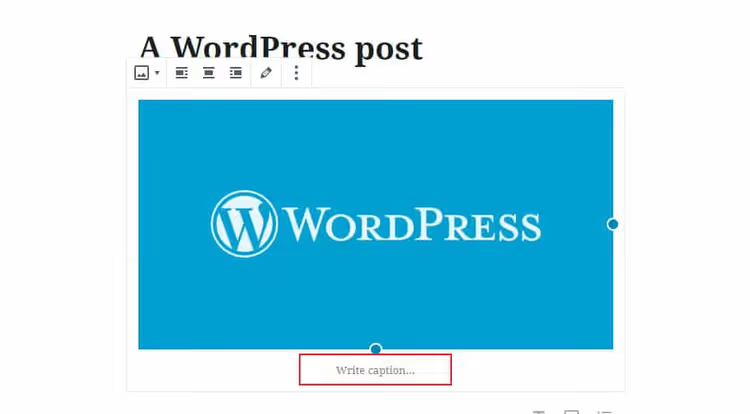
Done. The caption saves with the post and displays below the picture according to your theme's styles. If the "Add caption" field doesn't appear, check that you clicked on the image itself (a blue selection border and floating formatting panel should appear).
Formatting trick: Gutenberg allows you to insert links, bold text, and even emoji into the caption through the standard toolbar that pops up when you select text inside the caption field.
Captions in a Gutenberg gallery
The "Gallery" block works differently: each image inside the gallery is a separate element with its own caption. They're added not in bulk, but one by one.
- Add a "Gallery" block via "+".
- Select images (you can select multiple at once with Ctrl+click).
- After insertion, click on the first frame in the gallery, and an "Add image caption" field appears below it.
- Enter the text, move to the next frame, repeat.
- Save the post.
Important nuance: the number of columns in the gallery (configured in the block's sidebar panel) affects caption readability. On mobile devices, the gallery collapses into a single column and captions remain readable. But on desktop with five columns, the caption text may get cut off, for galleries with long captions use 2-3 columns.
Caption via the classic editor
If your site has the Classic Editor plugin installed or you're working with an older WordPress version (below 5.0), the interface is different.
- In the post editor, click "Add Media" above the formatting toolbar.
- Select an image from the media library or upload a new one.
- To the right of the preview, an "Attachment Details" panel appears. The "Caption" field is third from the top.
- Enter the text and click "Insert into post".

For a gallery in the classic editor, the sequence is the same: "Add Media" → "Create Gallery" → select images → click on each one and fill in the caption in the right panel → "Insert gallery".
Caption via media library: the "once, everywhere" method
A little-known but useful technique: if you set a caption directly in the media library, it will be automatically inserted every time you add that image to a new post.
- In the admin panel, go to: Media → Library.
- Click on the desired image, the "Attachment Details" window opens.
- Fill in the "Caption" field.
- Save (changes apply immediately, without a separate "Update" button).
Now when inserting this image via "Add Media" in any editor, the caption will be pre-filled. This method saves time when the same image (logo, infographic, interface screenshot) is used in multiple posts. In our blog, this approach cut down on repetitive admin panel screenshot routine, set the caption once in the library and you never return to it.
SEO and accessibility: how captions affect ranking
Search engines don't "see" a picture, they read the text around it. The caption is closest to the <img> tag in HTML markup and therefore carries increased weight for Google Images. Practical conclusion: if the caption contains a keyword relevant to the query, chances of appearing in the image block on the first page of search results increase.
For accessibility, the caption covers a scenario that alt text doesn't. Alt says: "photo of cat on keyboard". Caption says: "Cat sleeping on keyboard, a common cause of accidental draft publications". The first describes the picture, the second describes its meaning in the article's context. A screen reader user gets both layers and understands not only what's in the picture, but why it's here.
If your WordPress theme doesn't display captions below images, check the theme's functions.php. Caption output is controlled by the caption parameter in the wp_get_attachment_image() function. Most modern themes (GeneratePress, Astra, Kadence, Blockbase) support captions out of the box.
The short video above shows both main methods (block and media library) in action. If you absorb information better visually, a two-minute viewing will answer all interface questions.
⁉️🤔 Common questions
How is a caption different from alt text?
A caption is visible to all visitors and displays below the picture. Alt text is an HTML attribute that only displays when the image fails to load and is read by screen readers. The first is needed for context and SEO, the second for accessibility and code validation. Ideally they complement rather than duplicate each other: alt describes content, caption explains meaning.
Can you add a caption to an already published image without republishing the post?
Yes, through the media library: Media → Library → click on image → "Caption" field. The change will be picked up in all posts where this image is inserted through the standard WordPress mechanism. If the image is inserted as static HTML (via Custom HTML block), the caption won't update, you'll have to edit manually.
Are captions indexed by Google as separate content?
Yes. Caption text is inside
<figcaption>(in Gutenberg) and is part of the page's DOM tree. Google considers it relevant textual content, especially for image search. However, a caption's weight is lower than main text and headings, use it as a supporting rather than primary SEO tool.
How do you remove a caption below an image if the theme adds it automatically?
Two ways. Quick: just leave the "Caption" field empty, WordPress won't output
<figcaption>without content. Global: add to Additional CSS (Appearance → Customize → Additional Styles) the rule.wp-block-image figcaption { display: none; }, this will hide all captions on the site at once. If you need to remove captions only in galleries, replace the selector with.wp-block-gallery figcaption.
Does caption length affect ranking?
Not directly, but indirectly, yes. A caption longer than 2-3 lines on a mobile screen gets cut off or collapses (depends on the theme). A user who doesn't get information quickly leaves, and behavioral factors (time on page, pogo-sticking) are considered by search engines. Optimal length is 10-25 words: enough for context, little for visual noise.
Should you add captions to purely decorative images?
No. If a picture serves as a divider, background, or atmospheric illustration without semantic load, a caption only distracts. Moreover, for decorative images the correct practice is to leave alt empty too (
alt=""), so screen readers ignore them. Reserve captions for screenshots, infographics, diagrams, and photos carrying specific information.
When a caption is mandatory, and when it's unnecessary
A short checklist to finish:
Always add a caption:
- interface or error message screenshot, without a caption it's unclear what to look at;
- infographic with statistics, the caption summarizes the key number;
- product photo in a review, model name and key characteristic;
- diagram or chart, data source and main conclusion.
Don't add a caption:
- decorative divider or abstract section background;
- stock photo "person at laptop" in post header, it's atmospheric, not informational;
- icon or logo inside text, context is already clear.
Rule of thumb: if removing the picture doesn't break text comprehension, no caption is needed. If it does, a caption is mandatory, and it should contain the key idea that the removed frame would have conveyed.
Image captions are not a "feature for enthusiasts", but basic content hygiene. Gutenberg made the process trivial (click below picture → text → done), and the media library lets you fill in a caption once and forget about it. If you run a blog on WordPress and still leave the "Add caption" field empty, spend 10 minutes and go through recent posts: a couple of meaningful phrases under each screenshot will give more than another paragraph of text.
If your theme doesn't display captions or you want to customize their appearance, check out our Gutenberg editor guide: we break down working with blocks at a deep level, including CSS customization of standard blocks. And if you hit a dead end with a specific theme, write in the comments, we'll figure it out.

A professional team of writers and editors specializing in creating quality content.