














💬 How to add chat to a WordPress website
A visitor lands on your site, browses a page, and leaves. No questions, no inquiry, no purchase. Sound familiar?
Live chat catches these visitors before they close the tab. Direct dialogue here and now: someone asks, you answer. According to Kayako data from 2025, 41% of users expect to see chat on a site, and 52% are more likely to make a repeat purchase if a company offers live support.
Below, a step-by-step guide: how to add live chat to WordPress using the free plugin WP Live Chat Support. Plus a breakdown of alternatives if you need more automation or omnichannel.
💡 Quick overview:
- What live chat delivers: pros and cons, brief, factual
- Installing and configuring WP Live Chat Support: from activation to chat window customization
- Overview of the admin panel: what incoming dialogues and analytics look like
- Alternative plugins: Tawk.to, Tidio, LiveChat, JivoChat, comparison of key features
Pros and cons of live chat
Live chat is not just a button in the corner of the screen. It's a channel that changes the sales and support funnel. Here's what it delivers in practice.
Pros
Instant response. A visitor gets an answer in seconds instead of waiting hours for an email. According to SuperOffice research, average chat response time is 47 seconds versus 12 hours for email.
Conversion growth. Chat removes final doubts before purchase. If a customer hesitates on the checkout page, one message from an operator often closes the deal. Forrester studies show: visitors who use chat convert 2.8 times more often.
Multitasking for the operator. One employee handles multiple conversations simultaneously, an impossible trick for phone. With 3-5 parallel chats, support load drops and response speed increases.
Collecting feedback. Chat is a direct channel into the customer's head. You hear real objections, questions, and pain points instead of guessing from metrics. Plus chat logs become the foundation for FAQs and articles.
Accessible and free. Most WordPress live chat plugins have generous free tiers. Tawk.to is completely free for unlimited agents, WP Live Chat Support covers basic scenarios in the free version.
Cons
Requires a live person. If nobody is behind the chat, the button becomes an irritant. A visitor writes and gets no answer. Solution: clearly indicate working hours and switch chat to offline mode (email collection) during non-working hours.
Risk of negativity. An irritated customer can pour everything into chat. The operator needs patience. The upside is that you immediately see the problem and can solve it, faster than through a public review.
Server load. Some chat plugins load heavy scripts. WP Live Chat Support offers Node Server for offloading, chat works through an external server and doesn't slow down the site. Check speed after installing any chat solution.
How to add chat to a WordPress site: step-by-step guide
Let's examine using WP Live Chat Support, a free plugin from the WordPress.org catalog with 70,000+ active installations and a 4.4 rating. I use it on a test site: setup took less than five minutes, and chat started working immediately after activation.
Step 1: installation and activation
Install the plugin the standard way: Plugins → Add New, type "WP Live Chat Support" in search. Click Install Now, then Activate.
After activation, a new Live Chat menu item appears in the admin panel. On first visit, the plugin greets you with a welcome screen with four tabs: Introduction, Support, Greetings, and Credits.
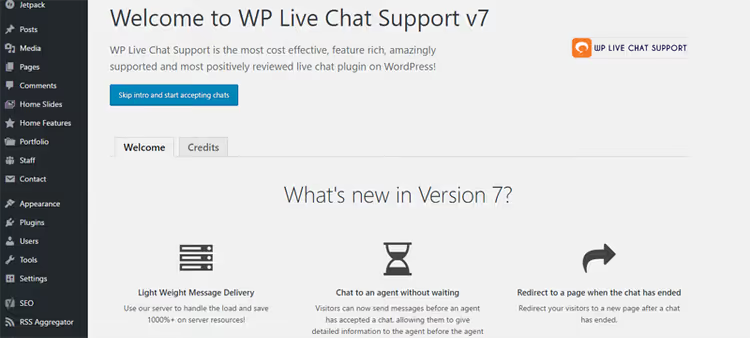
Browse the tabs, Greetings collects nice details about the development team, Credits lists project participants. At the bottom of the screen, click OK! Let's go, and live chat appears on the site.

Visitors see the chat button in the corner of the screen. They click, a dialogue window opens. You receive a notification (including push, if configured) and respond.
Step 2: configuring the chat window
Right after activation, you should go to settings, the Settings link is visible on the plugin's front panel. Click to open the main configuration screen:

Here is an impressive set of options even for the free version. Select the Chat Window section and configure window behavior:

This section contains everything needed to start: enabling and disabling chat, configuring auto-responder, selecting button position on screen. All features are available for free, no agent limit.
Price: completely free plugin, in the WordPress.org catalog. No trial periods or hidden charges. The plugin is renamed 3CX Free Live Chat (same developer WP-LiveChat), account is created at 3cx.com.
Step 3: customizing for your brand
Want the chat window to look like part of your site rather than a foreign element? Go to the Styling section:

Change button and window colors, configure font and rounding, for any brand in a couple of minutes. Besides styling, the free version includes:
- Adding support agents
- Configuring offline message (email collection when you're offline)
- Blocking visitors by IP
- Redirecting to a specific page after chat ends
- Links to knowledge base, shown before session starts
- Custom CSS or JavaScript
- REST API for integrations
After configuring styles, the chat button looks neat and professional:

Step 4: working with dialogues
When a visitor clicks the chat button and starts a dialogue, you see an incoming request in the admin panel. Here's what it looks like:

Click on a dialogue, a session window opens:
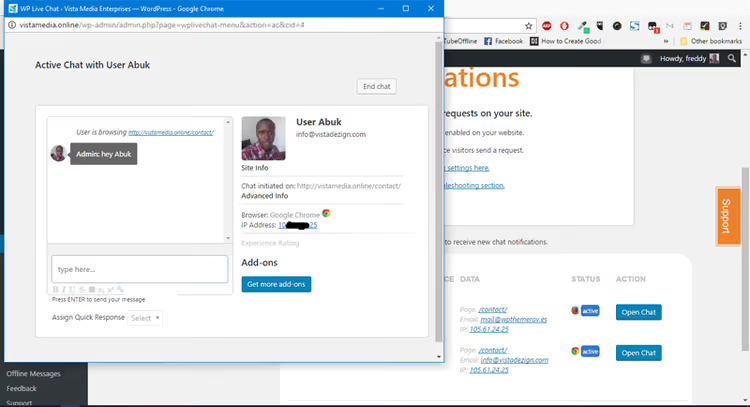
The plugin shows detailed visitor information: avatar (if using Gravatar), page from which chat was initiated, IP address. This data helps respond contextually, you know what the person was looking at before writing.
Here's what the session looks like from the user side:

Minimalist and clear. No extra information, just dialogue.
Performance tip. If the site is on weak hosting, activate Node Server in plugin settings. Chat will work through an external server and won't create load on your hosting.
Alternative plugins for live chat
WP Live Chat Support is not the only option. Here are four alternatives worth considering for other scenarios.
Plugin | For whom | Free tier | Key feature |
|---|---|---|---|
Budget projects | Yes, unlimited agents | Completely free software, optional hired operators from $1/hour | |
Online stores | Yes, with dialogue limit | AI bots and visual chat flows, WooCommerce integration | |
Sales and support teams | Trial period only | Deep analytics, ticket system, dialogue routing | |
Business with omnichannel | Yes, up to 5 agents | Chat + phone + email + social networks in one interface |
Tawk.to is the choice when budget matters most. Free for any number of agents and sites. Operator workspace is an external application, not in WordPress admin.
Tidio is the leader in e-commerce segment. AI bots answer typical questions automatically: "where is my order", "how to return goods". WooCommerce integration pulls customer's cart directly into chat window.
LiveChat is a heavier tool for mature teams. From $20 per agent per month with annual payment, pricing on LiveChat website. In return you get tags, routing, canned responses, and detailed reports.
JivoChat is a Russian service with offices and support in Russian. Combines chat, phone, email, and social networks in one workspace. Up to 5 agents free. Convenient if some customers call and some write, everything in one window.
The choice comes down to three questions: budget (Tawk.to, free), need for automation (Tidio, AI), team size (LiveChat, for pros). Detailed breakdown of all chat plugins and ticket systems in a separate article: «Best plugins for live chat and ticket support for WordPress».
Below, video guide for installing live chat on WordPress in 5 minutes (English):
⁉️🤔 Frequently asked questions
Does live chat slow down the site?
Depends on the plugin and integration method. Tawk.to and WP Live Chat Support (with Node Server) offload to an external server, the site doesn't slow down. Before installing any chat, check speed through PageSpeed Insights before and after. A 100-200ms difference on desktop is acceptable, more is a reason to change plugins.
Can I install chat if I'm alone and the site operates 24/7?
Yes, through offline mode. When you're offline, chat automatically switches to an email collection form. A visitor writes a question, you receive an email and respond later. Configure working hours in the plugin and enable auto-responder with approximate response time.
Which plugin to choose for an online store on WooCommerce?
Tidio, best WooCommerce integration out of the box. Chat pulls cart contents, order history, and delivery status. AI bot handles a significant portion of typical questions without operator involvement: "where is my order", "how to process a return", "is there delivery to my city".
Is a free plugin enough or do I need to pay?
For starting, almost always a free version is enough. 3CX Free Live Chat (formerly WP Live Chat Support) covers installation, customization, offline messages, and analytics without limitations. If you need more: multi-channel, deep statistics, CRM integration, look toward Tidio or LiveChat from the alternatives section.
How do I know a visitor is writing if I'm not in WordPress admin?
Most plugins offer desktop and mobile applications for operators. WP Live Chat Support supports push notifications in browser. Tawk.to and Tidio have separate iOS and Android apps, you respond from phone like in a messenger.
Is it worth installing chat on your site: final verdict
Live chat pays off if there's visitor flow on the site and you're ready to respond. For a one-page portfolio with 20 visits per day, it's excessive. For a store, service, or blog with consultations, it's mandatory.
- If budget is zero, take Tawk.to, it costs nothing and doesn't cut functionality.
- If you have WooCommerce, Tidio with AI bots will cover both chat and automation.
- If you need deep CRM integration and sales departments, LiveChat.
- If you're from Russia and want support in Russian, JivoChat with chat, calls, and social networks.
Start with free 3CX Live Chat (WP Live Chat Support): installation will take five minutes. Test for a month on real visitors, collect questions, measure conversion. Then decide if you need a more functional tool from alternatives.
What chat plugin do you use? Write in comments, live experience is more valuable than any reviews.

A professional team of writers and editors specializing in creating quality content.