














🖼 How to add avatars to a WordPress site using Gravatar
Comments without avatars look impersonal. A gray placeholder instead of the author's face reduces trust in the discussion, readers subconsciously scroll past that section without reading closely.
Gravatar solves this problem out of the box. The technology is over 15 years old, it's built into the WordPress core and requires no plugins. But most site owners simply don't touch avatar settings after installing the CMS, and lose a tool that works for free on brand recognition and increasing return visits.
Below, step by step: from enabling Gravatars in the admin panel to a custom default avatar for guests. At the end, a working plugin that replaces Gravatar with local avatars if the built-in system isn't enough.
💡 Quick overview:
- Enabling Gravatars, Settings → Discussion, one checkbox.
- Setting up a default avatar for guests without Gravatar, same place, dropdown list with 7 options.
- Custom default avatar (brand logo), through the Simple Local Avatars plugin, no functions.php editing required.
- Complete replacement of Gravatar with local avatars, the same plugin covers this scenario too.
What is Gravatar and how does it work
Gravatar, short for "Globally Recognized Avatar". This is an Automattic service (the company behind WordPress.com, WooCommerce and Jetpack): a user registers on gravatar.com, uploads a photo, and it automatically appears on any site with Gravatars support enabled.
The connection is made via email address. Leave a comment with the same email that's linked to Gravatar, the avatar appears. No additional registrations on each individual site.
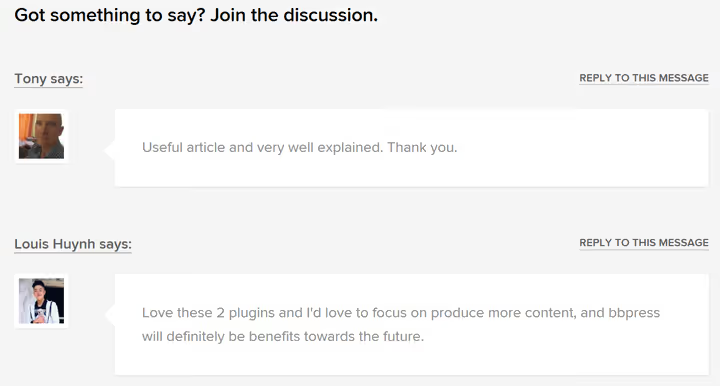
Here's how it looks in the comments section, authors with configured Gravatar show photos, the rest show default placeholders:
Important nuance: Gravatar is not the only type of avatar in WordPress. A theme or plugin can render avatars without Gravatar (for example, from the media library). But only Gravatar works "everywhere at once", without being tied to a specific site.
4 reasons not to ignore Gravatar settings
The feature looks minor, an icon the size of a postage stamp, what's the point? In practice, these four factors work regardless of whether you run a personal blog or a commercial site with active comments.
1. The author's face increases trust in content
People perceive a photo faster than a name. An avatar next to a comment creates a presence effect, readers see that a real person is responding, not an anonymous user. Blogs with active communities (WPBeginner, Kinsta, Smashing Magazine) require Gravatar from guest post authors for good reason: visual presence enhances expertise.
2. Avatar = branding element at no cost
Set up Gravatar once with a logo or professional photo, and it displays everywhere: in every post you write, in every comment reply, on any third-party site where you leave comments with the same email. The frequency of displays is comparable to a miniature advertising banner, but free and without annoying the audience.
3. Familiar avatars form a community
When regular commenters see each other's avatars in discussions, a recognition effect emerges. This lowers the barrier to entry in discussions: it's easier to respond to a "familiar face" than to a faceless nickname. The same mechanism works as in social networks, visual identity stimulates repeat interactions.
4. Presence on other platforms without effort
Comment on someone else's blog with Gravatar enabled, your brand is visible to a new audience. This is passive reach: you're not writing a guest post, not arranging cross-promotion, just participating in discussion, and your photo/logo works as a business card.
How to enable Gravatar in WordPress
WordPress supports Gravatars out of the box. No plugin needed.
Open Settings → Discussion in the admin panel. Scroll down to the "Avatars" section:
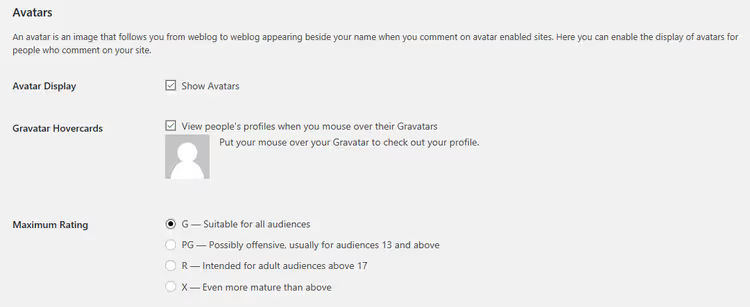
Check the Show Avatars box, and Gravatars will start displaying in comments. Additional options:
- Maximum rating, age rating restriction. G (General) is suitable for any audience, but remember: images are set by users themselves, there's no complete guarantee.
- Mystery Person / Blank / Gravatar Logo and other options, this is the default avatar for those who haven't configured Gravatar (more details in the next section).
That's it. After saving settings, commenters with linked Gravatar will see their avatars.
What to show visitors without Gravatar
Not every user has Gravatar configured. Some aren't aware of the technology, some consciously avoid linking their email to an external service. For such cases, WordPress offers a set of placeholders:
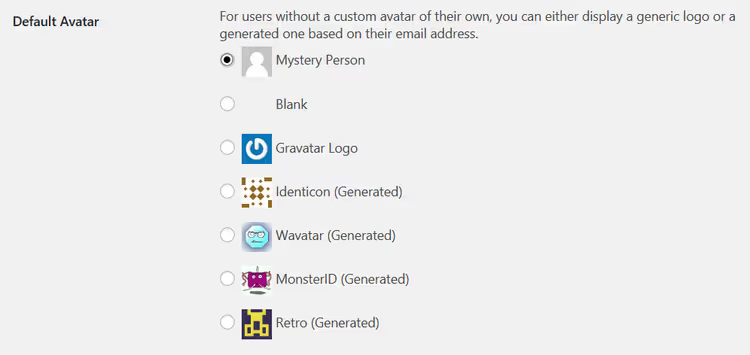
Available: Mystery Person (silhouette), Blank (empty), Gravatar Logo, Identicon (geometric pattern based on hash email), Wavatar (similar to Identicon but different algorithm), MonsterID (monster based on hash), Retro (pixelated 8-bit image).
These options are functional but impersonal. For a brand, it's better to replace the placeholder with your own image, logo or neutral icon in the site's style.
How to set a custom default avatar
Built-in WordPress tools don't do this, the standard interface doesn't allow uploading your own image as a default avatar. But the task is solved by one lightweight plugin.
Simple Local Avatars (developer, 10up, the same team that makes plugins for Microsoft, ESPN and Adobe). 100,000+ active installations, 4.6 rating on WordPress.org, tested up to WP 7.0.

After installation and activation, the plugin adds an Avatar field to each user's profile (Users → Profile). Then two main scenarios:
Default avatar for guests. Upload a logo or icon in the administrator profile → go to Settings → Discussion → in the "Default Avatar" dropdown list, a new item "Simple Local Avatars" appears. Select it, and all guests without Gravatar see your image.
Local avatars instead of Gravatar. If you disable Gravatar in Discussion settings, Simple Local Avatars automatically becomes the only avatar source. Users with file upload permissions can set photos directly from the media library, without an external service.
The plugin is free and has no Pro version. For sites where privacy matters (GDPR), this is the optimal option: avatars are stored locally, no requests to gravatar.com at all.
Download: 🔗 Simple Local Avatars on WordPress.org
If you prefer a visual explanation, here's an 8-minute tutorial on configuring Gravatar in WordPress:
⁉️🤔 Frequently asked questions
Is it mandatory to register on Gravatar.com for my avatar to display?
Yes, but it's a one-time action. Register on the Gravatar site, upload a photo, link your email, and the avatar automatically appears on all WordPress sites where you comment with that email. Takes 2 minutes.
Is a plugin needed for Gravatars to work in WordPress?
No. Gravatar support is built into the WordPress core since version 2.5 (2008). Just enable the checkbox in Settings → Discussion, and the system works.
Can I use Gravatar and local avatars simultaneously?
Yes. Simple Local Avatars works on top of Gravatar: if a user has uploaded a local avatar, it's displayed. If not, the plugin falls back to Gravatar (if it's enabled). Priority is configured in Settings → Discussion.
What avatar size is optimal for WordPress?
Gravatar by default returns 80×80 px, this is documented in the WordPress Gravatar guide. Most themes scale the avatar to their own size: typically 40-60 px in comments and 96-150 px in author profiles. When uploading to Gravatar, it's better to provide a source no smaller than 512×512 px, the service will generate all necessary sizes itself.
What happens to avatars if the Gravatar server is unavailable?
WordPress caches Gravatars locally (in the uploads folder). If gravatar.com is unavailable, visitors will see the cached version or, if there's no cache, the default placeholder. The site won't break:
get_avatar()executes with a fallback.
Bottom line: Gravatar or local avatars?
Gravatar wins in simplicity: enable the checkbox and forget about it. For a personal blog or portfolio site, this is more than enough.
If the site is commercial and every element should work for the brand, spend 5 minutes installing Simple Local Avatars. Replace the gray placeholder with a logo, and for the author team, set up local avatars, independence from an external service is worth it.
In practice, we install Simple Local Avatars even on small sites: it won't hurt, and setup truly takes a minute.

A professional team of writers and editors specializing in creating quality content.