














🔧 How to add events in WordPress: a guide to The Events Calendar
Whether you run a music blog, a local community site, or a professional conference page, events happen every week. Ignoring them on your site means losing audience: readers come looking for announcements, don't find them, and leave for competitors.
But standard WordPress doesn't provide a convenient calendar out of the box. A regular post with a date in the title is inconvenient, there's no filtering, no monthly view, no location binding. Fortunately, plugin developers solved this problem long ago.
Installing the right plugin turns your site into a full-fledged event platform in 15 minutes, with calendar, maps, categories, and ticket sales.
💡 Quick overview:
- Install the free plugin The Events Calendar by Modern Tribe through the WordPress admin
- Configure general settings: time zone, currency, display template, and Google Maps integration
- Create your first event, add date, venue, organizer, and cost
- If needed, connect the Pro version for recurring events, ticket sales, and advanced widgets
What is The Events Calendar and why this plugin
The Events Calendar by Modern Tribe, the most popular events plugin in the WordPress ecosystem: over 800,000 active installations and more than a billion published events, according to Liquid Web. The plugin has existed since 2009, was completely rebuilt in 2021 (version 5), and today is supported by a development team on a permanent basis.
The main advantage of The Events Calendar, the balance between free functionality and extensibility. The base version includes: customizable calendar view with date range search, hover tooltips, tag and category support, upcoming events widget, and translation readiness for any language.
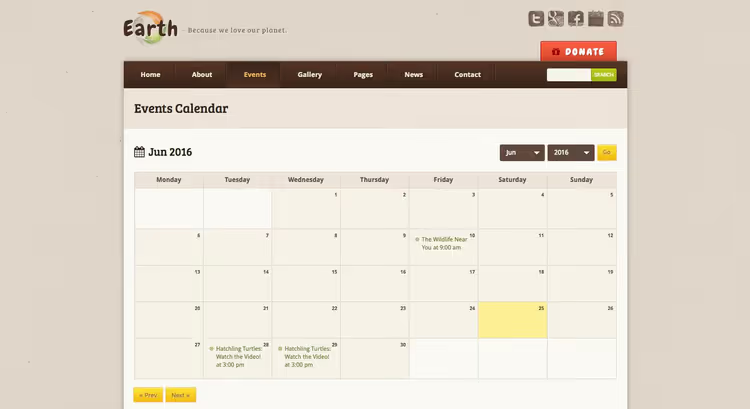
Themes with their own event post types, an alternative path. Some specialized themes include a built-in calendar (for example, Earth, shown above), and it's convenient: no compatibility conflicts. But when you change themes you'll lose all event data, they're tied to the theme, not to a separate plugin. Compare: a plugin saves events independently of the theme, you switched design, and the calendar remained intact.
If you need a review of themes tailored for events, look at specialized themes with event post type, for example, Total by WPExplorer offers a built-in calendar template.
Installing The Events Calendar plugin
The plugin installs in the standard way, directly from the WordPress admin. Open Plugins → Add New.
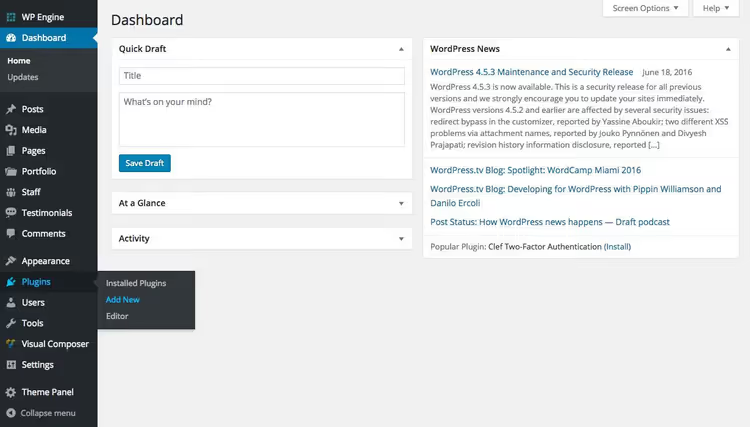
In the search field, type "The Events Calendar". The first result will be the plugin by Modern Tribe with a blue icon.

Click Install, then Activate.

After activation, the plugin will suggest creating an events page. Click Create Page, a warning will appear that the /events slug will be replaced with the calendar. This is what you need.

If you want to change the page URL (for example, to /kalendar or /meropriyatiya), you'll do this in settings. For now you can immediately proceed to adding events, but we recommend checking the configuration first.
Configuring plugin settings
Go to Events → Settings. You'll see four tabs: General, Display, API, and Help.

On the General tab, set: number of events per page, event display mode in blog feed, time zone, and currency format. This is also where you configure a custom calendar page URL if the standard /events doesn't suit you.
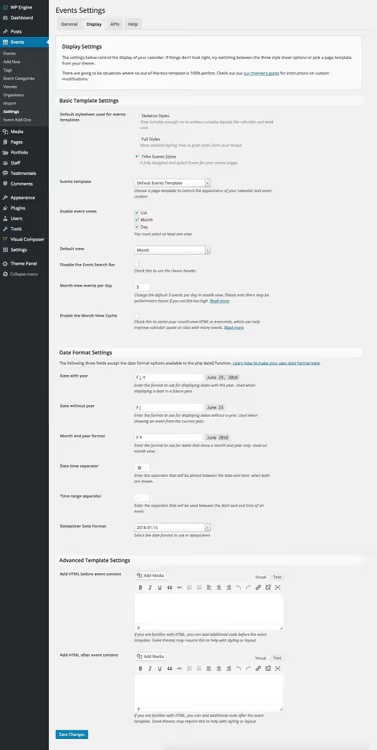
The Display tab, the key one. Choose the events page template: for most themes "Default Page" works, but if your theme offers a specialized template, take it. This is also where you configure the basic calendar style (leave "Tribe Events Style") and date format.
The API tab is needed for high-traffic sites, to connect a Google Maps key. Most users only need the "General" and "Display" tabs.
Adding your first event
Settings are ready, now events. Go to Events → Add New.

The interface is similar to the regular post editor: title, description, categories, and tags. The difference, in the sidebar on the right and in the "Event Calendar" block below the editor.
In the Event Options block, two useful options: hide the event from the general list and stick it in the calendar (to keep it visible after the event date).
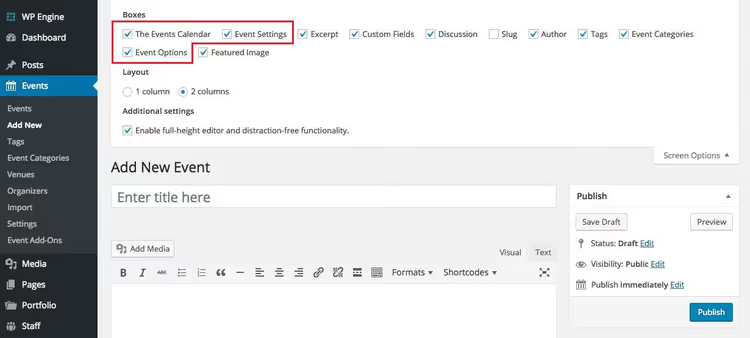
Below the content editor, the Event Calendar section. Here you specify: date and time, venue (can be saved and reused), organizer, ticket cost, and external link to the ticket sales site.
Don't see the "Event Options" and "Event Calendar" blocks? Open the Screen Options tab in the upper right corner and enable the corresponding modules, they may be hidden by default.
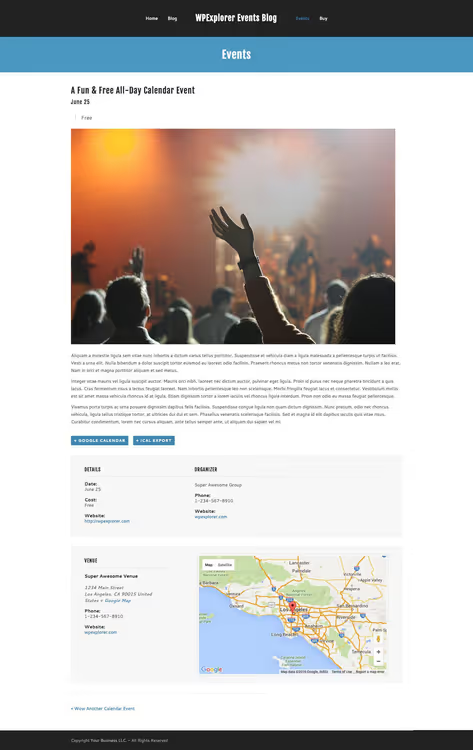
Done, publish. The appearance of the published event depends on the theme, but the basic structure is always the same: title, metadata (date, venue, price), and description.
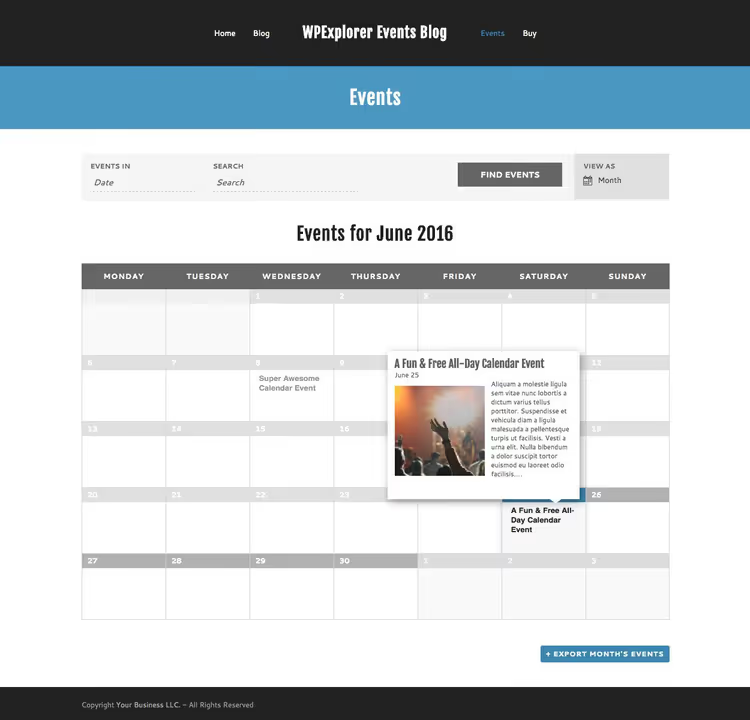
Go to the home page /events, you'll see a full-fledged calendar with date range search, view mode switching (month / list / day), and popup event cards on hover.
Premium extensions: Events Calendar Pro and addons
The free version covers basic needs, but if you're serious about promoting events, look at paid add-ons. All are available through Events → Add-ons directly from the admin.
Events Calendar Pro adds: customizable recurring events (every Friday / once a month / custom pattern), additional display views (photo, map, week), location search, advanced widgets, custom fields, and priority support.
Among other add-ons:
- Filter Bar, advanced filters for searching events by category, tag, venue, and cost;
- Community Events, accepting events from site visitors through a frontend form;
- Event Tickets Plus, selling tickets directly from the site, with WooCommerce integration;
- Eventbrite Tickets, synchronization with the Eventbrite platform.
Check pricing and current package composition on the official The Events Calendar website.
In short: video demonstration
Watch a 5-minute setup guide for the plugin, all the steps above are shown on a real site:
⁉️🤔 Frequently asked questions
Is The Events Calendar free?
Yes, the basic version of the plugin is completely free and available in the WordPress.org catalog. It includes a calendar, date search, widgets, categories, and translation support. Paid add-ons (Pro, Filter Bar, tickets) extend functionality for commercial projects.
How does The Events Calendar differ from Modern Events Calendar?
Both plugins are popular, but with different emphases. The Events Calendar (Modern Tribe), more lightweight, with a focus on integration and extensibility through an addon ecosystem. Modern Events Calendar (Webnus) offers more display styles out of the box and a built-in shortcode builder. The choice depends on what's more important: developer flexibility (take The Events Calendar) or ready visual solutions without coding.
Can you migrate events when changing plugins?
Yes, most event plugins support import-export via CSV or iCal format. The Events Calendar includes built-in import from Google Calendar, Meetup, Eventbrite, and other sources. Before migration, always make a database backup.
Does the plugin work with any WordPress theme?
Practically any. The Events Calendar follows WordPress coding standards and correctly inherits the active theme's styles. The only risk, a theme may have its own page template that conflicts with the calendar template. In this case, configure the template through the "Display" tab in the plugin settings.
Is a Google Maps API key required?
For basic map display, no. The plugin works without a key on sites with moderate traffic. But Google requires an API key if map views exceed the free limit (about 28,500 loads per month). The key is configured on the API tab in the plugin settings.
Is it worth installing The Events Calendar in 2026?
If you need a simple way to announce events on a WordPress site, The Events Calendar remains the best choice. Eight hundred thousand active installations and regular updates from Modern Tribe speak for themselves.
Short decision matrix:
- Few events, minimal budget → free version of The Events Calendar. Calendar, search, widgets, everything's there.
- Need recurring events and advanced widgets → Events Calendar Pro.
- Selling tickets from the site → Pro + Event Tickets Plus.
- Want visitors to add events themselves → Pro + Community Events.
Try the free version today, installation takes 3 minutes, and the result is immediately visible on the /events page. And if you've already worked with this plugin, share your experience in the comments: which add-ons proved worthwhile, and which ones are easy to do without.

A professional team of writers and editors specializing in creating quality content.