














🔒 DUNE HD: connecting a VPN to your player, step by step
Bought a Dune HD, set up your favorite channels and IPTV, but some content is blocked by your provider? Or your player is in a country where YouTube, Netflix, and dozens of streaming services work in a limited form? In both cases, there's one solution: VPN directly on the player.
Yes, Dune HD doesn't support VPN out of the box. But the community wrote a plugin long ago that sets up OpenVPN (and PPTP) in a couple of minutes, without a router, without additional hardware, and without complicated workarounds. All player traffic goes through an encrypted tunnel, the provider can't see what you're watching, and you can see everything.
💡 Quick overview:
- Purchase a subscription to a VPN service with OpenVPN support, using HideMy.name as an example, tested over the years.
- Get the access code from the email, log into your account and download the
.ovpnconfiguration for Linux. - Install the
dune_plugin_VPNplugin (version 1.2.0) on the player from the HDTV.ru forum; it will automatically pick up the config and establish the tunnel. - Launch it, check your IP, and forget about geo-blocking.
What you'll need
Before diving into settings, gather everything in one place. The list is short:
- Dune HD player. Any model will work: from old ARM/MIPS to fresh Android versions, the plugin works everywhere.
- Paid VPN package. In this guide, HideMy.name is used, but the plugin is compatible with any service that provides
.ovpnfiles (AltVPN, HideMyAss, and dozens of others). - USB flash drive. For transferring configs and the plugin itself to the player. Any one will do, even 1 GB.
- Basic skills. Nothing complicated: copy, paste, press "Launch."
1. Purchasing and setting up a VPN package
First, the service itself. HideMy.name has been operating since 2009, maintains servers in over 40 countries and 70+ cities, and most importantly, provides clean OpenVPN configs without a proprietary client. These are exactly the configs the Dune plugin needs.
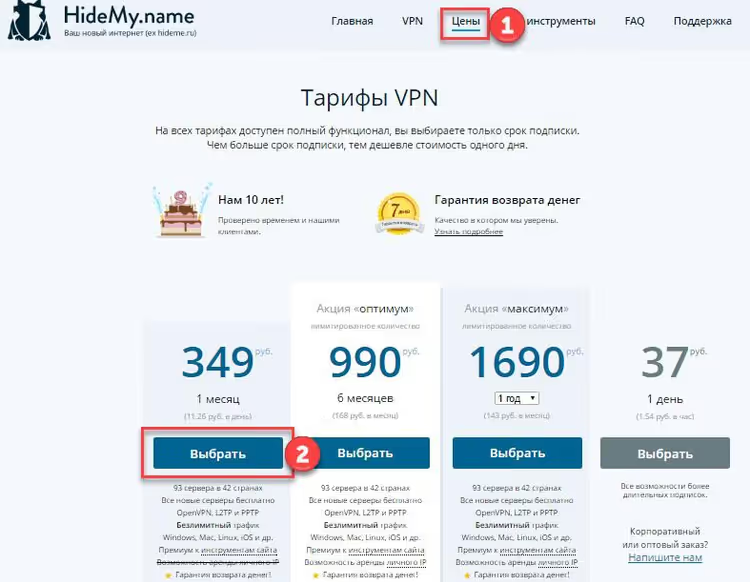
Go to the HideMy.name order page and pay for any plan. For your first test, get the cheapest one; if the plugin doesn't work on your model for some reason, you won't lose anything.
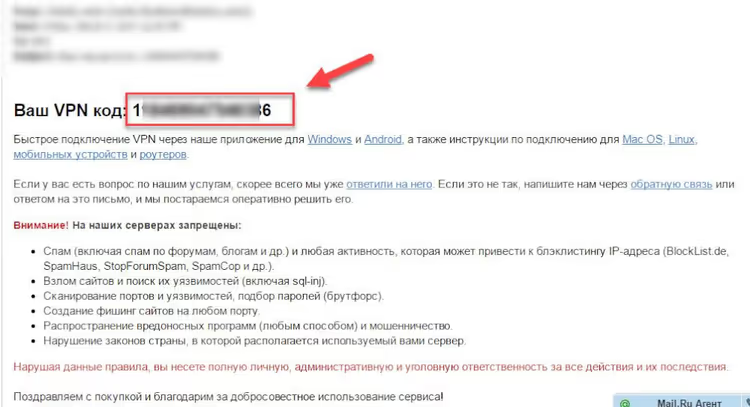
After payment, check your email; the letter will contain an access code. Copy it.
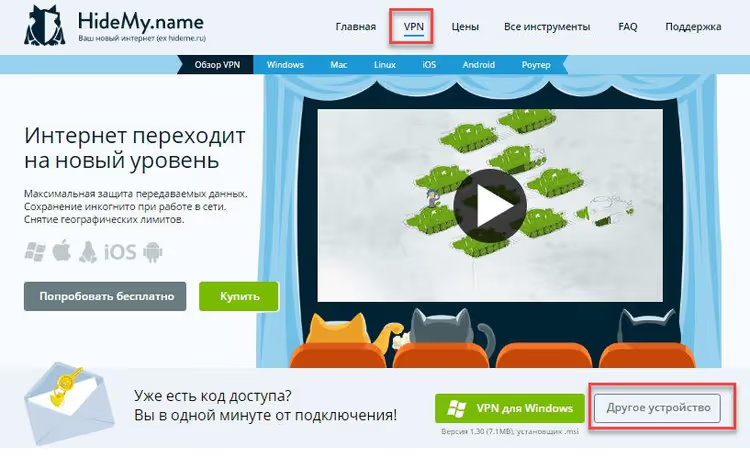
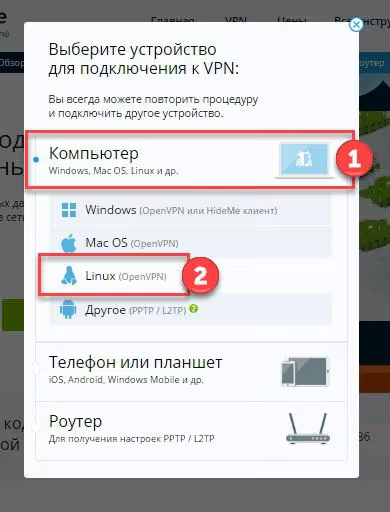
Now go to the VPN section of your HideMy.name account. In the "Already have an access code?" block, click the Other device button.
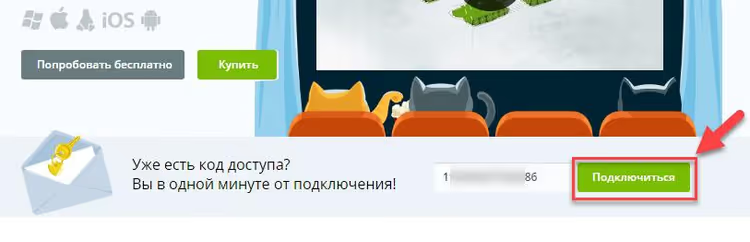
In the form that appears, paste the copied code and click Connect.
The system will ask for a platform; choose Computer, then Linux.
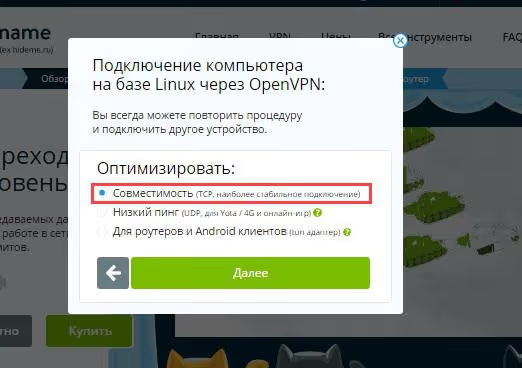
On the next step, definitely choose Compatibility (TCP, most stable connection). The plugin also handles UDP, but TCP is more reliable on consumer routers and behind NAT.
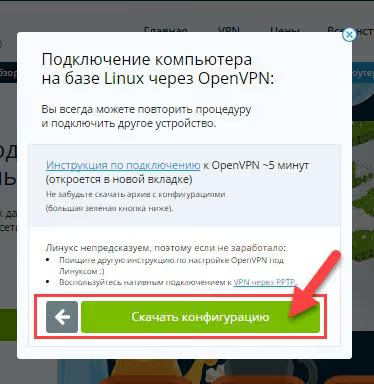
Click Download configuration; you'll get an archive with .ovpn files.
Extract the archive. Find the other_os folder inside; it contains configs for Linux devices, which Dune players are from OpenVPN's perspective. Copy this folder to the flash drive. You can rename the folder to anything in Latin characters; the original name contains your key, and there's no need to expose it in forum screenshots.
2. Installing and configuring the plugin on Dune HD
The dune_plugin_VPN plugin itself lives on the HDTV.ru forum; this is the main thread maintained by author TrippyCat with support from micha86 (binary builds). The current version, 1.2.0, includes:
- OpenVPN and PPTP autostart;
- unified installer for ARM and MIPS;
- auto-update mechanism;
- support for modern Android Dune models (the plugin installs the Android OpenVPN client and launches it automatically).
Download the plugin from the first post of the thread, copy it to the same flash drive, and install it on the player using the standard method through the "Applications" or "Sources" menu.
After installation, enter the plugin, open the OpenVPN section, and specify the path to the config folder, that same other_os from the flash drive.
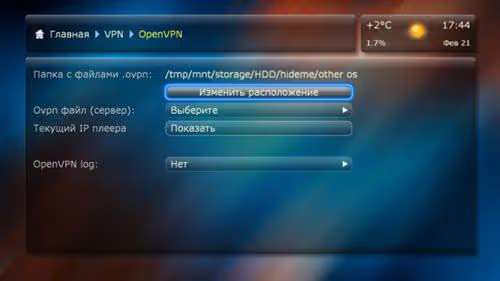
The plugin will read the contents and show a list of available servers. Choose any one; geographically closer to you will give minimum latency.
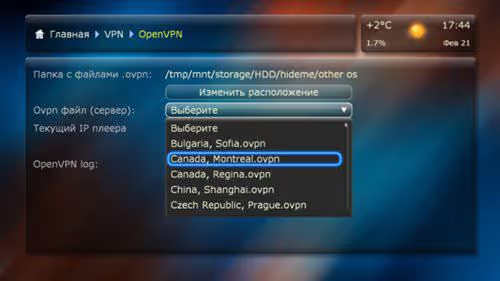
Press Launch. After a couple of seconds, a connection notification will appear. Check the IP change right there with the Player's current IP button.
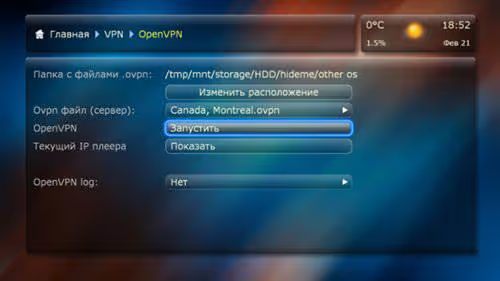
Done. Now all player traffic goes through the selected server. The provider sees nothing except encrypted traffic to the VPN node.
What else the plugin can do
On top of OpenVPN, dune_plugin_VPN also includes PPTP, Point-to-Point Tunneling Protocol. It's simpler, connects faster, and allows routing not all traffic through VPN, but only selected sites (by subnets). Useful if only one streaming service is blocked and everything else works directly.
Switching between OpenVPN and PPTP takes two button presses from the plugin's main menu. You can configure both protocols at once and switch depending on the situation.
Video: OpenVPN on a TV box in 5 minutes
If the text instructions aren't enough, here's a visual guide to installing OpenVPN on an Android TV Box. The process on Dune HD is similar: get the .ovpn file, feed it to the client, launch it.
⁉️🤔 Frequently asked questions
The plugin doesn't see the config folder. What should I do?
Check two things. First: the folder must be in the root of the flash drive, not inside another folder. Second: the folder name must be in Latin characters only, without spaces and special characters. If there's Cyrillic in the path, the plugin won't read it. Rename it and try again.
Can I use a free VPN?
Technically yes, if the service provides
.ovpnfiles. But free VPNs almost always limit speed to 2-5 Mbps, which isn't enough even for 1080p. For IPTV and 4K streaming, you need a stable bandwidth of at least 25 Mbps, which only paid services provide. HideMy.name on the "Month" plan costs as much as a cup of coffee and doesn't limit speed.
The player is on Android, does the plugin work?
Yes, since version 1.2.0 the plugin works "conditionally" on Android Dune models: on first launch it automatically finds and installs the OpenVPN client from the app store, then launches it through itself. The interface is slightly different, but the logic is the same: select the folder with
.ovpn→ connect.
The IP changed, but content is still blocked. Why?
Most likely, the service determines not only IP but also DNS queries. Go to the player's network settings and manually enter a public DNS, for example,
1.1.1.1(Cloudflare) or8.8.8.8(Google). Then DNS queries will also go through VPN, not through the provider's router.
What if no server connects?
Try UDP instead of TCP; in some networks UDP works faster. If that doesn't help, download the configuration again, choosing a different server on the HideMy.name site. And as a last resort: go to your router settings and temporarily disable SPI Firewall (Stateful Packet Inspection); on older models it sometimes blocks OpenVPN packets.
Should you install VPN on Dune HD or not?
If the player is in a Russian apartment watching federal channels, you probably don't need VPN. But if you're abroad and want Russian content, or vice versa, in Russia and want foreign streaming services without throttling, or simply don't want your provider collecting statistics on your every request, install it.
The "HideMy.name + dune_plugin_VPN" combination has been tested over the years by thousands of HDTV.ru forum users. Set it up once and forget about it. And when you need to switch servers or protocols, it's three button presses with the remote.
Try it on the cheapest plan: if everything works, renew it. If not, simply don't renew. Zero risk, benefit: full access to content without geo-blocking.

A professional team of writers and editors specializing in creating quality content.