














How to downgrade WordPress: 3 rollback methods
The WordPress 7.0 "Armstrong" update brought new blocks, visual revisions, and AI tools. But it also brought broken themes, failed plugins, or the white screen of death instead of your familiar admin panel. Developers don't always have time to adapt their code to the latest release, leaving site owners with a non-functional project.
The solution is to roll back WordPress to the previous stable version. This isn't surrender or a step backward: while plugin or theme developers work on compatibility, your site keeps running. Then in a couple of weeks you can calmly update again.
Below are three methods to downgrade WordPress: the quick WP Downgrade plugin, the manual FTP method, and rolling back individual plugins and themes via WP Rollback. Each is broken down step by step, with backup coming first.
💡 Quick overview:
- Make a full site backup: files, database, wp-content separately
- Via WP Downgrade: enter the version number in settings, click "update," 5 minutes
- Via FTP manually: download the archive of the desired version, replace wp-admin and wp-includes without touching wp-content
- Roll back plugins and themes via WP Rollback, separately from the core, safer
- Disable auto-updates after downgrading, otherwise WordPress will update back tomorrow
Make a full site backup
Before any operation on the WordPress core, backup. No exceptions. If something goes wrong, one backup restores the site in a minute, while its absence means hours of manual recovery.
What to copy:
- Site files, the entire WordPress folder, especially
/wp-content/(themes, plugins, uploads) - Database: all WordPress tables, from
wp_poststowp_usersandwp_options - wp-config.php, separately, this file isn't restored from a core backup
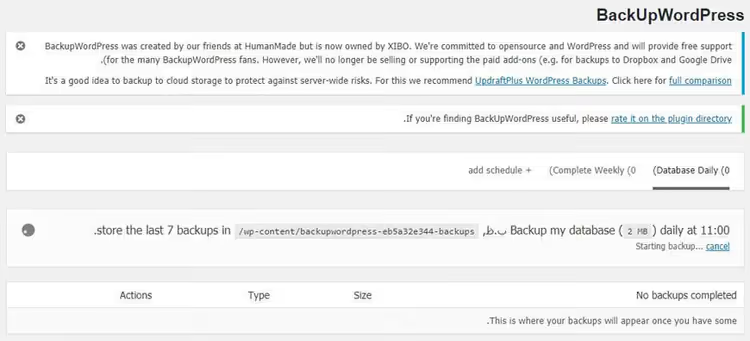
The simplest way to backup is with a plugin. BackUp WordPress, UpdraftPlus, or Duplicator handle it in a couple of clicks: install, run the wizard, download the archive. The manual method through cPanel (exporting the database via phpMyAdmin and copying files via FTP client) takes longer but doesn't require installing anything.
Made your backup? Now to the downgrade.
Method 1: WP Downgrade, fast, one-button solution
WP Downgrade is a free plugin from the official WordPress.org catalog that substitutes the target for the built-in update mechanism. Instead of the latest release, WordPress gets the version you specify from wordpress.org servers and installs it through the standard update process.
The plugin is proven: 100,000+ active installations, 4.8 out of 5 rating based on 169 reviews. Formally it hasn't been tested on WordPress versions newer than 6.2.9, but in practice it works with more recent releases too, with users confirming successful rollbacks up to versions 6.9.x in 2026.
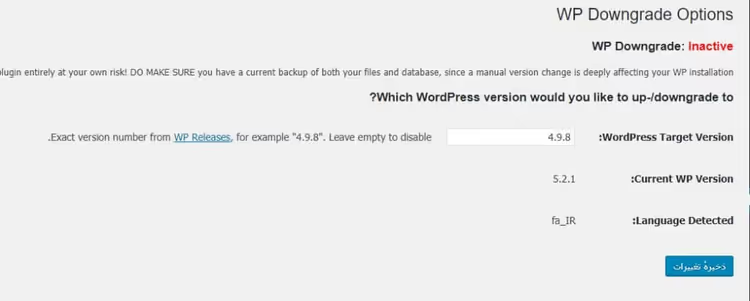
How to use WP Downgrade:
- Install and activate the plugin via "Plugins → Add New."
- Go to "Settings → WP Downgrade."
- Enter the target WordPress version, for example,
6.7.2or6.6.2(full list of releases on the WordPress downloads page). - Click "Save," then go to "Updates" and run the core update.
- WordPress will fetch the specified archive, install it, and your site will be on the chosen version.
After downgrading, log into the admin panel and verify everything works: open a few pages, test forms and the cart. The plugin keeps the version fixed, and WordPress won't update automatically until you change the number in settings or deactivate WP Downgrade.
Downside: the plugin doesn't show a list of available versions, you have to enter the number manually. But this is also a plus, as you control exactly what you're rolling back to.
Method 2: Manual downgrade via FTP
The manual method is for when the plugin isn't an option (the site won't load the admin panel) or you want full control over the process. Downside: it takes 15-20 minutes and requires care. But it always works regardless of WordPress's state.
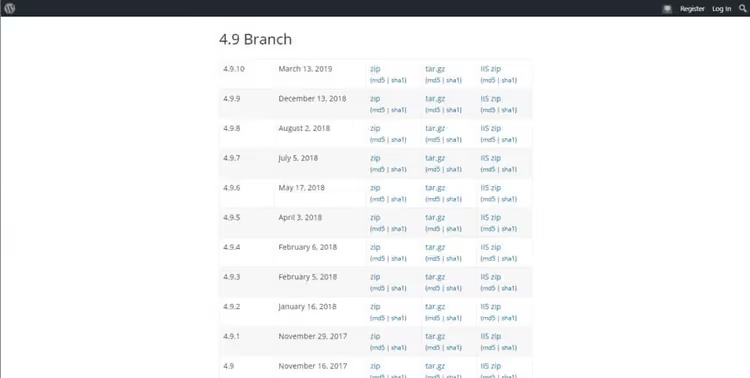
Step 1: Download the desired WordPress version
Go to wordpress.org/download/releases/ and download the zip archive of the version you're rolling back to. Don't get versions older than the last two or three major releases: builds that are too old contain known vulnerabilities, and database differences can make the rollback irreversible. For example, from 7.0 it's safe to roll back to 6.7.x or 6.6.x.
Step 2: Disable all plugins
Through the admin panel (Plugins → select all → Deactivate) or, if the admin panel won't load, via FTP: rename the /wp-content/plugins/ folder to /wp-content/plugins_off/. This prevents conflicts between plugin versions and the core.
Step 3: Replace system files
Connect to the server via FTP (FileZilla, WinSCP, or any other client). In the WordPress root, delete the wp-admin and wp-includes folders. **Do not touch **wp-content, as it contains your themes, plugins, uploads, and media library.
Extract the downloaded WordPress archive. From the extracted folder, copy to the server **everything except **wp-content: the wp-admin, wp-includes folders and all files in the root (index.php, wp-config-sample.php, xmlrpc.php, and others). The system will ask about overwriting; confirm.
Step 4: Log into the admin panel and update the database
Open /wp-admin/. WordPress will detect the version mismatch and offer to update the database. Click "Update Database" and wait for completion. Then go to the plugins section and reactivate them.
Method 3: WP Rollback for plugins and themes
Rolled back the core but a specific plugin or theme still misbehaves? For this there's WP Rollback, a free plugin from the Devin Walker team that lets you roll back any plugin or theme from the WordPress.org catalog to any previous version.
Unlike WP Downgrade (which only works with the core), WP Rollback is aimed specifically at plugins and themes. Actively maintained: version 3.1.2, reviews from June 2026, compatibility with WordPress 6.5 and above.
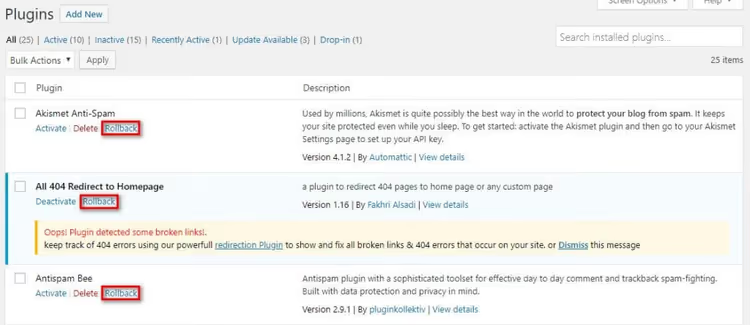
How to roll back a plugin or theme via WP Rollback:
- Install WP Rollback from the WordPress.org catalog.
- Go to "Plugins" or "Appearance → Themes."
- Next to each extension from the official catalog, a "Rollback" link will appear.
- Click it, select a version from the dropdown list, confirm.
- The plugin will replace the current version with the selected one in a couple of seconds.
If the "Rollback" link is missing, the plugin or theme isn't from the WordPress.org catalog. For premium extensions (Elementor Pro, Gravity Forms, ThemeForest themes), there's WP Rollback Pro, but that's a separate paid product.
Before rolling back plugins, also disable their auto-updates. Add to wp-config.php or the functions.php of your active theme:
1 add_filter( 'auto_update_plugin', '__return_false' ); 2 add_filter( 'auto_update_theme', '__return_false' );
How to prevent automatic WordPress updates
After downgrading, WordPress will by default try to update back at the next check. To prevent this, add to wp-config.php (before the line /* That's all, stop editing! */):
1 define( 'WP_AUTO_UPDATE_CORE', false );
This line disables automatic core updates. Manual updates through the admin panel will still work. When plugin developers update compatibility, simply remove the line from the config and update to the current version.
Which WordPress versions are safe to roll back to
WordPress regularly releases security updates for the current major version and typically for previous branches. If you roll back to a version older than the last two major releases, the site remains without fresh patches. Such a rollback is acceptable only for local testing or a staging server, not for a production project.
When choosing a rollback version, check compatibility of critical plugins: go to each one's page in the WordPress.org catalog and look at the "Tested up to" line. If the plugin was tested up to an earlier major version, roll back to that one for fewer conflicts.
Watch how WordPress downgrade works in real time, from backup to restoration:
⁉️🤔 Frequently asked questions
What should I do if the site shows a white screen after rollback?
Most often this is a conflict between a plugin or theme and the core version. Rename the
/wp-content/plugins/folder via FTP toplugins_offand try accessing the admin panel. If it works, enable plugins one by one to identify the problematic one. If that doesn't help, restore the site from backup and try a different target WordPress version. The white screen of death is a reversible situation if you have a backup.
WP Downgrade doesn't show the update button in the admin panel. Why?
The "Update" button on the
/wp-admin/update-core.phppage is hidden if a filter blocking update checks fires in the theme or one of the plugins. Checkwp-config.phpfor lines likedefine('WP_AUTO_UPDATE_CORE', false)oradd_filter('pre_site_transient_update_core','__return_null')and temporarily comment them out. Also deactivate plugins like Disable All WordPress Updates or Easy Updates Manager.
Can I roll back WordPress without FTP access?
Yes, if the admin panel works, through WP Downgrade. If the admin panel is down and there's no FTP access, try the file manager in cPanel or your hosting panel. With no file access at all, the only option is restoring from backup through your hosting provider (many offer a "Restore" button in the control panel).
I rolled back WordPress, but plugins won't activate. What's wrong?
Most likely you didn't disable plugins before the rollback and didn't activate them afterward. With manual downgrading, plugins "remember" their state from the previous version and may conflict. Go to "Plugins" and manually activate each one. If a plugin stubbornly won't activate, check its page in the catalog: it may be incompatible with the version you rolled back to.
Is it safe to keep a site on an old WordPress version?
Short-term (2-4 weeks while developers work on compatibility), yes. Longer, no: you won't receive security patches. Researchers regularly find vulnerabilities in the WordPress ecosystem, and each new core version closes some of them. If a plugin hasn't been updated for months, look for an alternative rather than keeping the site on an outdated version.
Is it worth rolling back WordPress and which method to choose
WordPress downgrade is a standard administrator tool, not a desperate measure. If a fresh release broke the site, you don't wait indefinitely but roll back and keep working. In a week or two, when plugins catch up, you update again.
For quick core rollback, use WP Downgrade (5 minutes, no FTP needed). For the "admin panel won't load" situation, use the manual FTP method (20 minutes, full control). For a problematic plugin or theme, use WP Rollback (2 minutes, without touching the core).
One rule applies to all scenarios: backup first. Everything else is just technique.

A professional team of writers and editors specializing in creating quality content.