














🔧 How to enable WordPress maintenance mode: 4 methods
Your plugin crashed at the worst possible moment, and visitors see a white screen instead of your site. Or worse: you decided to change the theme, and the design broke right in front of your clients.
Maintenance mode closes the frontend to visitors while preserving your full access to the admin panel. Search engines receive HTTP 503 and understand that the site is temporarily closed, not dead. Below are four working methods: from a single switch in a plugin to a server redirect that works even if WordPress is completely broken.
💡 Quick overview:
- Step 1: install LightStart (formerly WP Maintenance Mode), activate it, switch Status to Activated, and the basic placeholder page is ready.
- Step 2: install SeedProd, choose the Maintenance Mode type and open the drag-and-drop editor with 50+ templates and email service integrations.
- Step 3: add 15 lines to your child theme's
functions.php, theget_headerhook will close the site to everyone except administrators, without a single plugin. - Step 4: add a RewriteRule to
.htaccessand createmaintenance.html, the redirect will work even when WordPress is completely down.
What is WordPress maintenance mode
WordPress enables built-in maintenance mode during every core, plugin, and theme update. A .maintenance file in the site root triggers, visitors see "Briefly unavailable for scheduled maintenance. Check back in a minute." This lasts seconds, then the site returns.
But sometimes you need a long, controlled mode with your own placeholder page. Here are specific scenarios:
- Migrating your site to a new host or domain: visitors should not see the migration process;
- Testing a major update: a new plugin might temporarily break the layout;
- Changing themes: the design breaks right in front of clients;
- Restructuring content: menus, categories, post types.
The main point for SEO: a proper HTTP response with code 503 Service Unavailable. Unlike a dead server, 503 tells Google "the site is alive, temporarily closed, come back later." With a Retry-After header, rankings won't suffer even during multi-day maintenance.
Method 1: code in functions.php (no plugins)
The most concise option: 15 lines in your child theme's functions.php. Zero plugins, just the standard WordPress API. Suitable if you fundamentally don't want to add dependencies.

Add the code to the end of your child theme's functions.php or via the Code Snippets plugin. Don't touch the parent theme's functions.php: an update will erase your changes.
1 function wp_maintenance_mode() { 2 if ( ! current_user_can( 'edit_themes' ) || ! is_user_logged_in() ) { 3 wp_die( 4 '<h1>Сайт на обслуживании</h1>' . 5 '<p>Мы проводим плановые технические работы. ' . 6 'Вернёмся в ближайшее время!</p>', 7 'Сайт на обслуживании' 8 ); 9 } 10 } 11 add_action( 'get_header', 'wp_maintenance_mode' );
What happens here: the get_header hook fires on every public page load, before visible content is formed. If the user is not an administrator (lacks the edit_themes capability or is not logged in), wp_die() displays the placeholder. You, logged in as an administrator, see the site as usual.
Note: wp_die() returns HTTP 500, not the correct 503. For a short window of 1-2 hours, this is not critical. For extended maintenance, use a plugin from the following methods: they return the correct HTTP code.
To disable: comment out or delete the code.
Method 2: LightStart plugin (formerly WP Maintenance Mode)
LightStart, renamed WP Maintenance Mode from Themeisle. Free, almost 20 million downloads and a 4.3 out of 5 rating on WordPress.org. Version 2.6.22, updated in May 2026. The fastest path to a working placeholder: installation, one switch.

After activation, open Settings → WP Maintenance Mode. The General tab contains the main Status switch. Select Activated, and the placeholder is already working.

Here you can also configure:
- Bypass for Search Bots → Yes: search bots see the real site and understand it's alive;
- Backend Role and Frontend Role: who has access during maintenance (administrators only by default).

Placeholder page design
The Design tab is the appearance editor. Configure the title, content, background (color or image), fonts, sizes, and logo.

Modules: countdown, subscription, social media
The Modules tab sets LightStart apart from simple solutions:
- Countdown: a countdown timer until the site opens. Set a date, visitors see "Site opens in 3 days 12 hours";

- Subscribe: an email subscription form. Users leave their address and receive a notification when the site opens;

- Social Networks: social media icons on the placeholder, insert URLs and icons are pulled automatically;

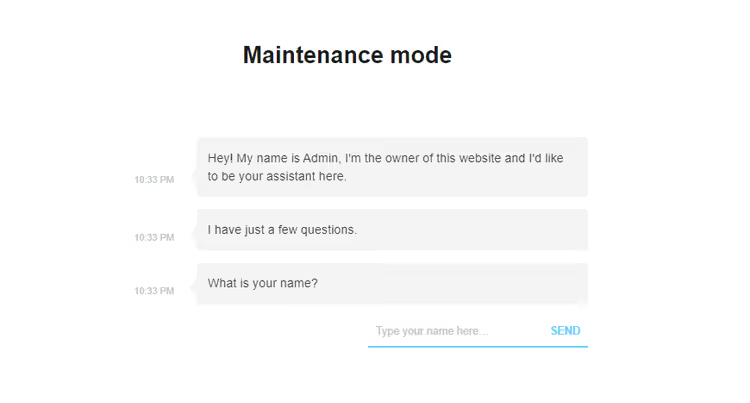
- Bot: a chat bot for interacting with visitors instead of a static placeholder, configured in the Manage Bot tab.
If you collect emails through the subscription form, open the GDPR tab and configure consent checkboxes for data processing.

Done? Open the site in an incognito browser window and check how the placeholder looks.
Download: 🔗 LightStart on WordPress.org
Method 3: SeedProd plugin
SeedProd, a placeholder page builder with a drag-and-drop editor. Version 6.20.3, over 34 million downloads, 4.9 out of 5 rating, updated in June 2026. This is no longer just maintenance mode: a full landing page builder with 50+ templates and email marketing integration.

After activation, go to SeedProd** → Settings**. In the Coming Soon & Maintenance Mode tab, enable Status. Choose the type:
- Coming Soon Page: for new, not yet launched sites;
- Maintenance Mode: for live sites during updates.
Click Edit Coming Soon / Maintenance Page and you'll enter the visual editor with a template gallery.

Select a template, and the drag-and-drop editor opens. Change everything without code.

Key SeedProd features
- Content tab: title, logo, description, favicon, SEO title and SEO description;

- Google Analytics: insert tracking code and see how many people visit the placeholder;
- Background: color, image, video, or slider;
- Email marketing: subscription form with integration into Mailchimp, ConvertKit, ActiveCampaign, Brevo and 20+ other services;
- Auto-responder: automatic email to everyone who leaves their email, configured in the Setup Additional Auto-responder tab;
- Social media: icons with links to profiles;
- Progress indicator: percentage of site readiness, useful for Coming Soon;
- Responsiveness: preview on desktop, tablet, and smartphone, toggle at the top of the editor.
Click Back to Settings → Save All Changes. SeedProd returns the correct HTTP 503 for the maintenance page.
Download: 🔗 SeedProd on WordPress.org
Method 4: via.htaccess (server level)
This method works before any PHP code. The Apache server processes .htaccess before WordPress loads, so this method works even when the site is completely down.
Open .htaccess in the site root (where wp-config.php is located) and add the following at the beginning of the file:
1 RewriteEngine On 2 RewriteBase / 3 RewriteCond %{REMOTE_ADDR} !^123\.456\.789\.123 4 RewriteCond %{REQUEST_URI} !^/maintenance\.html$ 5 RewriteRule ^(.*)$ /maintenance.html [R=307,L]
Replace 123\.456\.789\.123 with your real IP address (find it through any "what is my IP" service). What each line does:
RewriteCond %{REMOTE_ADDR} !^...: everyone except your IP goes to the placeholder. You see the real site from your IP;RewriteCond %{REQUEST_URI} !^/maintenance\.html$: the placeholder itself is not redirected to itself, otherwise there's an infinite loop;RewriteRule ... [R=307,L]: code 307, temporary redirect, a signal to search engines "this is temporary."
Create a maintenance.html file in the site root (next to .htaccess):
1 <!DOCTYPE html> 2 <html lang="ru"> 3 <head> 4 <meta charset="UTF-8"> 5 <meta name="viewport" content="width=device-width, initial-scale=1.0"> 6 <title>Сайт на обслуживании</title> 7 <style> 8 body { display: flex; align-items: center; justify-content: center; 9 min-height: 100vh; font-family: system-ui, sans-serif; 10 background: #1a1a2e; color: #eee; text-align: center; } 11 h1 { font-size: 2rem; } 12 </style> 13 </head> 14 <body> 15 <div> 16 <h1>Сайт на обслуживании</h1> 17 <p>Проводим технические работы. Скоро вернёмся!</p> 18 </div> 19 </body> 20 </html>
To disable: remove or comment out the added lines in .htaccess.
Comparing the four methods
Criterion | Code in functions.php | LightStart | SeedProd | .htaccess |
|---|---|---|---|---|
Complexity | Low (copy code) | Minimal (plugin) | Low (plugin) | Medium (file editing) |
HTTP code | 500 (incorrect) | 503 (correct) | 503 (correct) | 307 (temporary redirect) |
Placeholder design | Manual (HTML in code) | Built-in editor | Drag-and-drop, 50+ templates | Separate HTML file |
Countdown | ❌ | ✅ | ✅ | ❌ |
Subscription form | ❌ | ✅ | ✅ (20+ integrations) | ❌ |
Auto-responder | ❌ | ❌ | ✅ | ❌ |
Social media on placeholder | ❌ | ✅ | ✅ | ❌ |
Admin access | Automatic (by role) | Configurable | Configurable | By IP (manual) |
Works without WordPress | ❌ | ❌ | ❌ | ✅ |
Extra plugin | No | 1 | 1 | No |
In practice, LightStart is enough for most tasks: setup takes a minute, HTTP 503 out of the box. SeedProd is chosen when you need a beautiful landing page with email marketing..htaccess is an emergency tool, but keeping a template bookmarked is worthwhile for everyone.
See how the setup process looks in practice:
⁉️🤔 Frequently asked questions
Which method is best for beginners?
Install LightStart (search for "WP Maintenance Mode" in the WordPress.org directory): free, two clicks to results, a ready placeholder without building from scratch. Go to Plugins → Add New, install, activate, and in Settings → WP Maintenance Mode switch Status → Activated. The site is closed, and you can work on the design calmly.
Which method provides the best design?
SeedProd with its drag-and-drop editor and 50+ templates. If you need a stylish landing page with a logo, timer, subscription form, and animation: choose SeedProd. The free version includes most templates and a basic set of blocks. For a maintenance page, the free version is more than enough.
What should I do if the site is already broken and the admin panel won't open?
Only.htaccess. With the white screen of death, a fatal PHP error, or plugin conflicts, no PHP code will even run. Access your hosting via FTP or through the file manager, edit
.htaccessin the site root, upload a readymaintenance.html, and check from an incognito window. After that, calmly fix WordPress.
Is it necessary to install a plugin?
No. Code in functions.php solves the task "closed the site, made changes, opened it" without extra dependencies. A plugin is needed if you want a countdown, visitor email collection, a chat bot on the placeholder, or proper HTTP 503. If you don't need any of that: 15 lines of code will handle it completely.
Will maintenance mode affect SEO?
With proper configuration, no. LightStart and SeedProd return 503 Service Unavailable: Google interprets this as "temporarily unavailable, will return later." Code via functions.php returns HTTP 500, which is worse, but for a 1-2 hour window it's not critical..htaccess with code 307 is also safe. The main point: don't keep the site closed for weeks without changes.
Which method to choose: quick cheat sheet
Three questions, and the choice is obvious:
- Need design? A simple text message: use code in functions.php, zero plugins, zero costs. A stylish page with a logo and timer: LightStart (simpler) or SeedProd (more flexible).
- Need email collection? SeedProd provides a subscription form with integration into Mailchimp, ConvertKit, ActiveCampaign and an auto-responder. LightStart also collects email, but without deep integrations.
- Is the site still alive? If the admin panel works, any of the four methods. If WordPress won't load, only.htaccess.
We recommend LightStart for most tasks: setup in a minute, correct 503 for SEO, works on any hosting. And keep an.htaccess template with a ready maintenance.html bookmarked for a rainy day.
Which method do you use? Write in the comments if you have your own approach or a nuance worth adding.

A professional team of writers and editors specializing in creating quality content.