













🚧 Maintenance mode and coming soon in WordPress: 3 working methods
A WordPress site rarely lives without downtime. New project development, major redesign, urgent updates after a hack, scheduled maintenance: in each of these scenarios, showing visitors a half-finished or broken frontend is harmful both for your reputation and SEO.
The problem is that "disabling a site" is a vague concept. One thing is a freshly created blog with no audience: you can simply close access and work in peace. Another is an active online store. It needs not a blank wall, but a page with an explanation, timelines, and preferably an email collection form.
In 5 minutes you can install a basic placeholder plugin. In an hour, you can build a full-featured coming soon page with branding, a timer, and a mailing list. We'll cover three working approaches: from the fastest to the most flexible, with buttons, links to live plugins, and interface screenshots.
💡 Quick overview:
- First, determine your scenario: a new project (Coming Soon) or temporary shutdown of a working site (maintenance mode).
- Then choose the method for your task: a quick placeholder plugin, a built-in theme feature, or a full-featured builder.
- For a new project, set up a Coming Soon page with a logo and email collection; search engines will index it and SEO will start working before launch.
- For a live site, enable maintenance mode with an HTTP 503 header; search engines will understand the downtime is temporary and won't drop your rankings.
When you need to disable your site
There are more situations requiring temporary frontend closure than you might think:
- Building from scratch. The site isn't ready to show yet, but search engine indexing is already open. A coming soon page builds your audience instead of scaring visitors with a blank screen.
- Redesign or theme change. A working site temporarily becomes a construction zone. Visitors see broken layouts, missing blocks, and raw content.
- Hack or infection. The first step after detection is to isolate the frontend so visitors don't catch malicious code or see a defacement.
- Scheduled maintenance. Core updates, migration to another host, PHP version change, bulk URL replacement in the database. All of these are risky operations when the site shouldn't be public.
- Project pause. The site isn't delivering results, but deleting it feels like a waste since you might return to it. Putting up a placeholder is cheaper than paying for hosting a full site with no visitors.
- Testing. A sandbox, staging copy, plugin experiments: anything that shouldn't be indexed or seen by random people.
The common denominator: you maintain control over what the outside world sees and exactly when the site returns to normal mode.
Comparison of three methods
Before diving into settings, check this summary. It will help you choose the approach for your specific task.
Criterion | Disable Site | Built-in theme feature | SeedProd / other plugin |
|---|---|---|---|
Setup speed | 1 minute | 5-10 minutes | 10-20 minutes |
Customization | Text and HTML only | Depends on theme | Full design, templates |
Email collection | No | Sometimes available | Yes (email service integrations) |
SEO control | No | Partial | Yes (title, meta, analytics) |
Cost | Free | Included with theme | Free (Lite) or from $39/year |
Best for | Developers, test sites | Owners of Total and similar themes | Businesses, stores, new projects |
1. Disable Site: the fastest shutdown
The simplest path is to install a micro-plugin that puts a placeholder on the entire frontend but leaves admin access open. The Disable Site plugin does exactly this and nothing more.
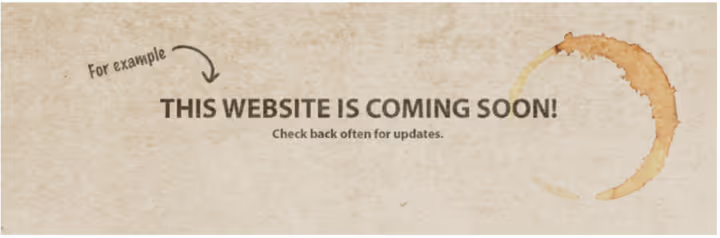
The plugin has one settings screen. No templates, builders, or preview: just a text message that visitors will see. You can insert HTML in the field, so the page can be customized fairly flexibly if you want: an image, links, basic formatting. But without coding skills, you won't go beyond a few paragraphs of text.
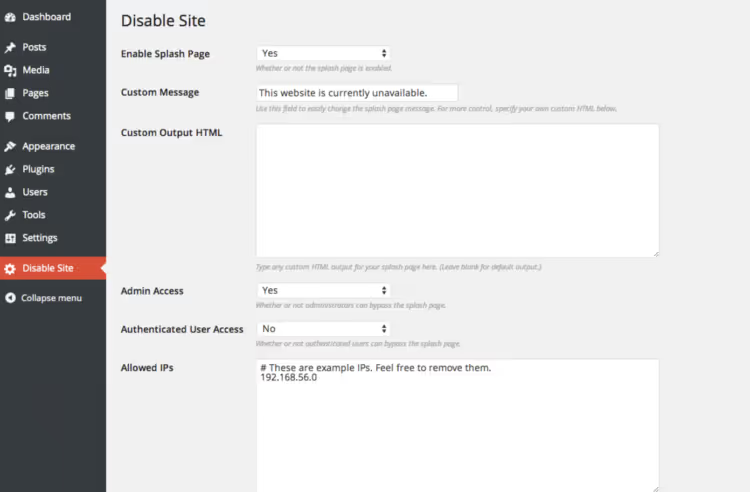
Steps:
- Install and activate the tool from the repository via "Plugins → Add New."
- Go to "Settings → Disable Site" (a separate menu item appears in admin).
- Set the "Enable Splash Screen" toggle to "Yes."
- In the "Custom Message" field, write an explanation for visitors. If you need images or links, switch to the "Custom HTML Output" tab and insert your markup.
- Leave "Admin Access" set to "Yes," otherwise you'll lock yourself out.
- Save settings and open the site in incognito mode; your placeholder should appear.
Pros: instant setup, zero configuration, doesn't burden the site.
Cons: no email collection, templates, SEO control, timer, or code-free customization. Text only.
For a new product landing page or online store, Disable Site is too basic. But as an emergency button to "shut down the site right now," it works perfectly. Activate, fix the problem, deactivate, and the site is back online.
2. Built-in theme page (Under Construction)
Some WordPress themes include their own "under construction" placeholder page mechanism. No separate plugin needed: the feature is already built into the theme and works through its interface.

A good example is the Total theme. Its "Under Construction" is placed in a separate admin section: Theme Panel → Under Construction. You check "Enable," select any existing site page as the placeholder, save, and the entire frontend is replaced with the selected page.
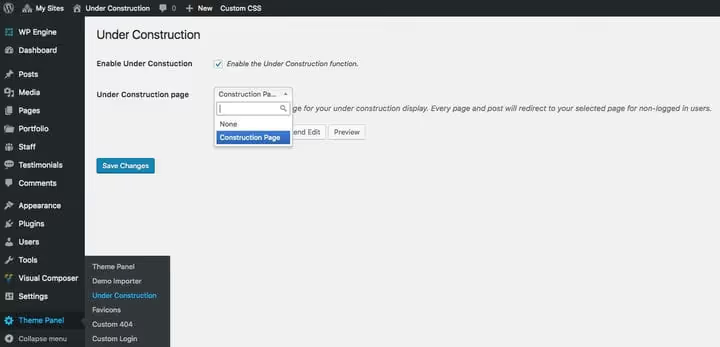
How it works in practice:
- Create a new WordPress page (Pages → Add New).
- Build your placeholder content on it using the native editor or a builder (Total uses WPBakery Page Builder, allowing you to create blocks with a subscription form, gallery, social media links, and contacts).
- Go to Theme Panel → Under Construction, check "Enable," select the created page from the dropdown, and save.
- Done. When you log out of admin, you see your page, not the actual site.
When the project is ready to launch, uncheck "Enable," save, and the site returns to normal mode. No need to delete anything.
Pros: full customization through the page builder, built into the theme (no additional plugin), you can add an email collection form and any media.
Cons: tied to a specific theme; if you change themes, the feature disappears. Not all themes have this option. No HTTP 503 header (search engines don't get an explicit "maintenance" signal).
How to check if your theme has this feature: go to theme settings (usually Appearance → Theme Options or a separate Theme Panel tab) and look for sections called "Under Construction," "Coming Soon," or "Maintenance Mode." Popular multipurpose themes (Total, Avada, Divi) often include this option out of the box.
3. SeedProd and alternatives: the professional approach
The previous two methods are good for simple scenarios. But when the site represents a business, the placeholder should work as a marketing tool: branded design, countdown timer, email collection, social media integration, SEO control, and analytics.
Specialized plugins exist for this, and the gold standard is the SeedProd builder. This plugin with millions of installs has grown from a simple "coming soon page" into a full-featured landing page builder.
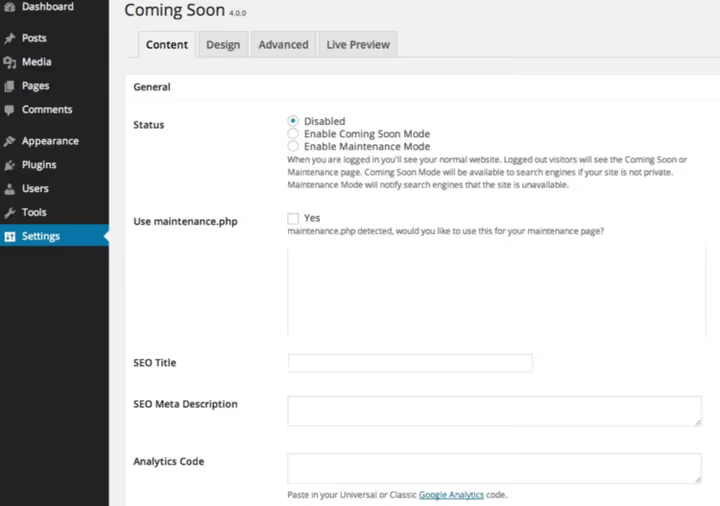
Important terminology note: the difference between Coming Soon and Maintenance Mode:
- Coming Soon. The site doesn't exist yet; it's under development. You show visitors a page with an announcement and an offer to leave their email. Search engines index the page, and SEO starts working before launch. HTTP status: 200.
- Maintenance Mode. The site is already running but temporarily unavailable. The placeholder explains the reason and timeline. The server returns an HTTP 503 header, search engines understand the downtime is temporary, and rankings aren't affected.
SeedProd supports both modes. Switching is done with a single radio button on the "Content" tab.
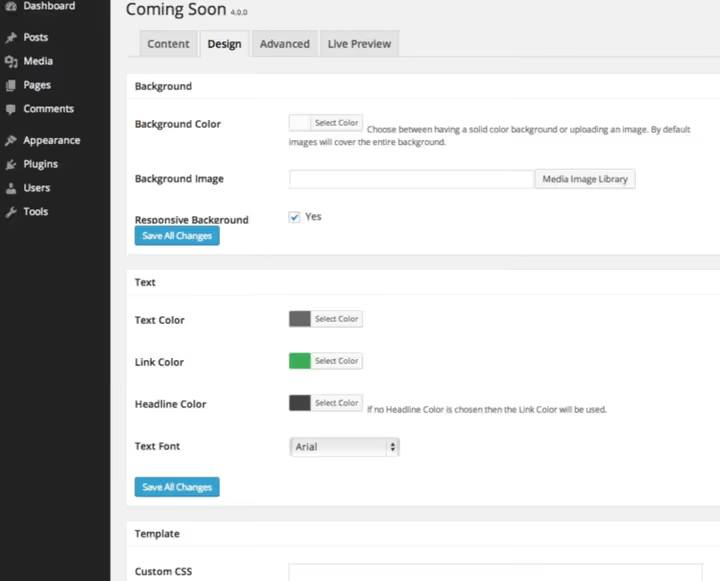
Basic SeedProd setup:
- Install and activate SeedProd from the WordPress repository (in the catalog as "Website Builder by SeedProd").
- Go to SeedProd → Settings (in the admin sidebar menu).
- On the "Content" tab, choose the mode: Coming Soon or Maintenance Mode.
- On the same tab, fill in the SEO title and meta description (optional but recommended).
- Go to the "Design" tab, replace the logo, set a background image, configure colors and fonts.
- Save changes and check the site in incognito mode.
 AIIllustrative image: AI-generated
The free Lite version is enough for most scenarios. The paid Pro version adds a library of ready-made templates, integrations with email services (Mailchimp, ConvertKit), a countdown timer, and custom CSS.
Alternative plugins
If SeedProd doesn't work for you for some reason, here are live alternatives from the WordPress repository:
- WP Maintenance Mode: free, with customization through settings (colors, logo, text), email collection, and timer. Returns 503 for search engines.
- Ultimate Coming Soon Page: minimalist, for coming soon only. A couple of templates, logo upload, SEO fields.
- Easy Coming Soon: a simple plugin with ready-made templates and basic customization.
- Ultimate Maintenance Mode: another option for maintenance mode with message and background settings.
The principle is the same for all: install, choose the page type, configure the appearance, enable. The difference is in the number of templates, design capabilities, and integrations.
⁉️�� Frequently asked questions
Does maintenance mode block access to the WordPress admin?
No, almost all plugins allow administrators through by default. You log into wp-admin as usual while visitors see the placeholder. Settings usually include an "allow access" option for other roles: editors, authors, subscribers. Don't disable your own admin access; restoring it requires database or FTP access. If you're testing the placeholder and don't see it, log out of admin or open the site in incognito mode.
What HTTP status does the placeholder return and does it affect SEO?
It depends on the plugin and mode. SeedProd and WP Maintenance Mode in maintenance mode return 503 Service Unavailable, which is the correct signal to search engines: "the site is alive but temporarily unavailable, come back later." In Coming Soon mode, 200 is returned and the page is indexed. Disable Site in the basic version returns 200 without SEO control, so it's less preferable for a live project. Google doesn't penalize short-term 503; rankings will hold for downtime up to two weeks.
Can you do this without a plugin, through functions.php?
Yes, a minimal snippet for manual maintenance mode can be added to your child theme's
functions.phpor through the Code Snippets plugin:
1 > function sdstudio_maintenance_mode() { 2 > if ( ! current_user_can( 'administrator' ) && ! is_admin() ) { 3 > wp_die( 'Site under maintenance. We'll be back in an hour.', 4 > 'Technical break', 5 > array( 'response' => 503 ) 6 > ); 7 > } 8 > } 9 > add_action( 'init', 'sdstudio_maintenance_mode' ); 10 > ``` 11
1
plaintext
1 2 plaintext
plaintext
plaintext
It triggers instantly: any non-administrator gets the placeholder with a 503 status. To disable, comment out or delete the hook. The main drawback: no design, email collection, or visual settings. This is purely an emergency developer tool. For business scenarios, SeedProd or a similar plugin is better.
What if the placeholder plugin broke the site and you can't access admin?
Connect to the site via FTP or through your hosting file manager, go to
/wp-content/plugins/and rename the placeholder plugin folder (for example,coming-soon→coming-soon-disabled). WordPress will deactivate the plugin automatically, and the site will return to normal mode. After that, you can access admin and troubleshoot the cause of the failure.
## What to install for your task
The three methods we've covered address the full spectrum of needs, from emergency shutdown to a marketing landing page. The choice comes down to one question: how important is the placeholder page as a touchpoint with your audience.
If you just need to turn off the site for an hour or two while you fix a critical bug, install Disable Site. It's one button and one text field.
If your theme has a built-in Under Construction feature (Total, Avada, and similar) and you don't want to add plugins, use the native theme mechanism. For a new project with a page builder, this gives almost the same flexibility as SeedProd, but without a separate plugin.
For everything else (online stores, product launches, corporate sites, public projects) go with SeedProd. The free version is sufficient, and Pro unlocks integrations with email services and a template gallery. One hour of setup, and instead of a blank screen, you have a working landing page that builds your audience while you polish the backend.
1 2 plaintext
plaintext
1

A professional team of writers and editors specializing in creating quality content.