













 AIIllustrative image: AI-generated
📝 How to translate text into multiple languages at once: 4 methods
You need to send the same message to clients from Germany, Brazil and Japan. Or you run a multilingual blog and are tired of copying text into Google Translate for each language version one by one. Or maybe you are just learning a word and want to see it in a dozen languages at once to catch the common root and nuances.
Manual translation through tabs eats up minutes that add up to hours. Simultaneous translation of one phrase into multiple languages is not magic but a working tool available to everyone. And you don't need paid subscriptions or corporate APIs for it.
I've gathered four ways to translate text into multiple languages at once: from online services with on-the-fly translation to formulas in Google Sheets and multilingual dictionaries. Each method has been tested in practice and costs nothing. Choose the one that fits your workflow and forget about endless translator tabs.
💡 Quick overview:
- Open Nice Translator and add translation languages; results appear in real time as you type
- Go to OpenL Bulk Translator, paste text up to 5000 characters and choose up to 10 target languages
- Create a Google Sheet with the
GOOGLETRANSLATEformula; translations update automatically when the source cell changes - Enter a word in Glosbe and see translations in all available languages with examples and grammar
1. Nice Translator: real-time translation into 60 languages
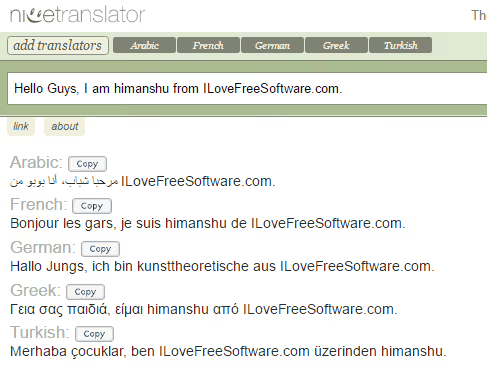
Nice Translator is the fastest way to see a translation in multiple languages simultaneously. The service has been running since 2010, the interface is minimalist, and translation appears immediately as you type. No need to click "Translate" and wait for a server response. Everything happens right during typing, character by character.
The service supports about 60 languages, including Russian, Arabic, Hindi, Chinese, Japanese, Korean and major European languages. The mechanics are simple: you add "translators" (the languages you want to translate into) and start typing. A translation block instantly grows under each added language. The interface is not cluttered with buttons and settings: just text and results.
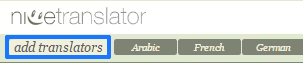
Step 1. Go to the service website and click the button to add languages below the input field.
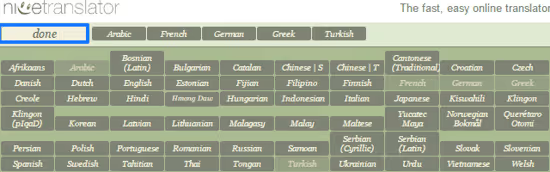
Step 2. Check the boxes for the languages you need. You can select all 60 at once, and translation will appear for each. Click "Done".
Step 3. Enter text in the central field. Translations into selected languages will appear below automatically. The "Copy" button copies everything to the clipboard at once.
Nice Translator uses the Google Translate API under the hood, so translation quality matches the current level of Google machine translation. For short phrases and business correspondence the accuracy is more than sufficient. The only downside: the service cannot translate documents, only text from the clipboard or typed manually. But for quick tasks like translating a message for a chat or a social media post, you won't find a better tool.
2. OpenL Bulk Translator: mass translation with AI refinement

OpenL Bulk Translator solves the task differently: you paste ready text up to 5000 characters, select target languages and get the translation with one click. The service uses its own AI model rather than Google Translate, which gives more natural results for longer texts. The difference is especially noticeable in paragraphs with idioms and complex grammar.
The free version supports translation into 3 languages at a time. A paid subscription (from 7 USD per month) extends the limit to 10 languages simultaneously and removes the text volume restriction. In total, OpenL works with 100+ languages, from English and Spanish to Uzbek and Tamil. For comparison: Google Translate via API also supports over a hundred languages but cannot return results in all selected languages at once.
The process looks like this: paste text in the left field, select the source language (or leave auto-detection), check target languages in the dropdown list and click "Translate". After a couple of seconds a block with the finished translation appears under each language. You can copy the result or download it in CSV and JSON, which is convenient for uploading to a CMS, email campaigns or spreadsheets. JSON export is especially valuable for developers integrating translation into their workflow.
OpenL also offers a separate tool for translating images and documents with voice input support. But for the task "one text, many languages" the Bulk Translator specifically gives a clean structured result without extra steps.
3. Google Sheets: the GOOGLETRANSLATE formula for automatic translation
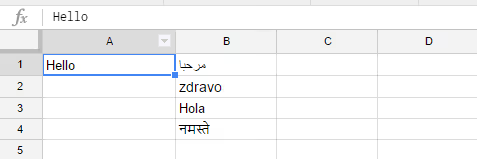
The most flexible method is the built-in GOOGLETRANSLATE function in Google Sheets. You create a template once, and then just change the text in the source cell; translations into all selected languages update automatically. No external services, everything is inside the browser. Works in any Google account, including free ones.
The function syntax:
1 =GOOGLETRANSLATE(cell_address; "source_language_code"; "target_language_code")
Example: =GOOGLETRANSLATE(A1; "en"; "it") translates text from cell A1 from English to Italian. If you specify "auto" instead of the source language code, Google will detect the language automatically. This is convenient when phrases in different languages are mixed in the table and you don't want to manually specify the source for each one.
How to set up multilingual translation. Let's say you want to see translation of text from cell A1 in five languages: Spanish, German, French, Japanese and Korean.
- In cell A1 enter the source text (for example, in Russian or English).
- In cell B1 paste the formula
=GOOGLETRANSLATE(A1; "auto"; "es")to get Spanish. - In C1:
=GOOGLETRANSLATE(A1; "auto"; "de")for German. - In D1:
=GOOGLETRANSLATE(A1; "auto"; "fr")for French. - In E1:
=GOOGLETRANSLATE(A1; "auto"; "ja")for Japanese. - In F1:
=GOOGLETRANSLATE(A1; "auto"; "ko")for Korean.
When copying formulas to other rows, the A1 address will shift to A2, A3 and so on. To lock the reference to a specific cell, use absolute addressing (the dollar sign before the column letter and row number). Then no matter where you copy the formula, it will always look at the source cell.
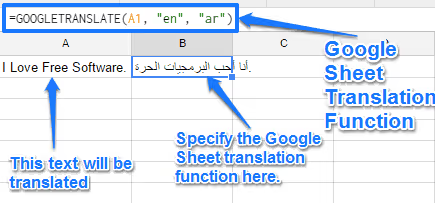
Now just change the text in A1, and all five translations will update within seconds. The method scales easily: add a row below, write the same formulas for cell A2, A3 and so on. You get a full-fledged translator spreadsheet running on Google Translate API with no limits on the number of requests for manual use.
The full list of Google Translate language codes is available in Google's documentation. The most requested ones: en (English), es (Spanish), de (German), fr (French), zh (Chinese), ja (Japanese), ar (Arabic), pt (Portuguese), hi (Hindi).
4. Glosbe: a multilingual dictionary for translating words into all languages at once

The previous methods are good for phrases and paragraphs. But if you need to see how one specific word looks in three dozen languages, it's better to use a specialized dictionary. This task arises for linguists, content managers and developers localizing interfaces.
Glosbe is a community-built multilingual dictionary covering all the world's languages. Unlike classic dictionaries where translation is given for a pair "language A to language B", Glosbe shows a word in all available languages at once. Enter "sun" and you see sun, Sonne, soleil, sole, sol and a hundred more variants.
For each translation the dictionary provides usage examples in sentences with translation, audio pronunciation, grammatical forms and images. Data is added by the community following the Wikipedia model: any native speaker can add a translation or correct an inaccuracy. Popular language pairs contain tens of thousands of examples, and the database grows every month.
In practice Glosbe is useful for:
- linguists and students comparing a word's etymology across language groups;
- content managers selecting keywords for multilingual campaigns;
- developers localizing interfaces and verifying terminology.
The dictionary is free and does not require registration. There is a mobile app for Android with offline access to selected languages. It works reliably and is not overloaded with ads, unlike many commercial alternatives.
Video tutorial: mass translation in Google Sheets
Watch a short tutorial on setting up GOOGLETRANSLATE for translation into multiple languages at once; it clearly shows the entire process from creating the spreadsheet to copying results.
⁉️🤔 Frequently asked questions
How accurate will simultaneous translation into five to ten languages be?
Machine translation accuracy depends on the engine. Services based on Google Translate API (Nice Translator and Google Sheets) give acceptable results for major European languages: English, Spanish, German, French, Italian. For Asian languages (Chinese, Japanese, Korean) quality is lower, but the meaning comes through. OpenL with its AI model is often more accurate on long texts with idioms. In any case, for publication or official documents machine translation requires proofreading by a native speaker.
Can I translate an entire Word document or PDF into multiple languages at once?
Most services in this review work only with text. Nice Translator and OpenL Bulk Translator accept text from the clipboard, Google Sheets operate on text in cells. To translate entire documents into multiple languages use DeepL: it uploads.docx,.pptx and.pdf while preserving formatting, but translates into one language at a time. To get a multilingual result, upload the document multiple times, selecting a new target language each time.
What language code should I specify in GOOGLETRANSLATE for auto-detection of the source language?
Use
"auto"as the second argument:=GOOGLETRANSLATE(A1; "auto"; "de"). Google will automatically detect the language of the text in cell A1 and translate it to German. This is useful when phrases in different languages are mixed in the table.
What if the language I need is not in Nice Translator or OpenL?
Check Google Sheets: the
GOOGLETRANSLATEfunction supports over 130 languages, which is the most complete coverage. If a language is in the Google Translate list, it will work in Sheets too. For rare languages check Glosbe: the community adds even dialects and regional variants that are not in commercial translators.
Which method should I choose if I need to translate dozens of phrases daily?
Google Sheets with
GOOGLETRANSLATEis the only real option for regular work. Set up the template once, and then just paste phrases in column A; translations into all languages pull in automatically. No limits for manual use, everything works in the browser and requires no external services.
Which translation method to choose for your task
These four tools cover virtually any multilingual translation scenario without a budget. The choice comes down to the nature of your task:
- Short text, need it fast with no setup: open the online service Nice Translator. No registration: go in, select languages, type, copy the result. Ideal for chat messages and social media posts.
- Long text, need quality and export: OpenL mass translator. Its own AI model handles complex grammar better than Google Translate, and CSV and JSON export saves time when uploading to a CMS.
- Regular work, many phrases, need automation: Google Sheets with
GOOGLETRANSLATE. Set it up once and the spreadsheet translates everything you put into it. Indispensable for content managers and developers. - Individual words, etymology, terminology selection: the multilingual dictionary Glosbe. Shows a word in all languages at once with examples and audio pronunciation, something regular translators cannot do.
Try the method that is closest to your workflow. All four tools are free, and the time you save on switching between Translate tabs will pay back the ten minutes of setup within a week.

A professional team of writers and editors specializing in creating quality content.