














🚀 How to share WordPress content on social media with Blog2Social
You wrote a post, put together a review, prepared a news item. You hit "Publish," and silence. Readers don't come on their own: content needs to be taken where the audience is. That means Facebook, X, LinkedIn, Pinterest, VK, and a dozen other platforms waiting for you.
Manual cross-posting eats up 20 minutes per post. Copying text, picking an image, inserting hashtags, checking the preview, repeating for each network: after a month of this conveyor belt, you want to give up. The Blog2Social plugin solves this problem radically: publishing to 20+ social networks launches automatically right from the WordPress admin panel while you write your next piece.
Below is a detailed breakdown of the plugin's capabilities and step-by-step setup instructions. No fluff, no "revolutionary" promises, just what actually works in 2026.
💡 Quick overview:
- Install Blog2Social and connect social media profiles in 5 minutes.
- Set up auto-posting: the plugin automatically sends your post to Facebook, X, LinkedIn, and other networks.
- Use the calendar and Best Time Manager to schedule posts at optimal times.
What is Blog2Social and why is it useful
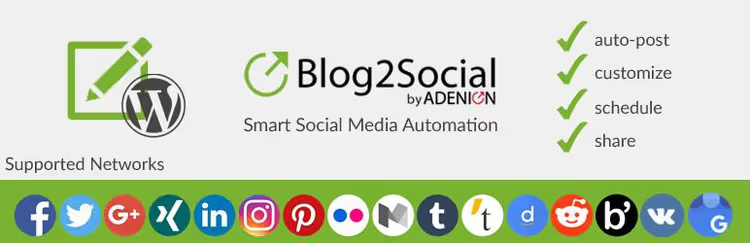
Blog2Social is a WordPress plugin with 60,000+ users that connects your site directly to social networks. It doesn't require a separate browser dashboard: all post management, scheduling, and reach analytics happen inside the familiar WordPress admin panel.
The plugin supports Facebook (profiles, pages, and groups), X (Twitter), LinkedIn, Instagram Business, Pinterest, TikTok, YouTube, Vimeo, Reddit, Medium, Tumblr, Blogger, VK, XING, Bluesky, Threads, Discord, Mastodon, Flickr, Diigo, BAND, Torial, Instapaper, Ravelry, and others, over 20 platforms in total. For each network, you can set separate text, image, and post format.
The main advantage of Blog2Social over standalone tools like Buffer or Hootsuite is native WordPress integration. You publish a post on your site, and the plugin automatically distributes it across connected social networks. No copying links between tabs.
A short video demo on setup and launch, showing the entire process in 5 minutes:
Key features
Auto-posting to 20+ social networks
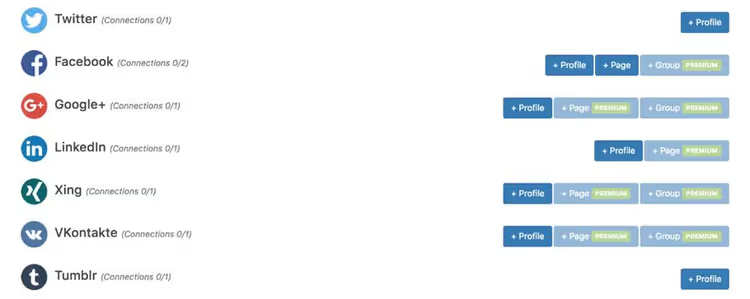
The plugin's core is automatic publishing. You release a post in WordPress, and Blog2Social instantly sends it to all connected networks. The free tier offers 12 platforms with one account each. That's enough for a blogger with basic presence: a Facebook page, X, LinkedIn, Pinterest, and a couple of niche platforms.
On paid tiers, the number of networks grows to 25, and accounts per network increase to 15 (Business). This covers the agency scenario of managing dozens of client pages from one site.
Video posting deserves separate mention (add-on): you can upload videos up to 250 MB and post them to YouTube, Vimeo, TikTok, Facebook, Instagram, Pinterest, and X. The annual limit is 25 GB with expansion options.
Flexible scheduling and Best Time Manager
You don't have to post immediately after publishing. Blog2Social can delay posts to a specified time, separately for each social network. This is critical because the best time for Facebook (weekdays, 9-11 AM) doesn't match the Instagram peak (weekday evenings or weekends).
The Best Time Manager feature (available from the Smart tier) automatically selects optimal slots based on averaged platform data. You can use preset time windows or set your own. The result is maximum reach without manually selecting timings.
Publishing calendar and reposts
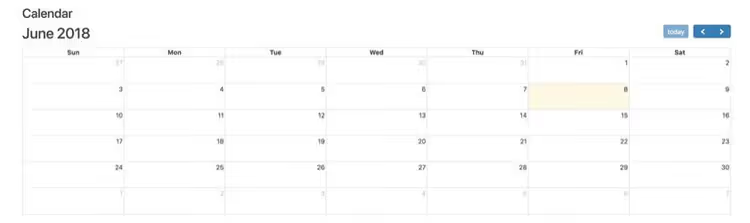
The built-in editorial calendar shows all scheduled posts on a timeline. Drag-and-drop lets you move posts between dates and time slots. It's convenient when you need to spread three posts from the same day across different hours or free up the morning for breaking news.
The Reshare feature (from the Pro tier) automatically resurfaces old posts. You set up a queue of 25-100 posts and repeat logic. Evergreen content gets a second life without your involvement.
Customizing post appearance for each network
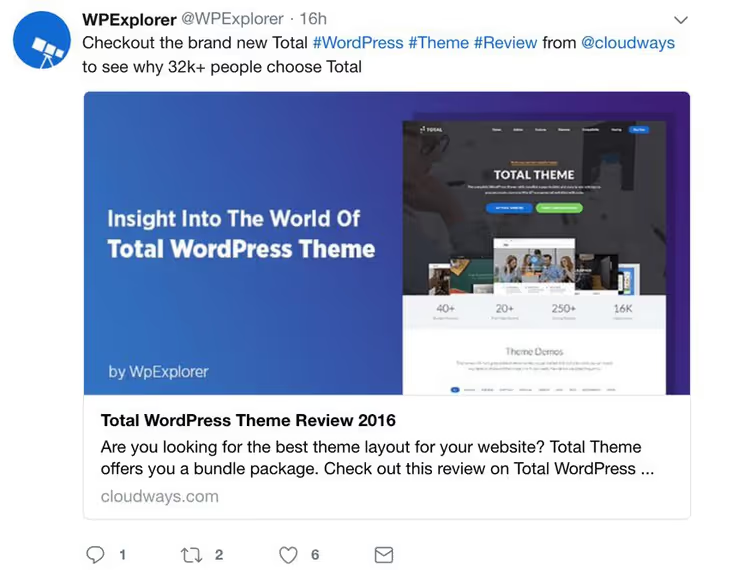
Sharing the same link with identical captions to all platforms is a surefire way to look like a spam bot. Blog2Social solves this with customization at the network level:
- Text. Your own headline and description for Facebook, a different caption for X (accounting for the character limit), a third version for LinkedIn.
- Image. Choose a specific image from the media library or upload a separate file for the platform.
- Format. For Instagram, a square post with a set of hashtags; for X, concise text with one link; for LinkedIn, an expanded paragraph with professional presentation.
- Open Graph** and Twitter Cards.** Configured automatically, no separate SEO plugins or code fiddling needed.
Character counters tell you when text exceeds optimal length. The preview shows how the post will look in a specific network's feed before publishing, protecting against truncated headlines and misaligned images.
Hashtags from WordPress tags

Manual hashtag selection for each post is routine that Blog2Social fully automates. The plugin takes tags you've set in WordPress (those under the post in the "Tags" section) and converts them to social media hashtags.
The algorithm couldn't be simpler: the tag wordpress-plugins becomes #wordpressplugins. If you have 5-7 tags, the plugin inserts them all, and you won't have to remember which hashtags you used last time. For fine-tuning, Premium tiers add the "Assisini" AI assistant, which suggests text, headline, and hashtag options in one click.
How to set up Blog2Social: a step-by-step guide
Now, to practice. Plugin installation is standard: "Plugins → Add New" in the WordPress admin, search "Blog2Social," click "Install" and "Activate." After activation, proceed to setup.
Step 1. Connect social media profiles
The first thing to do is authorize the social network accounts you plan to post to.
Go to Blog2Social → Networks in the admin sidebar. A list of all supported platforms will open:
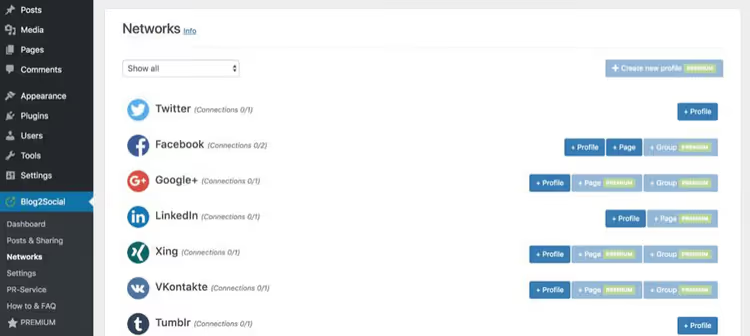
Some platforms (like Facebook) have a dropdown list where you can choose a profile, page, or group. This lets you share content directly to a business page, bypassing your personal profile.
Click the button next to the desired platform. An authorization popup will appear:
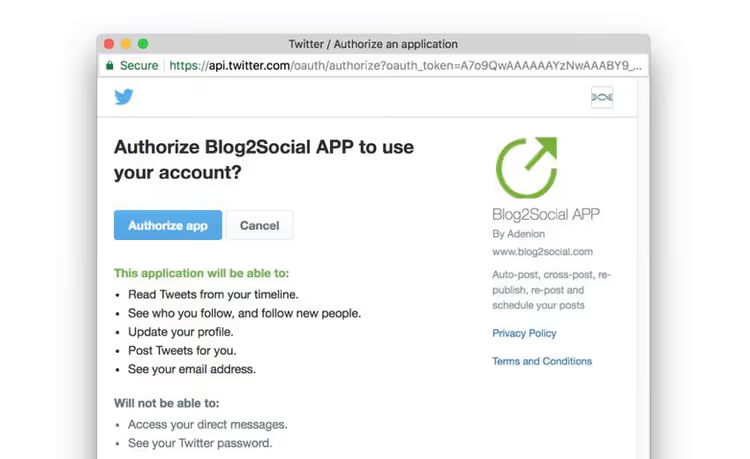
Confirm access, and the profile will appear in the connected list:

Repeat the process for all platforms you plan to use. It takes about a minute per network. You can add new ones at any time; there's no need to connect everything at once.
Step 2. Publish a post to social networks
Now open any published or scheduled post in WordPress. At the top of the editor, you'll see an "Automatic social media publishing" block:
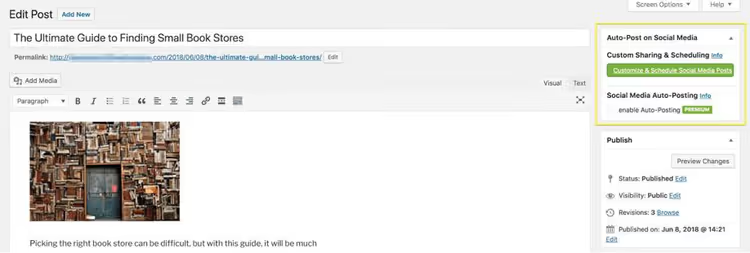
Click "Configure and schedule social media posts," and a page with sharing options will open:
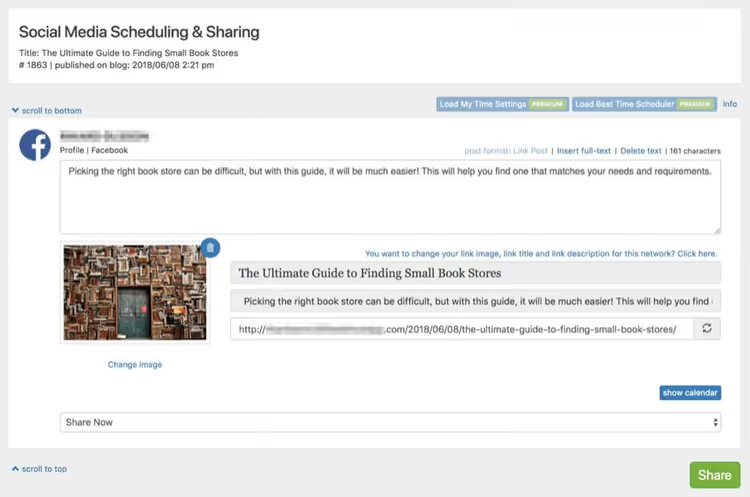
Here you configure text, image (pulled from the article), headline, and meta description for each network separately. Available options depend on the platform: for Facebook, you can set custom text and image; for X, account for the 280-character limit.
When everything is ready, click "Share." In a few seconds, the post will appear in the feed:
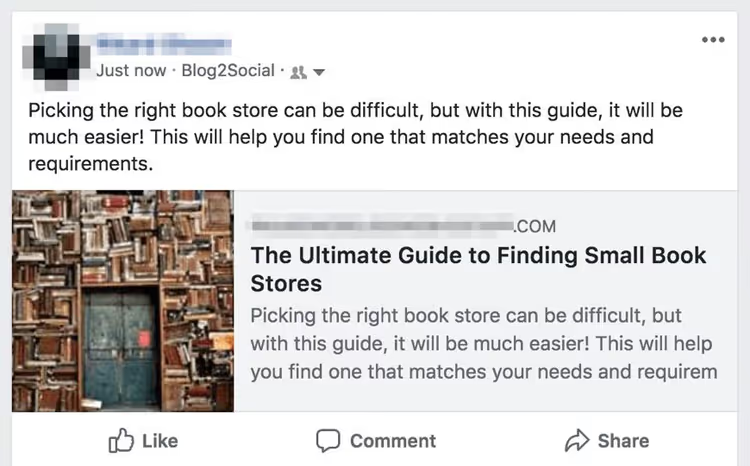
Done. These two steps (connecting networks and configuring a post) cover the main daily use scenarios for the plugin.
Free version versus Premium: what to choose
The free Blog2Social tier is not a stripped-down demo but a working tool. 12 networks, 1 account per network, manual posting, and basic formatting settings. For a blogger publishing 1-2 posts per week on Facebook, X, and Pinterest, the free version is more than enough.
What paid tiers offer (current prices on the Blog2Social website, annual billing):
Feature | Free | Smart ($7/mo) | Pro ($10/mo) | Business ($25/mo) |
|---|---|---|---|---|
Social networks | 12 | 16 | 24 | 25 |
Accounts per network | 1 | 3 | 5 | 15 |
Auto-posting | Manual | Auto | Auto | Auto |
Calendar and Best Time Manager | No | Yes | Yes | Yes |
Reposts (queue) | No | 25 | 50 | 100 |
AI assistant "Assisini" | No | 10/day | 50/day | 50/day |
Image collection sharing | No | No | Yes | Yes |
Practical guideline: Smart ($7/mo) is the optimal tier for an active blogger. Auto-posting + calendar + Best Time Manager pay for themselves in the second week through time savings. Pro ($10/mo) makes sense if you manage multiple projects or want to repost evergreen content. Business ($25/mo) is for agencies with a team and dozens of client accounts. All prices are from the official pricing page.
An important note: X (Twitter) recently started requiring a separate add-on due to new platform API rules, from $14.99/mo for 70 posts (exact price depends on volume needed, see the pricing grid). Factor this into your budget planning if X is critical for you.
⁉️🤔 Frequently asked questions
Does Blog2Social work only with WordPress?
Yes, the plugin installs exclusively on WordPress. It's not suitable for sites on Shopify, Squarespace, Wix, or other CMS platforms. If you're not on WordPress, consider standalone tools: Buffer, SocialRails, Hootsuite. But if your site runs on WordPress, Blog2Social offers deeper integration than any external service.
Can I set up auto-posting of old posts?
Yes, the Reshare feature is available from the Smart tier. You set up a queue of 25-50 posts and repeat logic (for example, publish a random post from a selected category every 3 days). The plugin resurfaces old posts and reshares them automatically. This is convenient for evergreen content: guides, reviews, and tutorials don't lose relevance and bring traffic for months.
How is Blog2Social better than Jetpack Social or WP Scheduled Posts?
Jetpack Social (formerly Publicize) shares posts to 5-6 platforms but offers minimal customization: the same text for all networks. WP Scheduled Posts handles timing but doesn't do social auto-posting. Blog2Social combines both functions and adds a calendar, variable text for each network, an AI assistant, reposts, and video posting. It's a tool in a different class.
Is the free version enough to get started?
Absolutely. 12 networks, basic sharing, text and image customization: this covers most personal blogs. Upgrading to Premium makes sense when you need auto-posting (not clicking a button every time), a calendar for planning, or reposting old content.
What about security and account access?
Blog2Social uses OAuth authorization for each social network. You grant access through the platform's standard mechanism, and passwords are not stored in WordPress. You can revoke access at any time from the social network's settings. Team Management in the Business tier lets you grant network access to team members without sharing passwords.
Is Blog2Social worth installing in 2026?
If your site runs on WordPress and you're tired of manually posting links to social networks, the answer is clear: yes, it's worth it. The plugin solves a specific task (cross-posting), does it reliably, and doesn't require moving to a third-party platform.
Get the free version from WordPress.org. In 10 minutes of setup, you'll have sharing to 12 social networks at zero cost. After working with it for a week or two, you'll understand whether you need scheduled auto-posting and a calendar (then Smart) or whether manual mode is sufficient.
The only case where Blog2Social doesn't fit is if you're looking for a full social media management platform with a unified inbox, analytics, and mention monitoring. That's not its niche. But for the task of "wrote a post → automatically spread across social networks," the tool scores a perfect 5.

A professional team of writers and editors specializing in creating quality content.