














📦 How to export and import Gutenberg blocks in WordPress
You spent 20 minutes on a stylish call-to-action block. You fine-tuned the colors, margins, and copy. A week later you find yourself building the same block from scratch on another site. Sound familiar?
Manually copying blocks between WordPress sites eats up hours you don't have. But Gutenberg solved this problem long ago: reusable blocks plus JSON export let you move any block to another site in under a minute. No plugins, no full database exports, no wrestling with XML imports.
This guide walks you through every step, from creating a reusable block to importing it on a separate site. Plus an alternative plugin that makes the process even simpler.
💡 Quick overview:
- Create a block in the Gutenberg editor and convert it to reusable
- Export it as a JSON file through the block management interface
- Import the JSON on the target WordPress site, and the block is ready to use
- As an alternative, the Blocks Export Import plugin lets you export any blocks, not just reusable ones
What reusable blocks are and why you need them
A reusable block in Gutenberg is a saved content template that you create once and then insert into any post or page. Edit the original block and the changes propagate everywhere it's used.
Typical use cases:
- A thank-you note or signature at the end of every article
- A banner with a promotion or subscription form
- A block with contact details, legal information, or copyright
- An image slider or gallery reused across multiple pages
Before Gutenberg you would have kept such snippets in a text file on your desktop and pasted them from the clipboard. Now this works at the WordPress core level and transfers between sites.
Important note: if a block relies on a third-party plugin (for example, blocks from Getwid or Stackable), that same plugin must be installed on the target site. Otherwise the block will open with an error or lose some of its styles.
1. Creating a reusable block
Open the Gutenberg editor via Posts → Add New. Click the Add Block (+) icon in the top toolbar and choose the block type you need. In the example below it's a simple paragraph block:

Configure the block: add text, links, background color, padding, everything you need for the final look. In our example the result is a thank-you block with social links and a colored background:

Here's what the finished block looks like after styling and text adjustments:
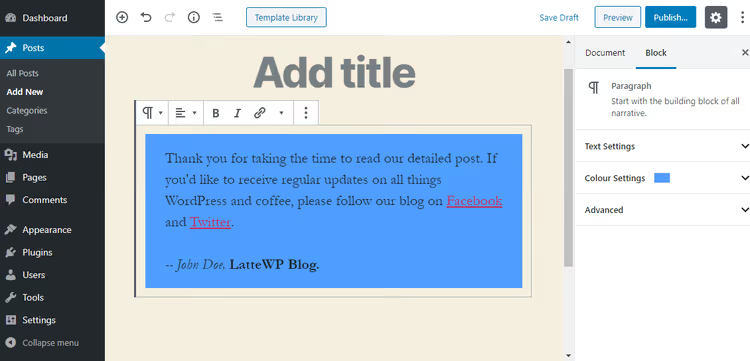
So far this is a regular block. To make it reusable, click the More options icon (three dots) on the block toolbar and select Add to Reusable blocks:

Give the block a name and click Save. Done: the block now appears in your site's reusable block library.

2. Using a reusable block in posts
Adding a saved block to any post or page takes just a couple of clicks. In the Gutenberg editor click Add Block (+), switch to the Reusable blocks tab, and pick the one you need:

After inserting the block, click Preview or Publish and check the result on the front end:

The block works in every post type that supports the Gutenberg editor: posts, pages, custom post types. Create it once, use it anywhere.
3. Exporting the block to JSON
Once the block is ready and tested, you can export it for transfer to another site. In the Gutenberg editor click the More tools and options icon (three dots in the upper-right corner) and select Manage all reusable blocks:

A screen listing all of the site's reusable blocks will open. For now there's only one, the thank-you note. As you create more blocks the list will grow:
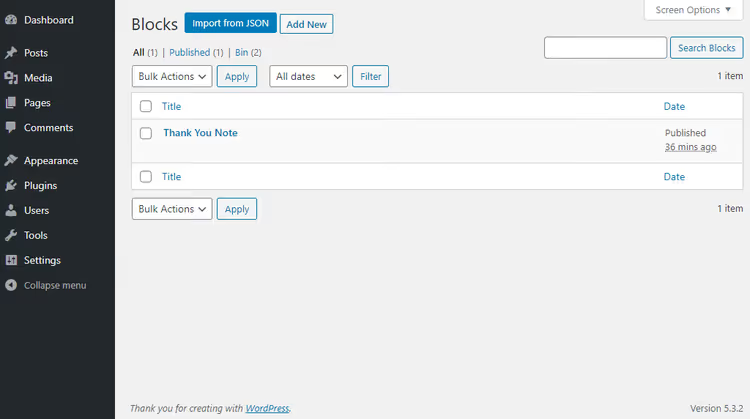
Hover over the block's name and you'll see an Export as JSON link. Click it:

Your browser will download a file with a .json extension. Save it to a convenient folder on your computer:
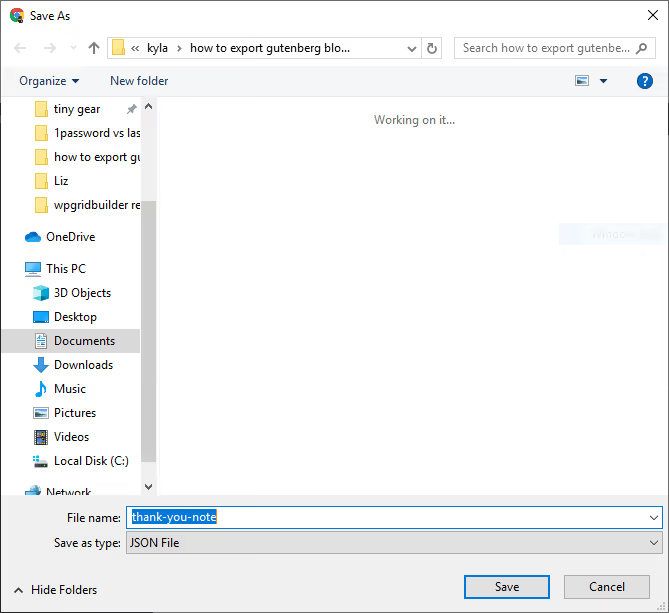
Inside the JSON is the complete block structure: HTML markup, styles, attributes, nested blocks. It's a self-contained file ready to import on any WordPress site with Gutenberg active.
4. Importing the block on another site
On the target WordPress site, open the Gutenberg editor (Posts → Add New). Click More tools and options again and select Manage all reusable blocks:

On the blocks screen, click the Import from JSON button, choose the file you downloaded earlier, and click Import:

Done. The imported block appears in the list and is immediately available for insertion into posts:

From this point on you can use the block on the second site exactly as you would on the first. Repeat the procedure for as many blocks as you like; there are no restrictions.
Alternative method: the Blocks Export Import plugin
The manual method that involves converting to reusable works for most scenarios, but it has one limitation: you can only export reusable blocks. A regular block you just finished designing must first be converted and only then exported.
The Blocks Export Import plugin by ThemeIsle removes this limitation. It adds an export button directly to any block's menu, with no intermediate conversion step.
Install and activate the plugin, then open the Gutenberg editor and create a block. A new Export JSON option appears in the More options menu:

A JSON file with the full block structure downloads to your computer. To import it on another site, click Add Block (+), switch to the Widgets tab, and select Import Blocks from JSON:

Then click Choose File, point to the JSON on your computer, and click Upload:

The plugin method has a caveat: blocks imported this way are not saved to the site's reusable block library. They exist only as a JSON file on your computer. The manual method (sections 1-4), by contrast, stores the block in the WordPress database so it remains accessible through the standard block management interface.
Which method to choose depends on your scenario: for a one-off transfer between your own sites, grab the plugin (it's faster); for ongoing work with a block library across multiple sites, learn the native reusable export.
Video: exporting and importing Gutenberg blocks in practice
Watch a short video tutorial that shows the full cycle, from creating a reusable block to importing it on another WordPress site:
⁉️🤔 Frequently asked questions
Can I export multiple blocks in a single file?
Yes. Select several blocks in the editor (hold Shift and click each one), group them via Add to Reusable blocks, and export the resulting group as a single JSON. The Blocks Export Import plugin also supports multiple exports: select the blocks and choose Export JSON, and all selected blocks end up in one file.
What should I do if an imported block displays incorrectly?
Three likely causes. First: the plugin whose blocks the imported content relies on (Getwid, Stackable, Kadence Blocks, or similar) is not installed on the target site. Install the plugin and reimport. Second: the two sites' themes differ significantly in CSS, so the block may inherit wrong fonts or spacing. Adjust in the block settings or add custom CSS. Third: the JSON file was corrupted during transfer; download and import it again.
How can I tell a regular block from a reusable one in the editor?
A reusable block in the Gutenberg editor is highlighted with a purple border and has a reuse icon (two looped arrows) on the toolbar. A regular block has a blue border with no special icon. Hovering over a reusable block displays its name.
Are theme styles preserved when a block is exported?
Partially. The JSON includes inline markup and block attributes (background color, text size, gradients, everything set through Gutenberg's settings). Styles defined in the active theme's
style.cssare not included in the JSON: they belong to the theme, not the block. So on another site with a different theme the block may look different. For design-critical blocks, set key styles through the block's own settings rather than through theme CSS.
Is there a size limit for the exported JSON?
Technically no, but very large blocks with dozens of nested elements can produce a JSON file of several megabytes. When importing such a file the
upload_max_filesizedirective in the server's PHP configuration kicks in (default is 2 MB). If the JSON exceeds the limit, increase the directive inphp.inior split the block into smaller pieces.
When manual export beats a plugin
The manual method via reusable blocks is built into the WordPress core. It doesn't depend on third-party updates, adds no extra code to your site, and saves blocks to the database so you can see them in the standard management interface.
The Blocks Export Import plugin wins on speed when you just need to grab a block and transfer it immediately without saving to the library. But if you systematically work with a set of standard blocks across multiple sites, learn the native reusable export. A block library accessible from any post eventually pays back that extra conversion click.
Try both methods on a test pair of sites and choose whichever fits your workflow. Ten minutes of setup today saves dozens of hours over a year.

A professional team of writers and editors specializing in creating quality content.