













👨💻 How to use Todoist effectively: a complete 2026 guide
You've set a goal: launch the site by June, finish the Python course, remember the electricity bill, and 14 more tasks you're juggling in your head. Monday morning you open a blank page, and half the list has already slipped away. Sound familiar?
The problem isn't discipline. As James Clear wrote, goals without a system are New Year's resolutions by February. The brain wasn't made to store dozens of parallel tasks; it was made to solve them. When you try to keep everything in your head, cognitive resources go toward remembering instead of working.
Todoist solves exactly this: it offloads tasks from your head into a reliable system and returns you to real work. Over 10+ years it has grown from a simple to-do list into a full-fledged organizer with an AI assistant, calendar, and 90+ integrations. But the magic isn't in the number of features. It's in how you assemble them into a workflow. This guide is not a button overview but a framework for building your system: from your first task to fine-tuning filters and automations.
💡 Quick overview:
- How to instantly capture a thought as a task without losing it among other items.
- How to make deadlines work for you: dates, recurrence, and smart rescheduling of overdue items.
- Three Todoist views (Inbox, Today, Upcoming): when to use each and how not to drown in lists.
- Projects and sub-projects: from "Move to a new apartment" to "Quarterly report," hierarchy without chaos.
- Priorities, labels, and filters: a three-layer system that shows you exactly what to tackle right now.
- Collaboration without mess: shared projects, assigning owners, discussing in comments.
- Integrations with browser, email, calendar, and a hundred apps so tasks land in Todoist without your involvement.
- AI features 2026: Ramble, Task Assist, and Email Assist, what actually speeds up work and what's still rough.
Getting started: installation and first launch
Before diving into filters, make sure the basics are set up. Create an account at todoist.com; the free Beginner plan is enough to go through this guide. Install the app on all devices you use: Windows/macOS, iOS/Android, plus a browser extension (Chrome/Firefox/Safari, useful for the integrations section).
The video above provides a visual start in 15 minutes. We'll go deeper: each feature, why you need it, and how to fit it into a real workday.
How to add tasks quickly and why this is the key skill
At its core Todoist has a simple mechanic: you write down a task in seconds and return to work. No formatting, no sorting into projects, no thinking about priority. You just dump it from your head and move on.
Press + on any platform, type the task name, and press Enter. That's it. The operation shouldn't take more than three seconds. This speed is exactly why Todoist keeps the quick-add field always at hand: on web, desktop, and mobile widget.
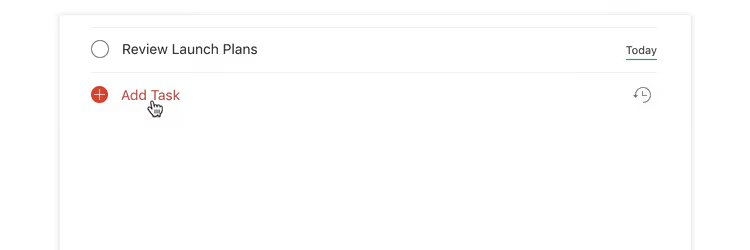
The secret to productivity isn't the discipline to "immediately sort everything into folders" but the habit of instant capture. Think of a task, straight into Todoist. After a week of this practice you'll stop keeping a to-do list in your head altogether. The mental buffer frees up for real work.
Mark a completed task by clicking the circle on the left or swiping right on mobile. Mark off everything for today and you reach #TodoistZero, the moment when your list is empty and your conscience is clear.

Marked by accident? No problem. Undo completion with one click.
Dates and deadlines: how to miss nothing and stay sane
A task without a date is a dream. A task with a date is a commitment. Todoist understands natural language: type "tomorrow," "June 15," "next Monday," or "every Friday" right in the task name, and the due date is set automatically.
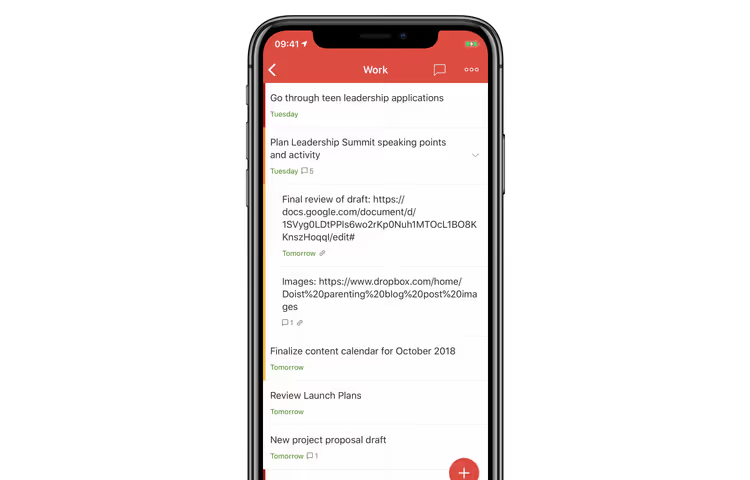
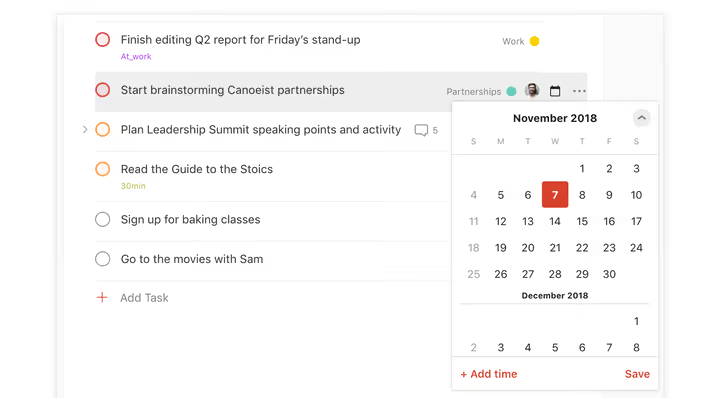
You can add an exact time: "June 15 at 9 am." Or choose a date from the calendar; when you hover over a day, Todoist shows how many tasks are already scheduled for that date. This way you won't overload a single day.
Recurring tasks: set once and forget
Taking out the trash every Wednesday, a weekly report, a quarterly review: none of these should loom in your task list as separate items. In the task field type "every Wednesday," "every 2 weeks," or "every 1st," and Todoist will automatically move the date to the next occurrence after completion. The syntax is the same natural language. The full reference fits on one cheat sheet.
What to do with overdue items
It happens to everyone: you open "Today" and there are 17 red tasks. Don't reschedule one by one. Click Reschedule in the upper right corner of the "Today" or "Upcoming" views and bulk-move everything to realistic dates. Or select several tasks, click Schedule, and assign them one day; it's faster than clicking through each one.
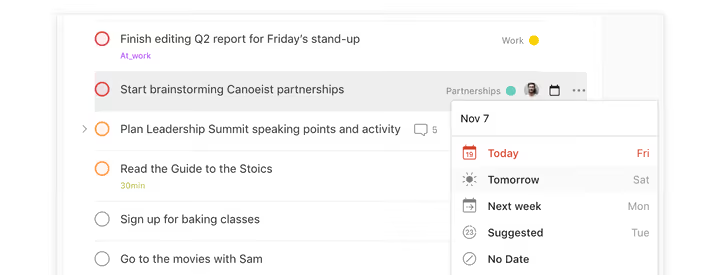
To remove a date entirely, open the scheduler and click No date. The task returns to the general list and waits until you get around to it.
Three views: Inbox, Today, Upcoming
When tasks exceed twenty, a flat list becomes a source of anxiety. Todoist groups them into three views accessible in the upper left corner on any platform.
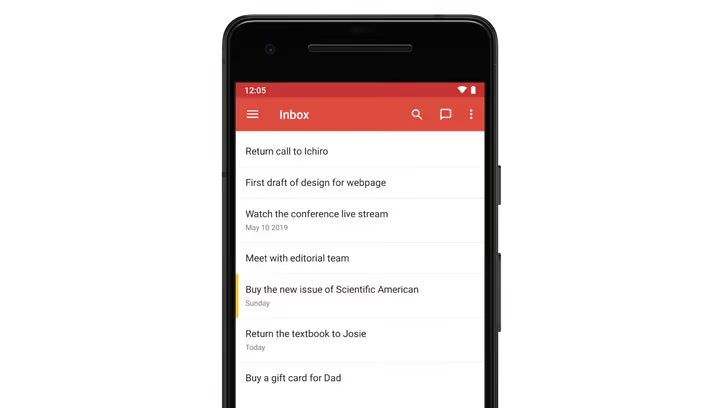
Inbox: the draft for everything new
Every task added without specifying a project lands in the Inbox. This isn't a bug; it's a feature: you don't spend time sorting at the moment of capture. Once a day (morning or evening) process your Inbox: complete some items immediately, move others to a project and assign a date.
Today: your operations center
The "Today" view gathers tasks from all projects whose due date is the current day. No manual sorting: open it and see exactly what you promised yourself to do. Work through them one by one, mark off the completed ones, and reach #TodoistZero by evening.
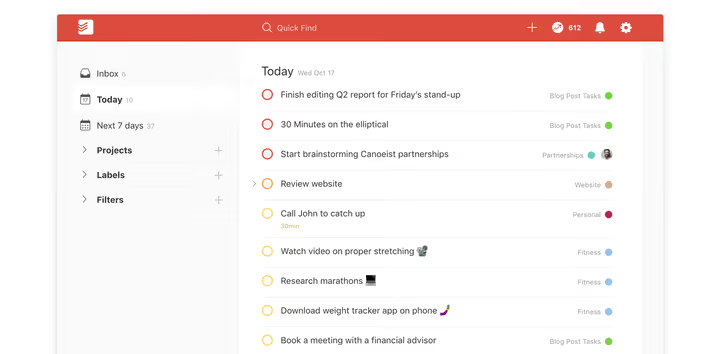
If a task remains unfinished, drag it to the bottom of the list and it automatically moves to tomorrow. This gesture saves a couple of clicks and removes the guilt: tomorrow is a new day and a new chance.
Upcoming: a view of weeks ahead
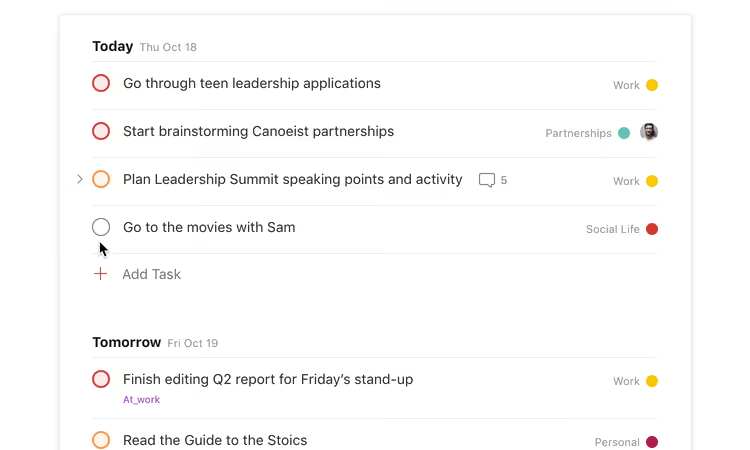
The "Upcoming" view shows a calendar layout of all future tasks by day. Drag tasks between days right here; it's convenient when plans change and you need to quickly rearrange the week. The quick search at the top accepts queries like "14 days" and shows everything due within the next two weeks.
Projects: from one-time goals to a system
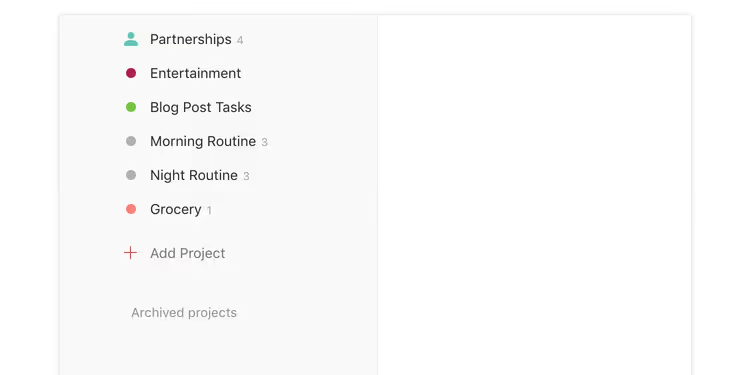
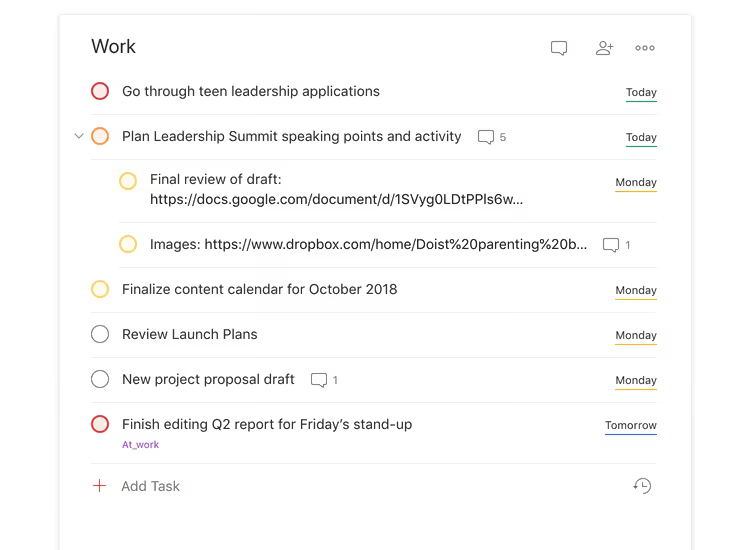
Single tasks work for "buy bread." For "launch the site," "move," or "prepare the quarterly report" you need projects. Each project in Todoist is a container for a group of related tasks: with its own color, shared access, and nested sub-projects.
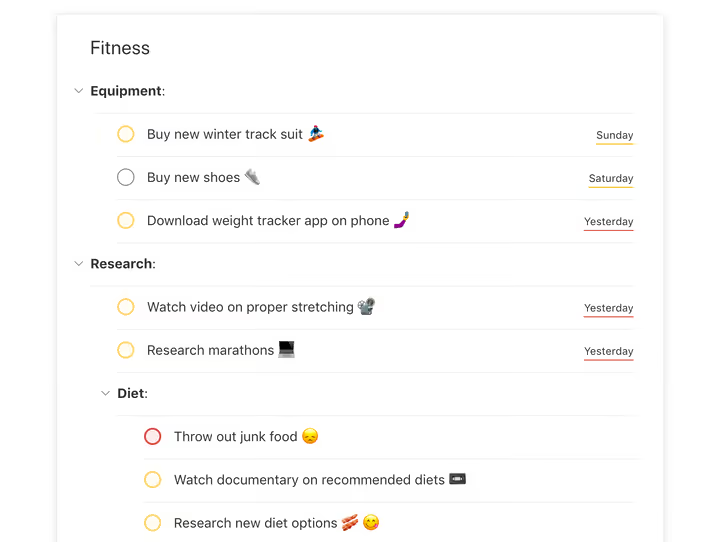
Create a project for each major goal. Inside, regular tasks with dates and priorities. If the goal is complex, add sub-projects: project "Move" → sub-projects "Documents," "Packing," "Transport," "New address." The hierarchy keeps tasks of different levels from mixing.
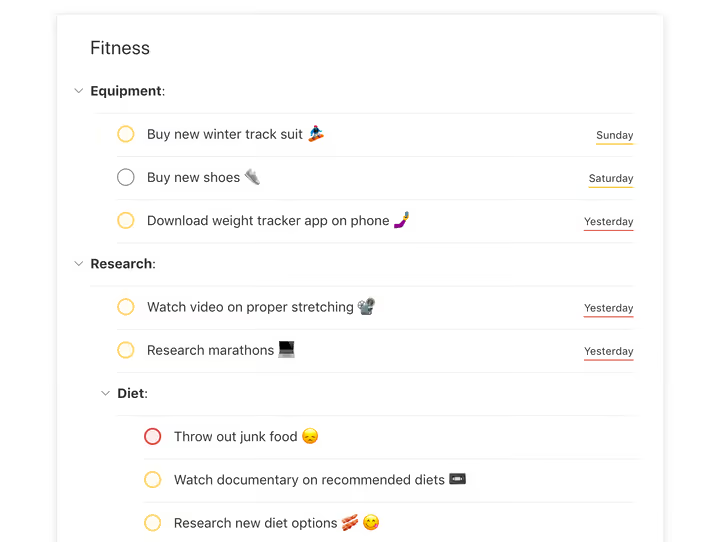
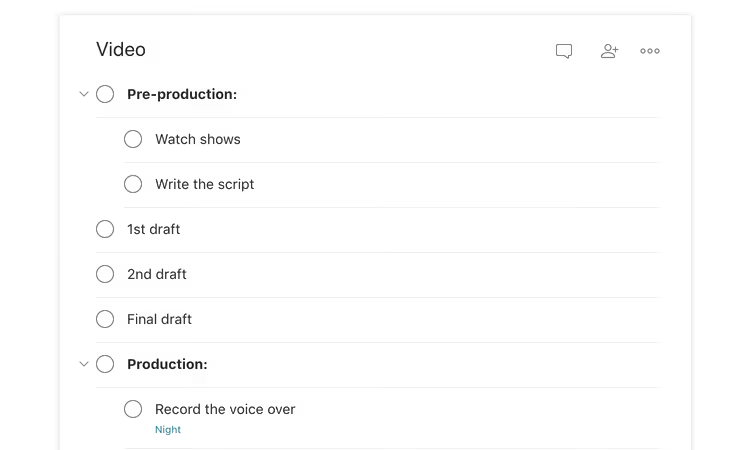
Sections within a project (added via the button in the upper right corner) break the task list into logical blocks: "Design," "Layout," "Testing." This visually declutters the screen and helps ensure you don't skip a stage.
Priorities: red, orange, blue, a simple urgency language
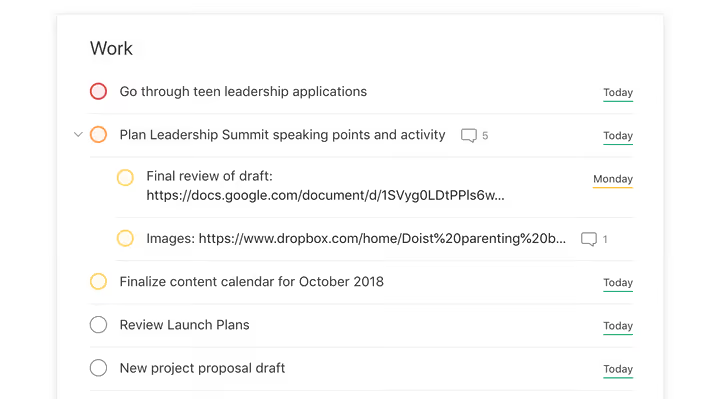
Not all tasks are equal. Todoist offers four priority levels: from p1 (red, critical) to p4 (no color, routine). Set the priority when adding a task; the flag button is to the right of the input field. Red tasks float to the top of the list and visually signal "do me first."
A simple rule: if you have more than three red tasks a day, priorities aren't working; you're setting p1 on everything. Reserve red for what will genuinely break your day if left undone. Orange is important but can wait until evening. Blue and gray are background tasks that can be moved.
Reminders: so Todoist finds you
Reminders are one of those features that turn Todoist from a passive list into an active assistant. Set a reminder 30 minutes before a deadline and get insurance against "oops, I forgot." Or enable a location-based reminder: "when I arrive at the office, remind me to send the contract." Works on iOS and Android and is set up in two clicks.
Basic reminders are available on the free Beginner plan. Custom reminders with choice of time, location, and recurrence require Pro.
Comments and files: context inside the task
You can attach a file, screenshot, or leave a comment on a task. On the free plan, up to 5 MB per file. On Pro, up to 100 MB. Comments support formatting, mentioning participants via @, and attachments. All discussion about the task is stored inside it; you don't need to search for the conversation in email or a messenger.
Collaboration: share projects, not lists
Work and family projects make sense to run together. In Todoist you give access to a project (button to the right of the project name → "Share"), and all participants get a shared task list. Each task can be assigned to one responsible person, not a group. This is an intentional constraint: following the DRI (Directly Responsible Individual) principle, at any moment it's clear who is accountable for the result.
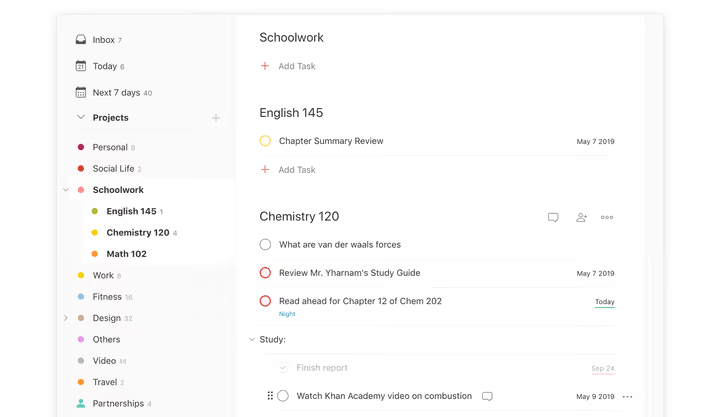
If a task requires several people, duplicate it for each. And when you need to discuss details, use task comments: mention a participant via @, and they'll get a notification. For teams of five or more, consider Todoist Business ($8 per user per month with annual billing); it adds shared workspaces, team roles, and administrative controls.
Browser extensions: save pages as tasks
Todoist's most underrated feature is the ability to turn any web page into a task in a second. Install the extension for Chrome, Firefox, or Safari. While viewing a page, right-click → "Add to Todoist." A task is created with the page title and a backlink to it.
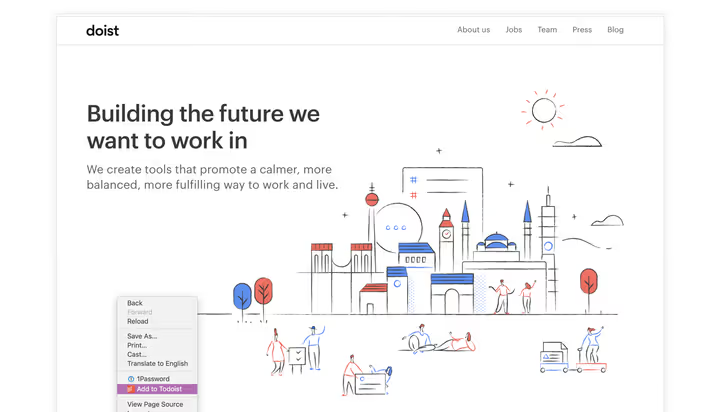
Highlight text on the page before adding, and it becomes the task name. On mobile devices the same logic works via the "Share" button in the browser → choose Todoist.
Email: how messages become tasks
Two ways to keep an important email from getting lost. First, plugins for Gmail and Outlook: a Todoist button right in the mail client interface creates a task with a link to the message.
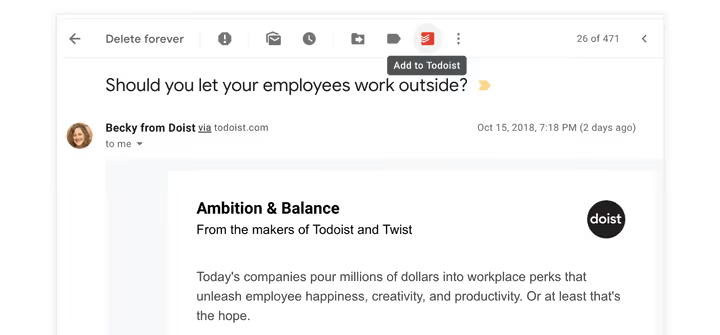
Second, forwarding emails to a project's special address (Pro). Setup: project → three dots → "Email tasks to this project" → copy the address. Now any email forwarded to it becomes a task: subject line is the title, body goes in the comments. Attachments are saved too.
Calendar: two-way sync with Google Calendar
If your day is scheduled by the hour, sync Todoist with Google Calendar. After setup, Todoist tasks appear in your calendar, and new calendar events appear in Todoist. Two-way sync keeps both systems up to date without manual transfer.
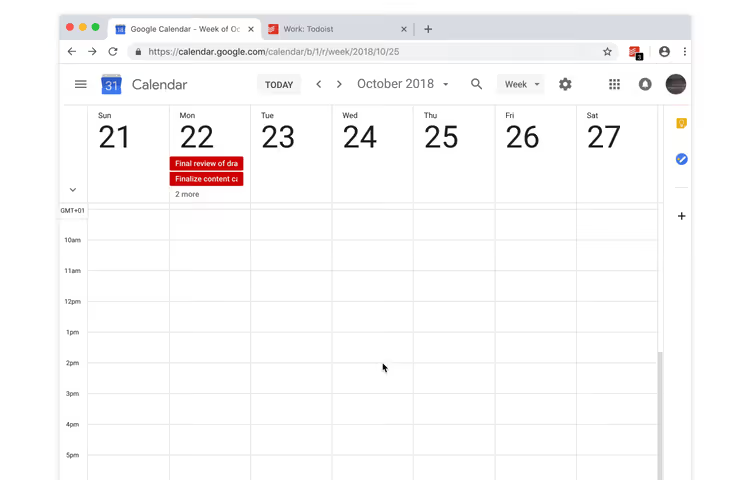
Pro users get a separate "Calendar" view inside Todoist itself: a monthly grid with drag-and-drop between days. For visual planning a month ahead, this is more convenient than the "Upcoming" list.
Labels: a cross-project coordinate system
Projects group tasks by goals. But what if you need to see all tasks of a certain type (for example, everything involving calls) regardless of project? That's what labels are for. A Pro feature.
Add a label like @email, @call, @5min, or @waiting to a task (the @ symbol at the start is a convention, not a requirement). Then open that label in the left menu and you'll see all tasks with it from any project.
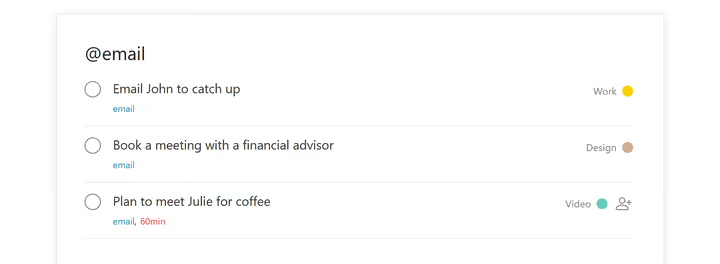
Three scenarios that work in practice:
@5min/@15min/@30min: when a 5-minute window appears, open the corresponding label and knock out short tasks in a batch.@waiting: gathers all tasks where you're waiting for a response from someone. Once a day open the label and send reminders to those who are late.@office/@home: context lists showing what can only be done in a specific location.
Labels are available on the Pro plan ($5 per month with annual billing, current pricing). After the December 2025 price increase, Pro went from $48 to $60 per year, but AI features were added to the plan alongside this change.
Search and filters: find exactly what you need right now
Basic search (available to everyone) finds tasks by keywords, projects, and labels. But the real power is in filters. A filter is a saved search query with its own name that you can pin to the left menu and open with one click. A Pro feature.
Create a filter: + next to the "Filters" section → enter a name and query. The syntax is simple:
30 days: all tasks due within the next 30 days.today & #Work: work tasks due today.p1 & 7 days: critical tasks this week.no date: everything hanging without a deadline (and piling up unnoticed).@waiting & 30 days: what you promised and what's promised to you.
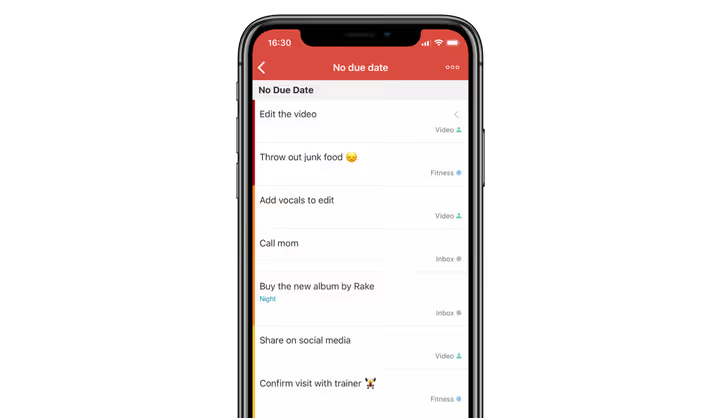
Filters update automatically: add a task that matches the query and it immediately appears in the filter. The full query reference covers all operators, including logical AND/OR and exclusions.
Favorites: quick access to what you use every day
Projects, labels, and filters can be pinned to favorites. They always appear in the left menu just below "Upcoming." Handy for daily filters ("Today + p1") and projects you visit 10 times a day.
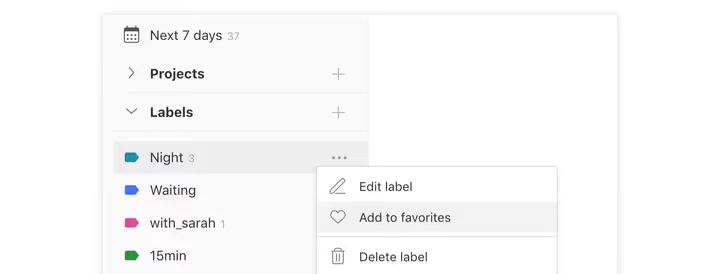
Favorites sync across devices: set up on desktop, works on your phone.
Productivity and karma: numbers that keep you sharp
The "Productivity" view shows how many tasks were completed today and this week and how many remain until your daily goal. You set a goal (for example, 8 tasks a day), and Todoist tracks progress along with your streak of consecutive days.
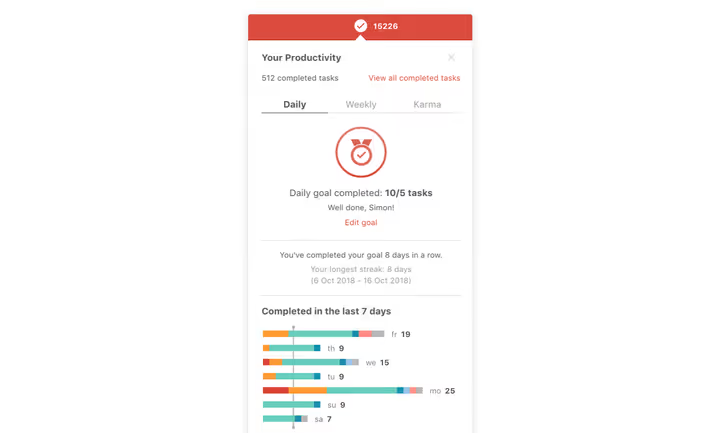
Karma points are gamification: complete tasks, earn points, level up from "Beginner" to "Enlightened." Some people find this motivating, others find it distracting; it can be turned off in settings.
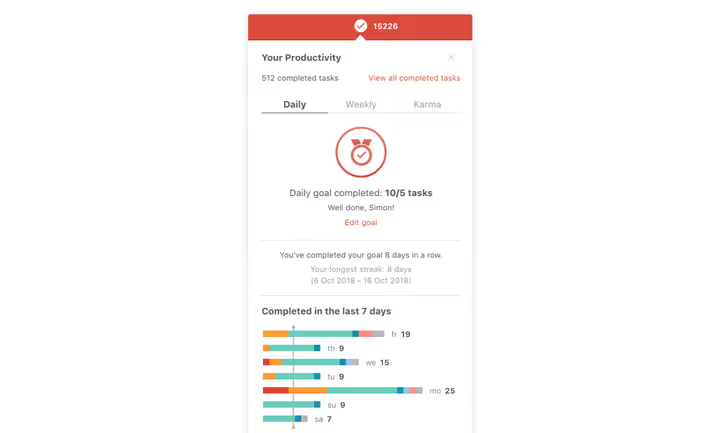
If you're on vacation, enable vacation mode so you don't break your streak.
Themes: make Todoist visually yours
Thirteen color themes (from Sunflower to Amethyst) plus a dark theme for nighttime work. Change in Settings → Theme; syncs across devices.
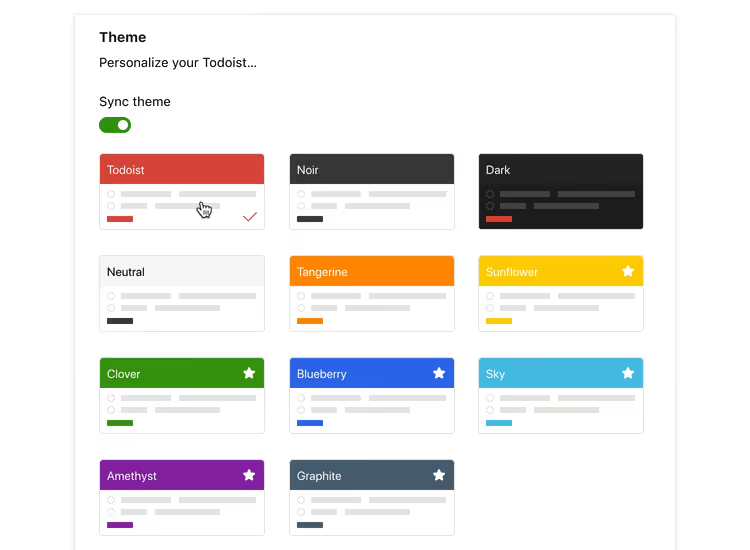
The dark theme (introduced in 2022 and refined since) is easy on the eyes during evening planning:
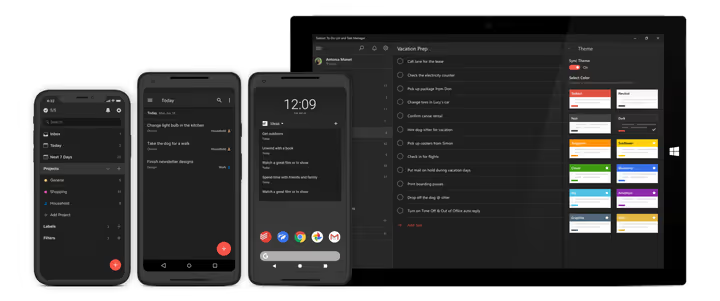
You can also assign colors to projects, labels, and filters; visual coding speeds up navigation in long lists.
What's new in 2026: AI and more
December 2025 brought Todoist's most significant update in years. Here's what actually changed the workflow.
Ramble: voice task entry in 38 languages, including Russian. Powered by Google Gemini 2.5 Pro: you say naturally "schedule a call with the designer for Thursday at 2 pm, high priority, project Work," and Ramble creates a task with the date, project, and priority already set. On the Pro plan, unlimited. On Beginner, a few trial sessions.
Task Assist: AI breaks a large task into subtasks. You write "Prepare presentation for client" → Task Assist suggests a structure: "Gather quarterly data," "Make slides," "Coordinate with manager," "Send to client." Not perfect, but saves 5-10 minutes of planning for each major task.
Email Assist: forward an email to Todoist and AI extracts tasks, dates, and contacts from it. For those receiving more than 50 emails a day, the savings are real: you don't have to manually retype information.
Calendar inside Todoist: a full monthly grid with task drag-and-drop. Previously this was only possible via Google Calendar sync.
The price: Pro is $5 per month with annual billing ($60 per year), Business is $8 per user per month ($96 per year). Subscribers who stayed on the old plan via the App Store before December 2025 do not get the new AI features; switching to the new plan manually is required.
Integrations: 100+ ways to connect Todoist to the rest of the world
Todoist doesn't have to be an island. The integration catalog includes over 100 apps. Here are those that deliver the biggest productivity boost:
- Google Assistant / Siri Shortcuts: dictate a task to your phone or Google Home: "Add a task to Todoist". Works without a subscription.
- Zapier / IFTTT: connect Todoist to hundreds of apps. Real examples: new email from client → task in the "Clients" project; new Trello card → task in Todoist; form submitted on website → task with contact details.
- Slack: turns a message into a task with the
/todoist addcommand. Or saves a reminder from a thread so an agreement isn't lost. - Dropbox / Google Drive: attach cloud files to tasks; the link goes straight to the document.
- Toggl Track / Clockify: start a timer right from a Todoist task for time tracking.
The Zapier + Todoist + Google Calendar combo covers 80% of automation scenarios for an individual user without a single line of code.
⁉️🤔 Frequently asked questions
Is Todoist free or paid?
The Beginner plan is completely free: up to 5 projects, basic reminders, 3 filters, 5 members per project, and up to 1 week of activity history. Pro ($5 per month with annual billing) adds 300 projects, 150 filters, custom reminders, calendar, labels, AI features, and file uploads up to 100 MB. Current plan comparison is on the official site.
How is Todoist better than Google Tasks or Microsoft To Do?
Google Tasks and Microsoft To Do are basic lists with minimal features, but they're free and deeply integrated into their ecosystems. Todoist offers two key advantages: filters (showing exactly the tasks you need rather than everything) and natural language (dates and recurrence are entered without clicking through a calendar). If you have more than 20 active tasks a week, the difference becomes noticeable. If 5-10, To Do might be enough.
Can Todoist be used for a large team (50+ people)?
For a team this size Todoist Business works as a lightweight shared task manager but not as full-fledged project management. It lacks Gantt charts, task dependencies, and workload balancing; for that look at ClickUp, Asana, or Monday. However, for cross-functional working groups within a company who simply need to distribute and track tasks, Todoist works excellently.
What is #TodoistZero?
A term coined by the community by analogy with Inbox Zero: the state when the "Today" view has no uncompleted tasks left. Achieved by daily completion of everything scheduled or honest rescheduling to realistic dates.
Will my data be migrated when switching from another task manager?
Yes, Todoist supports import from TickTick, Trello, Asana, and via CSV. When switching from another service it's better to start fresh: import only active tasks and leave the archive in the old tool. The structure of projects and labels gets rebuilt to fit Todoist logic anyway; mechanical "as-is" imports usually create clutter.
Does Todoist work offline?
Yes, offline mode is available on all platforms. You add and edit tasks without a connection, and changes sync when the network returns. On mobile this works especially reliably.
What is Ramble and what languages does it understand?
Ramble is Todoist's voice AI assistant powered by Google Gemini 2.5 Pro. You speak a task in natural language and it is parsed into a structured task with date, project, priority, and labels. It supports 38 languages, Russian included. On the Pro plan it's unlimited; on Beginner there are a few trial sessions.
Is Pro worth buying: breakdown by scenario
Todoist Beginner covers the needs of a student or someone with a simple personal to-do list. Pro ($60 per year) pays off in one of three scenarios:
- You manage more than 5 projects. School, work, home, fitness, finances, hobbies: six projects already hit the Beginner limit. Pro gives 300.
- Custom reminders and labels are critical for you. Without them Todoist is a passive list; with them it's an active assistant. Location-based reminders are especially valuable: "when I arrive at the office" works without your involvement.
- You receive more than 30 emails a day. Email Assist + forwarding to a project pays for the subscription in the first week: emails stop getting lost and replies aren't forgotten.
If you work in a team of three or more, get Business ($8 per user per month). Shared workspaces, access permissions, and the admin panel remove onboarding headaches for new members.
Not sure? Stay on Beginner for the first 30-40 days. When you hit the project limit or seriously want labels and filters, the decision will be obvious.
If after this guide you're still wondering where to start, begin with three things. First, build the habit of dumping everything into Todoist immediately. Second, process your Inbox once a day. Third, when you feel a flat list isn't enough, enable projects and labels. The rest will come with practice.

A professional team of writers and editors specializing in creating quality content.