














📅 How to schedule posts in WordPress: a complete guide
Three in the morning, and you're clicking "Publish." Sound familiar?
Built-in WordPress scheduling is one of those features that has been sitting right under your nose for years, yet most authors walk right past it. The "Publish" button stands out, while the "Schedule" option hides behind a click on the date. The result: a chaotic schedule, missed deadlines during vacation, and manual publishing at inconvenient times.
Below is a concrete algorithm that will establish an editorial rhythm for your site without third-party services or reminders. Five minutes to set up, and WordPress publishes posts on its own, even while you sleep.
💡 Quick overview:
- In the block editor, click on the date next to "Publish," select a future day and time, then click "Schedule."
- In the classic editor, click "Edit" next to "Publish immediately," set the date, and click "OK."
- For a visual calendar and bulk scheduling, connect SchedulePress, Editorial Calendar, or PublishPress Planner.
- Check the timezone in Settings → General; without this, posts will go live at the wrong time.
Why schedule posts
Consistency is one of the few signals that search engines and readers interpret the same way. A site with erratic publishing loses to one where a new post goes live at the same time twice a week. Scheduling lifts the burden of remembering from the author: you write an article on Sunday, set it for Wednesday at 10:00 AM, and forget about it until the next task.

The second argument is peak audience time. Every site has its own: news projects collect traffic in the morning, tech blogs at lunchtime, entertainment sites in the evening. Scheduling lets you release a post at exactly the hour when readers are most active, even if you're asleep at that time.
The third is vacations and periods of unavailability. You prepare content ten days in advance, set dates for each piece, and the system publishes it automatically without your involvement.
How to schedule a post in the block editor
The block editor has been the WordPress standard since version 5.0, and this is where scheduling is implemented most clearly.
After finishing your text and checking the formatting, look at the right sidebar under the "Post" tab. Under the "Status & visibility" block, you'll find the "Publish" section. The button shows "Immediately" by default; this is your entry point.

Click on "Immediately," and a calendar with a time field will open. Select a future date and time down to the minute. Once the date is in the future, the button text will change to "Schedule." Click it, and the post enters the queue to be automatically published at the specified moment.
Until that time arrives, the post is visible only to you in the posts list with a "Scheduled" label. You can edit or remove it from the schedule at any time (more on this below in the FAQ section).
How to schedule a post in the classic editor
The classic editor still runs on some sites, especially those that migrated from very old WordPress versions or use plugins incompatible with blocks.

In the classic editor, the "Publish" block is located on the right. Next to "Publish immediately," there's an "Edit" link; click it. Date and time fields will appear. Enter the values you need and click "OK." The "Publish" button will turn into "Schedule." Click, done, post is in the queue.
If your project allows, switch to the block editor. Gutenberg is faster, more modern, and actively developed. But if migration is impossible, scheduling in classic mode works just as reliably; the interface is simply a bit less obvious.
Plugins for advanced scheduling
WordPress's built-in mechanism is enough for a solo author with a dozen posts per month. When there are multiple authors, dozens of publications, and you need to see the schedule visually and drag items with your mouse, plugins come into play.
SchedulePress
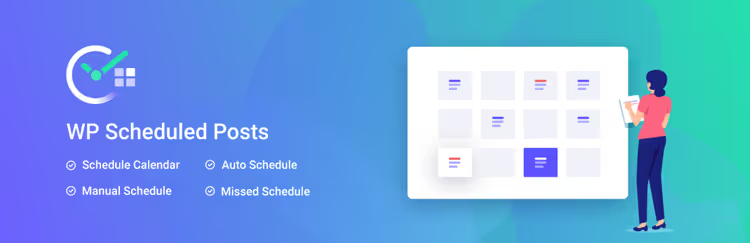
SchedulePress (formerly WP Scheduled Posts) is one of the most feature-rich free schedulers. It offers a visual calendar with drag-and-drop, an auto-scheduler that distributes posts across specified days and times, a missed publication handler, and tools for automatic social media sharing.
Strengths: drag-and-drop calendar, bulk scheduling, auto-publishing on schedule, recovery of missed posts.
Limitations: social sharing in the free version is limited; team collaboration with notifications and editorial statuses requires premium.
PublishPress Planner

PublishPress Planner is a professional tool for teams. It includes a content calendar, Kanban board, editorial statuses (Pitch, Assigned, In Progress, Draft, Pending Review), status change notifications, and version control.
Strengths: full editorial workflow for multiple authors, flexible permissions, Slack integration.
Limitations: overkill for a single-author blog; some advanced features are in the paid version.
Editorial Calendar
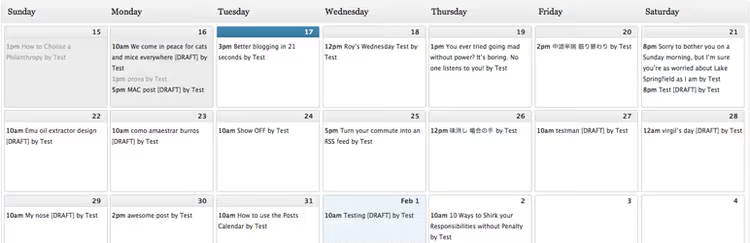
Editorial Calendar is a minimalist plugin that delivers exactly what the name promises: a calendar view of all posts with drag-and-drop capability. No additional panels or complex settings.
Strengths: extremely simple, doesn't clutter the admin panel, drag-and-drop works intuitively.
Limitations: doesn't support pages or custom post types, no team features.
⁉️🤔 Frequently asked questions
Why is the WordPress timezone wrong and how do I fix it?
The timezone may not match your local time after moving to a different host or after a system update. It's fixed in a minute: Dashboard → Settings → General, the "Timezone" block, select the nearest major city from the dropdown list rather than a UTC offset. Save, and all future scheduled posts will go out at the correct time.

How do I view all scheduled posts?
In the admin panel: Posts → All Posts. Above the list is a row of filters: "All," "Mine," "Published," "Drafts." Click "Scheduled," and the system will filter and show all posts in the queue with their release date and time.

What should I do if a scheduled post didn't publish on time?
WordPress uses WP-Cron for deferred tasks, including scheduled publishing. If a post gets "stuck," the reason is usually that server cron isn't configured, and the built-in pseudo-cron doesn't trigger without visitors to the site.

Solution: set up system cron on your hosting (through cPanel or your server control panel) and disable the built-in WP-Cron in
wp-config.phpwith the linedefine('DISABLE_WP_CRON', true). After this, posts will go live right on the minute. SchedulePress and PublishPress additionally have a built-in missed publication handler that catches such failures automatically.
How do I cancel or change a post's schedule?
Open the post in the editor, click on the scheduled date in the sidebar, select a new time, and click "Update." To remove it from the schedule entirely, change the status to "Draft," save, then publish manually if needed.

In the block editor, the status change option is in the top panel next to the publish button: expand the dropdown and select "Draft."

In the classic editor, the same option is in the "Publish" block on the right. Both methods work identically: the post is removed from the queue instantly.
Can I schedule pages, not just posts?
Yes, the mechanism is identical. Open a page in the editor and repeat the same steps: date in the sidebar → future time → "Schedule." WordPress processes pages and posts through the same cron mechanism.
How do I schedule an update to an already published post?
By default, every change to a published post is applied immediately; you cannot "defer" edits. To work around this, connect Content Update Scheduler; it adds a "Schedule Update" button and lets you schedule content updates for the future. The same functionality is built into SchedulePress (Advanced Schedule) if you already use that plugin.
Scheduling in WordPress: what to choose for your task
For a solo author, the built-in mechanism is sufficient. Three clicks, and the post is in the queue. Reliable, no plugins, works on any hosting with WordPress 5.0 and above.
If you need a visual calendar, connect Editorial Calendar. It adds a calendar view and nothing more. If you need an auto-scheduler, social media integration, and a safety net for missed publications beyond the calendar, get SchedulePress. For a team with an editor, authors, and approval stages, PublishPress Planner covers the entire cycle from idea to publication.
One main rule: set up the timezone and check cron. WordPress will handle the rest.

A professional team of writers and editors specializing in creating quality content.