














🚫 How to stop spam registrations in WordPress: 10 solutions for 2026
Every morning you open the WordPress admin panel and find 47 new users. Names like aBx234Kd_oo, emails from throwaway domains. Not a single real person. Sound familiar?
Spam registrations are not just annoying. They consume database space, load the server and create security holes. And if your site allows open registration, welcome to the hell of manual cleanup.
Below are 10 working methods that block bot registrations. From built-in WordPress settings to server-level blocks and specialized plugins. Use two or three methods together since bots eventually bypass a single defense.
💡 Quick overview:
- Enable email confirmation in User Registration to block bots with fake emails
- Install the free WP Armour for invisible honeypot protection without CAPTCHA
- Add reCAPTCHA v3 to registration forms as an additional layer
- Connect Sucuri for cloud-based spam filtering at the DNS level if your project is commercial
- Use Bulk Delete for mass cleanup of accumulated fake accounts
How registration bots work
Spammers do not sit and fill out forms manually. They write scripts that automatically find registration forms, insert generated data and send a POST request. A single script creates thousands of accounts per hour.

Bots have different goals. Some target SEO: register to place a link in the profile. Others look for vulnerabilities: if the site has a plugin with a flaw, Subscriber access can sometimes be escalated to administrator. Still others test stolen email databases for validity through your registration form.
The standard form /wp-login.php?action=register is the first target. But if the site runs WooCommerce, BuddyPress, Ultimate Member or any custom form builder, bots will find those too. You need to protect all entry points, not just one form.
Why spam registrations are dangerous: 5 reasons
Fake users rarely do anything useful after registration. But the harm they cause is quite concrete.
Database bloat. Each bot is a row in wp_users and wp_usermeta. A hundred is unnoticeable. Ten thousand means the database swells, backups get heavier and migrations slow down.
Server load. A bot sends a POST request for registration, WordPress calls PHP, checks the nonce, writes to the database and possibly sends an email. A thousand such requests per hour creates parasitic load. On cheap hosting the site goes down.
Security risks. A Subscriber in WordPress can do almost nothing. But if the theme or plugin has a vulnerability, privilege escalation turns a spam account into an admin. This scenario is documented for a dozen popular plugins over the past three years.
Spam sent** to registered users.** A bot with profile access sends private messages through BuddyPress, bbPress or a chat plugin. Real users receive spam on behalf of your site and leave.
Reputation damage. Google does not directly penalize a site for spam users. But if public profiles display links to casinos and pharma, the search engine sees a "link farm" and reacts. Recovering reputation takes longer than preventing the problem.
1. Email confirmation on registration
The simplest and most effective first line of defense. After filling out the form, the user receives an email with an activation link. Until they click, the account is not active.
A bot with a fake address will not receive the email. Therefore it will not complete registration. This method blocks the overwhelming majority of automated spam (everything coming from nonexistent emails).
Implementation uses registration plugins. User Registration & Membership from WPEverest provides email verification out of the box in the free version. After installation go to Settings → User Registration, the General tab, and select "Email confirmation" in the Login Option dropdown.

In the settings you can change the email template, subject and text. Confirmation status is visible in the admin panel: if "Pending" persists longer than a day, the user is very likely a bot. You can delete such users in bulk (method 10).
2. Manual approval by administrator
A stricter option: each new user requires explicit admin approval. No automatic activations, only manual control.
Suitable for closed communities, membership sites and corporate portals. For a blog with open registration it is excessive: real users do not want to wait.
In the same User Registration plugin switch Login Option to "Admin approval after registration". After saving, a status column appears in the Users section where you can approve or reject users in bulk.

Rejection criteria: email from a throwaway domain like @mailinator.com, meaningless username of random characters, missing Gravatar avatar despite a filled email field. In five seconds of review you can tell whether it is a human or a script.
3. Stop Spammers Classic: blocking at the request level
Stop Spammers Classic is a veteran among WordPress anti-spam plugins. It has been working since 2010, has over 30,000 active installations and version 2026.5 from May 2026.
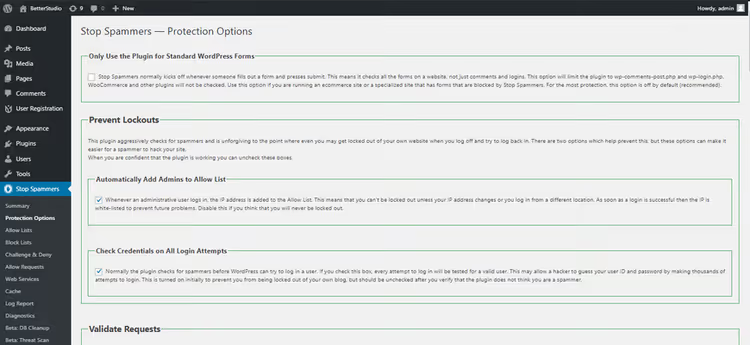
The plugin checks HTTP referer and request headers. If a request did not come from your site, it is blocked. If the user's browser has been seen in malicious activity, it is blocked. No CAPTCHA, no extra fields. The user notices nothing.
Default settings work for most sites. If real users complain about false positives, relax one or two options in Stop Spammers → Protection Options. Note: with aggressive settings the plugin may lock you out of the admin panel. The fix is renaming the plugin folder via FTP.
Pros: free, invisible to the user, blocks before form submission. Cons: aggressive settings cause false positives; configuration requires care.
🔗 Stop Spammers Classic on WordPress.org
4. Sucuri: cloud firewall with anti-spam filtering
Sucuri is not a plugin in the usual sense. It is a security service that routes all site traffic through its CloudProxy cloud proxy. It also filters spam bots at the HTTP request level before they reach WordPress.

When Sucuri is active, every request to the registration form goes through signature analysis. Known botnets, malicious IPs and suspicious User-Agent patterns are all blocked on approach. Additionally Sucuri speeds up the site through caching and reduces bandwidth usage.
Sucuri has a free plugin for WordPress, but the firewall with anti-spam is part of a paid subscription starting at $199 per year. For commercial projects where spam registrations cause direct losses, the investment pays off.
Pros: DNS-level protection, filtering before WordPress, site acceleration. Cons: paid, overkill for a small blog.
5. Google reCAPTCHA on the registration form
The most recognizable method for fighting bots. reCAPTCHA v2 shows a checkbox "I'm not a robot", v3 works invisibly in the background and assigns each visitor a humanity score.

reCAPTCHA from Google is the industry standard. It integrates through form plugins: WPForms, Contact Form 7, the same User Registration. For v2 you will need to obtain a Site Key and Secret Key in the Google reCAPTCHA console.
reCAPTCHA does not block manual spam. If a real person fills out the form for pennies, they will pass. But practically all automated bots are blocked. The main trade-off: v2 with traffic light selection annoys users, v3 works invisibly but requires integration with a score threshold.
Pros: free, wide plugin support, effective against bots. Cons: friction for users in v2, does not protect against manual spam, depends on Google.
6. Math CAPTCHA: a simple barrier without third-party services
Instead of an external Google service you can use simple math: "What is 3 + 4?" A bot does not understand the question; a human answers instantly.

Math CAPTCHA is built in through plugins like User Registration (built-in option) or Captcha by BestWebSoft (method 7). In settings you choose the "Math Captcha" type, equation difficulty and appearance.
The main advantage of this approach is independence from external services. No API keys, no requests to Google. The downside: math CAPTCHA can be solved by a simple parser if a bot deliberately targets your site. But for background spam flow it works great.
Pros: no external dependencies, fast for users, free. Cons: bypassed by a targeted bot, less reliable than reCAPTCHA v3.
7. Captcha by BestWebSoft: universal CAPTCHA for all forms
Captcha by BestWebSoft is a free plugin that adds CAPTCHA to more than 12 standard WordPress forms: login, registration, password reset, comments, Contact Form 7, WooCommerce and others.

The free version offers three CAPTCHA types: invisible, character recognition and math. The Pro version adds support for Gravity Forms, Ninja Forms, Elementor, BuddyPress, wpForo and another dozen plugins, plus slide CAPTCHA and disposable email blocking.
The settings interface is simple: select forms to protect, choose the CAPTCHA type, configure appearance and you are done. The plugin is actively updated (version 5.2.8 from March 2026) and is compatible with the current WordPress version.
Pros: wide form coverage, multiple CAPTCHA types, easy setup. Cons: Pro costs extra, visible CAPTCHA adds friction.
🔗 Captcha by BestWebSoft on WordPress.org
8. WP Armour: honeypot protection without CAPTCHA
WP Armour works on the honeypot principle: a hidden field is added to the form via JavaScript. The bot does not see the field and either fills it in or leaves it empty; the plugin determines spam based on the presence or absence of data in that field.

The main advantage of WP Armour is zero impact on the user. No checkboxes, no puzzles, no delays. The user fills out the form as usual while the bot trips over an invisible barrier. The plugin supports registration, comments, Contact Form 7, WPForms, Gravity Forms, Elementor Forms, Divi Contact Form and more than a dozen other builders.
Over 1,400 reviews on WordPress.org, more than 100,000 active installations, updates in 2025-2026. The free version covers basic protection. WP Armour Extended adds spam attempt logging, IP blocking and WooCommerce Checkout protection.
Pros: invisible to the user, JavaScript trap, wide form coverage, free. Cons: does not protect against manual spam; may not work on old themes without jQuery.
9. Blocking IP addresses via cPanel
If a specific IP constantly attacks your site, block it at the server level. Requests from a blocked IP do not reach WordPress at all.

In cPanel (the standard hosting panel) the tool is called IP Blocker. Go to your hosting account cPanel, Security → IP Blocker. Add an IP address or range, and the server responds with 403 to all requests from that address.
The IP to block comes from logs: in the admin panel Users check the IP of new users (if a logging plugin is installed) or analyze the server access.log. A repeating IP with dozens of registrations is a candidate for blocking.
IP blocking should not be your only protection. Bots change IPs through proxies. But as an additional layer for a persistent source, it works.
Pros: blocks before WordPress, full control. Cons: manual work, bots change IPs, requires cPanel access.
10. Mass deletion of spam users
Even with protection bots sometimes get through. Or you already have thousands of fake accounts from previous years. Deleting them manually 20 at a time per page is not an option.

Basic method: in admin panel Users → Screen Options at the top right, increase the number of users per page to 100. Check suspicious accounts, Bulk Actions → Delete → Apply. Criteria: users without an avatar, with emails on throwaway domains, who never logged in, registered in batches on the same date.
For serious cleanup the Bulk Delete plugin by WebFactory helps. It lets you delete users by role, registration date, last login date and meta fields. Set the conditions and the plugin finds and deletes with one click.

Important: make a database backup before mass deletion. Restoring deleted users through standard WordPress tools is impossible.
🔗 Bulk Delete on WordPress.org
The video is a step-by-step walkthrough of setting up anti-spam registration protection: from built-in WordPress options to plugins and server-level methods. In English, but all actions are shown visually.
⁉️🤔 Frequently asked questions
Which method should I choose if registration is only needed for comments?
Disable open registration in Settings → General by unchecking "Anyone can register". For comments use Antispam Bee or the built-in option "Comment author must have a previously approved comment" in Settings → Discussion for protection. If comments come from a regular audience, Antispam Bee blocks virtually all spam without CAPTCHA or external services, and it is free and GDPR-compliant. For new commenters enable moderation of the first comment: after approval subsequent ones pass automatically.
Can I do without plugins entirely?
Yes, but with limitations. Close registration via Settings → General. If registration is needed, use code in
functions.phpto add a nonce field to the form or custom email domain validation. But each new form type (WooCommerce, LMS, forum) will require separate code, and compatibility with updates is your concern. For a typical site the combination WP Armour + User Registration with email confirmation covers the issue in 15 minutes of setup. Writing the same thing in code takes at least 5-6 hours with debugging.
Does CAPTCHA help against a targeted attack?
It helps, but not absolutely. reCAPTCHA v3 resists automated bypass, but services for manual CAPTCHA solving by real people for pennies exist. Such attacks are expensive for spammers and are only used against high-value targets. For an ordinary blog or store reCAPTCHA + honeypot is a sufficient barrier. If you are a large store with thousands of registrations per day, connect Sucuri or Cloudflare Bot Management.
How often should I clean up old spam users?
Ideally once a quarter. Over three months enough fake accounts accumulate for cleanup to make sense, but not so many that it takes hours. Bulk Delete with a registration date filter makes the operation take five minutes. If spam registrations number in the hundreds per day, clean monthly. Use volume as your guide: when fake users become a significant share of the total count, it is time to run cleanup. This also signals that current protection is insufficient.
What should I do if spammers register manually?
Manual spam is a separate category. CAPTCHA and honeypot are powerless against it. Enable manual administrator approval (method 2) and look for indirect signs: identical text in profile fields, email on a domain like
@chitmail.com, mass registration from one IP in a short period. If manual spam volume is critical, block throwaway domains through a filter infunctions.phpor switch to an invite system: registration only by invitation code. User Registration Pro supports invite codes out of the box.
What to install on your site right now
A universal combination that blocks virtually all spam registrations without harming real users.
If registration is open to everyone:
- WP Armour, invisible honeypot, blocks scripted bots
- User Registration with email confirmation, blocks fake emails
- Stop Spammers Classic, a third layer for the most persistent
If the site runs WooCommerce or has an order form:
- add reCAPTCHA v3 to checkout. WP Armour Extended covers WooCommerce on its own, but v3 is a free backup
For an already spammed site:
- first Bulk Delete, clean up what already exists
- then the three plugins above, so it does not accumulate again
The main rule: two protection methods with different principles are always more reliable than one super-plugin. Honeypot + email verification means a bot will not pass both layers, even if one fails.
Spam registrations are a solvable problem. Choose two or three methods for your scenario, set them up in half an hour and forget about fake users in the admin panel.

A professional team of writers and editors specializing in creating quality content.