














🔗 How to update link preview on Facebook and clear cache
Pasted a link on Facebook and got a bare URL instead of a card? Familiar situation.
The reason is almost always the same: Facebook caches metadata on first share and doesn't rush to update it. You've already fixed og:title, replaced og:image and republished the post, but the feed still shows the old preview. The problem isn't on your site, it's in the social network's cache.
Below are two working methods to force-clear the cache and pull fresh Open Graph tags. Both work for regular pages, Business Manager and ad posts.
💡 Quick overview:
- Update the attachment through the post menu on your business page, this is the method for already published posts.
- Clear the cache through the Facebook link debugger tool and click Scrape Again, this is the method for new links or bulk cache clearing.
- Wait 5-10 seconds, Facebook will rebuild the preview, but the old version may linger in the social network's CDN for a few more minutes.
What Facebook requires from a page
When sharing a link, Facebook reads the Open Graph meta tags on your page. If they're missing, the preview is assembled from whatever data the crawler can find, and the result almost always looks ugly.
Minimum set of tags for a proper preview:
og:title, the title the user will see (up to 95 characters, otherwise Facebook will truncate)og:description, 1-2 sentences under the titleog:image, image URL (minimum 1080 px width for quality display on retina screens; file up to 8 MB)og:image:widthandog:image:height, image dimensions so the crawler doesn't waste time on asynchronous loading
On sites running WordPress, these tags are automatically generated by SEO plugins, All in One SEO, Yoast SEO and Rank Math. If you're not using any of them, it's time to install one: manual <meta> edits in header.php survive exactly until the next theme update.
Full list of recommendations in the official Facebook Sharing Best Practices guide.
Method 1. Update preview through "Refresh Attachment" option
The fastest way to update the preview directly from the Facebook interface. This method works for posts already published on a business page.
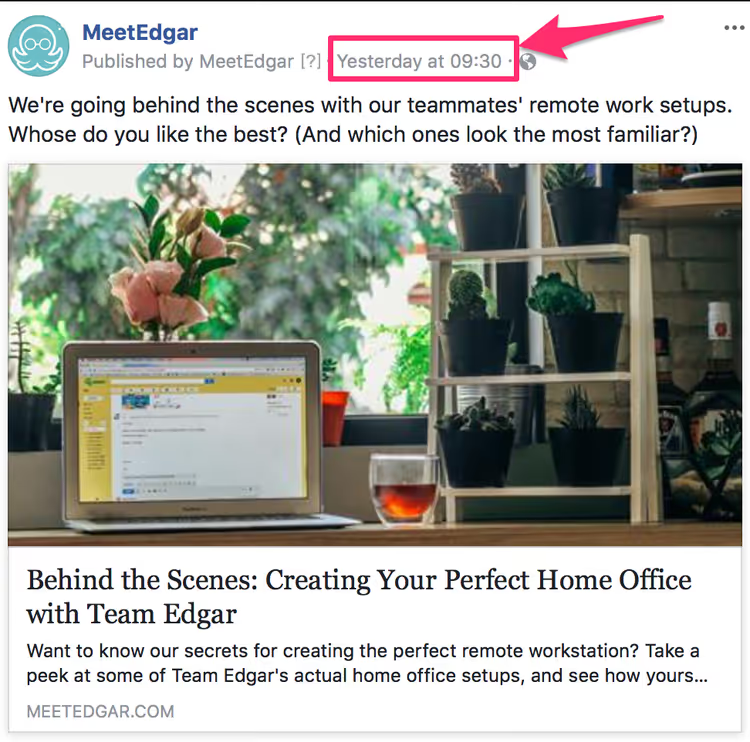
Step 1. Open your business page, find the post you need and click the timestamp (publication date/time). You'll navigate to the permanent link for that post.
Important point: the URL must start with https://business.facebook.com/..., not https://www.facebook.com/.... The difference is critical, the "Refresh Attachment" option is only available in the Business Manager interface.
Step 2. Click the ellipsis (⋯) in the top right corner of the post and select "Refresh Attachment".
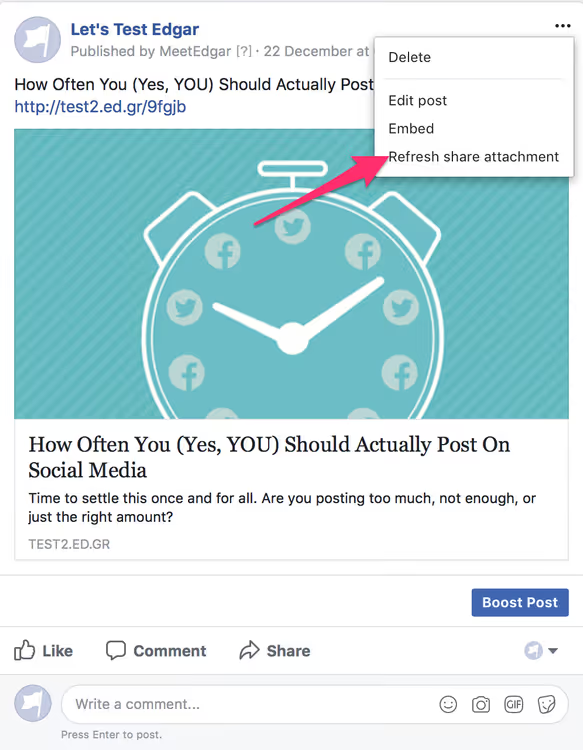
Facebook will revisit your URL, read the current OG tags and rebuild the preview. This usually takes 5-10 seconds.
Two important limitations. If the page is managed through Facebook Business Manager, you must be logged into Business Manager specifically, otherwise the option will be hidden. If the post is currently being promoted through the ads manager, the button is also unavailable; wait for the campaign to end or duplicate the post.
Method 2. Clear cache through Facebook Sharing Debugger
If the post hasn't been published yet, if you need to clear the cache for multiple URLs at once, or if the "Refresh Attachment" option is unavailable, use the Sharing Debugger. This is Facebook's official tool, located at developers.facebook.com/tools/debug/.
The algorithm is ridiculously simple:
- Paste the link to the page whose preview needs updating.
- Click the Scrape Again button (previously called "Fetch new scrape information", don't be surprised by old screenshots in other guides).
- Wait a few seconds.
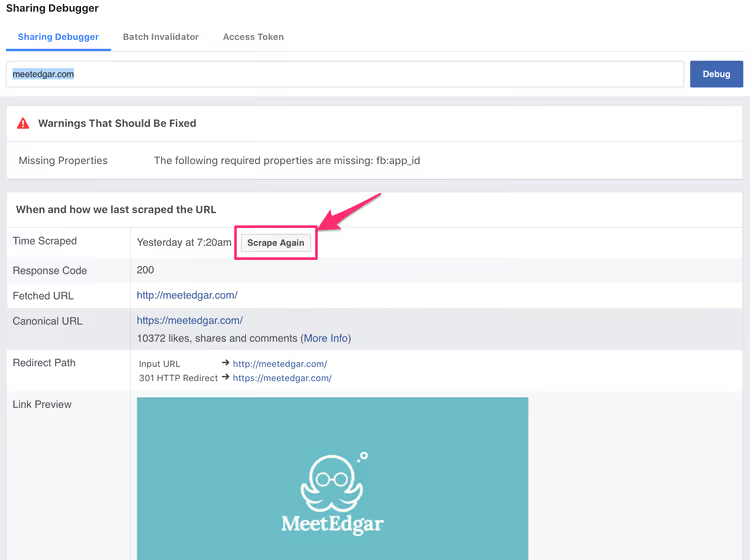
The Debugger will show which OG tags the crawler read and highlight problems: missing image, title too short, broken og:image:width. If the preview doesn't change after the first Scrape Again, click the button again: Facebook sometimes gets lazy and requires a second nudge.
How long does the cache live. Facebook caches previews for approximately 24 hours, after which the crawler automatically revisits the page. The 30-day figure found in old guides is outdated, Facebook shortened the caching period back in 2023, but there's no clear number in the documentation. In practice, auto-refresh happens within a day.
What to do if the preview still doesn't update
If neither method produced results, the problem is most likely on the site's end. Check in order:
- WordPress cache. Plugins like WP Rocket, W3 Total Cache and LiteSpeed Cache serve the old version of the page even after you've updated the OG tags. Clear your site cache before hitting Facebook Debugger.
- CDN. Cloudflare and similar services cache HTML. If you edited tags manually, don't forget to warm the CDN or temporarily enable Development Mode.
- Preview for homepage. For the root site URL (without
/post-slug/), Facebook sometimes uses the image fromog:imageof the first post it finds. Fixed by setting an explicitog:imagefor homepage through your SEO plugin. - HTTPS. Facebook crawler stopped accepting
og:imageover HTTP in June 2025. The image must be served over HTTPS, otherwise the preview will be without a picture.
When all four points are checked and the preview is still old, wait an hour and try Debugger again. Sometimes Facebook cache invalidation is delayed.
⁉️🤔 Frequently asked questions
Why is Facebook showing a different image than the one I set in og:image?
The crawler ignores
og:imagein two cases: the image is smaller than 200×200 px, automatic reject or the second image on the page is larger than your "correct" one. Facebook always chooses the largest image by area, explicitly specifyog:image:widthandog:image:heightso the crawler doesn't guess. These limitations are described in the official Facebook sharing recommendations.
According to official Facebook recommendations, minimum resolution for preview images is 200×200 px, recommended is 1080×1080 px. Anything smaller than 600 px width, Facebook simply doesn't consider as a preview for link posts.
Can I update the preview for someone else's site? Yes, Sharing Debugger works for any public URL. Paste the link, Facebook will re-read the OG tags and build a preview. But you won't change the site itself: if the owner hasn't specified og:title and og:image, Debugger will honestly show an empty or broken card.
Using Debugger is convenient for checking competitors: paste a URL of an article and see what
og:titleandog:descriptionthey set for Facebook. This has no direct relation to SEO, but it's useful for analyzing social media strategy.
Do I need to click Scrape Again after each text edit? No, if only the text inside <body> changed and OG tags weren't affected. Facebook crawler only reads metadata in <head>, page content doesn't make it into the preview. The button only makes sense when you've changed one of the OG tags (og:title, og:description, og:image) or the og:image:width and og:image:height dimensions.
Exception: if you updated the publication date and want the preview to show a fresh timestamp, this also triggers an OG re-read (some SEO plugins embed the date in
og:titleorog:description).
Why isn't the "Refresh Attachment" button visible? Three reasons: you're on www.facebook.com instead of business.facebook.com; you don't have admin or editor role on the page; the post is currently being promoted through the ads manager. Solution: log back into Business Manager and open the post from there.
If the post is older than 30 days, Facebook sometimes hides this option even in Business Manager. In such cases, only Sharing Debugger helps.
What to do if Sharing Debugger returns a 403 error or "URL blocked"? Facebook blocks URLs that have already been flagged as spam or violate Community Standards. Second option: your server is blocking the Facebook crawler by User-Agent (facebookexternalhit). Check robots.txt and firewall settings, User-Agent facebookexternalhit/1.1 must have access to read pages.
If the error persists, go to Facebook Business Manager → Brand Safety → Domains and check whether your domain ended up on the blacklist (this happens after mass spam-sharing complaints).
Bottom line: Debugger or "Refresh Attachment" button?
For a single post on a business page, it's simpler and faster to use the built-in "Refresh Attachment" button, it's two clicks and doesn't require navigating to an external tool. If there are multiple posts or the problem is systemic (you migrated to HTTPS, changed theme, updated SEO plugin), launch Sharing Debugger and run all key URLs through it.
And most importantly: after the preview updates, don't forget to check the card on mobile. Facebook renders previews on desktop and in the mobile app differently, and what looks beautiful on a 27-inch monitor can get cropped on a smartphone screen. One or two checks in the first half hour after publication save you from awkward screenshots in work chats.
If the material was useful, save the link to Facebook Sharing Debugger in your bookmarks. Sooner or later it will come in handy.

A professional team of writers and editors specializing in creating quality content.