














🔧 WordPress database connection error: a quick fix
The site dropped to a blank white void with a single line: "Error establishing a database connection." Don't panic. This isn't a hack, and it's not database death. Nine times out of ten the problem is fixed in five minutes.
In practice every WordPress owner runs into this error at some point. The cause is almost always trivial: a wrong password in wp-config.php, a crashed MySQL server, or a corrupted table after a failed plugin update.
Below are four proven ways to bring the site back to life, from the most common fix to the last resort. Before touching the database, make a backup.
💡 Quick overview:
- Check the MySQL credentials in wp-config.php (the most common culprit)
- Run the built-in database repair tool via WP_ALLOW_REPAIR
- Replace corrupted WordPress core files with a fresh copy
- If nothing works, restore the site from a backup

Why the database connection error occurs
WordPress stores all content (posts, pages, settings, users) in a MySQL database. When a browser requests a page, the WordPress PHP core queries the database, retrieves the data, and assembles HTML. If the link between the core and the database breaks, you see a white screen with an error message.
There are four reasons for the break:
- Wrong credentials. The username, password, or database host in wp-config.php doesn't match the actual values. This happens after migrating to a different host or resetting the MySQL password.
- The database is down. The MySQL server on the host has stopped because of overload, maintenance, or exceeded limits.
- Corrupted tables. A plugin or theme damaged system tables during installation or removal. This is common with caching and optimization plugins.
- Broken core files. An incomplete FTP transfer, a failed WordPress auto-update, or malicious code.
We'll identify the specific cause step by step, from the most likely to the least.
Step 1: Check the credentials in wp-config.php
Start with the simplest fix. The wp-config.php file sits in the site root and contains four key lines for connecting to the database:
1 define('DB_NAME', 'database_name'); 2 define('DB_USER', 'username'); 3 define('DB_PASSWORD', 'password'); 4 define('DB_HOST', 'localhost');
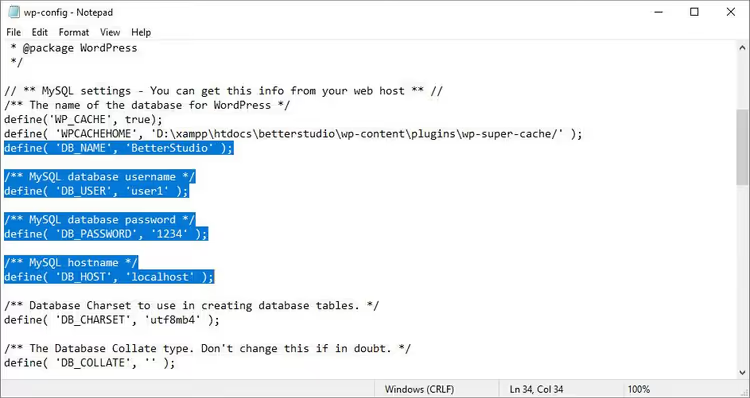
Open the file through your hosting file manager or via FTP and compare each value against the ones shown in the hosting control panel under "MySQL Databases" or phpMyAdmin.
Pay attention to DB_HOST. Most hosts use localhost, but some (especially cloud and clustered setups) provide a separate IP address or a database server domain. If you recently switched plans or hosts, check this parameter first.
After changing values, save the file and refresh the site. Working? Great. If not, move on.
Step 2: Repair the database with WP_ALLOW_REPAIR
WordPress can fix its own tables; you just need to enable the built-in repair tool. Add one line to wp-config.php before /* That's all, stop editing! */:
1 define('WP_ALLOW_REPAIR', true);
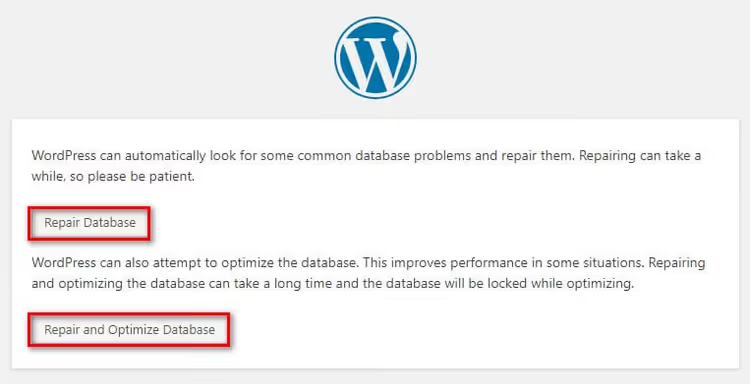
Now go to:
1 https://your-site.com/wp-admin/maint/repair.php
You'll see a page with two buttons: "Repair Database" and "Repair and Optimize Database." The first one simply repairs tables; the second also optimizes them. For a quick fix the first button is enough.
After the process finishes, be sure to remove the WP_ALLOW_REPAIR line from wp-config.php. If you leave it, anyone who discovers the repair.php URL can run repairs without authentication.
In practice this method resolves roughly a third of connection errors. If it didn't help, proceed to the core files.
If you prefer to watch the process visually, the video above demonstrates every step in real time, from diagnostics to recovery.
Step 3: Replace corrupted WordPress core files
Broken core files are another common cause. They get corrupted when an FTP connection drops, an auto-update fails, or malicious scripts tamper with them.
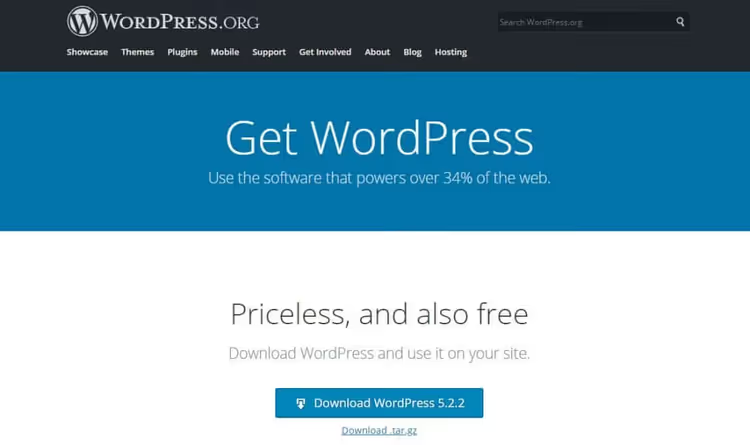
Replacement steps:
- Download the latest WordPress archive from the official site.
- Unzip the archive on your computer.
- Delete the
wp-contentfolder and thewp-config-sample.phpfile from the extracted folder. You don't need to upload these; otherwise you'll overwrite your themes, plugins, and uploads. - Upload the remaining files and folders to the server via FTP or your hosting file manager, replacing existing files.
The core is now updated, and your content and settings remain untouched: they live in wp-content and the database, which you didn't modify. Clear your browser cache before testing; cached old scripts sometimes mask a successful recovery.
Step 4: Restore the site from a backup
If the previous three steps yielded nothing, the problem runs deeper than it appears. The damage isn't limited to individual files or tables; the database structure itself is compromised. The only reliable solution is rolling back to the last working point.
How exactly you restore depends on what you used for backups. We covered all methods in detail in a separate article: how to restore WordPress from a backup, via cPanel, FTP, a plugin, or phpMyAdmin.
Rolling back to a backup will undo recent site changes: new posts, plugin settings, theme switches. But that's better than a dead site that won't load.
⁉️🤔 Frequently asked questions
Why does the error appear only sometimes, not constantly?
Most likely the hosting provider limits the number of simultaneous MySQL connections, and the database becomes temporarily unavailable during traffic spikes. Check the limits in your hosting plan. On shared hosting the fix is usually upgrading to a VPS.
Can I repair the database via phpMyAdmin without touching wp-config.php?
Yes. Log into phpMyAdmin through the hosting panel, select the site's database, check all tables, and choose "Repair table" from the "With selected" dropdown. This is the equivalent of
WP_ALLOW_REPAIR, but without editing code.
Does switching to a default theme help with a database connection error?
No. The error occurs at the PHP-to-MySQL connection level; themes are unrelated. Switching themes solves display problems, not connection problems.
What should I do if the database is irreversibly damaged?
If
WP_ALLOW_REPAIRand phpMyAdmin can't fix it, contact your host's support. Most providers keep automatic server backups for the past 3-7 days. Restoring from such a backup is a matter of one support ticket.
Can a security plugin cause this error?
Yes. Some security plugins change the table prefix (from
wp_to something random) or block external database connections. If the error appeared right after installing such a plugin, temporarily rename its folder via FTP and test the site.
The site is breathing again: what to remember for the future
The troubleshooting order for "Error establishing a database connection" always goes from simple to complex. Half the time the first step is enough: open wp-config.php, fix the password, and the site comes back to life.
Set up automatic backups if you haven't already. The free UpdraftPlus plugin backs up the database and files to the cloud (Google Drive, Dropbox, or wherever you like) once a day. With a backup, any WordPress failure turns from a disaster into a ten-minute inconvenience. Proven.

A professional team of writers and editors specializing in creating quality content.