













 AIIllustrative image: AI-generated
🖥 WordPress Multisite: pros, cons and setting up a network on local XAMPP
Three sites, three dashboards, three update queues. After a month of this "zoo," you want one thing: install a plugin once and forget about it. WordPress Multisite delivers exactly that: one core, one panel, and as many sites as you need.
The price for convenience is limited freedom. Administrators of individual sites lose the ability to install their own themes and plugins. A server with a dozen active sites requires more resources than cheap shared hosting. Below, without fluff: who Multisite suits, who it doesn't, and how to set up a network on local XAMPP in 10 minutes.
💡 Quick overview:
- Enable Multisite with a single constant in wp-config.php: WordPress walks you through network setup in three steps.
- Choose subdirectories for local XAMPP: subdomains on a local server won't work without editing Apache virtual hosts.
- Manage all sites from a single Network Admin panel: install themes, network-activate plugins, add and remove sites.
What is WordPress Multisite and why do you need it
Multisite is a WordPress mode where a network of independent sites runs on a single installation. Each site has its own pages, posts, media files, and users. The core, database, and set of themes with plugins are shared.
The WordPress.com platform itself is built exactly this way: millions of blogs on a single WordPress instance. You get the same architecture, just on your own server with your own domain.
The key difference from a regular installation is the Super Admin role. That's you. Only the Super Admin installs themes and plugins, creates sites, and manages users at the network level. Administrators of individual sites work in a limited dashboard: content, sure, theme settings, yes, but the "Add Plugin" button simply isn't there.
When Multisite makes sense: 5 scenarios
Multisite pays off when multiple sites are united by a theme, brand, or owner and run the same plugin stack.
A blog network under one brand. WordPress.com in miniature: users register and create their blogs within your network. One domain, one audience, different authors.
Company branches and offices. Each branch maintains a site with local news and contacts. The structure and design are unified, and administration is centralized.
University or school. Departments and faculties get their own sites. The IT department manages the entire network from one place: add a theme, and it's available to all divisions.
Multilingual versions of a project. Instead of translation plugins, you can deploy separate sites for each language. With the release of WPML and TranslatePress, this scenario has become less popular, but for projects where translations are fundamentally separated, it remains a viable option.
Test environments on XAMPP. Spin up a dozen test sites locally and experiment with themes and plugins without multiplying WordPress installations. Fast, free, and isolated from the production server.
If sites need complete independence, each with its own plugin set and its own hosting destiny, Multisite gets in the way. For such cases, there are other tools.
When you shouldn't enable Multisite
Multisite isn't the right choice for every collection of sites. Here are situations where it's more likely to cause problems.
Sites need different plugins. In Multisite, a plugin is either active for all sites or not installed at all. You can't put one site on WooCommerce and another on Easy Digital Downloads: both plugins will hang in the network, and separating them by site without Plugin Activation Status or custom code won't work.
Administrators want full freedom. A site owner logs into the dashboard and doesn't see the "Add Plugin" button. For such cases, ManageWP or WP Remote work better: dashboards for managing multiple independent WordPress installations from a single interface, without Multisite.
Hosting** can't handle it.** On cheap shared hosting, Multisite with a dozen sites starts to lag. A traffic spike on one site affects all the others since they share the same server. For a network of 10+ sites, you need VPS or managed hosting like WP Engine or Flywheel.
Sites have different hosting providers. Multisite by definition lives on one server. Distributing sites across different hosts is physically impossible; the architecture won't allow it.
You're planning to split them in the future. Separating a site from the network and moving it to a standalone installation is a hassle. Migration plugins can handle it, but there's no guarantee everything will transfer cleanly. Think ahead.
Pros and cons: summary table
Aspect | Pros | Cons |
|---|---|---|
Management | Single panel for all sites | Site administrators have limited permissions |
Plugins and themes | Install once, works across the entire network | Not all plugins are Multisite-compatible |
Server resources | One core for all sites, saves space | Load on one site affects the entire network |
Security | Single point for core and plugin updates | Server goes down, all sites go down together |
Flexibility | Users can create their own blogs within the network | Moving a site out of the network to a standalone installation is painful |
Monetization | You can sell hosting within the network | Requires more powerful hosting than average shared |
Step 1: Add the constant to wp-config.php
Install WordPress on XAMPP the usual way. Everything else is handled in one file.
Open wp-config.php in the site root. Find this line:
1 /* That's all, stop editing! Happy publishing. */
Right above it, add:
1 define('WP_ALLOW_MULTISITE', true);
Save the file and log into the dashboard. Open Tools, and you'll see a new item called "Network Setup." The WP_ALLOW_MULTISITE constant just tells WordPress you intend to set up a network. The network itself isn't created yet; that happens in the next step.
Step 2: Choose subdirectories or subdomains
Go to Tools → Network Setup. The main choice is the URL structure for your future sites.
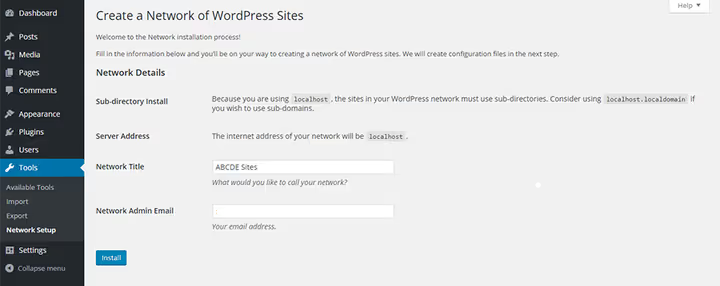
Subdomains: site1.yourdomain.com, site2.yourdomain.com. Looks more professional but requires wildcard DNS configuration on real hosting. XAMPP as a local server doesn't support subdomains without additional Apache virtual host configuration.
Subdirectories: yourdomain.com/site1, yourdomain.com/site2. Works on any server, no DNS changes needed. For local development on XAMPP, this is the only practical option.
Important note: if you're converting an existing WordPress installation older than a month into Multisite, subdirectories aren't available. WordPress blocks this option to avoid URL conflicts with existing pages. In that situation, subdomains are your only choice.
Made your choice? Click Install.
Step 3: Insert the generated code
WordPress will display two code blocks: one for wp-config.php and one for .htaccess.
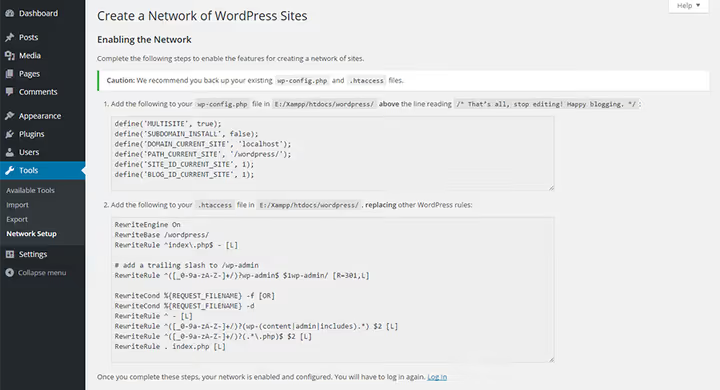
Copy the first block into wp-config.php, right above the line /* That's all, stop editing! */ and after define('WP_ALLOW_MULTISITE', true). WordPress will add the constants DOMAIN_CURRENT_SITE, PATH_CURRENT_SITE, SITE_ID_CURRENT_SITE, and BLOG_ID_CURRENT_SITE, along with Multisite definitions.
Insert the second block into .htaccess in place of the standard WordPress rules. On XAMPP, this file is in the same folder as wp-config.php.
After saving both files, log out of the dashboard and log back in. A "My Sites" menu will appear in the top bar with access to Network Admin. Multisite is running.
Step 4: Create your first sites in the network
A fresh Multisite looks like regular WordPress. To make it a network, add sites.
In Network Admin, open Sites → Add New:
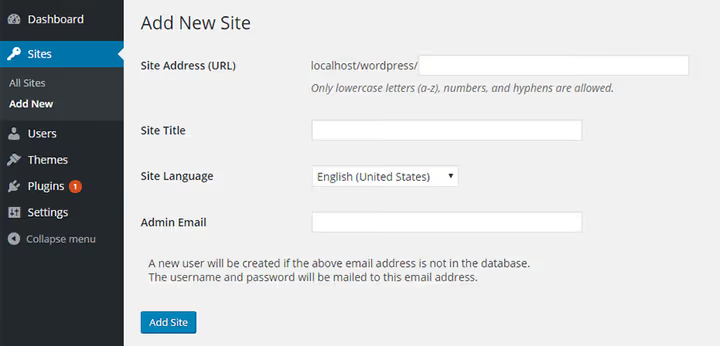
Fill in three fields:
- Site Address: the URL portion before the domain. For subdirectories, enter something like
blog. You'll getlocalhost/yourproject/blog. - Site Title: displayed in the dashboard and headers.
- **Admin **Email: the email of whoever will manage the site. Can differ from the network Super Admin.
Click Add Site. Done. Repeat for each new site.
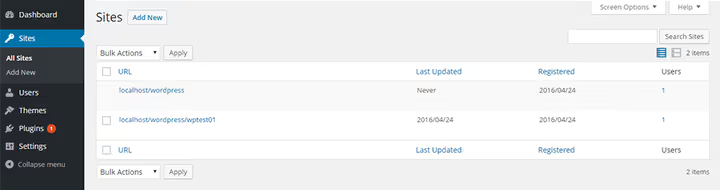
All created sites are visible in Sites → All Sites:
Step 5: Activate themes and plugins
Only the Super Admin installs themes and plugins in Multisite. Installation is the same as usual: Network Admin → Themes → Add or Plugins → Add.
Activation is a different matter. There are two modes:
- Network Activate: the theme or plugin is enabled immediately on all sites in the network. The button appears right after installation. Suitable for plugins that should work everywhere: caching, security, SEO.
- Activation on a specific site: install in Network Admin, then go to Sites → All Sites, hover over the desired site, click Edit, and on the Themes tab enable what that particular site needs.
Standard practice: security and caching plugins via network activation. Specific plugins like sliders or page builders only on sites where they're actually needed. This keeps the network fast.
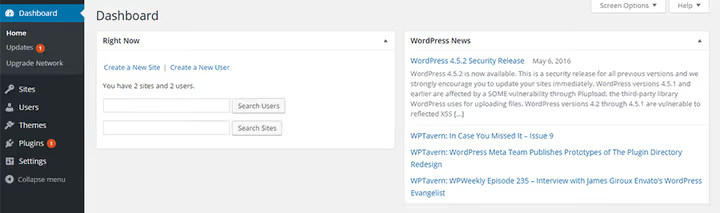
What the network dashboard looks like
⁉️🤔 Frequently asked questions
Can you convert an existing site to Multisite?
Yes, without reinstalling WordPress. Add
define('WP_ALLOW_MULTISITE', true)towp-config.php, and the "Network Setup" option will appear in Tools. If the site is older than a month, subdirectories aren't available, only subdomains. Before enabling, make a full backup of the database and files: the path back isn't always simple.
How many sites can Multisite handle?
Technically there's no limit: WordPress.com runs millions of sites on a single instance. The practical ceiling depends on CPU, RAM, and database throughput. On a VPS with 4 GB of RAM and SSD, 50-100 medium sites run comfortably. Each new site adds roughly 10-12 tables to the database; beyond that, it all depends on traffic.
How is Multisite different from ManageWP and similar services?
ManageWP is an external panel for managing independent WordPress installations. Each site is on its own hosting with its own plugins, and ManageWP interacts with them via REST API: updating, backing up, monitoring. Multisite is a single WordPress installation with a shared database. ManageWP offers freedom and isolation; Multisite offers centralization and resource savings.
What do you do if a plugin doesn't work on Multisite?
Check the plugin page on WordPress.org; the description usually indicates Multisite compatibility. No "Compatible with Multisite" label? Test it on local XAMPP. Some plugins work fine, they just don't advertise it. Others crash with database errors, trying to create tables without the site prefix. If the plugin is critical and there's no compatibility, look for an alternative or separate the sites into independent installations.
Can you move a site from Multisite to a standalone installation?
You can, but it's manual work. Plugins like NS Cloner copy sites within the network. For moving outside, use standard WordPress export (Tools → Export) plus manual transfer of media files from
wp-content/blogs.dir/. Selectively exporting the database is trickier: tables for a specific site have the prefixwp_X_, where X is the site ID. It hasn't gotten easier, so think before enabling Multisite.
What to choose in 2026: Multisite or separate installations
In short: for three independent sites with different profiles, you don't need Multisite. Managing them is easier through the ManageWP panel or WP Remote service.
Multisite makes sense when sites are logically connected and use the same plugin stack: a blog network, company branches, educational divisions. In this scenario, you get a single point of control and save hours on updates.
Start with local XAMPP: set up a test network of three sites, play with network plugin activation, add and remove a site. In 20 minutes, you'll know whether this tool is right for you. A detailed guide to all Multisite capabilities is in our article "Complete guide to WordPress Multisite."
Before setting up on a production server, watch the video: the entire process from enabling the constant to creating your first site in 8 minutes.
Share your experience in the comments: have you set up Multisite on a production project, and what pitfalls did you encounter?

A professional team of writers and editors specializing in creating quality content.