














🔐 3 best WordPress plugins for password protecting your entire site (2026)
Your site is under development, but you don't want random people looking at an unfinished design. Or you're building an internal portal for your team where outsiders aren't welcome. Or perhaps you're creating a private club with materials only for those who have the password.
Standard WordPress doesn't offer this capability: the built-in password protection works at the level of individual pages and posts. To password-protect your ENTIRE site, you need a plugin.
We've gathered 3 current plugins for site-wide password protection in WordPress, from a one-click solution to a tool with role-based access control. All three were tested on a test site running the latest WordPress version, and every screenshot was taken from an actual installation. No fluff, honest drawbacks, and a head-to-head comparison.
💡 Quick overview:
- Choose a plugin for your task: Password Protected for quick lockdown, Passster for flexible protection, PPWP for role-based protection and media files
- Install the plugin from the WordPress.org repository and set a master password
- Configure exceptions for administrators and RSS (if needed)
- Test the protection in incognito mode: the site should prompt for a password
Plugin comparison table
Criterion | Password Protected | Passster | PPWP |
|---|---|---|---|
Sitewide protection | ✅ | ✅ | ✅ |
Multiple passwords | ✅ (Pro) | ✅ | ✅ |
Role-based protection | ❌ | ✅ (Pro) | ✅ |
Exclude specific pages | ❌ | ✅ | ✅ |
CAPTCHA | ✅ (free) | ✅ (Pro) | ✅ (free) |
Login page customization | ✅ (Pro) | ✅ | ✅ |
Media file protection | ❌ | ❌ | ✅ (with PDA Gold) |
Free version | ✅ | ✅ | ✅ |
Active installations | 300,000+ | 10,000+ | 30,000+ |
WordPress.org rating | 4.4 ★ | 4.2 ★ | 4.7 ★ |
Last update | June 2026 | June 2026 | June 2026 |
1. Password Protected

Password Protected is a niche veteran with 300,000+ active installations. It solves exactly one task: locking down your entire site with a single password. No interface overload, no unnecessary settings. After activation, check the "Password Protected Status" box, enter a password, and the entire front end is hidden behind a login form.
Administrators and logged-in users pass through automatically without re-entering the password. You can leave the RSS feed public with a separate checkbox. Google reCAPTCHA in the free version protects the form from bots, which is rare for a plugin of this class.
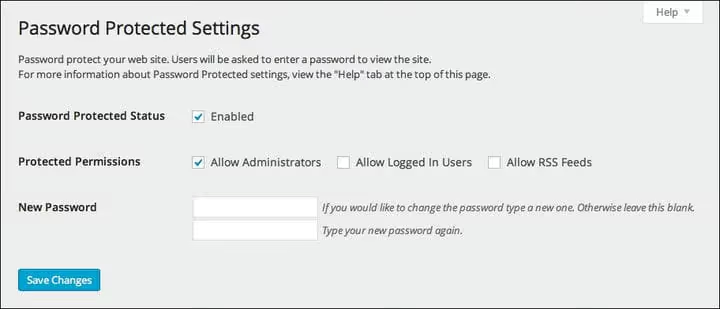
The Pro version (starting at $49 per year) adds multiple passwords, role-based protection, login page customization, IP whitelisting, login attempt limits, and stealth mode. Most importantly, you can exclude specific pages from protection, something the free version sorely lacks.
Pros
- Extremely simple: one checkbox and password, site protected
- Free reCAPTCHA, rare in this plugin class
- 300,000+ installations, regular updates (v2.8.1, June 2026)
Cons
- Cannot exclude specific pages in the free version
- Outdated login form design without Pro
- Only one password without Pro
🔗 Password Protected on WordPress.org
2. Passster

Passster (listed as Content Protector in the repository) offers three protection modes to choose from: full site lockdown, protection for individual pages and posts, and partial content protection within a page via shortcode. More flexible than Password Protected, but without overcomplicating things.
The main advantage is automatic password generation with configurable length and character composition. Manual passwords like admin123 are ruled out. You can have multiple passwords, and the Pro version offers lists with usage limits, convenient for one-time client access.
Cookie-based auto-unlock eliminates repeated entry: returning to the site within the set time, the user passes without a password. The Pro version (starting at $49 per year) adds usage tracking, WooCommerce product protection, form customization, hCaptcha, and redirect after verification. Password lists with usage limits let you issue one-time access to clients without worrying about repeat logins.
On the downside, excluding specific pages from global protection is only available in Pro. There's no media file protection, as with most competitors in the free segment. Installations are fewer than Password Protected and PPWP, at 10,000+.
Pros
- Three protection modes: entire site, individual pages, content sections
- Automatic generation of strong passwords
- Cookie-based auto-unlock without repeated entry
Cons
- Excluding pages from global protection only in Pro
- 10,000+ installations, more modest than competitors
- No media file protection
3. PPWP (Password Protect WordPress)

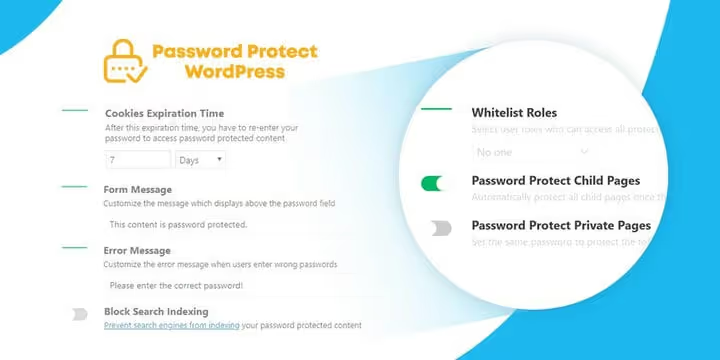
PPWP (Password Protect WordPress, listed as password-protect-page in the repository) is the most feature-rich option of the three. It can password-protect pages, posts, and custom post types by user roles: one password for subscribers, another for editors. This capability is unique among free plugins for password protection.
When enabling sitewide protection, you can exclude one or more specific pages, such as a public landing page or contact page. Passwords are stored encrypted, and cookies have configurable lifetimes. Free reCAPTCHA and bot protection work out of the box.
PPWP automatically handles conflicts with caching plugins, while Password Protected and Passster lack this adaptation. On sites with aggressive caching, this is critical: the password entry form might simply not appear.
The Pro version (Password Protect WordPress Pro) adds management of all passwords through a single window, unlimited passwords per role, master passwords, and customization via WordPress Customizer. Combined with Prevent Direct Access Gold, the plugin blocks direct access to media files via URL: images, PDFs, and videos become inaccessible via direct links. This is the only option among the three that solves the problem of file downloads via direct URLs.
The PPWP interface is modern, with expandable sections and toggles. It compares favorably to Password Protected with its outdated settings design.
Pros
- Page protection by user roles, a unique feature among the three
- Exclusion of specific pages from global protection
- Integration with Prevent Direct Access Gold for blocking media files
- Automatic compatibility with caching
Cons
- Login page customization without code only in Pro
- 30,000+ installations, fewer reviews and implementation cases than Password Protected
How to password-protect your site in 3 minutes
A quick guide to setting up any of the three plugins, from installation to testing in incognito mode:
⁉️🤔 Frequently asked questions
Can I password-protect a WordPress site without a plugin?
Yes, via
.htaccessandhtpasswdon Apache servers or through hosting settings (cPanel and similar have a "Password Protect Directories" option). But this method doesn't integrate with WordPress: you can't exclude specific pages, grant access by roles, or set up a custom form. Plugins are more convenient for everyday management.
Does password protection cover media files, images, and PDFs?
No, standard password protection only blocks PHP page delivery. A direct media file URL (
/wp-content/uploads/file.pdf) remains accessible. PPWP solves this through integration with Prevent Direct Access Gold, which intercepts direct file requests and requires a password.
Which plugin is best for a site under development?
Password Protected is the optimal starting point: checkbox, password, site locked. Dev sites don't need roles and customization, just quick lockdown. If you're showing the site to a client and need a nice placeholder page, consider SeedProd.
Do password protection plugins interfere with caching?
They can. If the password entry page gets cached, visitors won't see the form and will land directly on the site. PPWP automatically bypasses this issue. With Password Protected and Passster, check your cache plugin settings and exclude the login form URL from caching.
What if I forgot the password to my own site?
Log into the WordPress admin (the plugin only protects the front end, not the admin area), open the plugin settings, and set a new password. If you've lost admin access, deactivate the plugin via FTP or your hosting file manager by renaming the plugin folder in
/wp-content/plugins/, then log into admin and reactivate with a new password.
Which password protection plugin should you choose for your task?
The choice comes down to three scenarios, and they don't overlap.
If you need to simply and quickly lock down your site from the public, go with Password Protected. One checkbox, one password, site under lock. 300,000 installations, regular updates, free reCAPTCHA. For dev sites, internal portals, and private clubs with a single access level.
If flexibility matters, choose Passster. Three protection modes, auto-generated passwords, cookie-based auto-unlock. It covers scenarios that the other two plugins can't handle in their free versions: partial content protection within a page and one-time password lists (Pro).
If you need maximum granularity, pick PPWP. Passwords by roles, exclusion of specific pages, media file protection from direct links via Prevent Direct Access Gold. The only plugin of the three that addresses downloading PDFs and images via direct links. And the only one that automatically plays nice with caching.
All three plugins have free versions with core functionality. Test the one closest to your task. And share in the comments which one you chose and why.

A professional team of writers and editors specializing in creating quality content.