














🚀 7 solutions for transferring large data to Google Drive in 2026
When you need to migrate hundreds of gigabytes of work files to Google Drive rather than just a couple of presentations, standard browser uploads become a bottleneck. Connection drops at 80%, ISP speed limits, Google Drive's own restrictions, and you're watching the upload progress bar for the third day straight.
The problem worsens if you need to migrate data not just from your computer, but from another cloud (Dropbox, OneDrive, S3) or corporate storage. Manual transfer through your local disk in this scenario means double traffic and wasted time. Fortunately, there are more tools for direct cloud migration than it seems, and some of them require no involvement from you after initial setup.
Below are 7 proven solutions for transferring large volumes of data to Google Drive: from official Google services to third-party utilities and open-source powerhouses. Each has been tested on real migration scenarios and ranked by convenience for different situations.
💡 Quick overview:
- Official Google services (Storage Transfer, BigQuery, Transfer Appliance) for corporate migrations with budget, scheduled support and offline scenarios
- MultCloud, Cloudsfer and CloudFuze, cloud intermediaries with web interface: code-free migration, dozens of supported clouds, flexible pricing
- Rclone, an open-source powerhouse for those who need full control, encryption and script automation
- At the end, a brief guide on transferring files between different Google Drive accounts without downloading to PC
1. Google Storage Transfer Service

Google's official service for moving data to Google Cloud Storage is essentially an industrial conveyor for files. It supports transferring billions of objects and hundreds of terabytes from Amazon S3, Azure Blob, HTTP/HTTPS sources and on-premises storage.
The main advantage is you get full control over the process. Transfer is configured as a one-time operation or recurring scheduled migration, with file filtering by prefixes and dates. For large organizations this is the de facto standard: migration is logged, metadata is preserved, and when connection drops the transfer resumes from the breakpoint.
But there's a catch: setup requires solid knowledge of Google Cloud Console and working with IAM permissions. The interface isn't for beginners, a typo in the bucket config can send data to the wrong place. And the price bites: you pay for object operations plus per gigabyte-hour of storage during migration.
Pros:
- Industrial scale, billions of files and petabytes of data;
- Built-in integrity validation (MD5/SHA) after each object;
- Flexible scheduling and incremental synchronization;
- Seamless integration with the rest of the Google Cloud ecosystem.
Cons:
- Steep learning curve, impossible without GCP experience;
- No GUI for quick one-off migration, everything through console/API;
- Cost grows proportionally to volume, unprofitable for small transfers.
2. Google BigQuery Data Transfer Service

Unlike Storage Transfer, BigQuery Data Transfer is tailored not for files but for structured data, datasets, reports, analytical exports. It automatically pulls data from SaaS sources (Google Ads, Campaign Manager, YouTube, Amazon S3) and stores it in BigQuery tables, from where you can export it to Google Drive through Connected Sheets or CSV export.
The key feature is scheduled automation. Set it up once and data flows in daily without your involvement. For teams working with analytics, this saves hours of manual export per week.
The service provides the first terabyte of processed data per month for free, which covers the needs of an average business. For migrating file dumps it's not suitable though, this is a tool for structured analytics, not for photos and PDFs.
Pros:
- Full automation: set it and forget it;
- Free terabyte monthly for most scenarios;
- Native integration with Google advertising and analytics;
- Support for streaming and batch loading.
Cons:
- Only for structured data, not suitable for file storage;
- Requires understanding of data schema and SQL for setup;
- Tied to BigQuery, if you're not in Google Cloud ecosystem there's little point.
3. Google Transfer Appliance
The most unusual tool in Google's arsenal is a physical device for data transfer. You order a hardware server from Google, load data onto it in your data center and ship it back. Google engineers upload the contents directly to your cloud storage.
The scenario for this solution is data center migration with petabytes of data where the internet channel becomes a bottleneck. Physical hard drive shipping in this case takes 2-3 days versus months of network upload. All data is hardware-encrypted (AES-256) before leaving your perimeter.
The minus is obvious: logistics. Device ordering, loading, return shipping, import queue, the full cycle takes from a week. For urgent migrations and small volumes this is overkill. But if you're moving an entire corporate storage, there are simply no alternatives in terms of speed.
Pros:
- Physically the fastest way to transfer petabytes;
- Hardware encryption throughout the journey;
- Google handles the technical side (racks, power, import);
- No dependence on internet channel bandwidth.
Cons:
- Long full cycle: ordering, loading, shipping, import;
- Minimum volume to justify it is tens of terabytes;
- Not suitable for recurring migrations.
4. MultCloud
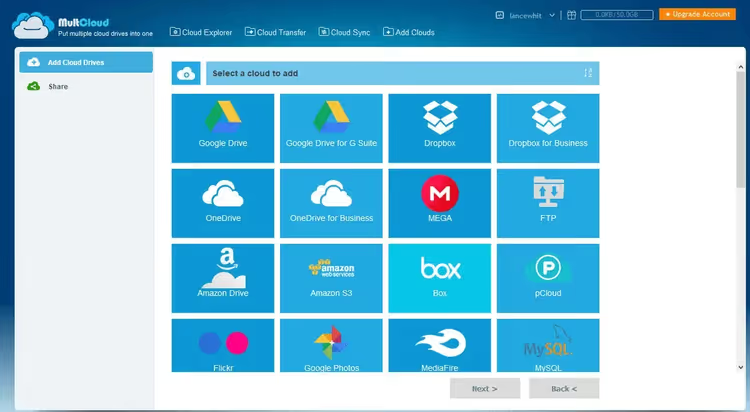
MultCloud is a cloud intermediary that can move files between 30+ cloud storage services directly, without downloading to your computer. Supported services include Google Drive, Dropbox, OneDrive, MEGA, pCloud, Box, Amazon S3 and two dozen more. You log into both accounts via OAuth, select folders, and transfer happens on MultCloud's servers.
Besides direct transfer, there's cloud synchronization (one-way and two-way) on schedule and backup between clouds. The free tier gives 5 GB of traffic per month, enough for testing and small transfers. Paid plans on MultCloud's website start from $9.90/month with unlimited traffic on all connected clouds.
The interface resembles a two-panel file manager: source on the left, destination on the right, copy and sync buttons between them. You get used to it in 5 minutes. The downside is speed is limited by MultCloud's servers (they relay traffic), so you won't utilize a gigabit channel.
Pros:
- Support for 30+ cloud services through a single interface;
- OAuth authorization without password sharing;
- Two-way synchronization and scheduled backup;
- Free tier for testing (5 GB/month).
Cons:
- Speed limited by MultCloud's intermediary servers;
- Traffic on free tier runs out quickly;
- Interface is functional but visually dated.
🔗 MultCloud on official website
5. Cloudsfer
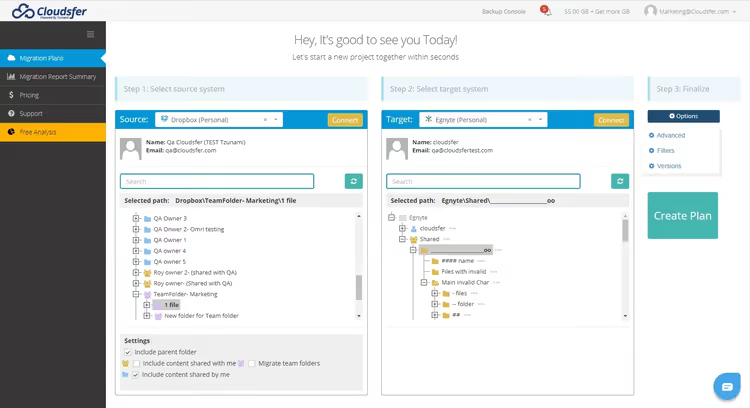
Cloudsfer emphasizes migration with structure preservation: users, permissions, metadata and folder organization are transferred along with files. The service supports 20+ cloud systems, including Google Drive, Dropbox, Box, OneDrive, SharePoint Online and Amazon S3, as well as migration from local file servers and ECM systems (Documentum, FileNet, OpenText).
For business migrations this is critical: when a department of 50 people moves, manually recreating folder structure and access rights is hell. Cloudsfer does this in one operation with a step-by-step wizard.
Prices on Cloudsfer's website start from $19.90/month for a personal plan, business plan with extended support from $49.90. There's a free trial period for one-time migration. Support is available 24/7 and actually responds, not just autoresponders.
Pros:
- Migration of users, rights and metadata together with data;
- Support for on-premises → cloud and cloud → cloud scenarios;
- Built-in cloud backup;
- 24/7 support with live operators.
Cons:
- Price above average for personal use;
- With multiple users working simultaneously there can be confusion with locks;
- Limited set of cloud systems compared to MultCloud.
🔗 Cloudsfer on official website
6. CloudFuze
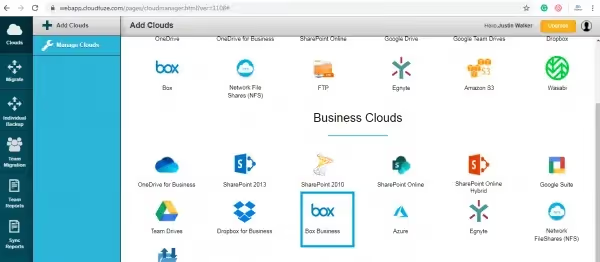
CloudFuze is enterprise-level. The service has migrated over 5 million users and 100+ petabytes of data for clients like National Geographic, WeWork and Intuit. Unlike the others, here you get a dedicated migration manager and engineering team that manages the project from audit to post-migration verification.
CloudFuze supports 40+ cloud connectors, including chat migration (Slack → Google Chat, Teams → Slack) and tenant-to-tenant moves for Google Workspace and Microsoft 365. SOC 2 Type 2, GDPR and ISO 27001 certification addresses security concerns for large business.
The platform isn't limited to migration, there's a CloudFuze Manage tool for managing SaaS subscriptions and AI agents. Prices aren't published on the site: each project is evaluated individually after consultation. For SMB this is overkill, but for enterprise migration it's one of the few vendors with real experience in petabyte-scale moves.
Pros:
- Fully managed migration with dedicated team;
- 40+ connectors, including chats and tenant-to-tenant;
- SOC 2, GDPR, ISO 27001, enterprise security;
- 12-year track record and Fortune 500 clients.
Cons:
- Opaque pricing, only after consultation;
- Excessive for small migrations (a few gigabytes);
- Full migration cycle takes longer due to formal procedures.
🔗 CloudFuze on official website
7. Rclone
Rclone is an open-source powerhouse for managing cloud storage from the command line. It supports 70+ providers, including Google Drive, Amazon S3, Backblaze B2, Dropbox, OneDrive and WebDAV. For technical users this is a Swiss Army knife: copying, synchronization, mounting cloud as local disk, on-the-fly encryption and streaming via HTTP/SFTP.
The main advantage is full control and no intermediaries. Rclone drives data directly between your computer and the cloud (or cloud to cloud), using all available threads. The command rclone copy source: remote: will transfer files, checking MD5/SHA1 after each object. When connection drops, transfer resumes, no need to start over.
For Google Drive, Rclone supports scope authorization, working with Shared Drives and exporting Google Workspace files to office formats. You can set up a cron job for daily backup synchronization: rclone sync /local/backups gdrive:backups --progress. The project has been actively developed since 2014, latest release is v1.69 (February 2026).
Yes, this is CLI, not a web interface. But for regular migrations and backups, CLI beats GUI in reproducibility: write the script once and use it for years.
Pros:
- 70+ cloud providers, completely free (MIT license);
- Direct transfers without intermediaries, speed limited only by your channel;
- On-the-fly encryption, mounting cloud as disk, streaming;
- Resume after interruption, checksum validation for each file.
Cons:
- Command line only, steep barrier for beginners;
- Requires basic understanding of OAuth/API key configuration;
- GUI (experimental) exists but inferior to native clients.
In brief: how to transfer files between two Google Drive accounts
If you need not from an external cloud but simply to move data from one GD account to another, here are three methods in order of increasing complexity:
Method 1. Google Takeout. The Google Takeout service lets you export all data associated with your Google account as an archive, including Drive, Gmail, Google Photos and Calendar. Select only Drive, get a ZIP archive and upload it to the second account. Free, but requires manual download and re-upload on PC, which is slow for large volumes.
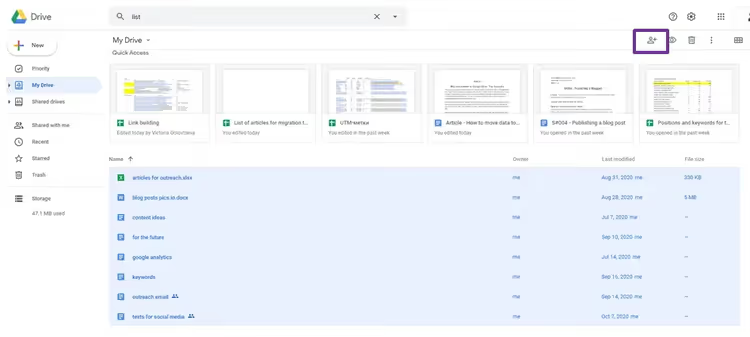
Method 2. Sharing with ownership transfer. In account 1, select the needed files and folders, click "Share", enter the email of account 2 and change permission from "Viewer" to "Owner". After confirmation, files will appear in the "Shared with me" section of the second account. Copy them to "My Drive" (GD won't let you copy an entire folder, but files inside it, yes). Then delete the originals in the first account. No downloading, everything happens on Google's servers.
Method 3. Owner change (Google Workspace). If both accounts are in the same Google Workspace domain, go to admin console → "Apps" → "Google Workspace" → "Drive" → "Manage owners". Transfer is done in two clicks without user involvement. Perfect when an employee leaves the company and you need to transfer their work files to a successor.
And if you want automation and metadata preservation, take Rclone (see section 7 above): rclone copy gdrive1:work gdrive2:work --drive-shared-with-me will move everything while preserving folder structure.
The video below clearly shows the process of transferring large files between clouds via Rclone, from installation to first synchronization in 8 minutes.
⁉️🤔 Frequently asked questions
Can you upload a file larger than 5 TB to Google Drive?
Yes, but with caveats. Google Drive supports individual files up to 5 TB, but this is a theoretical limit for paid plans. The actual upload limit through the browser is 750 GB per day per account. When exceeded you'll get a "Upload limit reached" error and a 24-hour block. The 750 GB/day limit applies to all upload methods, through browser, Drive for Desktop and API. Plan large migrations with time to spare or split across multiple accounts. For files larger than 5 TB use Google Cloud Storage, it has no such limits.
Which tool should I choose if I'm not technical and budget is limited?
Take MultCloud on the free tier (5 GB/month) for testing. If migration volume is larger, switch to a paid service plan with unlimited traffic. The two-panel file manager interface is intuitive, OAuth authorization doesn't require manual password entry, and all transfers go through MultCloud's servers, you can turn off your computer. For one-time small volume transfers even the manual method works: download as archive via Google Takeout and upload to the second account. Free and no registrations anywhere else.
Rclone is free, why doesn't everyone use it?
Command line scares people without technical background. While MultCloud and Cloudsfer give a "Transfer" button in the web interface, Rclone requires opening a terminal, creating config via
rclone configand learning command syntax. This isn't hard (documentation is excellent), but requires 20-30 minutes for initial setup. However, for technical users Rclone is the gold standard: free, fast, scriptable and with on-the-fly encryption. If you already work with command line, there's no point paying for MultCloud.
What to do if none of the tools give the needed speed?
Check three things: (1) are you hitting your ISP's limit on outgoing traffic; (2) is VPN enabled, cutting speed; (3) when using MultCloud/Cloudsfer, remember that data goes through their servers, not directly. For maximum speed between two clouds use the server-side copy function (supported by Rclone for Google Drive → Google Drive). If volume is so large that even a direct channel doesn't help, order Google Transfer Appliance (section 3). Physical hard drive shipping beats any internet channel at volumes from 100 TB.
What's the difference between Storage Transfer Service and BigQuery Transfer Service?
In short: Storage Transfer Service is for files (photos, videos, documents, backups), BigQuery Transfer Service is for tables and analytical data (advertising reports, SaaS exports, CSV datasets). The first puts objects in Cloud Storage buckets, the second in BigQuery tables. If you're moving a file dump, take Storage Transfer. If you're automating weekly import of Google Ads reports, BigQuery Transfer is your option.
Is it worth paying for cloud migration in 2026?
The answer depends on what your time is worth. If migration is one-time, volume is up to 100 GB and you have technical basics, Rclone will close the task for free in an evening of setup and a night of transfer. If migration is regular or corporate, MultCloud, Cloudsfer and CloudFuze pay for themselves through absence of manual labor and human errors: plans start from ten to twenty dollars per month depending on volume and feature set.
Fastest is direct transfer between clouds via server-side copy (Rclone for GD→GD) or Google Transfer Appliance for data centers. Slowest is manual download to PC and re-upload. Choose the tool for the scenario, not the advertising banner.

A professional team of writers and editors specializing in creating quality content.