














🔒 Click & Clean: a complete guide to cleaning Chrome and managing privacy
Your browser knows more about you than you think. Every search query, every visited site, every click on "remember me" leaves a trace. Browsing history, cache, cookies, and temporary files pile up into gigabytes, slowing down Chrome while creating a privacy risk if someone else uses your computer.
Chrome's standard cleanup through chrome://settings/clearBrowserData works but offers minimal control. You cannot see exactly which cookies you are deleting, cannot selectively clear the cache for a single site, and certainly do not get a unified panel for all operations. Click & Clean solves this problem radically: one extension, one click, full control.
The extension has existed since 2010, has gone through dozens of versions, and now has over a million active users. A 4.8★ rating based on 58,000 reviews in the Chrome Web Store speaks for itself. In this guide, we will cover installation, the interface, and all key cleanup scenarios, from basic history deletion to fine-grained cookie management and privacy testing.
💡 Quick overview:
- Download Click & Clean from the Chrome Web Store and pin the icon to the toolbar
- Set up secure browser closing for automatic cleanup on exit
- Use selective deletion: history, cache, and cookies can be cleaned separately or selectively
- Run a privacy test to find out which social networks and services are tracking your IP
- Enable the BitDefender-based malware scanner to check your system
1. Installing Click & Clean
The extension installs from the Chrome Web Store. Click "Install," confirm the permissions, and within seconds a red icon with the letter "C" appears in the upper right corner of Chrome.
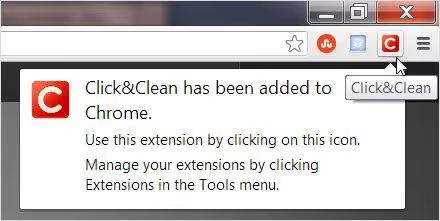
Right after installation, the extension displays a brief user guide. Do not skip it: Click & Clean is packed with features, and five minutes familiarizing yourself with the settings will save you hours later.
The extension works on Windows, macOS, and Chromebook. There are no platform restrictions; all you need is Chrome and a few seconds for installation.
2. Interface and navigation
Click the "C" icon to open the main Click & Clean window. The design is built on color blocks: each function is visually distinct, and navigation is intuitive even without reading instructions.
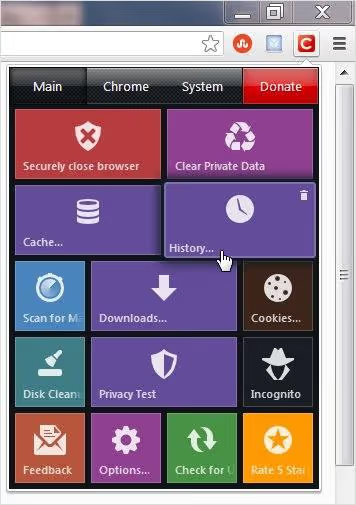
At the top are four tabs: Main, Chrome, System, and Donate. Each opens its own group of tools, and switching between them is instant.

The Chrome tab contains quick links to browser sections: installed extensions, potential plugin conflicts, and recent downloads. This is less of a cleanup tool and more of a Chrome control center.
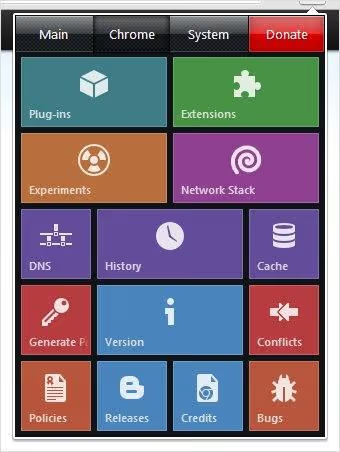
The System tab provides access to Windows settings: disk cleanup, defragmentation, and malware scanner. For users who want to manage system utilities from a single browser window, this is a convenient shortcut.
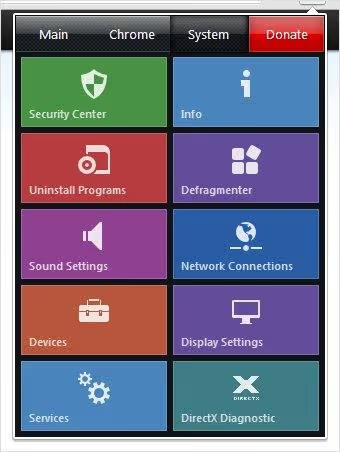
But the main value lies in the Main tab. This is where the cleanup tools live, the reason you install the extension in the first place.
3. Main menu and secure browser closing
The "Main" tab greets you with a list of key operations. Each one highlights when you hover over it and launches with a single click.
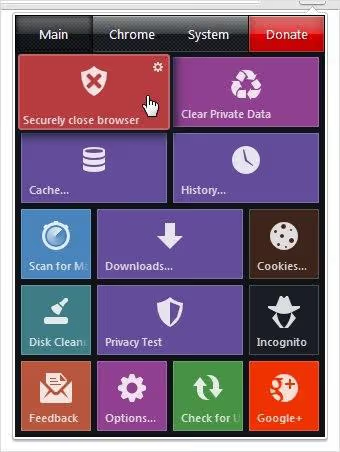
The first thing to enable is secure browser closing. When this option is active, Click & Clean automatically erases browsing history and clears the cache every time you close Chrome. No manual operations: close the browser, leave no traces. The feature works reliably, with no false triggers or missed cleanups.
Next to it is the "Delete personal data" button. One click, and all saved forms, passwords, and autofill data disappear within seconds.
4. Cache and history cleanup
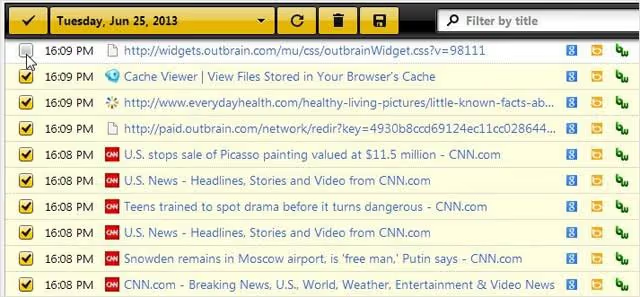
Cache and history cleanup tools open in separate tabs with their own interface. This is a key advantage over Chrome's built-in cleaner: you see cache contents by name and can delete data from one site without touching the rest.
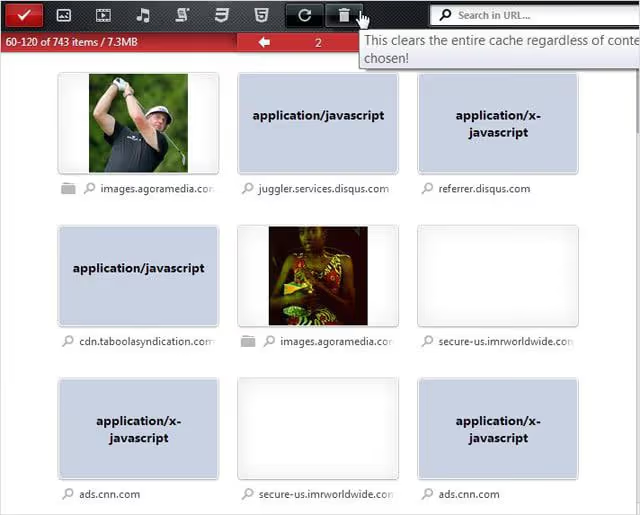
Browsing history follows the same logic: each entry is shown separately, with a checkbox for selective deletion. Uncheck the box next to a site you want to keep, and Click & Clean will skip it during cleanup.
5. Cookie management
Cookies are the most delicate matter. It is easy to wipe everything at once, but along with the junk you will lose sessions for services you need: you will be logged out of email, CRM, and site admin panels. Click & Clean solves this problem with a flexible management interface.
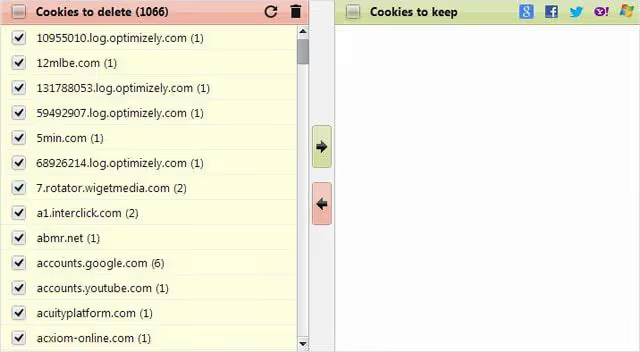
Each cookie is displayed with its domain and type. A green arrow saves the selected file to a whitelist, while all others are deleted with one click. This lets you keep work tool sessions open while regularly clearing tracking and advertising cookies.
6. Privacy test and security
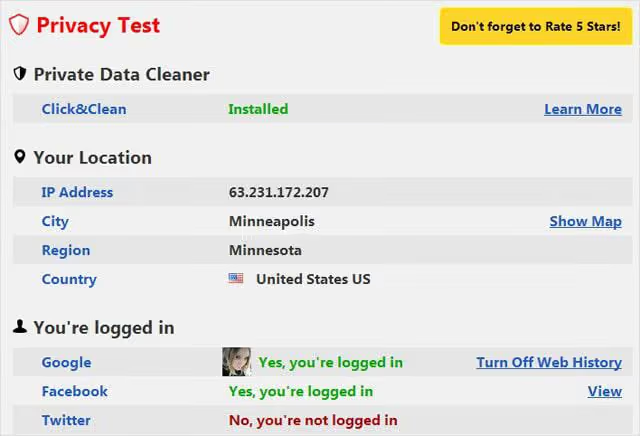
Privacy test is the tool that sets Click & Clean apart from dozens of similar extensions. It analyzes your IP address and shows which social networks you are currently logged into, which services have access to your profile, and what traces of your activity are visible externally.
The built-in malware scanner based on BitDefender checks your system for threats. It does not replace a full-fledged antivirus, but it provides an additional layer of protection right from the browser. For users who do not run a separate firewall or antivirus, this is a noticeable bonus.
7. Additional features
Beyond the main tools, there is another dozen or so features. The "Options" window allows fine-tuning of extension behavior: set keyboard shortcuts for cleanup, choose the interface language (36 languages available, including Russian), and configure automatic scheduled cleanup.
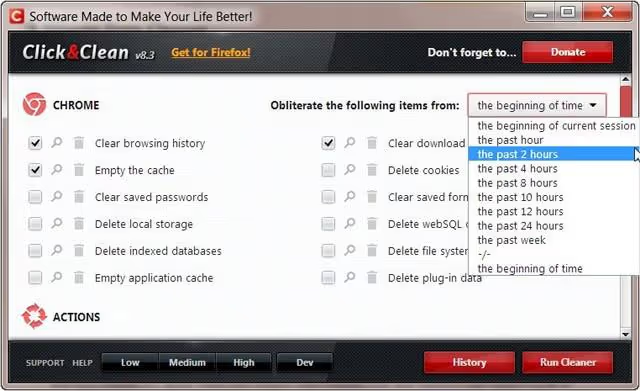
Incognito mode, quick access to Windows disk cleanup, viewing recent downloads: all of this is available from the same extension window. Click & Clean has outgrown the simple cleaner format and become a Chrome privacy control center.
⁉️🤔 Frequently asked questions
Is Click & Clean safe? Will it steal my data?
The extension has "Featured" status in the Chrome Web Store and follows recommended security practices. The developer (Mixesoft) states that the extension does not collect or share user data with third parties. All cleanup operations are performed locally on your device. 58,000 reviews and a 4.8★ rating over 14 years confirm the product's reputation.
Why is Click & Clean better than Chrome's built-in cleanup?
Chrome's built-in tool (
chrome://settings/clearBrowserData) only offers bulk deletion: you select a time range, check boxes, and click "Delete." Click & Clean lets you view cache, history, and cookies by name, delete selectively, save individual cookies to a whitelist, and configure automatic cleanup when the browser closes.
Does the extension slow down Chrome?
The extension itself weighs 408 KB and runs asynchronously. Cleanup only starts when you click or when the browser closes. In the background, Click & Clean does not load the processor. In fact, the opposite is true: regular cleanup of cache and temporary files speeds up Chrome rather than slowing it down.
Can deleted history be recovered after cleanup?
No. Click & Clean uses secure deletion (7-pass method for files), and recovering erased data using standard tools is impossible. Before cleaning, make sure you have saved the cookies you need and are not deleting history you might need later.
Does Click & Clean only work in Chrome?
The extension is also available for Firefox and Edge. Versions for different browsers are synchronized in functionality, although the interface may differ slightly. You can download the Firefox version from the developer's website.
Click & Clean: is it worth installing in 2026?
After 16 years of development, Click & Clean remains one of the most functional privacy management tools for Chrome. Selective cookie cleanup, privacy testing, secure browser closing, and the BitDefender scanner in a single extension cover the needs of both casual users and those who take digital hygiene seriously.
If you need simple "all at once" cleanup, Chrome's built-in tool is sufficient. But if you want to know exactly what you are deleting, keep work sessions intact, and receive a privacy status report, Click & Clean delivers without compromise. Install it, set up secure browser closing, and forget about manual cleanup for good.

A professional team of writers and editors specializing in creating quality content.