














🚀 Google Tag Manager and site speed: what the tests say
Marketers often repeat: "Google Tag Manager speeds up websites, pages with GTM load faster." Developers usually argue: "GTM only slows things down." The truth, as always, lies between these extremes.
We ran a series of tests with different GTM configurations: an empty container, a container with 8 tracking codes, hard-coded tags, different trigger firing moments, dozens of custom HTML tags with DOM manipulations. We measured speed through webpagetest.org and Lighthouse. The results turned out to be less straightforward than what GTM presentations claim.
Here's what we found: the GTM container itself barely slows anything down, but what you put into it can add 3 or 10 seconds to page load. And the key thing is, you can control this.
💡 Quick overview:
- An empty GTM container adds about 100 milliseconds to page load
- Eight tracking tags through GTM slow down the page by 3 seconds on fast 3G and up to 10 seconds on slow connections
- The same 8 tags hard-coded directly into the site slow things down even more
- The later tags fire, the less impact they have: a 1.5-second delay after
Window Loadedreduces load time by 6 seconds on slow 3G - Well-planned trigger configuration and container cleanup restore speed without data loss
How we tested
The methodology is simple but thorough. We ran each test at least three times and calculated the average.
Tools: webpagetest.org (server in Ireland, EC2, Chrome and Firefox for desktop, OnePlus 5 for mobile tests) and the built-in Lighthouse audit in Chrome DevTools. In Lighthouse we looked at both mobile and desktop reports. Chrome was launched in incognito mode, no extensions, laptop performance at maximum.
Metrics we measured:
In webpagetest.org: Document complete (seconds until static content, images, styles are loaded) and Fully loaded (the point after onLoad when network activity quiets down for 2 seconds). In Lighthouse: First Meaningful Paint, Time to Interactive, First CPU Idle and Max Potential First Input Delay (FID).
Tracking codes in tests: Google Analytics (gtag.js), Facebook Pixel, Reddit Pixel, Quora Pixel, LinkedIn Insights, Twitter Universal Tag, Google Ads Remarketing (gtag.js), Hotjar. Eight widely used scripts.
Scenarios we compared:
- Clean page without third-party scripts and without GTM
- Page with 8 tracking codes hard-coded directly before
</head>, without GTM - Empty GTM container without tags
- All 8 tags through GTM,
All Pagestrigger (also known asgtm.js) - The same 8 tags through GTM,
DOM Readytrigger (gtm.dom) - The same 8 tags through GTM,
Window Loadedtrigger (gtm.load) - The same 8 tags, firing 1.5 seconds after
Window Loaded - GTM container with preview and debug mode enabled
- GTM container with 100 custom HTML tags adding elements to the end of
<body> - GTM container with 100 custom HTML tags adding elements to a specific place on the page (after H2)
- GTM container with 100 custom HTML tags searching all links and inserting an element after the 21st
- GTM container with 1976 constant variables (filled to capacity, 200 KB)
What the tests showed
Asynchronous doesn't mean "no consequences"
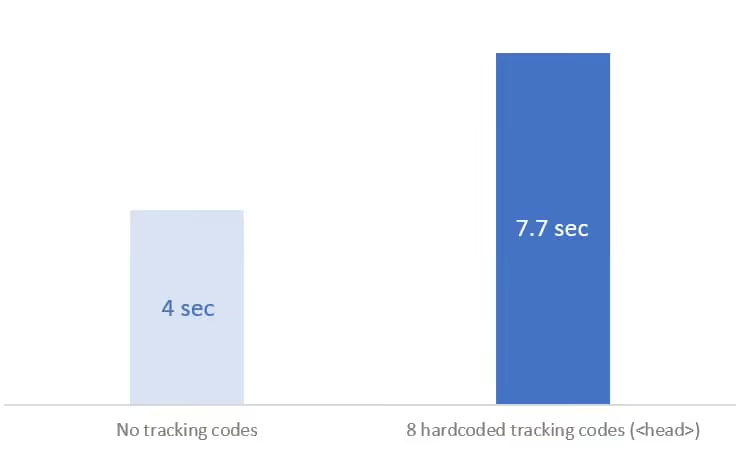
Asynchronous scripts don't block rendering directly. But they still need CPU resources, which means the site's main scripts execute more slowly. In practice: the Document Complete event on a clean page occurred after 4 seconds. With eight tags, after 7.7 seconds. A difference of 3.7 seconds just because the processor is busy with third-party scripts.
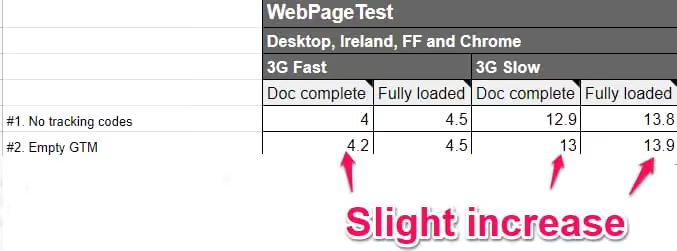
Even an empty GTM container slightly increased load time, by about 100 milliseconds.
It's not about GTM, but what you put in it
An empty GTM container adds about 100 milliseconds to page load, sometimes there's no delay at all. Problems start when you fill the container with tags. But even here, things aren't linear.
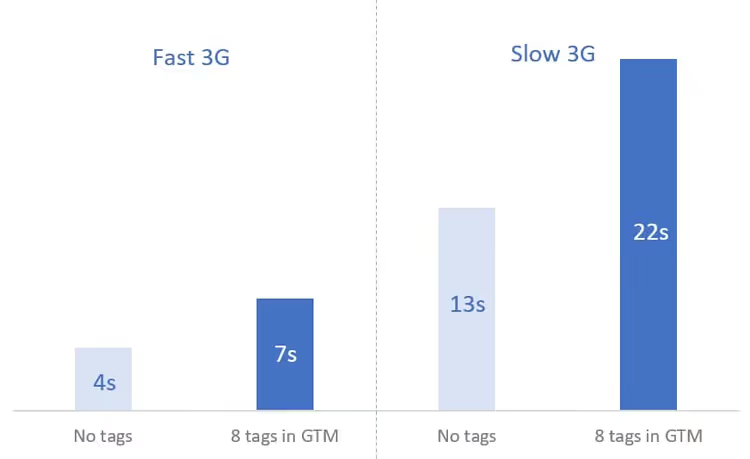
Eight tracking tags slowed down the page by about 3 seconds on a fast 3G connection and by 10 seconds on slow connections. Each tag pulls its own script, and the browser spends time executing them.
But a container filled with 1976 constant variables (200 KB, the GTM limit) added only 0.1-0.3 seconds. Variables don't load external scripts and don't manipulate the DOM, so their impact is minimal.
Conclusion: what matters is not the size of the container, but what actions its elements perform.
Hard-coded tags slow things down more than the same tags through GTM
When we added 8 tracking scripts directly into the site code, the page slowed down even more noticeably. On fast 3G, hard-coded tags added about 600 milliseconds more delay compared to the same tags launched through GTM.
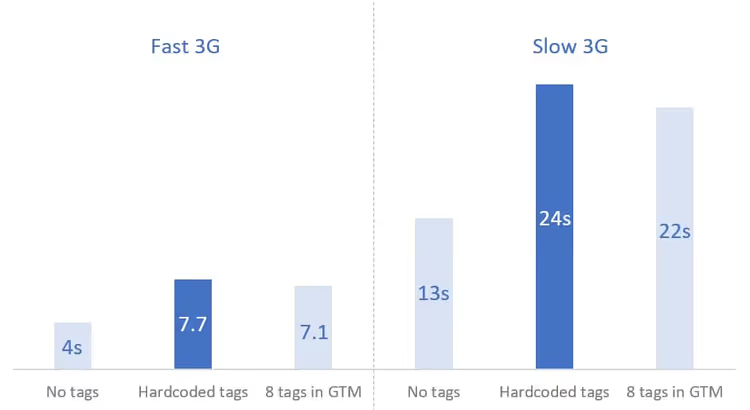
On the second graph, the same picture from a different angle: hard-coded scripts consistently lose to GTM in Document Complete time.
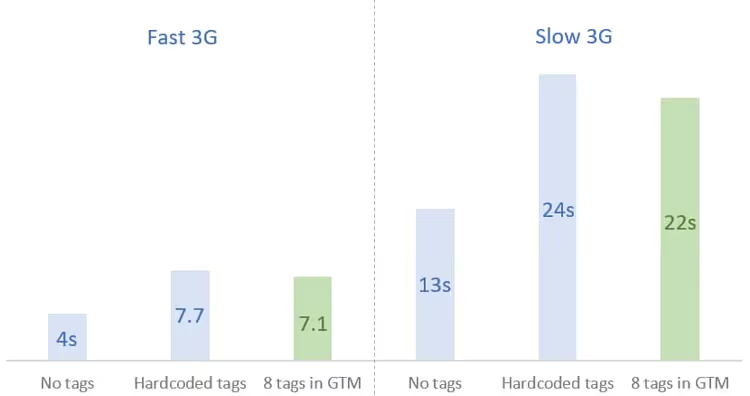
GTM really does help pages load slightly faster than when scripts are added directly to the code. But this isn't a universal rule. There are scenarios where launching JS without GTM can be implemented more efficiently, and Simo Ahava, one of the leading GTM experts, agrees with this.
The timing of tag firing matters
The later a tag fires, the less it affects initial page load. We tested four moments:
Page View(gtm.js), immediately when the container loadsDOM Ready(gtm.dom), when the DOM is builtWindow Loaded(gtm.load), when all resources are loadedafterLoad, 1.5 seconds afterWindow Loaded(custom trigger)
Custom afterLoad trigger code:
1 <script> 2 (function() { 3 try { 4 window.setTimeout(function(){ 5 dataLayer.push({ 6 'event': 'afterLoad' 7 }); 8 }, 1500); 9 } catch (err) {} 10 })(); 11 </script>
Result: DOM Ready and Window Loaded gave a small improvement. But the most significant gain came from afterLoad. On slow 3G, the delay was reduced by 6 seconds compared to the Page View trigger. On fast 3G, by 600 milliseconds.
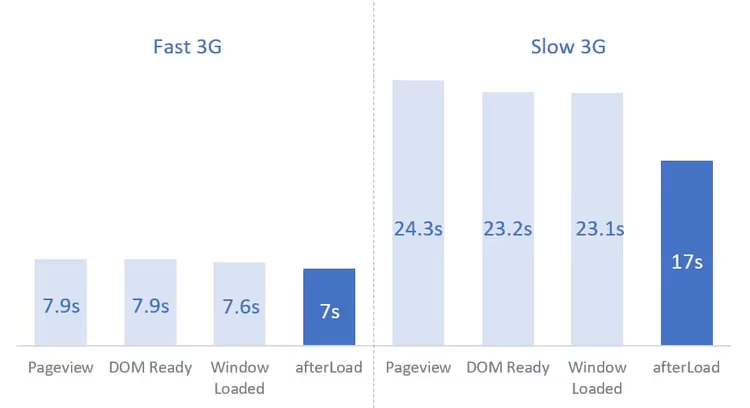
Why does this work? The page may have elements that load dynamically only after all resources are fully loaded. If tags slow down initial loading, these elements also appear later. By delaying non-critical tags, you let the main content load without interference.
But there's a caveat: if you delay tags that accuracy depends on (Google Analytics), some visitors may leave the page before the counter fires. Your reports will lose some data. The decision to delay tags should be made with the team, not unilaterally by a developer or marketer.
Tracking tags are not the only offenders
Another group of "heavy" tags are those that manipulate the DOM. For example, custom HTML tags that add or change elements on the page.
We tested several variations:
100 custom HTML tags adding elements to the end of <body>. Each tag executed a simple console.log('hello') script and created a <div>Hello!</div>. Without specifying a particular insertion location. The impact on page load speed turned out to be minimal, elements were simply appended to the end.
100 custom HTML tags adding elements to a specific place on the page. Each tag searched for the first h2 and inserted an h3 after it. Script:
1 <script> 2 (function() { 3 var h3 = document.createElement('h3'); 4 h3.innerText = "An additional element"; 5 var title = document.querySelector('h2'); 6 if (title) { 7 title.parentElement.insertBefore(h3, title.nextSibling); 8 } 9 })(); 10 </script>
This added several hundred milliseconds to page load. Although the script is primitive, searching for an element and inserting it requires resources.
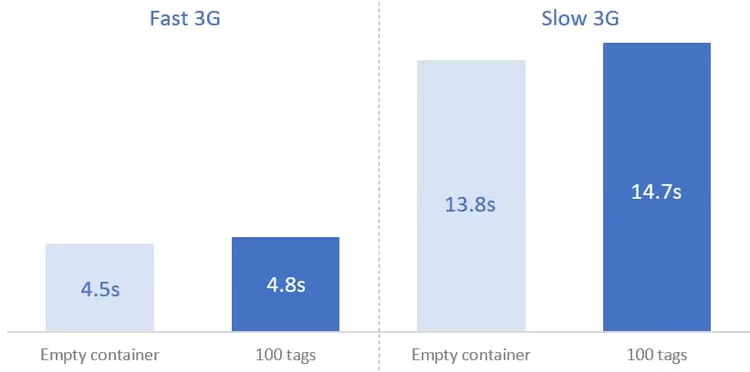
100 custom HTML tags that search all links on the page and insert an element after the 21st. Script:
1 <script> 2 (function() { 3 var h3 = document.createElement('h3'); 4 h3.innerText = "An additional element"; 5 var element = document.querySelectorAll('a')[20]; 6 if (element) { 7 element.parentElement.insertBefore(h3, element.nextSibling); 8 } 9 })(); 10 </script>
Difference from the previous experiment: querySelectorAll iterates through all elements on the page, checks each one, which is more expensive. In webpagetest.org the difference was small (100-200 ms), but Lighthouse showed a 2-3 second increase in Time to Interactive. This means that during page load, the browser is so busy inserting elements that it doesn't respond to user actions.
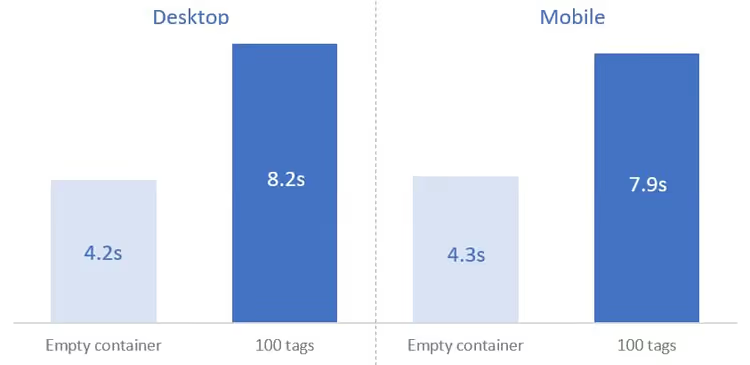
Yes, 100 identical scripts is overkill. But the point is that even a few complex tags manipulating the DOM can produce a similar effect.
How to reduce GTM's impact on speed: 8 techniques
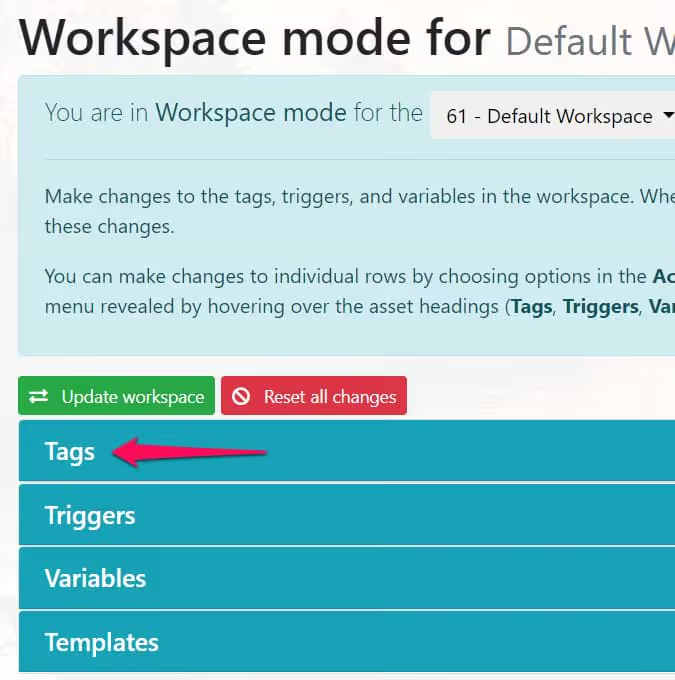
Regularly clean the container of abandoned tags
Audit experience shows: up to a third of tracking codes on sites belong to tools the company no longer uses. You switched from analytics tool X to Z, but X codes are still loading on every page and slowing it down.
What to do:
- Ask a developer to provide a list of all HTTP requests and scripts on the page
- Google the domains of these requests, identify which tools they belong to
- Ask colleagues from different departments which tools are still being used
- Find "orphaned" scripts that aren't on the list of used tools
- If a script is implemented through GTM, pause it for a month; if no one complains, delete it completely
- If a script is hard-coded, ask the developer to temporarily comment it out, then delete it after a month
Delay non-critical tags
The fewer tags on the All Pages trigger, the faster the initial load. Not all tags can be delayed, but if you apply this approach to at least some of them, the improvement will be noticeable.
How to implement delay (Pavel Brechik's method):
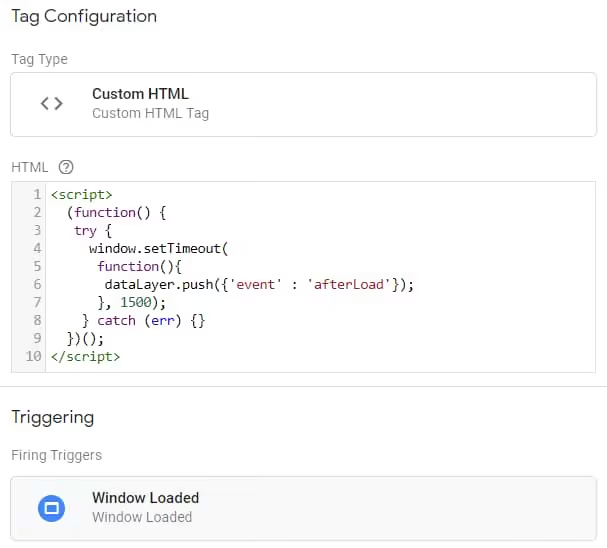
Step 1. Create a custom HTML tag with code:
1 <script> 2 (function() { 3 try { 4 window.setTimeout( 5 function(){ 6 dataLayer.push({'event': 'afterLoad'}); 7 }, 1500); 8 } catch (err) {} 9 })(); 10 </script>
Step 2. Launch this tag on the Window Loaded trigger.
Step 3. Create a custom trigger for the afterLoad event.
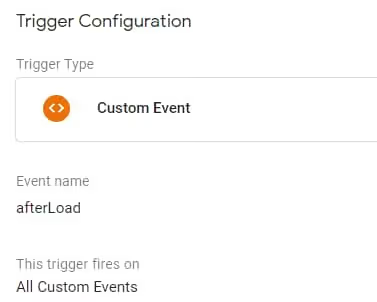
Step 4. Assign this trigger to tags that can be delayed.
Result on slow 3G: delay reduced by 6 seconds, on fast 3G, by 600 milliseconds.
Which tags can be delayed and which cannot should be decided with the team. Developers would ideally remove everything for speed, marketers would add everything for data accuracy. The truth is in the middle.
Use tags only on the pages you need
Not every tag needs to fire across the entire site. A Google Ads remarketing pixel can launch only on campaign landing pages, not across the entire site. LinkedIn Insights, only on pages where LinkedIn traffic arrives. Set up exclusions in triggers, this will reduce the number of scripts executing on a typical page.
Avoid heavy DOM manipulations
If you need a custom HTML tag that adds something to the page, try to do it as lightly as possible. Avoid querySelectorAll with iteration through all elements. Don't insert dozens of identical elements in different places on the page. Each DOM manipulation consumes browser resources at a moment when it's already busy rendering the page.

Don't measure speed with preview mode enabled
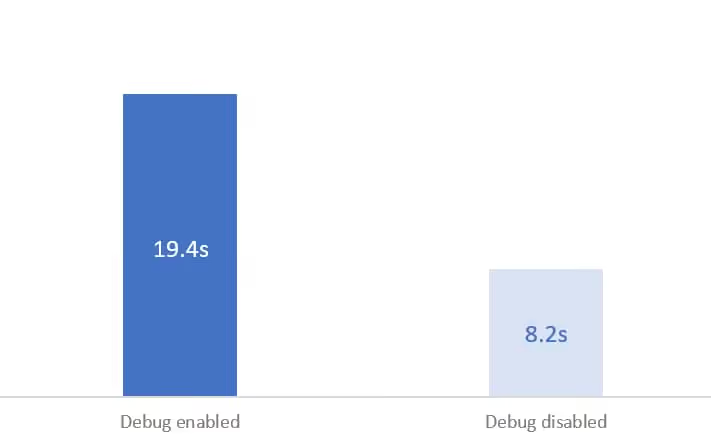
Preview and Debug mode in GTM adds extra load on the browser that real visitors don't have. If you measure speed with preview enabled, the results will be worse than reality. Before a speed audit, always turn off debug mode.
Test speed after every container change
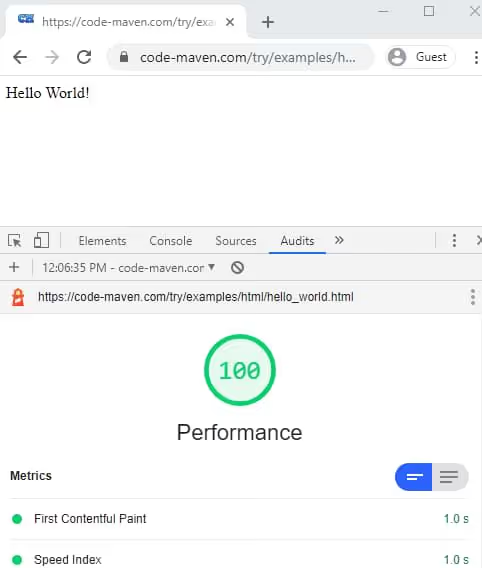
Added a new tag or changed a trigger, immediately check page speed through webpagetest.org or Lighthouse. Take measurements before and after. This will let you catch a problematic tag immediately, rather than wondering later why the site started loading 2 seconds slower.
Keep the container lean
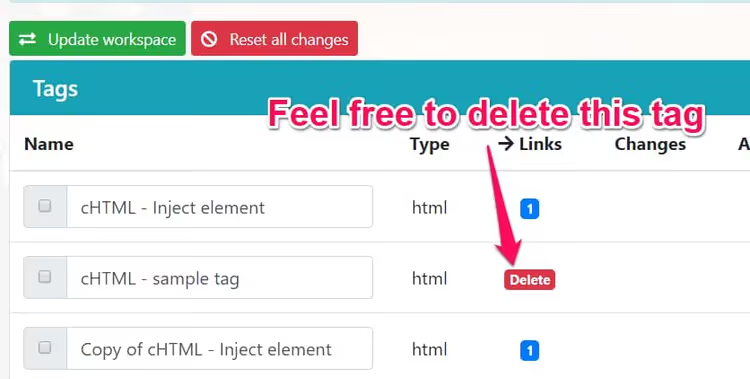
Delete unused tags, triggers and variables. This is not so much about speed (as the test with 1976 variables showed), but about manageability. In a container with a hundred tags, it's easy to lose a problematic script. In a container with two dozen, each unit is visible.
Separate the wheat from the chaff: what really saves load time
Let's draw the line under the experiments. Here's what gives maximum effect in descending order:
According to our measurements, the most significant improvement comes from delaying tags through afterLoad, up to 6 seconds on slow connections. In second place, removing abandoned tracking codes. In third place, limiting tag scope to specific pages.
⁉️🤔 Frequently asked questions
Does an empty GTM slow down a site?
Practically no. In our tests, an empty container added about 100 milliseconds to page load. Sometimes there was no delay at all. This is margin of error, noticeable neither to users nor search engines.
What slows things down more: GTM or hard-coded scripts?
Hard-coded scripts slow things down a bit more. In our test, 8 tracking tags added directly to the code slowed down the page by about 600 milliseconds more than the same tags through GTM. But this isn't a universal rule, well-written custom JS can be more efficient than GTM.
Can you delay all tags?
Technically, yes. But you'll lose data: some visitors will leave the page before counters fire. Google Analytics and similar tools will undercount traffic. Only delay tags that don't require high accuracy, for example, chat widgets or remarketing pixels. It's better to leave analytics on
Page View.
How do you check which tags in GTM are really slowing things down?
Run a Lighthouse audit with the Network tab open. See which scripts load the longest and which block rendering. Match the domains of these scripts with tags in the container. Or run an A/B test: temporarily disable suspicious tags one by one and measure speed.
What about server-side GTM?
Server-side GTM moves tag processing from the user's browser to your server. The browser receives only one container instead of a dozen third-party scripts. This radically reduces load on the client side. If you have dozens of tracking tags, server-side GTM is worth considering. The technology has been available since 2020, and by 2026 its implementation has become noticeably simpler.
Bottom line: does GTM speed up or slow down?
Neither in pure form. GTM is a dispatcher: by itself it's almost weightless, and page speed is determined by what tags and in what quantity you launch through it.
Eight standard tracking tags through GTM add 3-10 seconds to page load. But the same tags hard-coded slow things down even more. Delayed launch through afterLoad wins back up to 6 seconds. Removing abandoned tags, a few more seconds. In total, with smart configuration GTM can outperform hard-coded scripts, and without configuration, lose completely to an empty page.
The main rule is simple: it's not GTM that makes the site, but you yourself. Audit the container, remove junk, delay non-critical tags, set up page exclusions, and your site's speed will thank you.

A professional team of writers and editors specializing in creating quality content.