














🚀 How to migrate a site from Joomla to WordPress
You installed Joomla a long time ago. Perhaps ten years back it was a reasonable choice. But now the admin panel is sluggish, plugins are not being updated, and every small change requires digging into PHP. Sound familiar?
Moving to WordPress looks intimidating: a different engine, different logic, the risk of losing content and search rankings. But in practice, migrating an average site takes 30-40 minutes if you know the right tools and the correct sequence of steps.
In this guide, a proven path for transferring from Joomla to WordPress using the free plugin FG Joomla to WordPress. No manual SQL, no lost posts or images, with SEO-friendly URLs preserved. Plus, what to do with modules, widgets, contact forms, and featured images after the move.
💡 Quick overview:
- Back up your Joomla site using Akeeba or manually
- Deploy a clean WordPress locally: new folder and database
- Install FG Joomla to WordPress, enter your Joomla database parameters
- Run the import: content, categories, images, and links transfer automatically
- Move modules to widgets and recreate contact forms in Contact Form 7 manually
- Test on localhost, then deploy to production
How Joomla differs from WordPress and why this matters for migration
Formally, both systems are CMSs. But architecturally they are different, and this affects what transfers automatically versus what you will need to do manually.
Components versus widgets. In Joomla, everything beyond the article itself (menus, header, banners, forms) lives in components. WordPress uses widgets for the same purpose. They have fixed areas within the theme, offering less placement flexibility. However, configuration is simpler: drag with your mouse and you are done.
Themes and templates. Both Joomla templates and WordPress themes solve the same task: they determine how content from the database appears on screen. The difference here is minimal; the underlying principle is identical.
Banners, contact forms, and the rest. Joomla core includes them; WordPress core does not. But the WordPress ecosystem covers this with plugins: Contact Form 7 for forms, MetaSlider or Smart Slider 3 for sliders, Envira Gallery for galleries. The free version of FG Joomla to WordPress does not transfer contact forms; you need to create them fresh in WordPress after migration.
Preparation: backup and local staging
Before migrating, make a full backup of your Joomla site. No exceptions. For Joomla there is a proven extension called Akeeba; it creates an archive of your site including the database in just a few clicks. The alternative is a manual backup: copy files via FTP and export the database through phpMyAdmin.
The next step is to deploy WordPress locally. Do not migrate directly to the production server: almost certainly something will go wrong, and fixing issues on localhost is far less stressful. If you do not have a local environment yet, see the guide for installing WordPress on Mac using MAMP. Once everything works as expected, you will transfer the site from localhost to a live server.
Now the process itself.
Step 1: Install WordPress in a new folder
If your local server has Softaculous or a similar tool, install WordPress with one click. If not, download the latest version from wordpress.org and create a folder in www or htdocs, for example joomlamove:
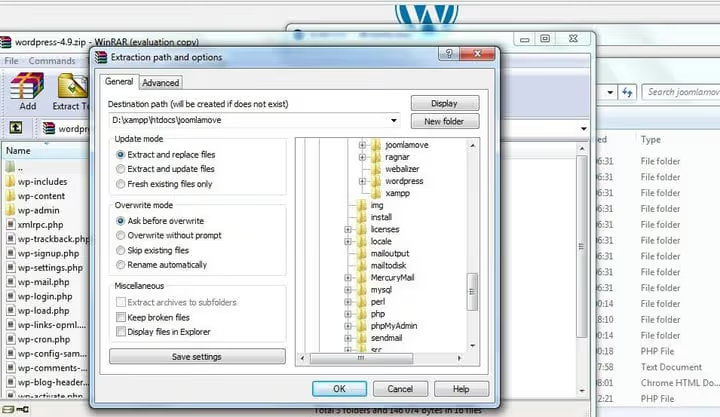
Open phpMyAdmin and create a new database for the test installation. Check user credentials; you will need them when entering parameters.
Navigate to the WordPress folder in your browser; the language selection screen will appear:
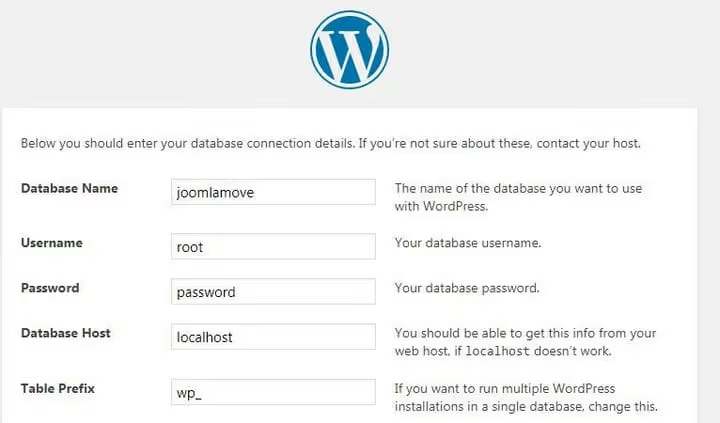
Choose your language, fill in the database details, set the site name, username, and password. Done, your test WordPress is ready.
Step 2: Install and activate the FG Joomla to WordPress plugin
FG Joomla to WordPress is a free plugin from the official directory, specifically designed for transferring content between these two CMSs. As of 2026, version 4.34, actively updated, 100,000+ active installations.

In the WordPress admin, go to "Plugins → Add New", type FG Joomla to WordPress in the search box, click "Install Now" and then "Activate":

Step 3: Configure import settings
After activation, go to "Tools → Import". Find the "Joomla (FG)" line and click "Run Importer":

First, click "Empty WordPress content"; on a test installation this removes demo posts and pages to avoid conflicts:

Now comes the most critical part. Fill in the fields:
- Joomla website URL: the full address (for example,
https://your-site.joomla.com) - Database parameters: host, database name, username, password
- Table prefix: check in phpMyAdmin (usually
jos_, but variations exist)
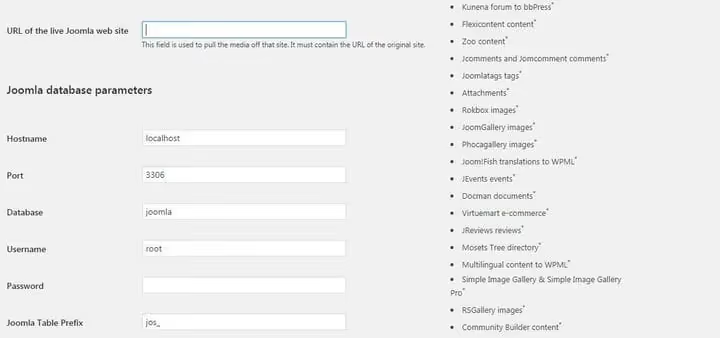
Click "Test the database connection". If the connection succeeds, configure the remaining options:
- Import meta keywords as tags: enable
- Import featured images: disable (the free version of the plugin often makes mistakes, setting the first image in the post instead of the actual featured image; it is better to fix this manually after migration)
The video below demonstrates the entire migration process through FG Joomla to WordPress, including parameter configuration and the final check:
Step 4: Run the import
Click "Start / Resume the import". The plugin will begin transferring articles, categories, images, and media files. Duration depends on site size: a small blog takes 2-5 minutes, a resource with hundreds of posts may take 15-20 minutes.
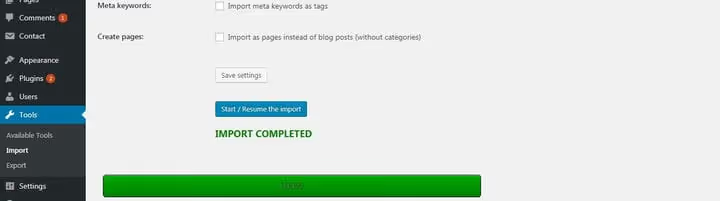
After completion, you will see "Import complete!". Scroll down the log and click the "Modify internal links" button; the plugin will automatically fix all URLs in your content so they point to the new WordPress site rather than the old Joomla domain:

An important bonus: FG Joomla to WordPress preserves the permalink structure exactly. This means that after deploying to production you will not need to set up redirects; URLs will remain the same, and search engines will not notice the move.
Step 5: Handle featured images
If you used featured images in Joomla, this is the most problematic part of migration. Even with the import option disabled, the plugin may assign the first image from a post instead of the actual featured image.
For a site with a dozen articles, it is easier to uncheck the featured image import option in settings (step 3) and set them manually in the new WordPress. For a large site, the task is non-trivial; you will need either the premium version of the FG plugin (which handles featured images correctly) or a script for bulk replacement.
Step 6: Transfer Joomla modules to WordPress widgets
Here the difference between CMSs becomes tangible. In Joomla, a module can be placed almost anywhere. In WordPress, widgets live in specific theme areas: sidebar, footer, sometimes header.
Sidebar and footer
If your modules were in the sidebar or footer, you are in luck. Most WordPress themes have widget areas exactly there. Here is how a typical Joomla site's module area looks:
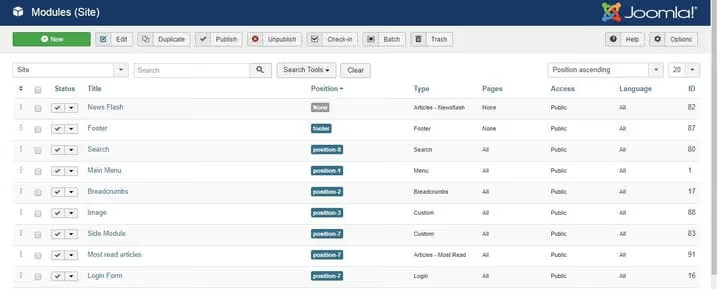
And here is the WordPress widget area:
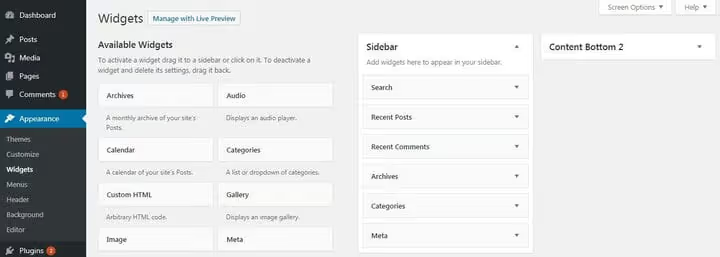
The structure is similar. Next is simple mechanics: open "Appearance → Widgets" and drag the blocks you need into the areas:
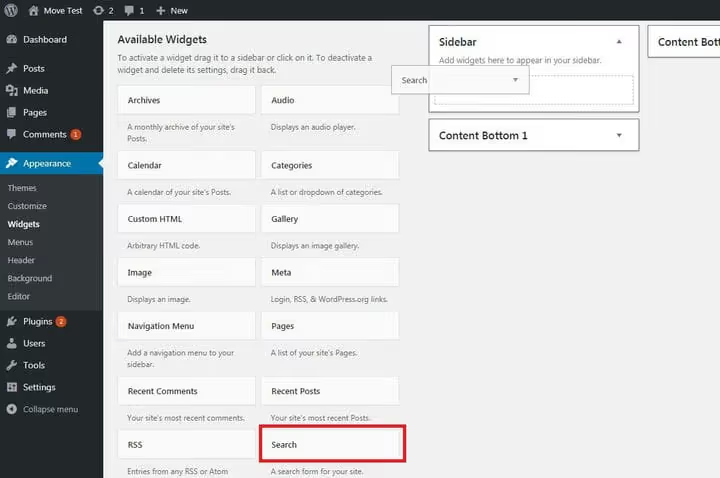
Had a search module in Joomla? Add the standard "Search" widget. Had a navigation menu? The "Menu" widget. Recent posts, comments, categories: all of these exist out of the box.
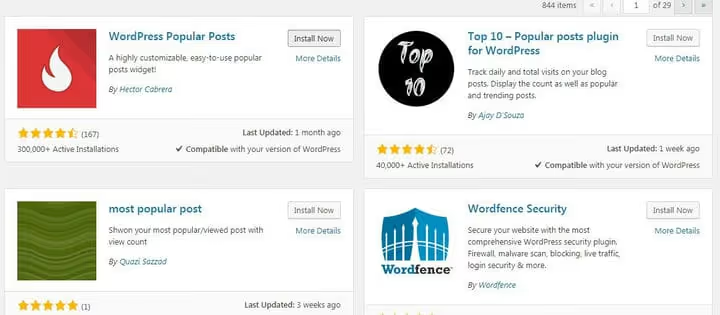
If a module is not among the standard widgets, a plugin most likely covers it. For example, your Joomla site had a "Most Popular Articles" block. In WordPress, go to "Plugins → Add New", type popular posts, and find WordPress Popular Posts (version 7.4 as of June 2026, 300,000+ active installations):
Install, activate, and a new "WordPress Popular Posts" block appears in the widget section:
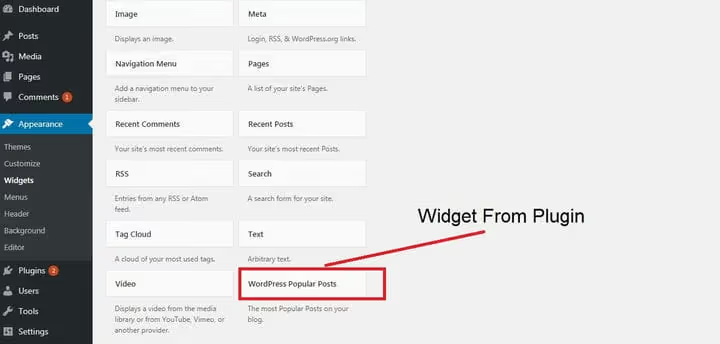
The same principle works for any other Joomla module: search for an equivalent among WordPress plugins, install, and use.
Logo and header images
To place a logo or header image outside widget areas, use the WordPress Customizer: "Appearance → Customize". Depending on the theme, options are found in sections like "Site Identity", "Header", or "Title":
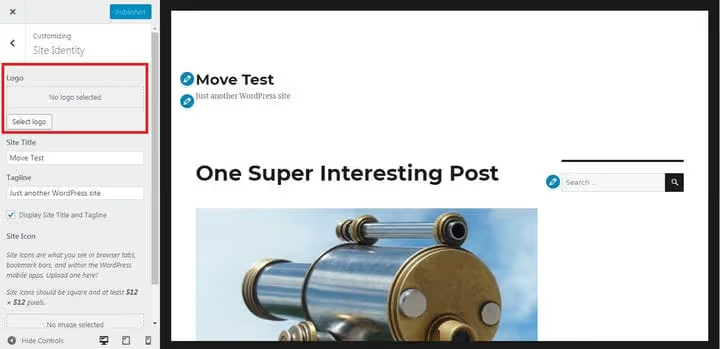
If standard settings are not enough (you need to place a block anywhere without coding), consider themes with a built-in page builder or drag-and-drop page builder plugins. They let you arrange blocks anywhere using your mouse, without a single line of code.
Contact forms and banners
The plugin does not transfer Joomla contact forms. But creating them in WordPress takes five minutes. Install Contact Form 7 (version 6.1.6, 10+ million active installations), the most popular free forms plugin for WordPress:
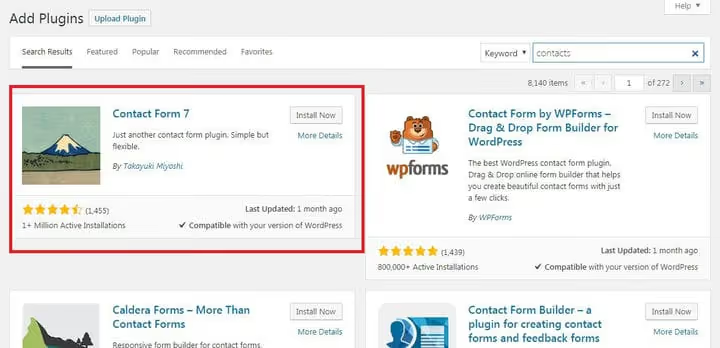
After activation, a "Contact" item appears in the admin panel. Open your old form in Joomla and manually transfer fields by copying their names and types:
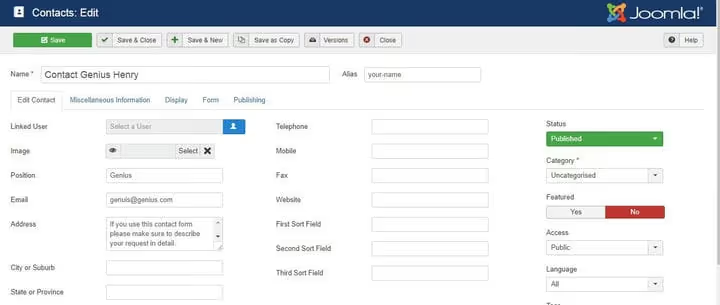
Then create a new form in Contact Form 7 and fill in the fields:
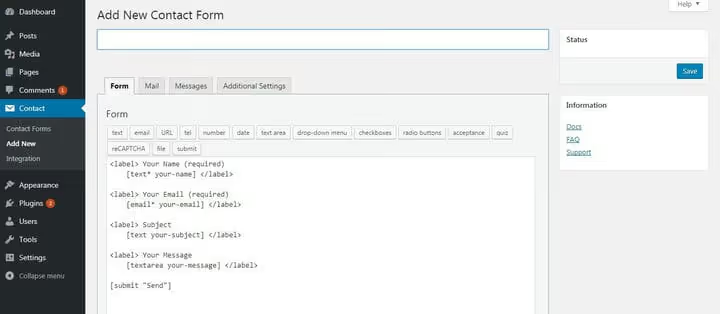
For banners, sliders, galleries, and e-commerce sections the logic is the same: search for a plugin that fits your task in the WordPress directory. If you need an online store, WooCommerce adds full functionality in a couple of clicks.
⁉️🤔 Frequently asked questions
Will my Google rankings be preserved after moving from Joomla to WordPress?
Yes, if the URL structure does not change. The FG Joomla plugin copies permalinks exactly. After deploying the WordPress version to the same domain, addresses remain intact and redirects are not necessary. The "Modify internal links" button (step 4) fixes cross-links within content so they point to the WordPress version rather than the old Joomla domain.
Can I migrate a site from Joomla to WordPress manually?
You can, but it is labor-intensive: you need to manually export Joomla tables, map fields to the
wp_posts/wp_postmetastructure, convert categories, and transfer media files. For a site with fifty articles, this means days of work. If you do not write SQL with your eyes closed, the plugin will save you a lot of time.
What if my Joomla site is large and complex?
For complex projects there are three options: premium FG Joomla (supports custom fields, featured images, users), a specialized migration service with selective transfer by content type, or a migration specialist. For a complex project with non-standard architecture, the third option is often the most reliable: it saves weeks of debugging and eliminates data loss.
Are users and accounts transferred?
The free version of FG Joomla does not transfer them; the premium version does (including passwords and roles). Third-party migration services also support user transfer. If there are only a few accounts, it is easier to create them manually in WordPress after migrating content.
What happens to the theme and design after transfer?
The Joomla theme is not transferred. This is not a bug; it is an opportunity to refresh your design. Choose a modern WordPress theme that visually resembles your original style. For complex layouts, use page builders like Elementor or WPBakery; they let you recreate any structure without code.
Is it worth migrating in 2026: the short answer
If your Joomla site works well and is actively developing, migration is not a goal in itself. But if you feel that administration takes more time than creating content, and the plugin ecosystem keeps shrinking, moving to WordPress pays off quickly.
The FG Joomla to WordPress plugin eliminates the main pain point: content, images, and permalinks transfer automatically. The most time-consuming stage (carefully moving modules to widgets and recreating contact forms) takes one to two hours even for a medium-sized site. The result: a modern admin panel, access to 60,000+ free plugins, and a community where you can find the answer to any question in a minute.

A professional team of writers and editors specializing in creating quality content.