













 AIIllustrative image: AI-generated
⚙️ How to remove category from WordPress URL: all working methods
URL addresses in WordPress look like this by default: /category/plugins/ or /category/news/ or /category/wordpress/. The word "category" carries no meaning for users or search engines. It's a vestige that only lengthens the address and dilutes the site structure.
The problem is that WordPress doesn't offer a simple toggle to remove this prefix through standard settings. Most site owners either put up with /category/ or install the first plugin they find without understanding the consequences. And there can be consequences: broken links, 404 errors on old addresses, duplicates in the index.
Here's a step-by-step breakdown of all working methods to remove /category/ from WordPress URLs: from the simplest built-in approach to code in functions.php. Each method has been tested on current WordPress versions, with explanations of limitations and potential pitfalls.
💡 Quick overview:
- Built-in permalink mechanism: simple dot hack through settings, no plugins
- Remove Category URL plugin: the easiest one-click method for those who don't want to dig into settings
- Yoast SEO or Rank Math: if you already have an SEO plugin installed, it can handle the category base removal
- .htaccess: an option for those who prefer manual control at the server level
- Code in functions.php: a programmatic method without plugins, with full control over the replacement logic
1. Built-in permalink settings
This is the simplest method that doesn't require installing any plugin. It uses the standard "Permalinks" mechanism in WordPress itself.
Go to the admin panel, open Settings → Permalinks. In the "Common Settings" block, select the "Custom Structure" option.
In the field on the right, enter the following structure:
1 /%category%/%postname%/
Now here's the key moment. Scroll down to the "Category base" field and enter a dot, the . symbol (without quotes). This is an unconventional but working trick: WordPress interprets the dot as an empty base and stops inserting /category/ in category URLs.

Click "Save Changes." Done, your category URLs now look like site.com/wordpress/ instead of site.com/category/wordpress/.
⚠️ Important note: don't leave the "Category base" field empty. If there's nothing there, WordPress returns to the standard /category/. That's why we use a dot: an empty string doesn't work, but a dot does.
This method works for most sites, but has one drawback: the dot in the base field is a hack that may break during WordPress updates or when changing the permalink structure and back. If you want a more reliable solution, check out the following methods.
2. Remove Category URL plugin
Remove Category URL is a minimalist plugin that does exactly one thing: removes /category/ from URLs. No settings, no extra menu items in the admin panel.

After installation, the plugin starts working immediately. No additional steps: download, activate, check the category URL, and /category/ is gone.

Why this plugin and not dozens of alternatives? It weighs almost nothing, doesn't add advertising banners to the admin panel, and is compatible with WPML and WordPress Multisite. When you deactivate the plugin, URLs automatically return to the standard structure with /category/; the plugin doesn't break permalinks permanently.
For those who need to work with parent categories in addition to removing the category prefix, there's an alternative: FV Top Level Categories. It allows you to display categories of any nesting level as root-level in the URL, without /category/ and without parent slugs.
🔗 Remove Category URL on WordPress.org
3. SEO plugins: Yoast SEO and Rank Math
If Yoast SEO or Rank Math is already installed on your site, you don't need a separate plugin to remove /category/. Both SEO giants have a built-in function for removing the category base.
In Yoast SEO:
- In the WordPress menu, click Yoast SEO
- Go to the Advanced tab
- Open the Permalinks section
- Enable the "Remove the categories prefix" option
- Save changes
In Rank Math:
- In the admin panel, go to Rank Math → General Settings
- Open the WooCommerce tab (yes, it's there, not in Permalinks)
- Find the "Remove Category Base" option and enable it
Both plugins do the same thing as Remove Category URL, but through their own internal mechanism. Advantage: no extra plugins needed. Disadvantage: if you switch to a different SEO plugin, the category base may return, and you'll need to reconfigure.

By the way, if you're still choosing between Yoast and Rank Math, here's our detailed comparison that will help you decide.
4. Manual.htaccess editing
A method for those who prefer control at the server level. Removing /category/ via.htaccess works through a mod_rewrite rule that transparently redirects all category URLs to addresses without the prefix.
You'll need access to the .htaccess file in the site root, via FTP, the hosting file manager, or cPanel. Open the file and add the following line before the # BEGIN WordPress block:
1 RewriteRule ^category/(.+)$ http://www.site.com/$1 [R=301,L]
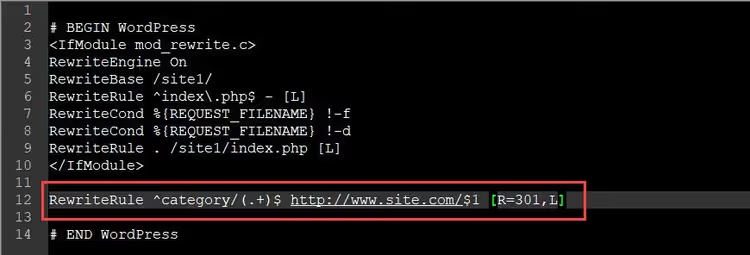
Replace www.site.com with your actual domain. The rule creates a 301 redirect from all URLs starting with /category/ to addresses without this prefix.
⚠️ Caution: this method only works on Apache servers. On Nginx, you'll need an analogous line in the configuration:
1 rewrite ^/category/(.+)$ /$1 permanent;
Before making changes, be sure to back up .htaccess. A syntax error in this file will bring down the entire site with a 500 error.
If your site runs on Nginx, the direct equivalent of the above rule looks equally simple, but it's added to the server block configuration, not to.htaccess. After adding the rule, reload Nginx with the command nginx -s reload. Unlike Apache, Nginx doesn't read.htaccess, so a syntax error in the main configuration also takes down the site, but not as irreversibly: Nginx simply won't start after the reload, leaving the previous working process running. Test the config with the command nginx -t before applying.
5. Code in functions.php
A programmatic method for those who want to remove /category/ without plugins and without editing server configs. The code is added once to the functions.php of the active theme and works through a standard WordPress filter.
Before adding the code, make sure the "Category base" field in permalink settings is not empty and doesn't contain a dot; it should be standard (category). The filter looks for the word "category" in the URL, and if it doesn't find it, the method won't work.
Open Appearance → Theme File Editor, select functions.php, and add this code before the closing ?> tag (if there's no tag, just add it at the end of the file):
1 function remove_category_from_url($string, $type) { 2 if ($type !== 'single' && $type === 'category' && strpos($string, 'category') !== false) { 3 $url_without_category = str_replace('/category/', '/', $string); 4 return trailingslashit($url_without_category); 5 } 6 return $string; 7 } 8 add_filter('user_trailingslashit', 'remove_category_from_url', 100, 2);
How it works:
- The
user_trailingslashitfilter is called every time WordPress generates a category URL - The function checks that this is actually a category (not a post, not a tag) and that the URL contains
/category/ - If both conditions are met,
/category/is removed, and the trailing slash is preserved viatrailingslashit()
After adding the code, go to Settings → Permalinks and simply click "Save"; this will flush the permalink cache and apply the new rule.
This method is the most flexible: you have full control over the replacement logic and can add exceptions for specific categories or adapt the code for a non-standard URL structure.

If you prefer to see the process in action, here's a short English video tutorial: installing the Remove Category URL plugin and checking the result in two minutes.
⁉️🤔 Frequently asked questions
Will categories disappear from the site after removing /category/ from URLs?
No. Categories remain fully functional: category archives work, posts display in them, and the taxonomy stays intact. Only the address in the browser changes. This is a purely cosmetic change to the permalink structure; WordPress continues to recognize categories by internal ID, not by URL prefix.
Do I need to set up 301 redirects after changing URLs?
Yes, absolutely. After removing
/category/, old addresses with/category/become inaccessible. If there were external links pointing to them or they're already indexed by search engines, you'll get 404 errors. The.htaccess method (method 4) automatically adds a 301 redirect. When using plugins or code in functions.php, make sure WordPress correctly redirects old URLs; this usually happens automatically, but it's worth checking a few old addresses after making changes.
What should I do if some URLs still contain /category/ after changes?
Most likely, it's a caching issue. Flush the permalink cache: go to Settings → Permalinks and simply click "Save" without changing anything. If you're using a caching plugin (WP Rocket, W3 Total Cache), clear its cache. At the server level, make sure the mod_rewrite rules in.htaccess don't conflict with the new settings.
Does removing /category/ affect SEO?
Yes, but only positively if done correctly. Shorter URLs get more clicks in search results, are easier to read, and get indexed faster. Backlinko research shows that shorter URLs correlate with higher rankings. The key is not to forget about 301 redirects from old addresses so you don't lose accumulated PageRank.
Which method should I choose for WooCommerce?
For online stores on WooCommerce, the best options are either the Remove Category URL plugin (it correctly handles product categories) or the built-in Rank Math function (Remove Category Base). Both methods don't conflict with WooCommerce endpoints like
/product-category/. The dot method in the "Category base" field also works for WooCommerce, but test it on staging first; some WooCommerce builds are sensitive to non-standard values in this field.
Do these methods work on WordPress Multisite?
Partially. The Remove Category URL plugin claims to be compatible with Multisite, but in practice, when network-activated, it only processes the main site; for child sites, you need to activate it individually. The dot method in the "Category base" field works on each network site separately; settings are not inherited. The functions.php code for Multisite requires an additional
is_multisite()check and ideally should be moved to an MU-plugin so it's not tied to the theme. Manual.htaccess editing on Multisite is the least desirable: the network URL structure is more complex, and an error in RewriteRule breaks all sites at once.
Which method to remove /category/ is right for you?
Each of the five methods has its own use case. Here's a quick selection matrix:
- Don't want to install extra plugins: method 1 (dot in the base field). Takes 30 seconds, adds no code to the site.
- Want minimal effort: method 2 (Remove Category URL). Install and forget.
- Already have Yoast or Rank Math on your site: method 3. Use what's already working.
- Prefer control at the server level: method 4 (.htaccess). But remember to back up.
- Developer who needs flexibility: method 5 (code in functions.php). Add the logic you specifically need.
For most users, method 2 (Remove Category URL) is optimal: it's simple, doesn't require technical knowledge, and doesn't break the site when deactivated. If you're already using Yoast SEO, enable the option there; don't install unnecessary plugins.
Try the method that best fits your workflow and check the result on two or three category URLs. If everything works, you've made the right choice.
After making changes, it's useful to run your site through any SEO crawler (Screaming Frog, Sitebulb, or Netpeak Spider): it will show whether 404 errors have appeared on category pages and whether 301 redirects from old URLs are working correctly. Also check your XML sitemap separately: after changing the permalink structure, it should update automatically, but sometimes it generates from a cached version. In Yoast SEO, simply click "Save" in the sitemap settings; for Rank Math, the "Refresh Sitemap" button is in the Sitemap Settings section. This takes a minute but protects you from situations where Google receives a sitemap with old URLs.

A professional team of writers and editors specializing in creating quality content.