














How to remove the author name from WordPress posts
You published a post, and underneath it sits the author's name you'd like to remove? WordPress displays the author by default in every publication, and there's simply no built-in "don't show" checkbox in the admin panel.
Reasons to remove the name vary. A team worked on the post, crediting one person distorts reality. The material is sensitive, and the author asks not to be attributed. Or you run a company blog where all publications appear under the editorial team rather than a specific employee.
Below, three working methods to remove the author name: from the simplest (plugin in two clicks) to manual (code in the theme) and compromise (single name for all). Plus a bonus on how to change the author for all published posts at once.
💡 Quick overview:
- Install the Hide/Remove Metadata plugin and hide the author in two clicks
- Remove the author manually through CSS or PHP in a child theme
- Replace the real name with a pseudonym like "Editorial Team" through the user profile
- Change the author in bulk for all published posts through the WordPress interface
Method 1: Hide/Remove Metadata plugin
The safest route for those who don't want to touch code. The Hide/Remove Metadata plugin does exactly what the name says: hides or completely removes the author name and publication date from anywhere in the theme.

The plugin has two modes. CSS mode simply hides the author block through display: none, visually the name is gone, but it remains in the page source code. PHP mode intercepts output through filters and removes the author completely, both from the screen and from HTML markup. In practice, the PHP variant is more reliable: themes structure meta blocks differently, and CSS doesn't always hit the right selector.
Setup is elementary. After installation and activation, a Hide/Remove Metadata item appears in the admin sidebar menu. Go there, check the "Hide Author" checkbox for PHP removal (or "Hide Author by CSS" for visual hiding) and save.

The plugin is updated: version 2.1 came out in May 2026, compatible with WordPress 7.0, 20,000+ active installations and a 3.6 rating on WordPress.org. Downside, on some themes CSS mode silently fails. If the author didn't disappear after activation, switch to PHP mode: it works more aggressively and hooks into output at the get_the_author filter level.
Pros:
- Doesn't require code editing
- Two modes: CSS and PHP
- Removes both author and date, separately or together
Cons:
- CSS mode doesn't work on all themes
- Adds another plugin to the admin panel
Price: Free
🔗 Hide/Remove Metadata on WordPress.org
Method 2: Remove the author manually, CSS and PHP
If you don't want to install a plugin for one function, the author name can be removed manually. Before any theme file edits, make a full site backup, rollback through FTP or hosting panel should be at hand.
CSS method: just hide
The gentlest option. Find the CSS class or ID of the author block, add display: none, and visually the name disappears. In the source code the author remains (for search engines and plugins, it's in place), but the reader doesn't see it.
The exact selector depends on the theme. Universal path, open a post page, right-click on the author name and select "Inspect" (Ctrl+Shift+I in browser). In DevTools you'll see an element like:
1 <span class="author vcard">Ivan Petrov</span>
Next, go to Appearance → Customize → Additional CSS (Customizer → Additional CSS) and add:
1 .author.vcard { 2 display: none; 3 }
Save, the author disappears from the visible part of the page. The method is reversible: delete the CSS, the name returns. Downside: if the theme uses other classes, for example .byline, .post-author or .entry-author, the selector will need to be adjusted for the specific theme.
PHP method: complete removal
When you need to remove the author from the page code altogether, not just visually, work through functions.php of a child theme or the Code Snippets plugin. The second option is safer: an error in the code won't crash the site, the plugin automatically deactivates the "broken" snippet.
Add this code:
1 /** 2 * Removes author name from post metadata. 3 * Location: functions.php of child theme or Code Snippets. 4 */ 5 add_filter('the_author', '__return_empty_string'); 6 add_filter('get_the_author_display_name', '__return_empty_string');
What happens here: the the_author filter intercepts the author name output anywhere in the theme and replaces it with an empty string. The get_the_author_display_name filter does the same for cases when the theme calls the display name directly.
A more refined variant, remove the author only in certain situations, for example on pages of a specific post type:
1 add_filter('the_author', function($author) { 2 if (is_single() && !is_admin()) { 3 return ''; 4 } 5 return $author; 6 });
This code hides the author only on individual post pages (is_single()), not touching the admin panel and archives.
Downside of the manual method: themes assemble meta blocks differently. Some use standard WordPress functions, others, custom "template tags" in template-tags.php. If the given filters didn't work, search the theme files for the function responsible for author output (usually contains posted_by or author in the name) and override it in the child theme.
If the theme has its own template tag
Some themes (including classic standard themes like Twenty Nineteen, Twenty Twenty) have author output placed in a separate function inside template-tags.php. It looks something like this:
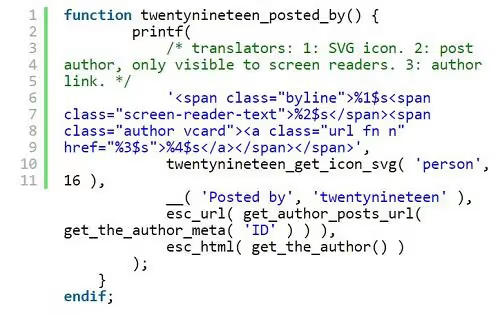
In this case, find this function in template-tags.php, copy it to functions.php of the child theme and replace the body with return;, the function will continue to exist (the theme won't crash with a fatal error), but won't output anything.
Method 3: Single author name for all publications
Don't want to remove the author completely, but want to replace the real name with an impersonal one? For example, "Editorial Team", "Site Team" or "Technical Support". This method doesn't break anything in the theme and doesn't require plugins, just configured through the standard WordPress user interface.

Step by step:
Step 1. Go to Users → Add New and create an account with the role "Author" or "Editor". Login, technical (for example, editorial_team).

Step 2. Return to Users → All Users and click "Edit" next to the just-created entry.
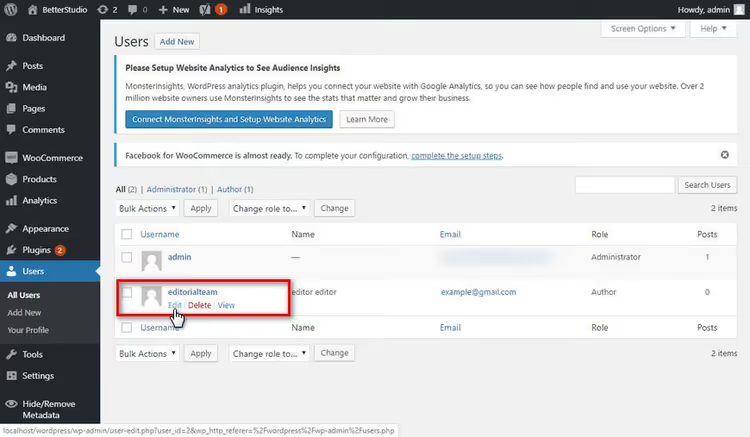
Step 3. Find the "Nickname" field and enter the display name, for example, "Editorial Team techblog".

Step 4. In the "Display name publicly as" dropdown, select the just-created nickname and save the profile.
Now when creating a new post, select this user as the author, and "Editorial Team techblog" will appear under all publications. Downside: the author won't change automatically for already published posts. For this, the next step is needed.
Bonus: Bulk author change for all posts
If the site has been running for a long time and the author is specified in hundreds of publications, changing it one by one, an evening's work. WordPress allows changing the author for all posts at once through the standard interface.

Procedure:
Posts → All Posts. At the top right, click Screen Options and in the "Number of items per page" field enter
999, this is the maximum for one screen. Click "Apply".Select all posts with the checkbox in the table header. In the "Bulk actions" dropdown, select Edit and click "Apply".
In the opened panel, find the "Author" dropdown, select the needed user (the one with the nickname "Editorial Team techblog") and click "Update".
If there are more than 999 posts, repeat the procedure on the following pages (page 2, 3 and so on). For sites with tens of thousands of posts, it's more reasonable to use WP-CLI with the command wp post update $(wp post list --post_type=post --format=ids) --post_author=NEW_ID.
Video: three ways to remove the author in 5 minutes
Short video tutorial in English, clearly shows the plugin and manual methods in action:
⁉️🤔 Frequently asked questions
Will the author name disappear from Google snippets?
Yes, if the PHP method or plugin in PHP mode is used, the author is physically absent in the page code, search engines don't see it. With CSS hiding, the name remains in HTML and may appear in snippets. Google may also pull the author from structured data (schema), if the theme or SEO plugin outputs
authorin Article markup, it makes sense to disable this option in the SEO plugin settings.
Will the author page (/author/name/) disappear from the index?
The author archive page remains accessible by direct link, even if the name is hidden in posts. To completely deactivate it, add a redirect to
functions.php:add_action('template_redirect', function(){ if(is_author()){ wp_redirect(home_url(), 301); exit; }});. After this,/author/any-name/will redirect to the home page.
What to do if the plugin didn't work?
Switch from CSS mode to PHP, this solves the problem in most cases. If PHP didn't help either, the theme probably uses non-standard author output, move to the manual method: find the function with
authorintemplate-tags.phporfunctions.phpof the theme and override it in the child theme.
Can the author be hidden only in certain categories?
Yes, through conditional tags in the PHP filter. Replace
is_single()withhas_category('category-slug')in the example from method 2. Or use a plugin with conditional logic, for example, WP Meta and Date Remover supports selection of post types and categories.
Will removing the author affect SEO?
There's no direct negative impact, Google doesn't penalize for the absence of an author name. Indirectly, perception may change: for news and expert sites, an author with reputation is a plus for E-E-A-T, for corporate blogs and reference resources a single name "Editorial Team" is perceived normally.
What to use for your task
Short decision matrix:
- Beginner, don't want to touch code, Hide/Remove Metadata plugin in PHP mode. Two minutes, and the author is gone.
- Not a single extra plugin, CSS method through Additional CSS in the customizer. Quick, reversible, author remains in code.
- Complete HTML cleanliness, PHP filters
the_authorandget_the_author_display_namein child theme. Zero plugins, author removed completely. - Team blog or company site, single author with nickname "Editorial Team". Real names are hidden, but the author block is in place and looks organic.
In practice, the plugin is enough for most sites. If the site is in production with high load and every plugin counts, a manual PHP filter of three lines solves the task without overhead. Choose for your situation.

A professional team of writers and editors specializing in creating quality content.