














🚀 How to speed up an Elementor site: 3 tips for PageSpeed Insights in 2026
Elementor builds pages from widgets, styles, and scripts, and each request to an external resource adds milliseconds to load time. Google Fonts, Font Awesome, Eicons: three font requests that the plugin creates by default, even if you're not consciously using them.
The result: lower scores in PageSpeed Insights, a bloated waterfall in GTMetrix, and visitors who leave before the page fully renders. Yet Elementor itself provides tools to disable each of these requests; you just need to know which levers to pull.
Below are three targeted optimizations that together can cut up to a second of load time without caching plugins or a CDN. Each comes with ready-to-use code for functions.php.
💡 Quick overview:
- Disable Google Fonts from Elementor using a built-in setting or a hook in your theme, and host fonts locally
- Replace Elementor's Font Awesome with a local Critical version so the browser loads only the icons actually used
- Swap Eicons (Elementor's own icons) for Font Awesome via CSS: one file instead of two font packages
1. Disable Google Fonts from Elementor

By default, Elementor loads Google Fonts for every font used in your design, even if you already host those fonts locally. In the request waterfall, this appears as a separate HTTP call to fonts.googleapis.com that blocks text rendering until fully loaded.
The simplest approach is Elementor's built-in setting. Go to Elementor → Settings → Performance and enable Disable Google Fonts. After this, the plugin will stop generating requests to Google's CDN, and you can connect fonts locally through a child theme or a plugin like OMGF (Optimize My Google Fonts).
If the setting is unavailable for some reason or you need programmatic control, add this code to your child theme's functions.php:
1 add_action( 'wp_enqueue_scripts', function() { 2 wp_dequeue_style( 'google-fonts-1' ); 3 wp_dequeue_style( 'google-fonts-2' ); 4 }, 99 );
The hook with priority 99 fires after Elementor queues its styles and removes them before they're output in <head>. After deactivation, connect fonts locally: download the required weights in WOFF2, place them in your theme folder, and add @font-face rules in your styles.
2. Replace Elementor's Font Awesome with a local version
Elementor loads the full Font Awesome package (hundreds of icons) when a typical site actually uses only 5-7 of them. The remaining bytes simply burn your load budget.
The solution is a local Critical Font. Caching plugins (Swift Performance, LiteSpeed Cache) and specialized tools (OMGF) can scan the page, collect a list of actually used icons, and build a trimmed webfont.css containing only the needed glyphs. The file goes into /wp-content/fonts/ on your server: zero external requests.
To stop Elementor from loading its version and pick up your local one instead, add this to functions.php:
1 add_action( 'wp_enqueue_scripts', 'replace_elementor_fa', 3 ); 2 add_action( 'elementor/frontend/after_enqueue_styles', function() { 3 wp_dequeue_style( 'font-awesome' ); 4 } ); 5 6 function replace_elementor_fa() { 7 wp_enqueue_style( 8 'font-awesome-local', 9 get_stylesheet_directory_uri() . '/fonts/fontawesome/webfont.css', 10 array(), 11 '1.0.0' 12 ); 13 }
The first line queues your local version with high priority. The second removes the Elementor version with the handle font-awesome right after the plugin registers it. The replace_elementor_fa function specifies the file path; replace it with the one generated by your caching plugin.
After setup, check the waterfall in GTMetrix: the request to Elementor's font-awesome.min.css should disappear, and the local webfont.css should load from your domain.
3. Replace Elementor icons (Eicons) with Font Awesome

Elementor uses its own Eicons font for icons in widgets: slider arrows, hamburger menu icon, close button. The entire package loads whenever any icon is used, adding another request and rendering delay.
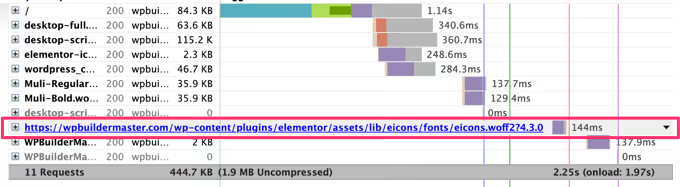
Since you already have local Font Awesome (step 2), it makes sense to switch Eicons to it: one font file instead of two. This technique replaces the CSS classes .eicon and .eicon-menu-bar with glyphs from Font Awesome.
First, remove Eicons from the queue. This code goes in functions.php:
1 add_action( 'elementor/frontend/after_enqueue_styles', 'js_dequeue_eicons' ); 2 3 function js_dequeue_eicons() { 4 if ( is_admin() || current_user_can( 'manage_options' ) ) { 5 return; 6 } 7 wp_dequeue_style( 'elementor-icons' ); 8 }
The function skips the admin area so the Elementor editor continues working without issues, and only removes the elementor-icons handle on the frontend.
Now add the CSS replacement, either through Appearance → Customize → Additional CSS or in your child theme's stylesheet:
1 .eicon, 2 .eicon-menu-bar { 3 display: inline-block; 4 font: normal normal normal 14px/1 FontAwesome; 5 font-size: inherit; 6 text-rendering: auto; 7 -webkit-font-smoothing: antialiased; 8 -moz-osx-font-smoothing: grayscale; 9 } 10 11 .elementor-menu-toggle i:before { 12 content: "\f0c9"; 13 font-family: FontAwesome; 14 } 15 16 .elementor-menu-toggle.elementor-active i:before { 17 content: "\f00d"; 18 font-family: FontAwesome; 19 }
The first block reassigns the base Eicons classes to the FontAwesome typeface. The second and third set specific glyphs: \f0c9 for the hamburger icon (fa-bars) and \f00d for the close button (fa-times). Other icons are replaced the same way: open devtools, find the widget's class, and add content with the glyph code from the Font Awesome cheatsheet.
After implementation, check the browser console for font loading errors and run the page through PageSpeed Insights. The request to eicons.woff2 should disappear from the report.
⁉️🤔 Frequently asked questions
Does this method work on current Elementor versions?
Yes, all three tips are relevant for the current Elementor line. The hooks
elementor/frontend/after_enqueue_stylesandwp_enqueue_scriptsare part of the plugin's public API and maintain backward compatibility. The official Elementor documentation on disabling Google Fonts describes the built-in toggle in Elementor → Settings → Performance. For tip #1, use it first and keep the code as a fallback for non-standard themes.
What should I do if icons disappear in the editor after replacing Eicons?
The Eicons deactivation code bypasses the admin area. The
is_admin()andcurrent_user_can( 'manage_options' )checks ensure the font stays in place in the Elementor editor. If icons still disappear, make sure you added the code to thefunctions.phpof your active theme, not through a snippet plugin that might also run on admin pages.
Do I need to install a caching plugin for these optimizations?
For tips #1 and #3, a caching plugin is not required; the code in
functions.phpis enough. For tip #2 (Critical Font), you need a tool that builds a trimmed Font Awesome: Swift Performance, LiteSpeed Cache, OMGF Pro, or manual assembly using thefonttoolsutility. Without this step, you simply switch the full Font Awesome load from Elementor's CDN to your server, with almost no savings.
How much of a real PageSpeed Score gain do these three tips provide?
Every case is different, but here's a guideline: disabling Google Fonts cuts 200-400 ms of load time, local Font Awesome saves another 150-300 ms, and replacing Eicons removes one HTTP request and saves 50-150 ms. In total, up to a second of full load time, which on typical $10-20/month hosting raises the mobile PageSpeed Insights score by 5-15 points.
Can I drop Font Awesome and Eicons entirely?
You can, if you're ready to rebuild all icons in Elementor as SVG. This means manually replacing icons in widgets with uploaded SVG files or using a plugin like Iconic. The effort is high (dozens of widgets on a site), but the result is the lightest possible frontend. For most projects, a local Critical Font (step 2) is an adequate compromise.
What do these changes achieve on a real site?
The three techniques described don't require premium plugins, a CDN, or a hosting change. This is purely working with font requests, the most underrated speed expense on Elementor sites.
If you haven't done basic WordPress optimization yet, start with the complete site speed guide, which covers caching, CSS/JS compression, and image optimization. When you get to fonts, come back to these three steps and implement them one by one, checking PageSpeed Insights after each.
Test on a copy of your site, back up before editing functions.php, and squeeze maximum speed out of Elementor.

A professional team of writers and editors specializing in creating quality content.