













 AIIllustrative image: AI-generated
🔧 5 common WooCommerce problems: diagnostics and solutions
WooCommerce gives online store owners nearly unlimited flexibility. Open source code, over 900 official extensions, and more than 50,000 plugins from the WordPress repository let you build a store for any scenario. As of 2026, the platform powers approximately 36% of all e-commerce sites on the internet, and the number keeps growing.
But flexibility has a downside. Unlike SaaS solutions like Shopify, WooCommerce has no single support hotline you can call at night and say "everything's broken." You rely on your own expertise, documentation, and community help. And when your store is making money, every hour of downtime translates to direct losses.
Below are five categories of problems that WooCommerce store owners regularly face. Each comes with a proven diagnostic algorithm and concrete steps for fixing them. The material is useful both for those just launching a store and for those already running a high-traffic site.
💡 Quick overview:
- Finding the source of plugin conflicts through staging environments and logs
- Excluding WooCommerce dynamic pages from cache without losing orders
- Diagnosing payment gateway errors: SSL, keys, order statuses
- Configuring SMTP for reliable email notification delivery to customers
- Cleaning the database of transients, logs, and revisions to prevent overload
1. Plugin conflicts and incompatibility
The average WooCommerce site uses 20 to 40 plugins simultaneously. Each adds its own hooks, scripts, and styles. The probability of intersections grows exponentially with each new extension. On an informational site, a conflict breaks the layout. On an e-commerce site, it can break checkout, and that means direct lost sales.
The main preventive measure: regular updates. WooCommerce core as of June 2026, version 10.8.1, and each major release brings not only features but also critical security fixes. Skipping even one update cycle often causes cascading failures: outdated WooCommerce stops playing nice with the fresh PHP version or conflicts with plugins that have already adapted to the new API.
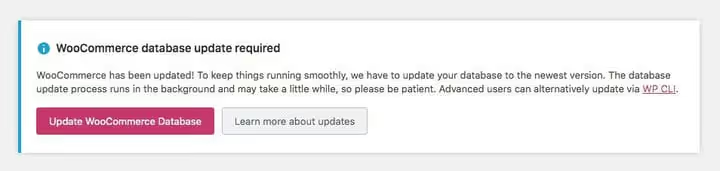
Safe update algorithm: full backup (files + database), then all updates on a staging copy, and only after checking key scenarios, adding a product to cart, checkout, email notification triggers, move to production. After updating the core, be sure to run the database update: the platform shows a notification in the admin panel, but it's easy to forget.
A useful tool for monitoring: the Issues section in the WooCommerce GitHub repository. After each release, reports of found problems appear there promptly, so you can understand in advance whether a specific bug will affect your configuration.
2. Caching issues
Caching is critically important for a store: WooCommerce sites operate with larger databases than content projects, and without caching, catalog load time quickly goes beyond 3-4 seconds. Browser caching saves some files locally for the visitor and reduces the number of requests to the server on repeat visits. Server-side caching serves ready HTML instead of building the page from scratch on each request.
The problem is that WooCommerce contains dynamic pages that cannot be cached under any circumstances. Cart (/cart/), checkout (/checkout/), and account (/my-account/) show data unique to each specific customer. If a caching plugin remembers someone else's cart and serves it to the next visitor, you lose the order.

Modern plugins like WP Rocket, FlyingPress, and W3 Total Cache automatically exclude these three pages from cache. But if you use server-side caching (Varnish, Redis, Nginx FastCGI Cache) or Cloudflare APO, exclusions need to be written manually.
A separate story: login and password reset pages. If /my-account/lost-password/ is cached, the password recovery mechanism stops working: nonce tokens (one-time security keys) get stuck in cache, and the system rejects any reset request. Customers cannot log in and write to support, but you don't see the problem, the admin session works bypassing cache.
Before launching a store, check caching rules on the server and in the plugin. Make sure cart, checkout, account pages, and all URLs with wc-ajax are excluded from cache. After any server configuration change, flush the cache completely and go through the user scenario in browser incognito mode.
3. Payment processing errors
The payment gateway is the nervous system of a store. When it fails, money doesn't come through, orders hang, and customers go to competitors. Payment problems fall into three main categories: SSL, authentication, and order statuses.

SSL certificate is the simplest and simultaneously the most frequent oversight. Most payment systems (Stripe, PayPal, WooCommerce Payments) fundamentally do not process transactions without HTTPS. The certificate may be expired, configured for the wrong domain (www versus non-www), or incompletely applied at the server level. Externally the site works, pages open, but the gateway silently rejects all payment attempts.
Payment gateway authentication error occurs when something breaks in the "store → processor" chain. Reasons vary: API key reset, secret changed on the processor side, test mode enabled on the live site. Each gateway has its own specifics: Stripe gives clear error codes, PayPal logs the reason in the developer panel, and local processors require manual key verification.
Confusion with order statuses is a separate headache. By default, WooCommerce assigns the "Processing" status to an order after receiving payment and deducting items from inventory. The administrator must manually change it to "Completed." Store owners often do not know about this step, customers receive the product, but the order hangs in processing for weeks. Solution: either train managers to change the status after shipment, or set up automatic status change for virtual products through the woocommerce_payment_complete_order_status filter.
4. Email notification delivery issues
Emails not arriving is one of the main reasons for support requests on any WordPress site, and for WooCommerce it's especially acute. After placing an order, the customer expects confirmation by email. Didn't receive it, writes to support, gets nervous, sometimes opens a dispute in the payment system. The administrator may also not receive notification of a new order and miss it.
Diagnostics starts with the simple: go to WooCommerce → Settings → Email and check that the needed notification is actually enabled. The interface shows all email types, from new order to password reset, with a separate toggle for each. If the email is disabled, no further actions will help: nobody is sending it.
If settings are correct but emails still don't arrive, the problem is almost certainly in the sending method. WordPress by default uses the wp_mail() function, which relies on PHP mail(). Email services like Gmail and Outlook massively block such emails: they don't pass sender authenticity checks. Solution: SMTP plugin.
WP Mail SMTP (active installations: 3+ million) and FluentSMTP are the two main options for 2026. Both connect the store to an external SMTP server (Gmail API, SendGrid, Mailgun, Amazon SES, or your corporate server) and send emails through industry protocol with correct SPF, DKIM, and DMARC records. Deliverability after setup rises to 98-99%. Setup takes 10 minutes and is done once for the entire site lifetime.
5. Database overload
The first four problems can appear on a just-launched store. This one is cumulative: the longer the site runs and the more orders go through it, the larger the database becomes. At a certain point, its size starts hitting hosting plan limits, and performance drops.
Main space consumers in the database: transients (temporary data that WooCommerce creates by the thousands and doesn't always clean up), action logs (audit plugins write every event and grow over months), old post and product revisions, and backup files that some plugins store directly in the database.
Preventive plan: three steps. First: install WP-Optimize or similar tool and set up automatic cleanup of transients and revisions once a week. Second: for audit plugins, set automatic deletion of logs older than 30 days (six months of logs on a busy store is gigabytes). Third: make backups at the server level, not with a plugin. Server solutions (JetBackup for cPanel, BorgBackup for VPS, BlogVault with cloud storage) keep backups on their servers and don't clog the store database.
A short video on the topic: typical WooCommerce setup mistakes and ways to fix them:
⁉️🤔 Frequently asked questions
How do I know the problem is specifically a plugin conflict, not a theme or core issue?
Disable all plugins except WooCommerce and switch the theme to Storefront (the official WooCommerce theme). If the problem disappears, turn plugins on one at a time, checking the problematic scenario after each one. The culprit will be found in 10-15 minutes. Always do this on a staging copy.
Which WooCommerce pages must be excluded from cache?
Cart (
/cart/), checkout (/checkout/), account (/my-account/), and all URLs containingwc-ajax. Modern caching plugins do this automatically, but with server-side caching (Varnish, Redis, Nginx FastCGI Cache), exclusions need to be written manually.
What should I do if the payment gateway doesn't pass a test transaction?
Check three things in this order: SSL certificate (valid and installed on the correct domain), API keys (test key not used on live site and vice versa), gateway mode (is Live Mode enabled, not Test/Sandbox). In most cases, the problem is solved by one of these three points.
Is it mandatory to install an SMTP plugin or can I do without it?
Formally you can, but in practice you shouldn't. The standard
wp_mail()function gives unreliable deliverability: emails often go to spam or don't arrive at all. An SMTP plugin with correct SPF, DKIM, and DMARC records raises deliverability to a level close to one hundred percent. Ten minutes of setup saves dozens of hours of support in the future.
How often should I clean the WooCommerce database?
Set up automatic cleanup of transients and revisions weekly. Delete audit logs once a month. Perform full manual optimization (table defragmentation, orphan record deletion) once a quarter, especially on stores with hundreds of orders per day.
What to do when the store breaks: action plan
The five problem categories above cover most typical incidents on an average WooCommerce site. Universal order of actions: full backup, staging copy, diagnostics, fix, check, move to production. The most expensive solution is to wait until the store crashes and start figuring it out in a panic, losing sales.
If resources for self-service are insufficient, look for a developer with experience specifically in WooCommerce, not general WordPress. E-commerce specifics (payment gateways, sessions, caching, GDPR/compliance) require separate competencies. The WooCommerce community is huge: on WordPress.org, Stack Overflow, and in specialized Slack channels, almost any question already has an answer. Don't postpone prevention until later.

A professional team of writers and editors specializing in creating quality content.