














📊 Creating responsive tables in WordPress with wpDataTables
Tables in WordPress are deceptively simple. As long as you need one or two static grids for the entire site, manual HTML is enough. But once you face regular data updates, imports from Excel or Google Sheets, or column sorting, the built-in methods turn into endless code wrangling.
Worse: your site is responsive, but HTML tables aren't. On mobile screens they fall apart, require horizontal scrolling, and break the entire layout. Adding interactivity (filters, search, frontend editing) with standard WordPress tools is practically impossible without hiring a developer.
wpDataTables is a plugin that solves all these problems with a single installation. No code, full responsiveness out of the box, dozens of data sources, and visualization through charts. It's used by more than 80,000 companies, and the free Lite version has been installed over 60,000 times on WordPress.org. Let's break down what it can do and how to work with it.
💡 Quick overview:
- Install wpDataTables from CodeCanyon and activate it on your site.
- Create a table from CSV, Excel, Google Sheets, MySQL, JSON, XML, or manually, any source works.
- Configure the appearance: colors, fonts, alignment, responsive behavior on mobile.
- Insert the ready shortcode into a post or page, the table appears immediately with filtering, sorting, and search.
- If needed, build a chart based on the same table and add it the same way.
What's wrong with HTML tables in WordPress
The standard way to insert tables is HTML tags in the Text editor tab. The basic structure looks like this:
1 <table style="width: 100%;"> 2 <tbody> 3 <tr> 4 <th style="width: 33%;">First</th> 5 <th style="width: 34%;">Second</th> 6 <th style="width: 33%;">Third</th> 7 </tr> 8 <tr> 9 <td>Jack</td> 10 <td>Jackson</td> 11 <td>25</td> 12 </tr> 13 <tr> 14 <td>Jane</td> 15 <td>Jenson</td> 16 <td>30</td> 17 </tr> 18 </tbody> 19 </table>
The result is a simple three-column table. Looks decent if you have one on your site and don't plan to update it.
But the approach has three fundamental problems. First: HTML tables are static. Data is hardcoded, and every change means editing the code again. Second: responsiveness. The theme can be fluid, but <table> isn't. On a phone, users see cut-off columns or horizontal scroll. Third: no filters, no sorting, no search, just a dead grid.
Your site is responsive. Your tables aren't.
Manual data import from Excel or Google Sheets doesn't help either: copying and pasting from spreadsheets into WordPress turns formatting into chaos. If you have many tables and they update frequently, you spend time fighting with layout instead of working on content.
Create tables without code with wpDataTables
wpDataTables is a premium plugin that turns WordPress into a full-fledged engine for working with tables and charts. Not a single line of code. Install it, choose a data source, configure the appearance, and the table is ready to insert with a shortcode.
The plugin is distributed through CodeCanyon on a "buy once, use forever" model. Prices start at $49 per year for a single domain license (Starter plan). There are three higher plans: Standard, Pro, and Developer, which differ in the number of domains and advanced features like connecting to multiple databases and WooCommerce integration. The free Lite version is available in the WordPress.org directory with basic functionality.
🔗 More about wpDataTables | 🔗 Live demo
The developers focused on three things: source flexibility, deep customization, and working with live data. Let's go through the key features.
Multiple data sources
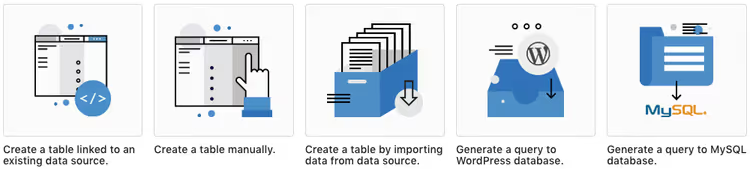
The plugin pulls data from anywhere. Excel, CSV, Google Sheets, XML, JSON, serialized PHP arrays, and direct MySQL queries are all available when creating a table. You can manually fill a table from scratch through the backend editor. Or connect to a real-time source so the table dynamically updates on every page load.
MySQL deserves special mention. You write a query, the plugin renders the result as a sortable table with search. Separate connections to MS SQL and PostgreSQL are supported, with each table able to pull data from its own server. For projects with distributed architecture, this solves the data consolidation problem without intermediate ETL.
Advanced customization and responsive layout
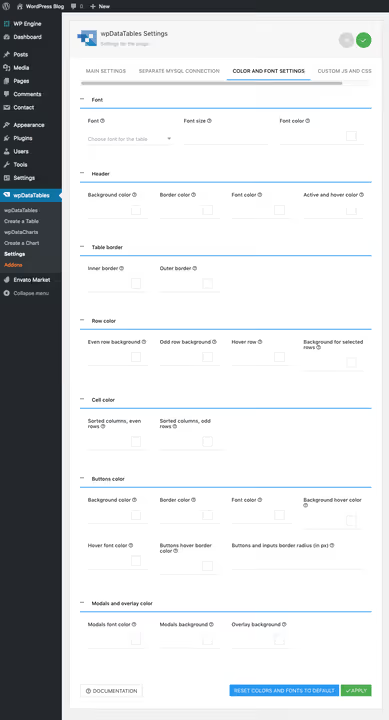
Table design is assembled with checkboxes and color pickers, no CSS required. Settings include typography, alignment, date and time formats, and interface language. There are ready-made table skins: purple, dark, blue. For complex cases, there are fields for custom JS and CSS.
Responsiveness is implemented without compromise. The plugin doesn't just squeeze the table to screen width, you decide how it behaves on mobile. You can enable flexible column collapsing, add horizontal scrolling, or limit maximum width. The table remains readable on any device.
Filters for efficient search
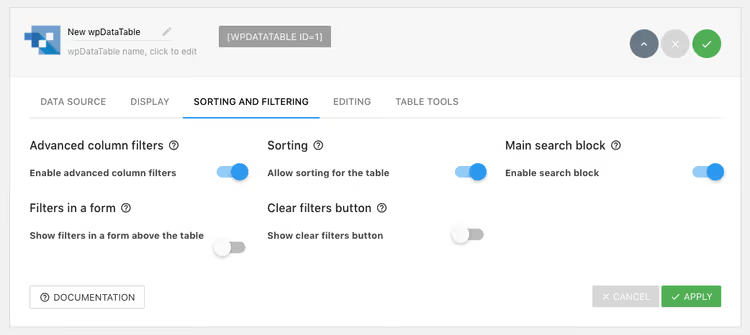
When creating a table, you enable filters, and users get the ability to instantly narrow the selection by any column. For large datasets, this radically changes the experience: instead of scrolling three screens, a person enters a parameter and sees only relevant rows.
Filters work server-side. Each user action increases computational load on the database, so the plugin lets you disable filtering where it's redundant. The balance between speed and convenience is configured per table.
Frontend MySQL editing
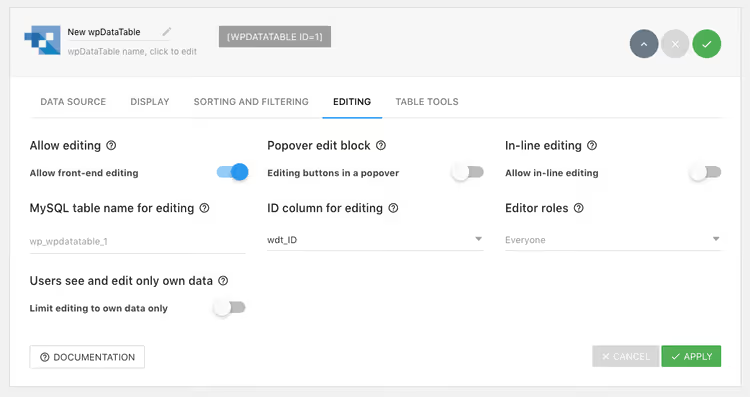
A unique feature: by enabling an option on the Editing tab, you allow users to edit data right from the site frontend. This isn't just cosmetic, changes are written to the database. Access is configured by roles: all visitors, only registered users, or specific groups.
There are many scenarios: clients update their records in a CRM table, employees mark task statuses, subscribers add to a shared registry. No separate admin panel, no training users in WordPress.
Visualization through charts
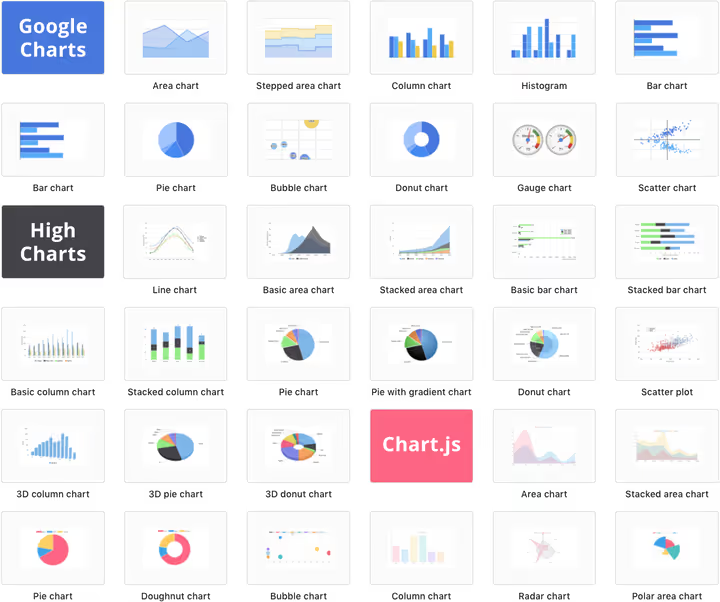
People read visualizations orders of magnitude faster than tabular numbers. wpDataTables builds dynamic charts based on Google Charts, HighCharts, or Chart.js, you simply specify the source table and map columns to chart axes.
There are more than a dozen chart types: line, pie, column, histogram, scatter. After configuration, the chart gets its own shortcode and is inserted into a post independently of the table. Updated source data, the chart redraws automatically. Perfect for bloggers with monthly income reports and for corporate dashboards.
How to create a responsive table: step-by-step guide
Theory is clear, let's move to practice. Three steps separate you from a working table on your site.
Step 1: install wpDataTables
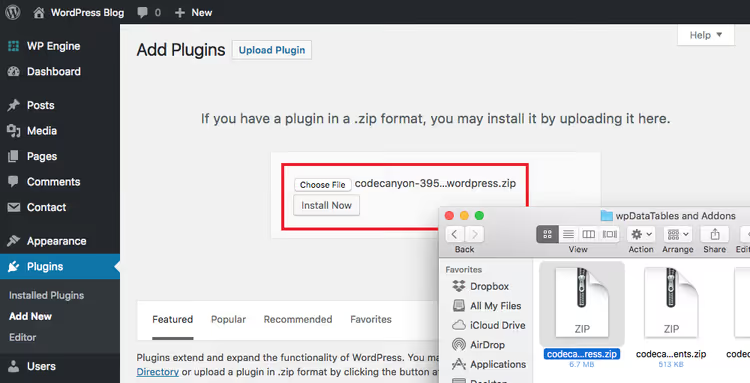
The plugin is purchased on CodeCanyon. After payment, go to the Downloads section of your account, find wpDataTables, and download the file labeled "Installable WordPress file only". In the WordPress admin, go to Plugins → Add New → Upload Plugin, select the downloaded ZIP, and activate.
For auto-updates, you'll need to enter the Item Purchase Code from CodeCanyon. You'll also need it for premium support access during the first year after purchase.
Step 2: create a table

A new item called wpDataTables will appear in the WordPress sidebar menu. Click on it, then the blue Add button. The plugin will offer to choose a table creation method: import from CSV/Excel, connect to Google Sheets, create manually, SQL query, or link with an external API.

For demonstration, let's take CSV. Upload the file, the plugin automatically recognizes delimiters and shows a preview. On the next screen, you set the table name and edit columns if needed: rename, delete unnecessary ones, add new ones.

The last screen is fine-tuning. Here you enable table tools (print, copy, export to PDF/Excel), filtering, and frontend editing. All changes are displayed in the live preview on the right. Clicked Save, the table is ready.
Step 3: insert the shortcode into a post or page
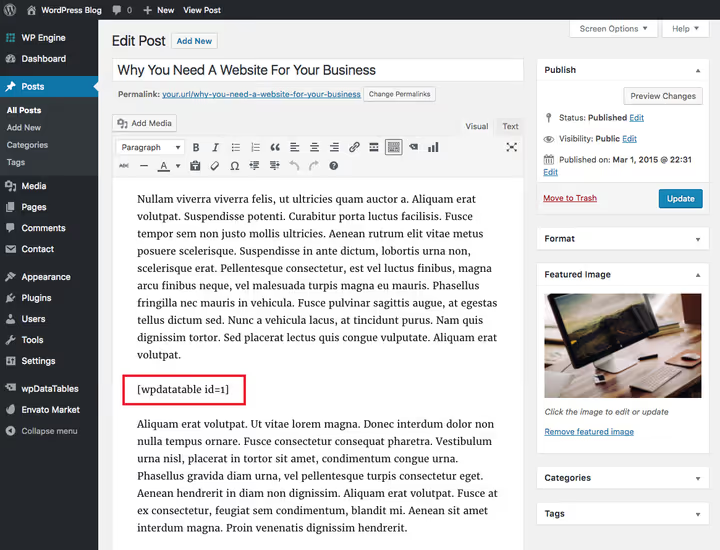
After saving, the plugin will give you a shortcode like [wpdatatable id=X]. Copy it and paste it into any WordPress post or page, that's it. The table will appear on the site with all enabled features: sorting, search, filters.

The result is in the screenshot above: filtering is active, search works, columns sort on click. Not a line of code beyond a short shortcode. You'd spend an hour building the same table with HTML, and still without interactivity.
How to build a chart based on a table

When the table is ready, open it in the list and click Create a Chart. Choose a visualization type: column, pie, line, scatter, more than a dozen variants available in total.

In the next step, you specify the source table and map columns to axes. For a column chart, you need at least two columns: categories and values. Numeric columns can be filtered with a range slider, useful when the table has hundreds of rows but you only need to display part of them on the chart.

The third screen is visual settings. Width, height, background, borders, fonts, series colors, labels, tooltips on hover. Configured, save, copy the chart shortcode, and insert it into content next to the table or separately.
Charts are dynamically linked to the table. Source data changed, the chart rebuilds itself. No exporting to Excel, manually updating screenshots, or other routine.
Extensions for additional capabilities

The basic functionality is enough for most tasks. But if you need specifics, the ecosystem of addons covers niche scenarios.
Powerful filters. Cascading filtering (left to right: selected category, subcategory filter updates), faceted search, hiding the table until parameters are selected, and live search as you type. Enabled with one checkbox in settings.
Report builder generates Word or Excel documents directly from tabular data. Scenario: employees filled the table through the frontend, you clicked a button, ready monthly report for printing. Useful for timesheets, invoices, and regular analytics.

Formidable Forms. Forms collect data from users, the plugin automatically turns each submission into a table row. Form field, table column. No intermediate export.
Gravity Forms. Same mechanics, but for the most popular WordPress forms builder. After integration, Gravity Forms becomes an additional data source when creating a table. Frontend editing of records created through forms is supported.
Subscription plan and pricing
wpDataTables has a simple pricing grid with four levels:

Plan | Domains | Key differences | Price (year) |
|---|---|---|---|
Starter | 1 | Basic features: tables, charts, CSV/Excel/Google Sheets import, filters | $49 |
Standard | 1 | Added: multiple DB connections, WooCommerce integration, tables from API | $79 |
Pro | 3 | Everything from Standard plus report builder | $149 |
Developer | 25 | Full access to all features and addons | $329 |
All plans include a year of premium support and monthly updates. The license is lifetime: if you don't renew, the plugin continues to work, but you lose access to updates and support. There's a 15-day money-back guarantee.
The best way to evaluate the plugin before purchase is the live sandbox on the wpDataTables site. You get full access to the backend: create tables, build charts, experiment with settings. No video demos and screenshots, real test drive in the browser.
For a quick start, there's a free Lite version on WordPress.org (60,000+ active installs). Functionality is limited but sufficient to understand if the plugin fits your task.
⁉️🤔 Frequently asked questions
Do I need to know how to code to work with wpDataTables?
No, all tables and charts are created through a visual interface, a wizard will guide you from source selection to shortcode insertion. Fields for custom JS and CSS exist, but they're optional. Developers will appreciate the ability to write their own SQL queries, connect to external databases, and use REST API to fetch data from third-party services.
What happens to tables after removing the plugin?
By default, tables are saved in the database even if you deactivate or delete wpDataTables. On reinstallation, they'll restore. This is configurable: in options you can choose complete data deletion along with the plugin. Tables aren't permanently tied to the plugin, you can always export data to CSV and transfer it to another tool.
How does the paid version differ from Lite?
The Lite version allows creating tables from CSV, Excel, Google Sheets, JSON, and XML, as well as manually. Basic sorting and search are available. But missing: MySQL queries, connecting to multiple databases, charts, frontend editing, filtering, WooCommerce integration, and all addons. If you manage data from external sources and want to build charts, you need the paid version. For static tables, Lite will likely suffice.
Does the plugin support WooCommerce?
Yes, starting with the Standard plan. You can create dynamic product tables that automatically update when the WooCommerce catalog changes. Customers get a sortable, filterable product list with current prices and stock. For stores with large assortments, this replaces a separate catalog plugin.
How many tables can I create?
As many as you need. No plan limits the number of tables and charts. The only license restriction is the number of domains where the plugin is activated.
What to choose for your task
wpDataTables covers the entire spectrum of working with tables in WordPress, from simple CSV output to distributed database queries with chart visualization. And it does this without requiring code, which is rare for the WordPress ecosystem.

The mechanics are simple: choose a source, configure design, insert shortcode. Then the table lives its own life: updates when the source changes, filters on user click, sorts by any column, and remains readable on mobile. Not a line of HTML, no separate mobile layout.
The plugin is paid, but with a free test drive in the sandbox and a Lite version for basic scenarios. The $49 per year starter plan is comparable to an hour or two of a developer's work and gives you a tool for the year ahead.
🔗 Download Lite version from WordPress.org

A professional team of writers and editors specializing in creating quality content.