














💾 Disk space and bandwidth for WordPress: an honest calculation
Choosing hosting for WordPress and unsure how many gigabytes you actually need? Providers offer 50, 100, "unlimited," yet in reality the average site runs comfortably on one gigabyte. Overpaying for unused space is the most common mistake beginners make when buying a plan.
The problem is not money. The problem is that an entry-level plan with minimal space from a quality host can give you a fast NVMe drive and decent CPU, while a "generous" unlimited plan from a budget provider is an oversold shared server that will crash under the first real load. Disk space and bandwidth are two parameters that hosting marketers have turned into a smoke screen. We will break them down with facts, with figures from WordPress documentation and real-world measurements.
By the end of this article you will be able to estimate in two minutes how much space and traffic your project needs and avoid being fooled by pretty numbers in a price list.
💡 Quick overview:
- A WordPress installation takes about 50-70 MB; the core itself is almost weightless; everything else is eaten by media files, plugins and backups.
- 1 GB of disk space covers the needs of over 90% of WordPress sites, according to Kinsta: blogs, corporate sites and small stores.
- Monthly bandwidth is calculated by the formula: average page size × monthly page views × average pages per visit. For most projects 5-10 GB is more than enough.
- The My Simple Space plugin shows used space right in the dashboard; cPanel gives a detailed breakdown by folder.
- The main disk hogs are backups, unoptimized images and old page revisions. Cleaning once a quarter recovers gigabytes.
What disk space and bandwidth are
Disk space is the amount of data your hosting provider allows you to store on the server. This includes: the WordPress core, theme and plugin files, uploaded images, PDFs, videos, the database, mail files (if you use email on the hosting) and backups.

Bandwidth is the amount of data the server transmits to visitors per month. It works like a meter: every time someone opens your page, the server delivers its contents (HTML, CSS, images, fonts) and all of it is deducted from the monthly limit. The formula is simple:
Monthly traffic = average page size × page views per month × average pages per visit.
Example: a page weighs 1.5 MB, 200 visitors arrive daily, each views 3 pages. Calculation: 1.5 × 200 × 30 × 3 = 27,000 MB, or roughly 27 GB per month. If your hosting gives you 25 GB, the limit is exceeded.
Exhausting bandwidth results in immediate site shutdown. Visitors see a 509 error (Bandwidth Limit Exceeded) or the host's placeholder page. It is hard to imagine anything worse for a business that depends on its site.
How much disk space a WordPress site takes
A fresh WordPress distribution occupies about 50-70 MB when unpacked, according to official requirements. That is not even a drop by modern hosting standards. But then the real life of a site begins:
- Theme. An average WordPress theme takes 5-25 MB. Heavy multipurpose themes like Avada or Newspaper can add 40-50 MB. Plus a child theme with your edits: another 1-2 MB.
- Plugins. A single plugin averages from 0.5 to 15 MB. Ten plugins = 50-100 MB. Caching, SEO and security plugins are among the lightest; sliders, page builders and backup plugins are heavy.
- Media files. This is where gigabytes vanish. A single unoptimized photo from a phone is 3-5 MB. A hundred such photos: 300-500 MB. A hundred posts with three photos each: 1-1.5 GB. Add downloadable PDF files and the count goes into tens of gigabytes.
- MySQL database. A fresh WordPress database weighs about 1-2 MB. An active blog with 500 posts and 2,000 comments: 50-100 MB. A WooCommerce store with thousands of products: 200-500 MB and up.
- Backups. If the host stores backups on the same disk as the site, one copy occupies exactly as much as the site itself. Three daily backups triple the occupied space. This is why it matters that the provider allocates separate storage for backups.
According to Kinsta and BetterStudio, more than 90% of WordPress sites occupy less than 1 GB. These are blogs, corporate sites, landing pages, portfolios and even medium-sized news projects. A plan of 5-10 GB fully covers the needs of a typical site with room for years of growth.
Exceptions are large online stores (thousands of products = hundreds of gigabytes), photo stocks and video platforms. But shared hosting is not suitable for such projects anyway; they need a VPS or dedicated server, and the question "is one gigabyte enough" simply does not apply.
How much bandwidth your site needs
According to BetterStudio, 90% of WordPress sites use less than 5 GB of bandwidth per month. Paying for 100 GB for a blog with 50 daily visitors is like renting a warehouse to store one box. Here are realistic benchmarks:
Site type | Visitors per month | Average page size | Page views per visitor | ~ Monthly traffic |
|---|---|---|---|---|
Beginner blog | 500-2000 | 1-2 MB | 1.5 | 0.75-6 GB |
Corporate site | 1000-5000 | 1.5-3 MB | 2 | 3-30 GB |
News project | 10000-50000 | 2-3 MB | 2 | 40-300 GB |
Online store (medium) | 5000-20000 | 2-4 MB | 3 | 30-240 GB |
If you do not know your exact page size, measure it. Open GTmetrix, enter the URL, click "Analyze" and look at Total Page Size in the summary. Pingdom shows the same thing under "Page size." Both services are free for occasional checks.
Now plug your numbers into the formula from the previous section. Multiply the result by 1.3 for headroom on traffic spikes. If the result fits within 5-10 GB, take the minimum plan and do not overpay. If it approaches 50 GB, look toward VPS.
Ignore "unlimited" plans from cheap hosting. Unlimited bandwidth is always written with a "fair use" clause in the Terms of Service, and the host can throttle your connection or ask for extra payment at any moment if your "reasonable" site starts consuming "unreasonable" (by their standards) 50 GB.
How to check used disk space in WordPress
The simplest way is to install the free My Simple Space plugin. It adds a widget to the WordPress admin dashboard and in a single block shows: used disk space, database size, the size of the /wp-content/ folder and several other useful figures. No settings needed: activate it and you immediately see the data.
Installation takes a minute:
- WordPress admin → Plugins → Add New
- In the search bar type My Simple Space
- Click Install Now, then Activate

Right after activation the widget appears in the dashboard. It looks roughly like this:

The plugin is actively maintained: the latest update is September 2024, version 1.2.9. It works on all current WordPress versions.
The second option is through the hosting control panel. Log into cPanel (or your host's equivalent) and find the Disk Usage section. It shows a detailed breakdown by folder: how much space each application, email, database and system files occupies.
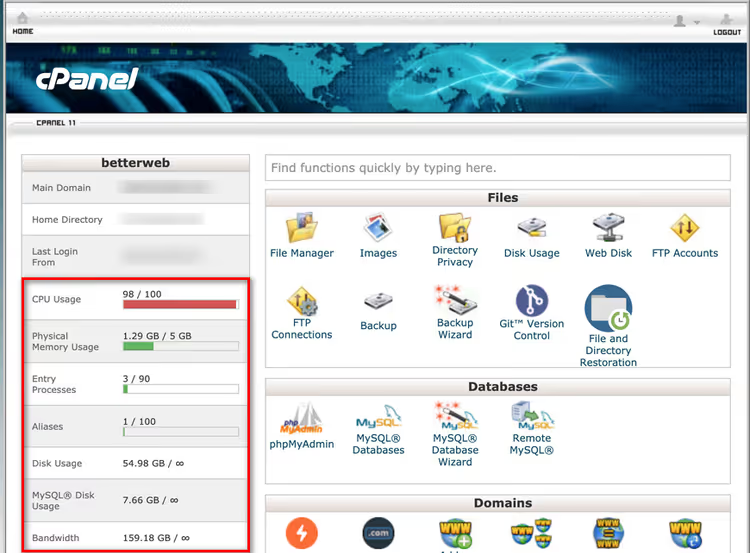
cPanel gives a more complete picture than the plugin: the plugin sees only what is inside WordPress, while cPanel sees everything, including mailboxes and files of other applications on the account. Use both tools together.
If cPanel is unavailable (some hosts provide their own interface), look for a section called "Statistics," "Resources" or "Disk Usage"; the logic is the same.
7 ways to save WordPress disk space
Even if you have a generous plan, keeping the disk tidy is good for site speed. Here is what actually helps recover gigabytes:
1. Optimize images before uploading. Do not upload 5 MB photos from your phone to the server. Run them through TinyPNG or Squoosh before uploading; the size will shrink dramatically without visible quality loss. For those who upload many images, plugins like Imagify and ShortPixel optimize images automatically on upload to the media library.
2. Delete unused themes. You can only have one active theme. The rest just take up space. Keep only the current theme and a default one (in case of recovery); delete everything else, then empty the trash.
3. Delete inactive plugins. A deactivated plugin still sits on the disk. If you are not using it, delete it completely. This is also a security matter: a forgotten plugin without updates is a potential vulnerability.
4. Clean up page revisions. WordPress saves every change to a post or page as a separate record in the database. After two years of active blogging, hundreds of revisions accumulate. The WP-Sweep plugin can clean revisions, spam comments, unused metadata and other junk without direct database queries.
5. Store backups off the main disk. Ask your host whether backup storage counts toward your plan quota. If it does, set up backup export to Google Drive or a separate cloud storage via UpdraftPlus. Three "heavy" backups on the site disk can eat up your entire quota.
6. Minify CSS and JavaScript. Minification of style and script files removes extra spaces and comments; file size shrinks by a quarter or more. Caching plugins (WP Rocket, Flying Press) do this with a single checkbox.
7. Use a CDN. A content delivery network (Cloudflare, BunnyCDN) does not save disk space directly. But it caches images, CSS and JS on its servers and delivers static content to visitors from there, reducing traffic from your hosting and making it harder to exhaust the bandwidth limit.
⁉️🤔 Frequently asked questions
Is 1 GB of disk space enough for a blog?
Yes, with plenty of room to spare. The WordPress core occupies about 50 MB; a theme and a dozen plugins add another 150-200 MB. The database of a blog with a hundred posts: roughly 30-50 MB. That leaves media files: with reasonable image compression you will comfortably fit into the remaining 700 MB for years to come. 1 GB, as Kinsta analytics shows, is the gold standard for 90% of WordPress sites.
What is the difference between disk space and bandwidth?
Disk space is how much data you can store (like a hard drive). Bandwidth is how much data the server can transmit to visitors per month (like a traffic meter). The first runs out when you upload too many files. The second runs out when too many visitors arrive. These are two different limits, and both are specified in your plan.
What happens if I exhaust bandwidth?
The site immediately stops loading. Instead of it, visitors see a 509 error (Bandwidth Limit Exceeded) or the host's placeholder page with an offer to upgrade to a more expensive plan. Sales, leads and traffic drop to zero. For most hosts the limit resets on the first of each month, but if that date is far away, the only way out is to purchase an additional traffic package or change plans.
Should I get an "unlimited" plan if it is cheap?
Almost certainly not. "Unlimited" on cheap hosting means "as long as you do not interfere with other clients on the same server." Real restrictions are written in the Terms of Service: CPU time, file count (inode limits), database size. Your site can be suspended not for gigabytes but for "excessive CPU load." Infrastructure quality always matters more than a number marked "∞" in the price list.
How often should I check used space?
Once a month is optimal. Install My Simple Space and the dashboard widget will remind you of the current state every time you log in. If you notice that used space has jumped sharply in a month, check what exactly grew: most likely you uploaded several heavy files and it is time to optimize them.
Can I move media files to a separate server?
Yes, and this is standard practice for large projects. Plugins like WP Offload Media automatically transfer files from the media library to Amazon S3 or DigitalOcean Spaces and replace the URLs. For most sites this is overkill, but for projects with thousands of images offloading to S3 is a working solution that relieves both the disk and the host's bandwidth.
Bottom line: what plan to choose for your task
In short: do not buy gigabytes, buy quality hosting. A plan with 1-5 GB of disk and 10 GB of traffic on a fast server is better than 100 "unlimited" gigabytes on an oversold shared host.
Blog, portfolio, landing page, company site: take the minimum plan with 1-5 GB. Space will be enough, and the money saved on the "premium" plan is better invested in a proper theme and image optimization.
Online store with 100-500 products: look at plans with 10-20 GB and read bandwidth terms carefully. Set up backups so they do not consume the main disk.
News project or high-traffic platform: start with a VPS. Shared hosting with 50,000+ visits per month will start choking regardless of how many gigabytes you were promised.
And finally: install My Simple Space today. Look at the real numbers; most likely you will find that you are using three times less than you thought. And that means you still have a long way to grow before needing the next plan.

A professional team of writers and editors specializing in creating quality content.