














⚡ How to add a preloader to WordPress: 3 methods and 4 plugins
A visitor opens a site and sees a white screen. One second passes, then another, then a third. The page seems frozen, though the server is simply processing heavy scripts and images. Sound familiar? Users will not wait: they will close the tab and leave for a competitor whose site "thinks" faster.
The problem is not always the actual speed of your hosting. Sometimes a page loads in 2-3 seconds, but those seconds of blankness feel like an eternity. Especially on mobile devices with unstable connections. There is a solution, and it is simpler than rewriting the entire site from scratch.
A preloader (loading screen) solves exactly this problem: instead of a blank white background, visitors see an animation, logo, or progress indicator. The site looks professional, and perceived wait time is subjectively reduced. In this guide, three working methods for adding a preloader to WordPress and a breakdown of the best plugins for different scenarios.
💡 Quick overview:
- Install a ready-made preloader plugin from the WordPress directory (takes less than a minute)
- Customize the animation appearance: replace the default spinner with a logo, GIF, or custom CSS
- Specify where the preloader displays: only the homepage, the entire site, or specific URLs
- Open the site in incognito mode and test the animation on desktop and mobile
What is a preloader and why do you need one

A preloader is an animation or image shown to visitors while the browser loads page content in the background. When the site is fully ready to display, the animation disappears and users see the finished page. No magic involved, just a visual layer between the HTTP request and rendering.
Why is this needed? First, the psychology of waiting. UX research shows that an animated loading indicator subjectively reduces perceived wait time compared to a blank screen. Users see movement, so the site is working, not frozen. Second, a preloader shapes the first impression. An animation with a logo or brand style immediately communicates: "This site was made professionally."
Sometimes actual site speed is fine and the page loads in 1.5 seconds. But on a slow 3G connection or during peak server load, even a lightweight site can lag. A preloader works as insurance: under ideal conditions it is barely noticeable, and under problematic conditions it saves the user experience.
How to add a preloader in WordPress: 3 methods
The method you choose depends on your skills and customization requirements. A plugin is the simplest path. Code is for those who want full control without extra clutter in the admin panel. A built-in theme feature works if one is already available.
Method 1: via plugin (recommended)
The most accessible option for any WordPress user. The process:
- Go to Plugins → Add New, enter the plugin name in search (for example, LoftLoader or Preloader by Alobaidi).
- Click Install, then Activate.
- Go to the plugin settings, which usually appear in the Settings section or as a separate menu item.
- Choose the animation type, upload a logo or GIF, configure colors and background.
- Save changes and open the site in incognito mode: the preloader should appear before the page loads.
Pros: no code editing required, easy to disable or replace. Cons: adds another plugin to your setup (though quality preloaders weigh less than 100 KB and do not affect speed).
Method 2: code in functions.php
If you do not want to install a separate plugin for one animation, add a preloader manually. You will need access to theme files (via admin: Appearance → Theme Editor or via FTP) and a basic understanding of HTML/CSS.
1 // Add HTML markup of the preloader right after opening body 2 add_action('wp_body_open', function() { 3 echo '<div id="custom-preloader" style="position:fixed;top:0;left:0;width:100%;height:100%;background:#fff;z-index:9999;display:flex;align-items:center;justify-content:center;"> 4 <div class="spinner" style="width:50px;height:50px;border:4px solid #f3f3f3;border-top:4px solid #3498db;border-radius:50%;animation:spin 1s linear infinite;"></div> 5 </div>'; 6 }); 7 8 // Add CSS animation and hide the preloader after page load 9 add_action('wp_head', function() { 10 echo '<style> 11 @keyframes spin { 0% { transform: rotate(0deg); } 100% { transform: rotate(360deg); } } 12 </style>'; 13 }); 14 15 add_action('wp_footer', function() { 16 echo '<script> 17 window.addEventListener("load", function() { 18 var preloader = document.getElementById("custom-preloader"); 19 if (preloader) { preloader.style.opacity = "0"; preloader.style.transition = "opacity 0.3s"; setTimeout(function() { preloader.style.display = "none"; }, 300); } 20 }); 21 </script>'; 22 });
What this code does: creates a semi-transparent white background with a spinning blue spinner that disappears after the page fully loads. Change the color in border-top:4px solid #3498db and spinner size to match your design.
⚠️ Before editing functions.php, make a backup copy of the file. An error in PHP code can bring down the site, and you will have to restore it via FTP.
Method 3: built-in theme preloader
Some modern themes (Astra Pro, GeneratePress Premium, Blocksy Pro) include a built-in preloader option. Check your theme settings in the customizer (Appearance → Customize), looking for items like "Preloader," "Loader," or "Page Loader." If your theme already offers this feature, use it: one less plugin and guaranteed compatibility.
4 best preloader plugins for WordPress
When there is no built-in solution and you do not want to write code, plugins come to the rescue. Below are four proven options: from minimalist free ones to premium powerhouses with dozens of animations.
Plugin | Price | Animation types | Setup complexity | Active installations |
|---|---|---|---|---|
Preloader by Alobaidi | Free | 10 CSS styles | Minimal | 5000+ |
LoftLoader | Freemium | Image/GIF/CSS | Medium | 10000+ |
PageLoader | Premium | Full custom + progress bar | High | - |
WP Smart Preloader | Free | CSS spinners | Minimal | 2000+ |
1. Preloader by Alobaidi

The simplest way to add a loading screen to your site. 10 ready-made animation styles, support for all modern browsers, and instant activation: install and it works.
Pros: zero configuration to start, does not clutter the admin with extra menus, compatible with any theme. Cons: customization is limited to preset styles, you cannot upload your own logo.
An ideal choice if you need "just something there" without diving into settings. On a real site, it starts working 30 seconds after activation.
2. LoftLoader

LoftLoader control panel: animation selection, background settings, logo upload, and page transition management.

One of the most flexible plugins in its category. The free Lite version provides a basic set of animations. The Pro version adds smooth page transitions, a progress indicator, custom image uploads, and a full-screen background.
Pros: detailed customization, load completion animations (not just appearance), regular updates. Cons: the free version is noticeably limited; for logos and brand styling you need Pro.
The developer has supported this plugin since 2016, with the last update in May 2026. For commercial projects, the Pro version pays for itself through retention: visitors are less likely to leave while a catalog or portfolio loads.
🔗 Download on WordPress.org🔗 LoftLoader Pro on CodeCanyon
3. PageLoader by Bonfire Themes
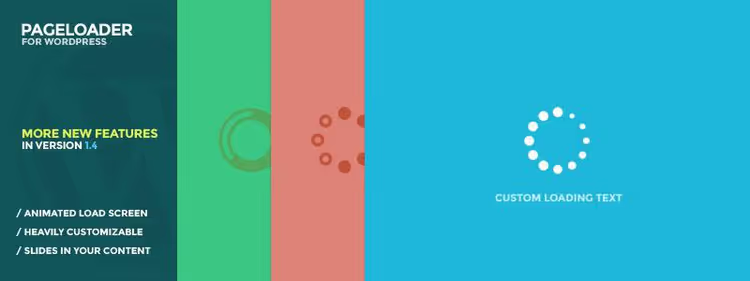
A premium solution for those who need maximum control. Upload your own image or GIF, add a progress indicator, loading text, customizable background, and an additional indicator (for example, loading dots over an image). Worth special mention is the timeout function: if something goes wrong and the site does not load within the set time, the preloader is forcibly hidden rather than hanging indefinitely.
Pros: unique customization without a single line of code, timeout function saves you from bugs. Cons: premium only (one-time license), no free version to test.
Suitable for projects where branding matters: studios, portfolios, landing pages with a high cost per lead. Every second of waiting should work toward recognition.
4. WP Smart Preloader

A lightweight free plugin using pure CSS. No images, GIFs, or heavy libraries, just hardware-accelerated spinners that do not burden the server or browser.
Pros: minimal weight (less than 50 KB), does not affect Core Web Vitals scores, works on all devices. Cons: only CSS spinners; logos or custom images are not supported.
A good compromise between "no preloader at all" and "heavy plugin with 50 animations." Especially relevant for mobile traffic, where every kilobyte counts.
Bonus: preloaders built into themes
Many premium themes (Astra Pro, GeneratePress Premium, Blocksy Pro) include a native preloader option in the customizer. Before installing a separate plugin, check the appearance settings: the feature you need may already be waiting in the "Performance" or "Page Loading" section. The advantage: zero additional plugins and guaranteed compatibility with the theme design.
Video: step-by-step preloader installation
Watch a visual demonstration: the entire process from plugin selection to a working animation in 8 minutes.
⁉️🤔 Frequently asked questions
Does a preloader slow down site loading?
No, a quality preloader does not slow down your site. Plugins like WP Smart Preloader weigh less than 50 KB and use native CSS; they do not block rendering and do not add extra server requests. A preloader only shows an animation while content loads in the background, but does not increase load time. Tested on sites with 50,000+ monthly visitors: the difference in Core Web Vitals with and without a preloader is within measurement error.
Can you add a preloader without a plugin?
Yes, the method is described above in "Method 2: code in functions.php." You add HTML markup, CSS animation, and a small JavaScript handler for the
window.loadevent; after the page fully loads, the preloader is hidden. The downside is that when changing themes you need to transfer the code to the new one, and when updating a theme without a child theme, your edits will be lost. If you are not using a child theme, a plugin is more reliable.
Will a preloader work on mobile devices?
Yes, all the plugins listed are responsive and work correctly on smartphones and tablets. CSS animations are inherently cross-browser, and developers test plugins on mobile devices. The only caveat: on slower devices with poor connections, keep the animation simple; a CSS spinner is preferable to a 2 MB GIF.
What is better: a plugin or code in functions.php?
For most users, a plugin. It can be updated, disabled, and changed without risk of breaking the site. Code in functions.php gives full control and saves one plugin, but requires caution: one syntax error and the site goes down with a white screen. If you are not a developer and do not use a child theme with version control, choose a plugin.
How do you choose the right preloader for your project?
Simple blog or news site: use Preloader by Alobaidi or WP Smart Preloader (fast, free, no extras). Commercial project with branding: LoftLoader Pro or PageLoader lets you upload a logo, configure colors and transitions. Site on a premium theme: first check the built-in option in the customizer, as it may cover your needs without a single additional plugin.
Should you add a preloader to your site?
A preloader does not speed up your site; it changes the perception of speed. For a landing page or portfolio where every second of retention matters, it is a justified investment of 10 minutes for installation. For a blog with lightweight pages, it is optional: if load time is already under 2 seconds, the preloader will flash too quickly and is more likely to irritate.
The main rule: a preloader should work for the user, not against them. A simple CSS animation with quick disappearance is better than a heavy GIF that takes longer to load than the page itself. Choose the tool for your task, test on real devices, and do not keep visitors waiting longer than 2-3 seconds, or the whole point is lost.

A professional team of writers and editors specializing in creating quality content.