














💻 Local review: a local WordPress development environment in 2026
Editing plugins directly on production? Sooner or later this ends with a client call: "the site won't open." A local environment eliminates this risk, a full copy of WordPress on your computer where breaking things is safe and rolling back takes a second.
XAMPP and MAMP have handled this task for years. But they're not tailored for WordPress: you install the CMS manually, configure SSL, switch PHP versions through config files. Each new project takes time that could be spent on actual work.
Local (formerly Local by Flywheel) works differently: it installs like a regular application, and sets up WordPress, PHP, web server, SSL, and WP-CLI automatically. Since 2016, the tool has evolved from a paid Mac application at $129 to a free standard for cross-platform development. Let's break down what's inside and whether it's worth switching in 2026.
💡 Quick overview:
- Download Local from the official website for your platform: Mac Intel, Apple Silicon, Windows, or Linux. The installer is about 400 MB, installation takes a couple of minutes.
- Create your first site through a four-step wizard: name and domain, environment (PHP / web server / DB), WordPress credentials, confirmation. In a few seconds, your site is ready.
- Switch PHP version, Apache / NGINX, and MySQL / MariaDB for each project separately without editing configs.
- Show progress to clients through Live Links: a persistent tunnel URL based on ngrok, no deployment, no staging.
- When the project is ready: export a ZIP archive for transfer to any host or push to WP Engine / Flywheel through Local Connect.
What is Local and where did it come from
The tool's history fits into three transformations over eight years. In 2016, developer Clay Griffiths released Pressmatic: a local environment for Mac only, priced at just $129. Even as paid software it gathered excellent reviews: Pressmatic offered environment switching, SSH access, and demo URLs for clients, features absent from both XAMPP and MAMP.
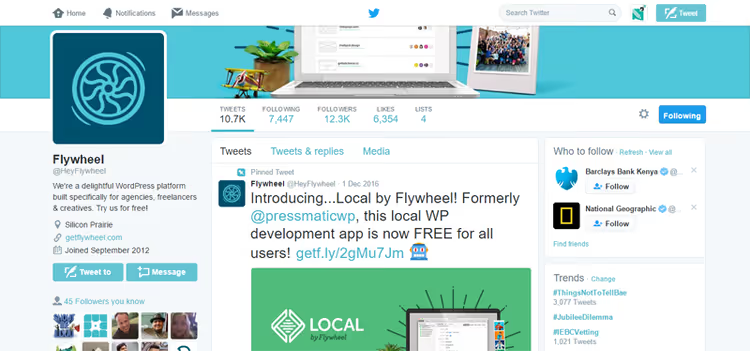
In December 2016, hosting company Flywheel acquired Pressmatic and renamed it Local by Flywheel. The price tag dropped to zero: the tool became completely free. Flywheel added Blueprints (project templates), Mailcatcher for intercepting test emails, and integration with their hosting.

In 2019, WP Engine acquired Flywheel along with Local. An active period began: versions for Windows and Linux were released, Live Links appeared (persistent tunnel URLs via ngrok), Cloud Backups to Google Drive and Dropbox, Image Optimizer, and Local Connect with differential deployment through MagicSync.
In 2026, Local remains free and continues to receive updates. The Pro version is part of the WP Engine ecosystem and extends the toolkit, but for most freelancer and small studio tasks, the free version is sufficient.
Installation: from download to working WordPress in 3 minutes
The process is straightforward, no configs before first launch.
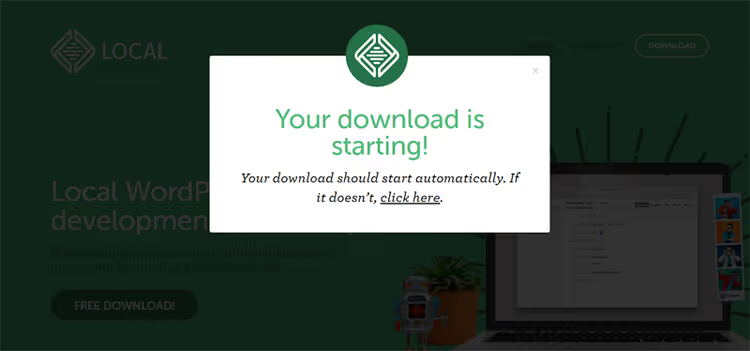
Step 1. Go to localwp.com, select your platform: Mac Intel, Apple Silicon, Windows, or Linux. Enter your name and email, download starts automatically. The installer is about 400 MB.
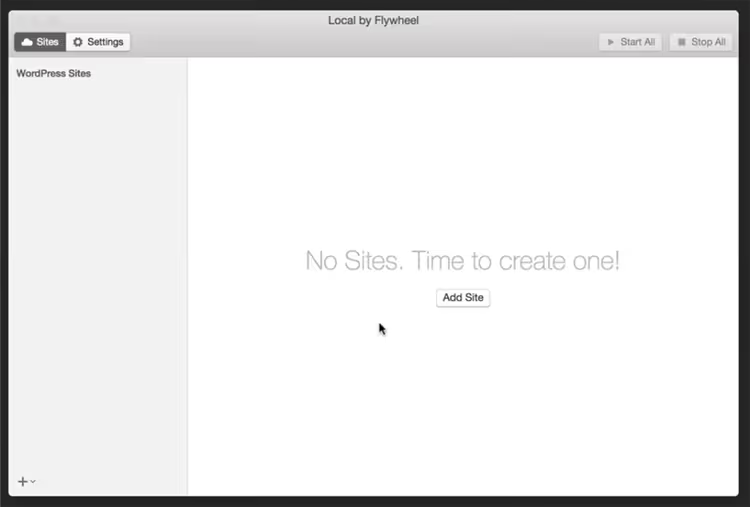
Step 2. Launch the application. The first screen offers to create a site or open settings. We recommend creating a test site right away to see Local in action.
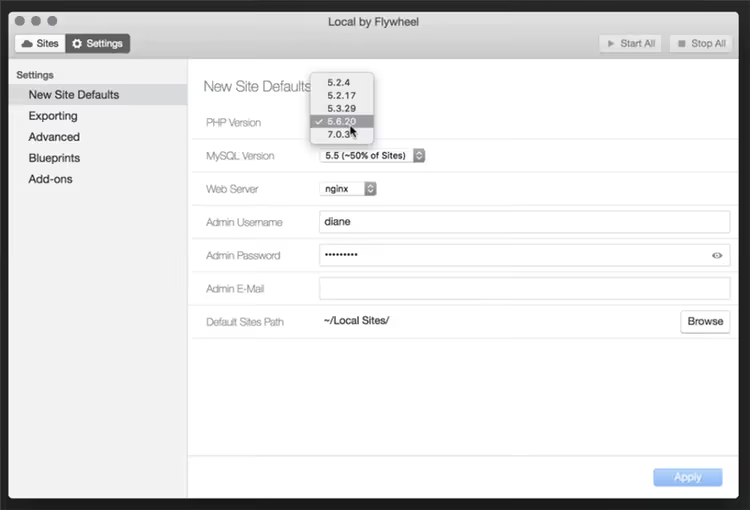
In global settings, you set the default PHP version, web server, and database for all new projects.
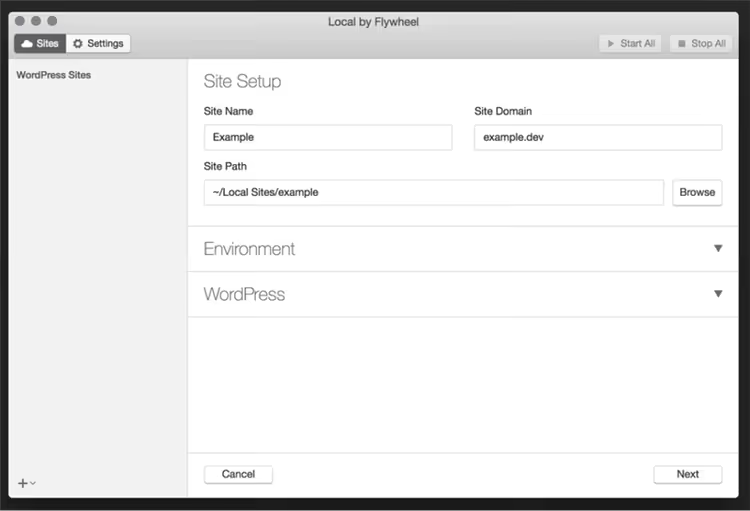
Step 3. Click "Create a New Site" (or the plus sign in the bottom left corner), a four-screen wizard opens. On the first screen, set the site name and domain (default is .local):
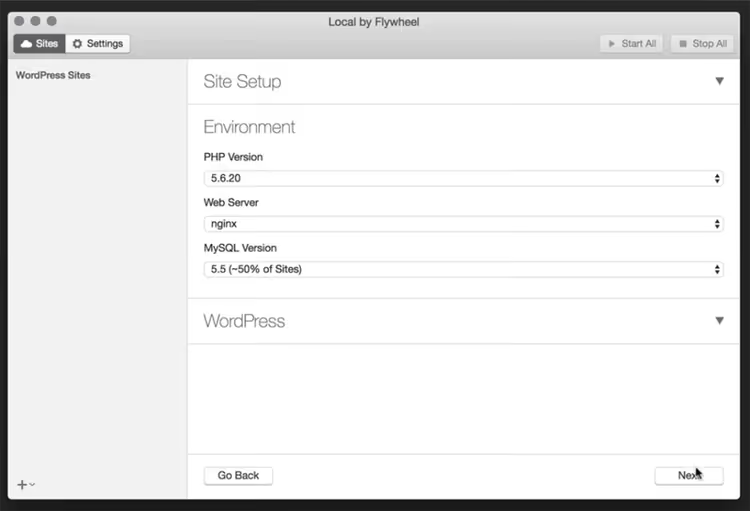
On the second, choose the environment: PHP version, web server, and database specifically for this project:
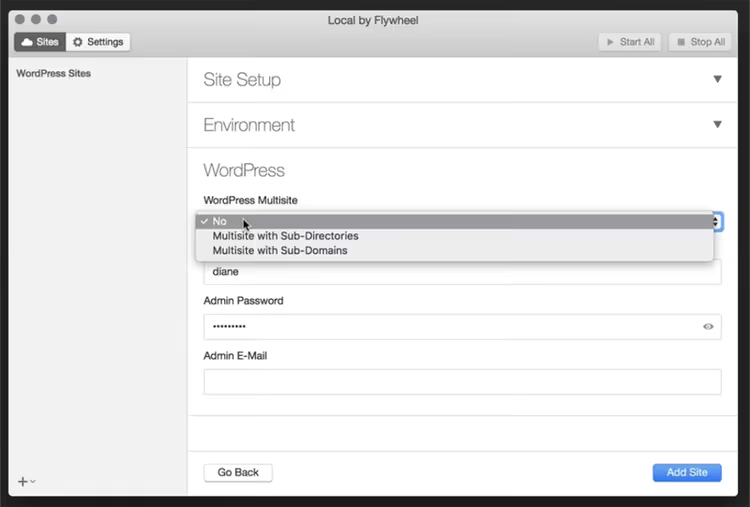
On the third, set WordPress credentials: username, password, email:
Final screen, summary of everything that will be created. Click "Add Site":
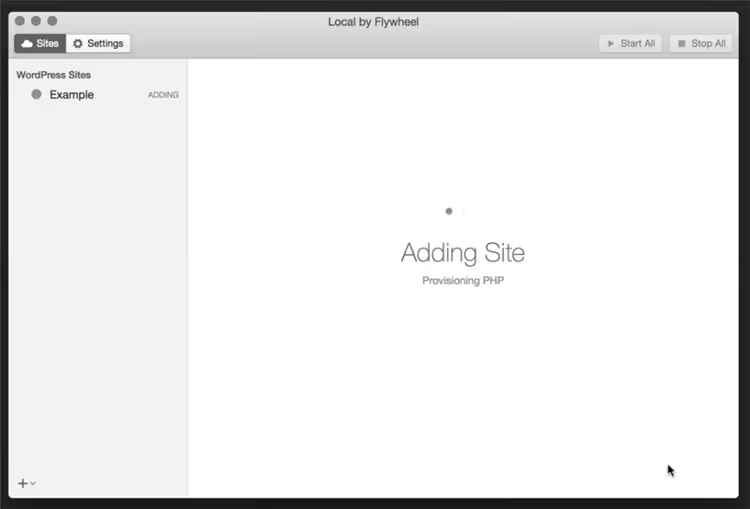
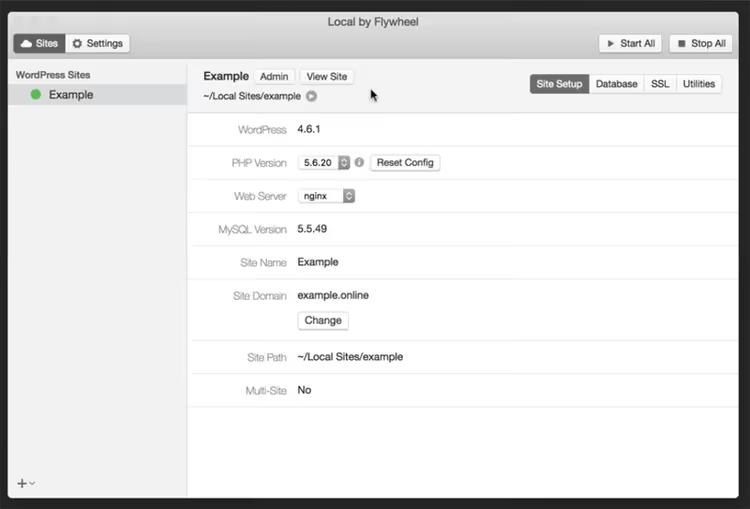
In a few seconds, Local displays a site card with Admin (login to wp-admin), View Site buttons, and database access. The SSL certificate (self-signed) is already active; accept the browser warning once, and you work over HTTPS from then on.
Flexible environments: PHP, web server, and database without configs
Local's main advantage over classic stacks is instant server environment switching. No need to edit files manually or maintain multiple VMs for different projects.
What changes in one click:
- PHP version: multiple versions simultaneously, from outdated to current PHP 8.x. One client is on an old version, for another you switch to modern, without restarting the entire stack.
- Web server: Apache or NGINX. Convenient when a client uses specific
.htaccessornginx.confrules. - Database: MySQL or MariaDB, different versions, switches with a couple of clicks.
- Site domain: changes without data loss, the database updates links automatically.
Xdebug and Opcache are built in as add-ons, enabled with a checkbox. Root SSH access and WP-CLI are available out of the box for each site. Apache, MySQL, NGINX, and PHP logs are right in the interface, no need to search the file system.
For comparison: in XAMPP, changing PHP version requires reinstalling the entire package. In MAMP, PHP switching exists, but only in the Pro version and with server restart.
Key features that save time
Live Links: show the site without deployment
A feature absent from any classic alternative. Live Links creates a persistent tunnel URL based on ngrok; the client or colleague sees your local site from anywhere. No need to upload the project to intermediate hosting, configure a domain, or create staging copies.
The link works as long as Local is running and you have internet. Finished the demo, disconnect. The client sees only the site, with no access to your computer.
Additional benefit: Live Links is convenient for testing integrations with external callbacks, PayPal IPN, Stripe webhooks, REST API with redirects.
Blueprints: start every project with a ready base
Any site in Local can be saved as a Blueprint, a snapshot containing files, database, server configuration, and WordPress settings (themes, plugins, options).
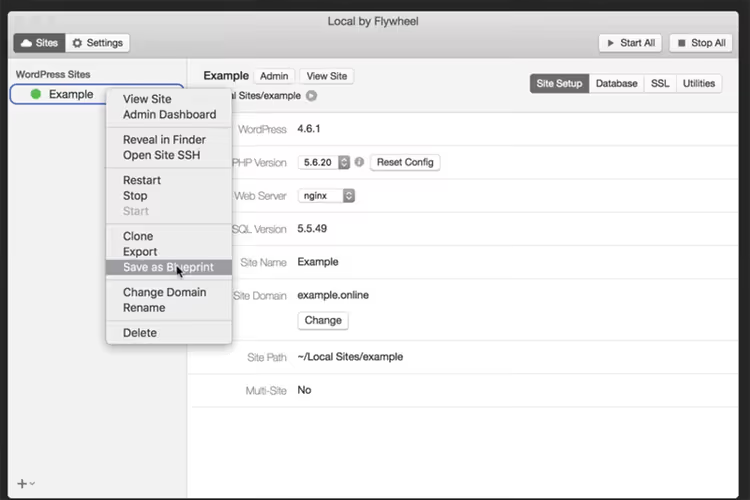
Practical scenario: you build sites on one stack, Astra + Elementor + several standard plugins. Create a Blueprint once and deploy a ready foundation in a couple of clicks for each new project. You can keep multiple Blueprints: online store, blog, portfolio, landing page.
Mailcatcher: test emails without cluttering your inbox
During development, forms, registrations, and WooCommerce notifications inevitably get tested. If localhost sends emails through real Gmail, the inbox fills up quickly, and Google may restrict the "less secure app."
Mailcatcher intercepts everything the PHP sendmail function sends and stores it in a local inbox right in the Local interface. Emails go nowhere, but you see the content, headers, and can debug templates. Works even without internet.
Cloning, export, and import
Cloning: one click. A full copy with files, database, and configuration. Convenient as a quick backup before a risky update.
Export creates a ZIP archive with the same components. You can exclude individual files with checkboxes. Import restores everything as it was, transferring a project between computers or handing it off to a colleague.
Additional tools in Local:
- WP Multisite: create a WordPress network in one click (subdomains or subdirectories).
- Local Connect: direct push to WP Engine or Flywheel with differential deployment (MagicSync uploads only changed files).
- Cloud Backups: backups to Google Drive or Dropbox.
- Image Optimizer: bulk image compression before uploading to production.
- Link Checker: broken link checking within the local site.
- Instant Reload: automatic page reload when files change.
Local versus competitors: comparison by key parameters
Feature | Local | XAMPP | MAMP Free | DevKinsta | Docker |
|---|---|---|---|---|---|
Auto WordPress install | ✅ | ❌ | ❌ | ✅ | Manual compose |
PHP switch in 1 click | ✅ | ❌ | ❌ | ✅ | Via images |
Apache / NGINX | ✅ | Apache only | Apache only | NGINX only | Any |
Live Links | ✅ | ❌ | ❌ | ❌ | Via ngrok separately |
Mailcatcher | ✅ | ❌ | ❌ | Built-in | Via service |
Blueprints | ✅ | ❌ | ❌ | ❌ | Via images |
Windows | ✅ | ✅ | ✅ | ✅ | ✅ |
Linux | ✅ | ✅ | ❌ | ✅ | ✅ |
Free | ✅ | ✅ | ✅ | ✅ | ✅ |
WP-CLI | ✅ | Manual install | Manual install | ✅ | In container |
XAMPP and MAMP solve the basic task but aren't tailored for WordPress: CMS installation, SSL, environment switching, and tunneling you do manually. Docker offers maximum flexibility and reproducibility but requires mastering docker-compose, images, and network settings, overkill for a freelancer. DevKinsta, a free tool from Kinsta with Windows, macOS, and Linux support, is oriented toward Kinsta hosting and doesn't offer Live Links or Blueprints.
Local wins overall: free, cross-platform, with automatic WordPress installation and features no competitor offers.
⁉️🤔 Frequently asked questions
Is Local really free? Are there limitations?
Local is completely free: unlimited sites, all key features, environment switching, Live Links, Blueprints, Mailcatcher, WP-CLI, without payment. The Pro version as part of the WP Engine ecosystem adds extended capabilities, but for freelancer and small studio tasks, the free version is sufficient.
How is Local better than XAMPP and MAMP?
XAMPP and MAMP are universal LAMP/WAMP stacks not tailored for WordPress. You manually download the CMS, create a database, configure
wp-config.php, and set up SSL. Local automates all of this and adds what classic stacks lack: Live Links, Blueprints, Mailcatcher, one-click PHP version switching.
Can I transfer a site from Local to any hosting, not just WP Engine?
Yes. Export creates a ZIP archive with files and a database dump; you deploy on any hosting through standard import. Local Connect for direct deployment to WP Engine and Flywheel is an additional option, not mandatory.
Does Local work on Apple Silicon (M1/M2/M3/M4)?
Yes, there's a native build for Apple Silicon. Performance is excellent: containers start quickly, environment switching is instant.
Is Local suitable for working with clients?
One of the main use cases. You develop the site locally, show progress through Live Links (the client only needs a browser), and when ready, upload through export or Local Connect. The client gets no access to your machine.
When to switch to Local and when to stay with Docker

If you're still setting up WordPress through XAMPP, MAMP, or a manual LAMP stack, switch without hesitation. Local handles WordPress installation, SSL, and environment setup, and each new project starts in 10-15 seconds instead of 15-30 minutes.
Docker developers should take a look if they're tired of docker-compose.yml for every project and want an interface where environments switch with checkboxes rather than config editing. Docker gives more control; Local gives speed.
The only case where Local doesn't fit: you need an environment identical to a specific production server (a particular NGINX version, a non-standard PHP module). In that situation, Docker with a custom image still wins.
For everyone else, freelancers, solo developers, small studios, and WordPress agencies, Local remains the best free tool for local development. Download from the official Local website, create a test site in a minute, and compare with your current process. The difference will be obvious immediately.

A professional team of writers and editors specializing in creating quality content.