














🥇 10 best menu plugins for WordPress 2026 (free and premium)
A visitor can't find the right section in 2 seconds and leaves. Bad navigation kills conversion faster than slow hosting. A good menu plugin turns a jumble of links into a retention tool.
This collection features 10 plugins for WordPress, each for a different scenario: mega menus for content sites, mobile menus for non-responsive themes, floating panels for quick access to key pages. All tested in practice, with real pros, cons, and 2026 pricing.
Don't install a plugin just in case. Choose one tool for a specific task and test it on staging before rolling out to production.
💡 Quick overview:
- Decide what type of menu you need: mega menu, mobile, sticky, floating, or accordion
- Check the table below: it maps menu type, price, and key feature for each plugin
- Install, configure in 10 minutes, and test on mobile: most plugins work out of the box
Before installing any menu plugin, make a backup. Changing navigation on a live site without a backup is like fixing an engine while driving.
Comparison table
Plugin | Menu type | Free version | Pro price | Active installs |
|---|---|---|---|---|
| Mega menu | Yes | $29/year | 400,000+ |
| Mobile | Yes | $49 | 100,000+ |
| Mobile | Yes | $35/site | 10,000+ |
| Icons in menu | Yes | Free | 800,000+ |
| Mega menu | Yes | $30/lifetime | 30,000+ |
| Mobile | Yes | $6.49/month | 40,000+ |
| Sticky | Yes | $39/lifetime | 100,000+ |
| Floating | Yes | $25/lifetime | 10,000+ |
| Accordion | Yes | $20 | 7,000+ |
| Fullscreen | Yes | Free | 5,000+ |
1. Max Mega Menu
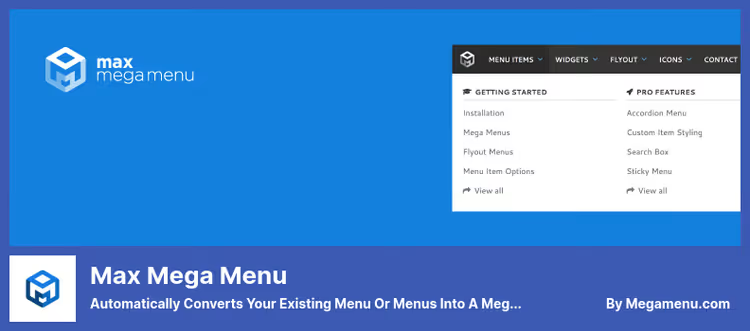
The definitive mega menu plugin with 400,000+ active installs. Turns the standard WordPress menu into a multi-column mega menu through the native editor, no third-party UI to get used to.
Max Mega Menu on WordPress.org🔗 Pro version at megamenu.com
Works on top of the standard Appearance, Menus screen, adding a settings panel for each item. The free version includes icons, widgets in menu, multiple locations, and transition animations. Covers the needs of the vast majority of sites.
Pros:
- Integrates into the native WordPress menu editor without breaking your familiar workflow
- Supports vertical, horizontal, tabbed, and flyout formats
- Free version offers more than some competitors' Pro
Cons:
- Pro version (annual subscription) needed for sticky menu and custom item styles
- Overly complex mega menus (6+ columns) can slow down on weak hosting
Price: free version; Pro, $29/year on WordPress.org.
2. Responsive Menu
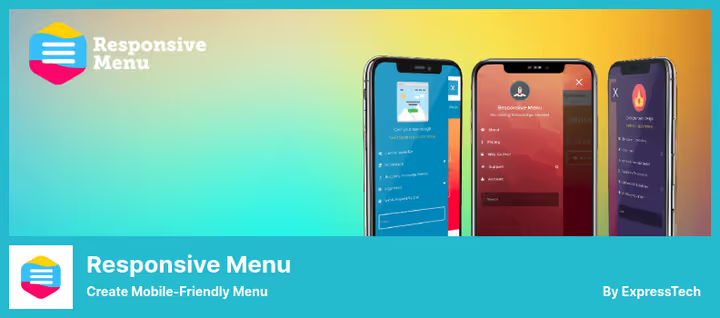
A specialized plugin for creating a mobile menu on top of existing navigation. Solves the problem of themes with poor mobile menus: small font, awkward tap targets, no animation.
Responsive Menu on WordPress.org🔗 Pro version at responsive.menu
The visual builder lets you customize menu appearance without code: open triggers, animations, background images. Over 150 customization options in Pro.
Pros:
- Clean visual builder, no developer needed
- Over 150 appearance customization options
- Can add a header bar with announcement or promotion
Cons:
- Lite version significantly limited compared to Pro
- On some themes, conflicts with built-in mobile menu
Price: free Lite; Pro, $49 on WordPress.org.
3. WP Responsive Menu
Creates a slide menu from your current menu in minutes. Main feature: swipe to open and close, on mobile it's more convenient than a tiny hamburger button.
WP Responsive Menu on WordPress.org🔗 Pro version at magnigenie.com
The free version includes responsive templates, logo upload, and basic color customization. Pro adds WooCommerce integration, social icons, and Google Fonts.
Pros:
- Swipe gestures to open and close menu on mobile
- Quick implementation: 2-3 minutes from install to working menu
- Can hide unnecessary elements when switching to mobile view
Cons:
- Pro is a one-time payment but without lifetime updates
- Fewer animation settings than Responsive Menu
Price: free Lite; Pro, $35/site on WordPress.org.
4. Menu Icons

Doesn't create a new menu but enhances the existing one: adds icons to any navigation item. Developed by the Themeisle team, 800,000+ active installs and 5-star rating, one of the most stable plugins in this collection.
Supports Dashicons, Font Awesome, Genericons, Elusive, Foundation Icons, plus custom SVG and PNG. Icon selection through the standard WordPress menu interface, no separate admin panel.
Pros:
- 800,000+ active installs, actively updated (2026)
- Support for 8+ icon libraries, including custom SVG
- Works out of the box with most themes, including Twenty Twenty-Five
Cons:
- Doesn't create new menu types, only adds icons to existing items
- Some themes with custom menu walkers require manual tweaking
Price: completely free.
5. QuadMenu
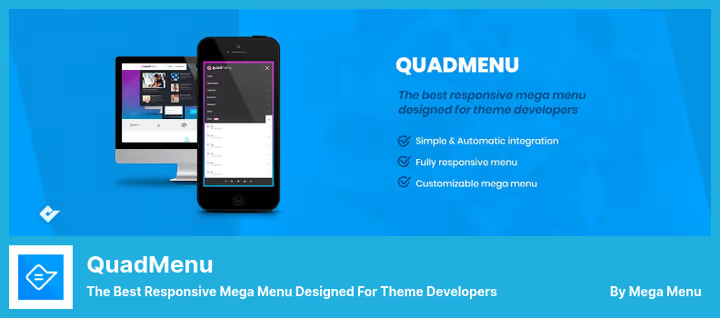
A mega menu tailored for theme developers. Differs from other mega menus with a native drag-and-drop editor that works faster than the standard WordPress menu manager.
QuadMenu on WordPress.org🔗 Pro version at quadmenu.com
The free version includes multiple menu locations, child themes, icons, and cart menu. Pro (one-time payment) adds tabs, login, social, and off-canvas mega menu.
Pros:
- Drag-and-drop editor noticeably faster than WordPress built-in
- Support for sticky menu, off-canvas, and carousel formats
- Ready-made layouts for the most popular configurations
Cons:
- Theme developers are the main audience; may be excessive for average users
- Some features (tabs, login, social) only in Pro
Price: free version; Pro, $30/lifetime (one-time payment) on WordPress.org.
6. WP Mobile Menu
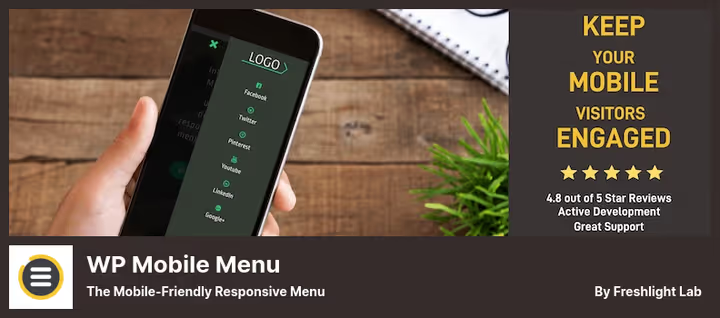
Creates a separate mobile menu that can completely differ from the desktop version. Unlike Responsive Menu, which adapts the existing one, WP Mobile Menu gives full control over what mobile visitors see.
WP Mobile Menu on WordPress.org🔗 Pro version at wpmobilemenu.com
The Pro version (subscription) adds footer menu, 2000+ icons, WooCommerce integration, menu import and export, and header banners. This is the only plugin in the collection with a subscription model.
Pros:
- Completely separate mobile menu, independent from desktop
- Import and export menus between sites
- Can hide individual items only on mobile
Cons:
- Pro is subscription, not one-time payment
- Excessive for simple sites where the theme's responsive menu is sufficient
Price: free Lite; Pro, $6.49/month on WordPress.org.
7. Sticky Menu (or Anything!) on Scroll
Fixes any element on the page when scrolling, not just the menu. Header, logo, CTA button, sidebar widget: anything with a unique CSS selector can be made sticky.
Sticky Menu on WordPress.org🔗 Pro version at wpsticky.com
Flexibility is the main advantage. Configure margins, z-index, minimum and maximum screen size for sticky activation, and even a push-up element that displaces the fixed block.
Pros:
- Fixes any element, not just menu
- Fine-tuning: margins, z-index, breakpoints
- Pro is one-time payment, not subscription
Cons:
- Requires basic understanding of CSS selectors for non-standard elements
- Doesn't create the menu itself, only fixes an already existing element
Price: free Lite; Pro, $39/lifetime on WordPress.org.
8. Float Menu
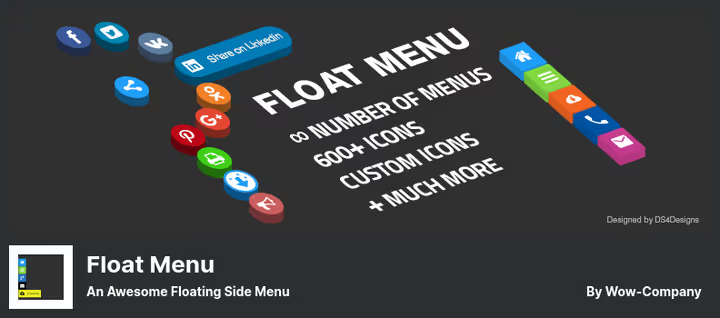
Adds a floating sidebar that's always visible regardless of scrolling. Doesn't take up much screen space: it's a compact set of icon buttons leading to key sections or external resources.
Float Menu on WordPress.org🔗 Pro version from Wow-Company
1600+ Font Awesome 5 icons out of the box. Each button configured separately: color, size, margin, link (with new window opening). Position left or right.
Pros:
- Compact floating panel that doesn't overlay content
- 1600+ icons, each with individual color
- Increases conversion by providing constant access to key sections
Cons:
- Square buttons, no round or custom design
- Pro needed for advanced settings
Price: free Lite; Pro, $25/lifetime on WordPress.org.
9. Iks Menu
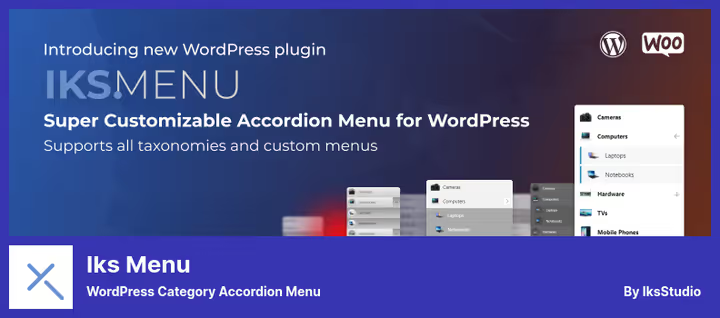
An accordion menu for sidebar built from WordPress taxonomies: categories, tags, WooCommerce product categories. The source can be either a standard menu or any taxonomy.
Fast editor without page reload. Supports images for items, expand and collapse animation, initial expansion of selected items, and post counter for each category.
Pros:
- Builds menu from taxonomies, not just arbitrary links
- Accordion animation and initial expansion of selected items
- Support for images for categories and custom items
Cons:
- Narrow specialization: accordion only, sidebar only
- Pro needed for advanced styles
Price: free Lite; Pro, $20 on WordPress.org.
10. FullScreen Menu
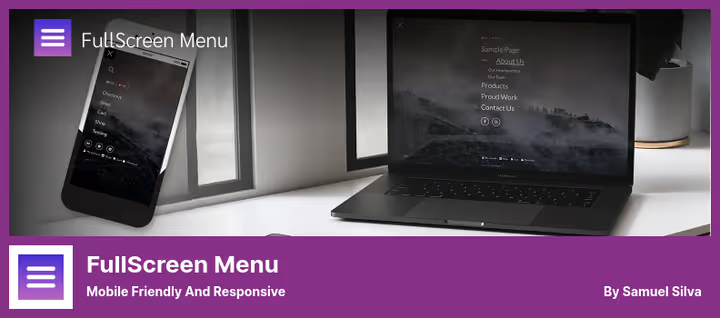
A completely free plugin for creating a fullscreen menu in flat design style. User clicks hamburger, and the entire screen is occupied by a menu with background, animation, and multi-level structure.
FullScreen Menu on WordPress.org
Supports background video, images, text shadows, Google Fonts, social icons, WooCommerce, and Polylang. Has GDPR options (privacy policy link) and ability to hide menu on selected pages.
Pros:
- Completely free, all functionality available without payment
- Background video or image for striking presentation
- WooCommerce and Polylang compatibility out of the box
Cons:
- Specific format: fullscreen menu doesn't suit all niches
- 5,000+ installs, smallest base among collection plugins, less testing on different themes
Price: completely free.
⁉️🤔 Frequently asked questions
Do I need a separate plugin for mobile menu?
Most modern themes already have a built-in mobile menu. A separate plugin (
Responsive MenuorWP Mobile Menu) is needed when: the theme is old and not responsive, you want a completely different design on mobile, or you need specific features like swipe gestures, header bar with promotion, or a separate set of items. If the standard menu works, a plugin isn't needed.
How does a mega menu differ from a regular dropdown list?
A mega menu is not just a dropdown list but a multi-column panel with widgets, images, icons, and arbitrary HTML. A regular submenu shows 5-7 items in a column, a mega menu displays 20+ items in 4 columns with thumbnails. For e-commerce and content sites with large structure, this is standard, not optional.
Which menu plugin is the fastest?
Max Mega MenuandQuadMenuwork on top of native WordPress menu and don't add extra database queries.Menu Iconsis also lightweight: only loads icon CSS. Avoid plugins that build menus through client-side DOM manipulation, they add delay during page load.
Can I use multiple menu plugins at the same time?
Technically yes, but with caution. For example,
Max Mega Menufor desktop plusWP Mobile Menufor mobile is a working combination. But two plugins of the same type (two mega menus) almost certainly conflict through hooks onwp_nav_menu. Before installing a second plugin, check compatibility on staging.
Do these plugins work with Gutenberg and Full Site Editing?
Most plugins in this collection are compatible with Block Editor and Full Site Editing. These include Max Mega Menu, QuadMenu, Menu Icons, and Responsive Menu. But menu logic in FSE themes differs from classic ones, check compatibility status in the plugin description before installing on an FSE theme.
What else to check on this topic
A short video demonstrating mega menu setup in WordPress: from installation to finished multi-column navigation.
What to install in 2026
There's no universal answer, start from your scenario. Building a content site with large category structure, Max Mega Menu will cover the vast majority of needs in the free version. Just need to add icons to existing navigation, Menu Icons installs in a minute and doesn't create extra load.
If the theme poorly handles mobile menu, Responsive Menu provides a visual builder and 150+ options. And when it's important to have compact quick access to key pages from anywhere, Float Menu with a floating panel is your choice.
Main rule: don't install a plugin just in case. Every additional plugin means plus one CSS file, plus one JS script, and a potential conflict point. Choose one tool for a specific task and test on staging before rolling out to production.

A professional team of writers and editors specializing in creating quality content.