













 AIIllustrative image: AI-generated
🚀 How to speed up an Elementor site and score 100 in GTmetrix
You run your Elementor site through GTmetrix and see a score of 45. Or 52. Or an honest 60, but with a red TTFB and a mile-long list of "should fix" items. One question keeps running through your mind: wasn't Elementor supposed to be fast?
It actually is fast. The problem isn't the page builder, it's what lies beneath: a server choking on PHP 7.4, three dozen plugins with overlapping scripts, fonts from an external CDN, and a database that hasn't been cleaned since launch day. Elementor generates clean HTML and CSS, but the server must assemble and deliver that HTML in a fraction of a second.
Below you'll find a step-by-step guide with no fluff and real screenshots. By the end, your site goes from 45 to 95-100 points. Time required: half a day. None of the steps require a developer: everything is done from the admin panel or hosting control panel.
💡 Quick overview:
- Upgrade PHP to 8.3 or 8.4 and set
memory_limitto 256 MB. This is the foundation without which caching and minification accomplish almost nothing. - Install WP Rocket, connect Cloudflare CDN, and set up automatic database cleanup. These three actions combined deliver the biggest speed boost.
- Go through your plugins: selectively disable scripts and styles where they aren't used via Perfmatters or Asset CleanUp. Reduce HTTP requests to around fifteen per page.
- Host fonts locally, resize images properly, and replace external requests with local alternatives. These are the final points that separate "good" from "excellent."
- Open GTmetrix, go to the Waterfall tab, and methodically work through the bottlenecks. Every red item is a specific plugin, script, or media file you can fix.
1. Server environment: hosting, PHP, and memory
The official WordPress optimization guide starts with the server environment. If the server responds in 800 milliseconds, no cache will save you, the visitor is already gone.
Upgrade PHP to version 8.3 or 8.4
PHP 7.4 stopped receiving security updates in November 2022. According to recent Kinsta benchmarks, upgrading from 7.4 to 8.2 delivers a 2-3x improvement in request processing speed. Versions 8.3 and 8.4 maintain the same performance level but with better security and modern syntax support. Elementor recommends a minimum of 8.0, but in practice 8.3 is the sensible minimum today.
Check your current version: Elementor → System Info.
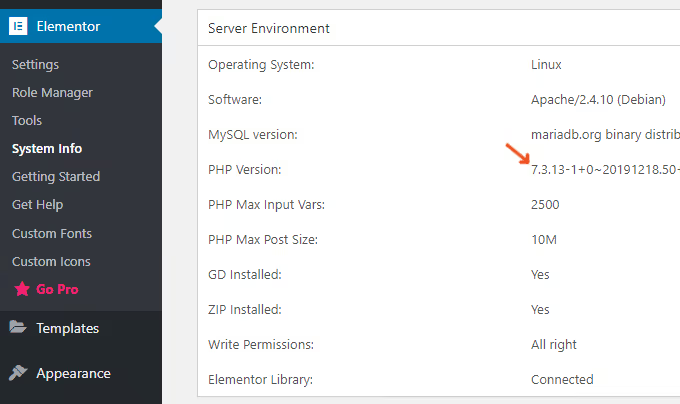
Go to your hosting control panel, find the PHP version manager, and switch to 8.3 or 8.4. Before doing this, make a backup.
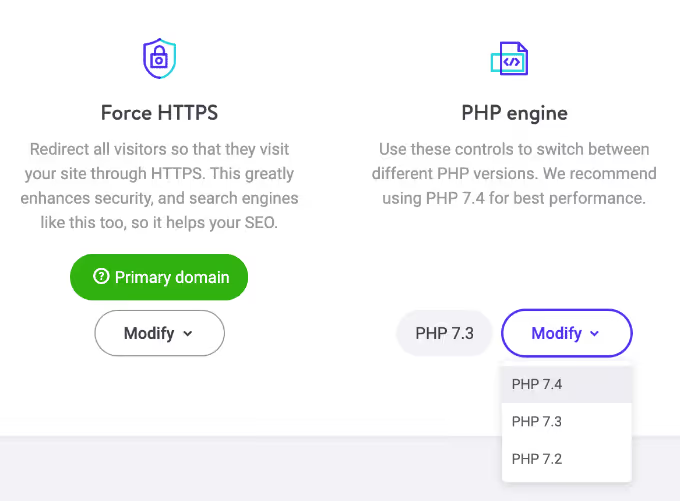
After the upgrade, browse through your site: verify that all pages load and plugins aren't throwing errors. A plugin that hasn't been updated in three years and breaks on PHP 8.4 isn't a loss, it's a reason to find a living replacement.
Set memory limit to 256 MB
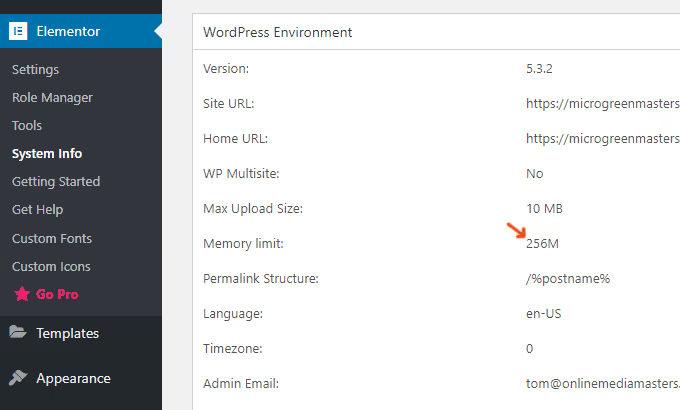
Elementor, WordPress, and WooCommerce documentation all agree on 256 MB. Check your current limit in the same place: Elementor → System Info.
On most hosting providers, you can change the limit directly in the control panel:
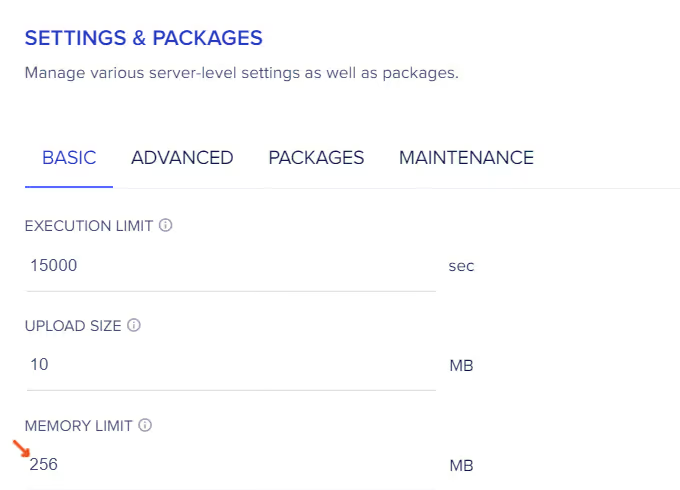
If this option isn't available, add the following line to wp-config.php:
1 define( 'WP_MEMORY_LIMIT', '256M' );
Move from shared hosting to cloud
Shared hosting works fine as long as your site has low traffic and no WooCommerce. Beyond that, server response time (TTFB) creeps past 200 ms, and GTmetrix highlights it in red.
Cloud hosting (DigitalOcean via Cloudways, Vultr, Linode) cuts load time in half compared to quality shared plans. Pages with hundreds of images and hundreds of comments load within 2 seconds.

The difference in key metrics is visible to the naked eye:
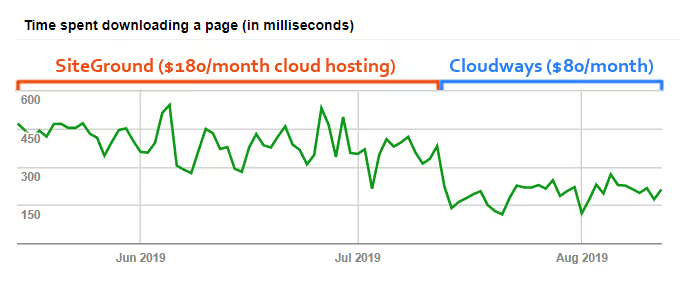
Bottom line: shared hosting is fine for getting started. For a project with traffic, a store, or a dozen plugins, cloud is the only option. The price difference pays for itself in speed.
2. Caching, database, and CDN
After the server environment, these three components deliver the most noticeable gains. In my experience, caching, database cleanup, and CDN solve most speed issues on an average site.
WP Rocket: one plugin instead of five
WP Rocket consistently outperforms WP Fastest Cache and W3 Total Cache in direct GTmetrix comparisons. The reason isn't magic but architecture: it combines functions that usually require 5-6 separate plugins. Page caching, database cleanup, local hosting of Google Analytics, Google Fonts combining, lazy loading of images and video, Cloudflare integration, WebP caching, DNS prefetching, browser caching for Facebook Pixel. All out of the box.
The point is simple: the fewer plugins on your site, the fewer HTTP requests. And GTmetrix counts requests.
Regular database cleanup
Elementor and WordPress accumulate post revisions, leftover tables from deleted plugins, transients, and spam comments. WP Rocket and WP-Optimize clean up this clutter with a couple of clicks.
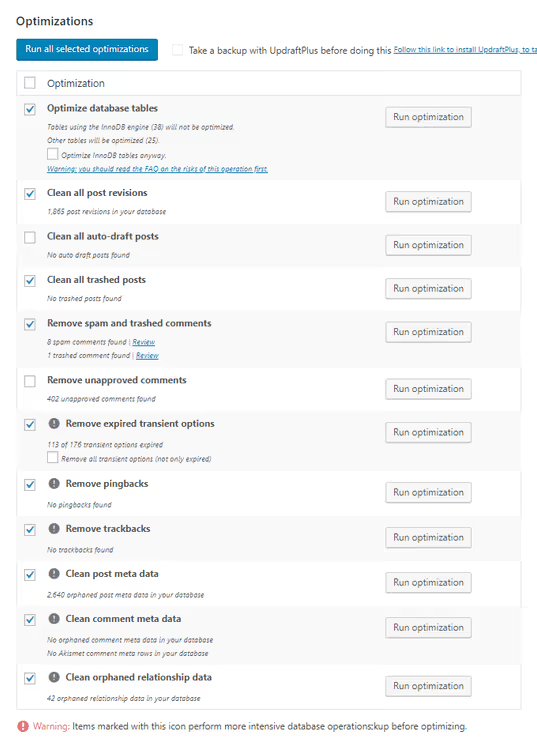
Before cleanup, make a backup. And review the list of items to be deleted: sometimes there are drafts you don't want to lose.
Cloudflare CDN: free tier
Cloudflare is a network of 200+ data centers, recommended by WordPress itself. The free tier covers the needs of 95% of sites.

Some hosts (SiteGround) activate Cloudflare from their own panel. For everyone else: register for the free tier, change your domain's NS servers, and configure three settings:
- Speed: enable Brotli and Rocket Loader.
- Scrape Shield: enable hotlink protection.
- Page Rules: must-use Cloudflare rules for speed, security, and admin panel compatibility.
3. Scripts and plugins: selective disabling
This section consistently adds 10-15 GTmetrix points. The mechanics are simple: each script on a page is a separate HTTP request, and each request adds milliseconds to total load time.
Which plugins slow down your site
The heaviest offenders: analytics, backup plugins with background scanning, social widgets with counters, live chats, heavy contact forms, sliders, JetPack. The common thread is that the plugin runs constantly, even when its functionality isn't needed on a particular page.
The approach: either remove such a plugin and find a lightweight replacement, or make it load only where it's actually needed.
Asset CleanUp and Perfmatters
Both tools solve the same problem: selectively disabling scripts and styles at the individual page level. Perfmatters is a premium solution with a convenient interface. Asset CleanUp is a free alternative with functionality that covers most scenarios.
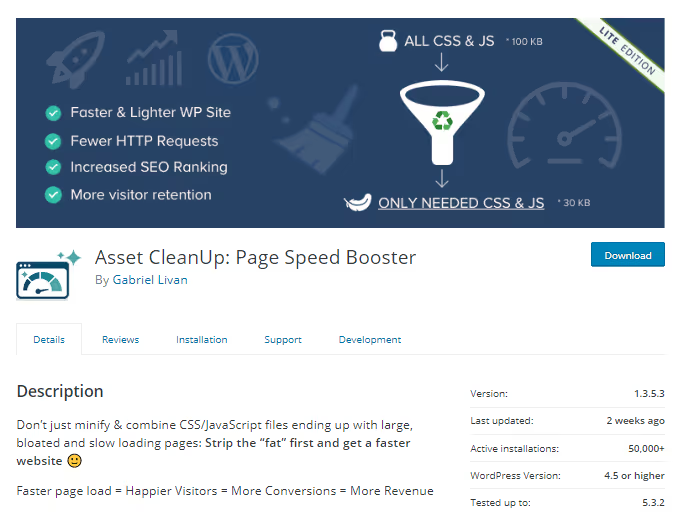
Here's what to do:
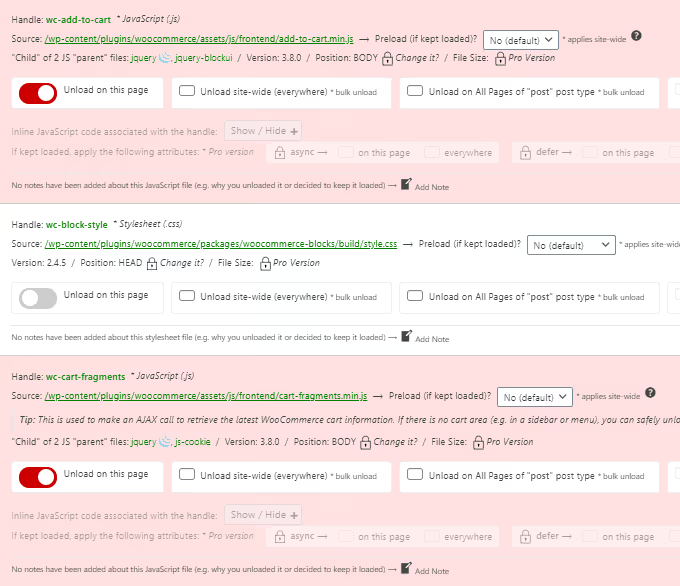
- Install Asset CleanUp (free from the repository) or Perfmatters.
- Open a page for editing and scroll down. You'll see everything that loads on it.
- Uncheck plugins, scripts, and styles that aren't used on this page.
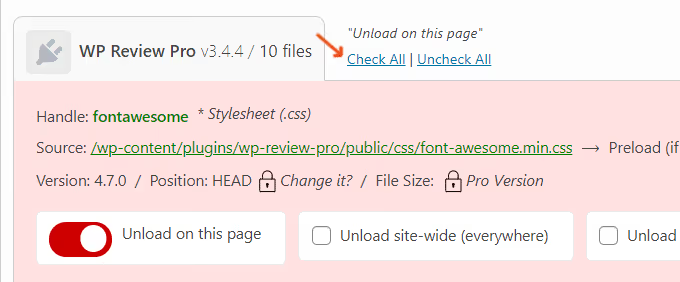
You can disable by post type (posts, pages, products) or use RegEx in premium versions. A classic example: a contact form plugin loads only on /contacts/, not across the entire site.
WooCommerce: remove the excess
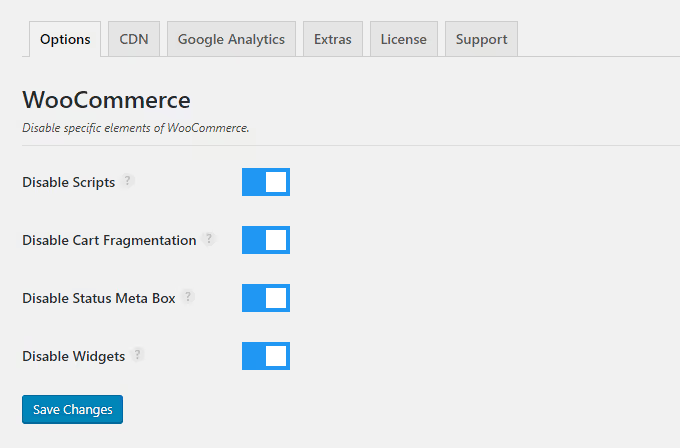
WooCommerce scripts and cart fragments appear on every page by default. Perfmatters can remove them with one click.
Disabling scripts and cart fragments on all pages except the shop and cart cuts up to ten unnecessary requests:
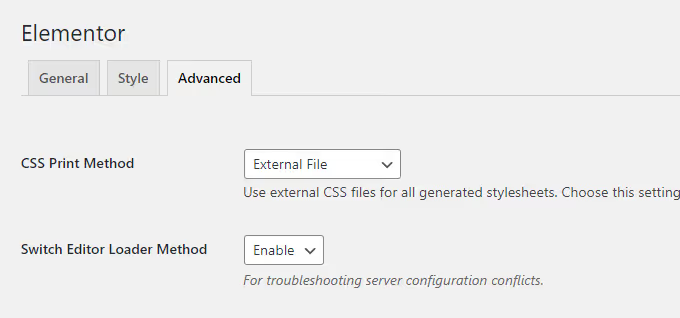
Elementor editor loader
If the editor itself is slow or conflicts with the server, switch the loader method. Elementor documentation describes this setting as the first line of defense for editor performance issues.
Elementor → Settings → Advanced → Editor Loader.
4. Fonts, media files, and external requests
Media and external resources are the most common cause of yellow and red warnings in GTmetrix. Hosting and caching have already pushed the site to 80+, and here you pick up the remaining points.
Host fonts locally
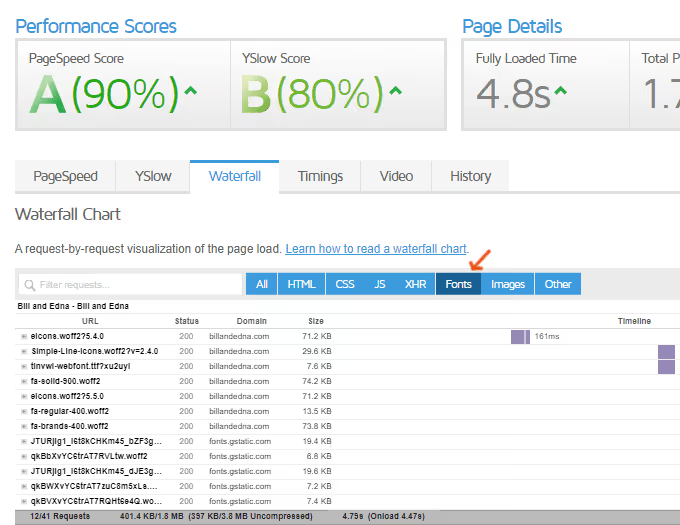
Google Fonts generate external requests to Google servers. GTmetrix sees them as a bottleneck and honestly highlights them: your site is waiting for a response from someone else's server.
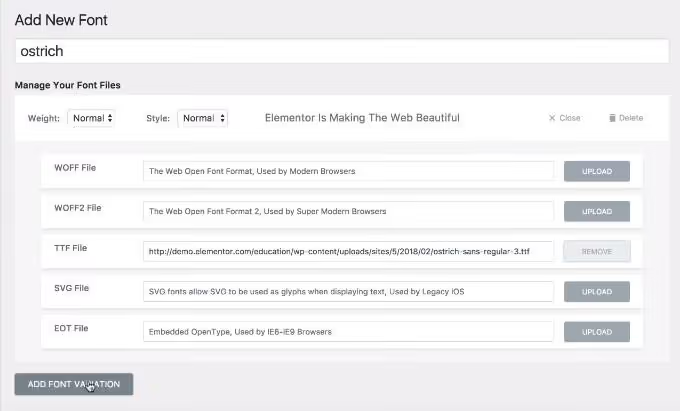
If you have Elementor Pro, use custom fonts in the settings:
Without Pro, here's a proven five-step process:
Step 1. Make sure fonts are actually the problem. Open the Waterfall tab in GTmetrix:
Step 2. Download the required fonts from Google Fonts. Only grab the weights you actually use: each extra one adds a request.
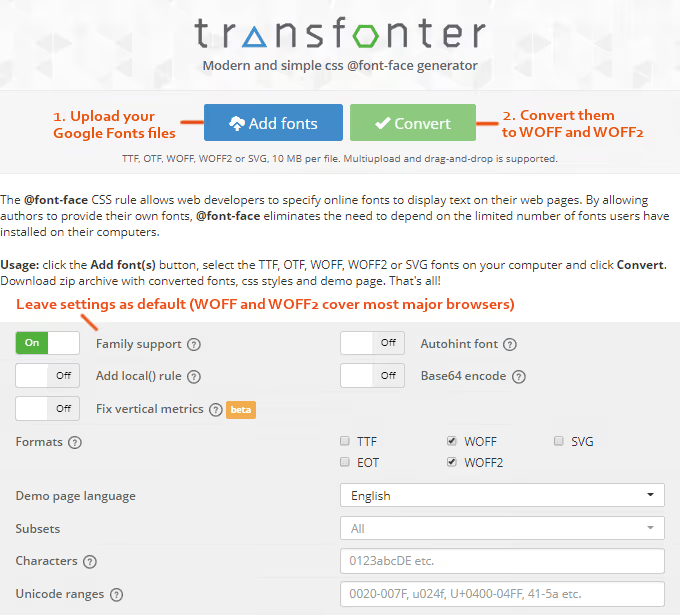
Step 3. Convert the downloaded fonts to web formats using Transfonter:
Step 4. Upload the files to WordPress and reference them in your CSS.
Step 5. Test the display and add fallback fonts in case loading fails.
For a detailed guide on local fonts, see our separate article.
Optimize third-party requests
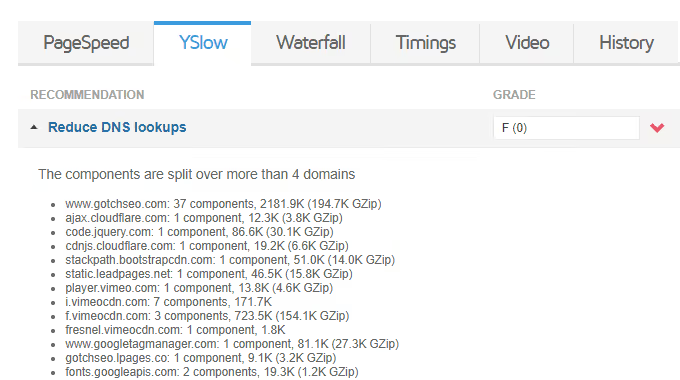
Google Fonts is just one example. AdSense, Analytics, Google Maps, Tag Manager, embedded videos, Gravatars, and social plugins all create external requests that GTmetrix can't cache or optimize.
What to do about it:
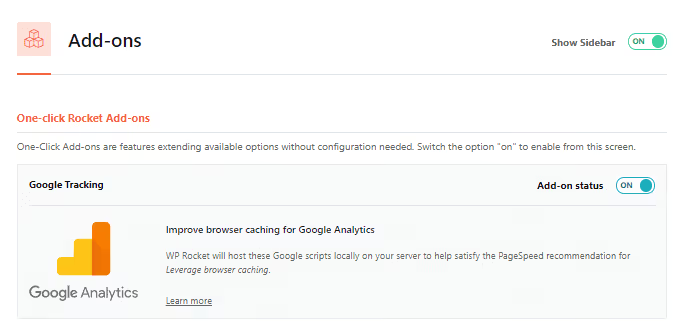
- WP Rocket can host Google Analytics locally and add browser caching for Facebook Pixel ("Add-ons" tab).
- Videos: WP Rocket replaces the iframe with a preview image instead of loading the player immediately ("Media" tab).
- Social widgets: use a screenshot and link instead of an embedded post. Saves up to ten requests.
- Disqus: set up conditional loading (comments load only when the reader scrolls down).
- Defer JavaScript execution in your caching plugin settings.
Google AdSense is a special case. Asynchronous loading is the ceiling: you can't fully optimize it. Gravatars are easier to disable entirely; no gravatar caching plugin produced noticeable results in practice. Google Tag Manager only makes sense on large projects with dozens of external scripts; on a small site, it adds more overhead than it saves.
Size images correctly
Elementor (and GTmetrix) require images to be scaled to the actual dimensions of the display area. The "Serve scaled images" error is one of the most common.
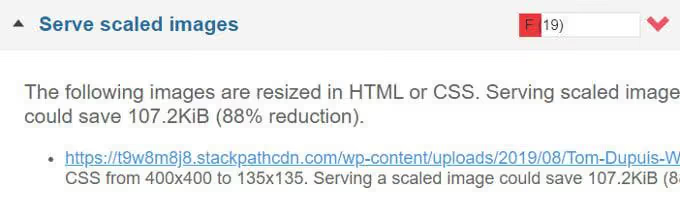
Tip: create a cheat sheet with sizes for your site's typical elements (post thumbnail, slider, in-content image, logo). Before uploading a new image, resize it to the required dimensions. GTmetrix itself suggests the correct sizes for each problematic file.
5. Theme and final diagnostics
At this point, your site is already at 85-90 points. All that's left is to squeeze out the last percentages: theme and targeted cleanup based on the GTmetrix report.
A lightweight theme as the foundation
A theme with its own visual builder on top of Elementor is a double hit on speed. Choose a minimal, clean theme and add functionality through plugins. Astra and GeneratePress are two proven options: they don't conflict with Elementor, add minimal code of their own, and don't create extra requests. Replacing a theme is harder than removing an unnecessary plugin, so it's better to choose correctly from the start.
Three control points in GTmetrix
There's no universal recipe: every site is unique in its plugin and content mix. But GTmetrix shows what exactly is slowing down your specific site. Three metrics worth focusing on:
Time to first byte (TTFB).
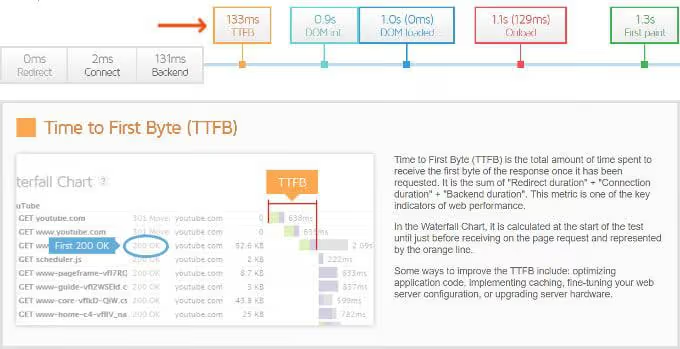
TTFB above 200 ms indicates a server-side problem. Go back to step 1: hosting, PHP, caching.
Unoptimized images.
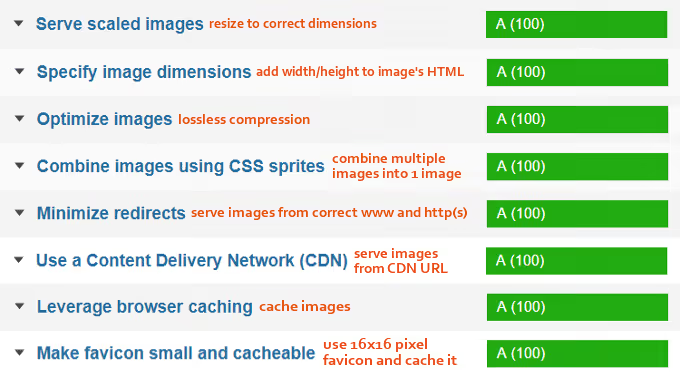
Working through this list from top to bottom, resizing and compressing, yields 5-8 points in half an hour.
Slow plugins.
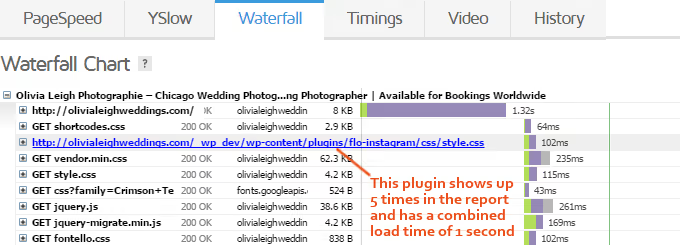
Sort by load time and ruthlessly remove or replace everything at the top of the list.
Here's an actual video walkthrough of Elementor optimization for GTmetrix:
⁉️🤔 Frequently asked questions
Is Elementor inherently slow?
No. Elementor generates clean HTML and CSS as output. The problem is always in the combination of server environment, plugins, and unoptimized media files. On a properly configured host with WP Rocket and Cloudflare, an Elementor site consistently achieves maximum GTmetrix scores.
Is a free caching plugin enough instead of WP Rocket?
Free solutions (WP Fastest Cache, W3 Total Cache) cover basic caching scenarios. But WP Rocket combines caching, database cleanup, local analytics, lazy loading, Cloudflare integration, and font optimization in one plugin. Each of these items separately means another plugin and more HTTP requests. For a site with 20+ plugins, replacing 5-6 separate ones with a single WP Rocket makes a noticeable difference.
Which hosting for Elementor in 2026?
For getting started and small projects, SiteGround. But as soon as you add WooCommerce, AdSense, or traffic above 10-20 thousand visits per month, move to cloud. Cloudways with DigitalOcean or Vultr offers the best price-to-performance ratio. TTFB on cloud is typically 2-3 times lower than on quality shared hosting.
Is Cloudflare necessary if I already have WP Rocket?
These are different levels of optimization. WP Rocket caches at the server level, while Cloudflare serves static content through a network of 200+ data centers. Together they work as a two-tier cache: the first request goes to the server, all subsequent ones come from the data center closest to the user.
How long does full optimization take?
The basic setup (PHP, WP Rocket, Cloudflare, disabling unnecessary plugins) takes 2-3 hours. The full cycle including fonts, images, and fine-tuning for GTmetrix takes 4-6 hours, depending on site size.
What to do right now: half-day checklist
Start with the foundation, it delivers the main gains:
- Upgrade PHP to 8.3+ and set
memory_limitto 256M. - Install WP Rocket and configure caching.
- Connect Cloudflare on the free tier.
The rest is achieved through targeted tweaks: disable unused scripts via Perfmatters or Asset CleanUp, host fonts locally, resize images correctly, and work through the GTmetrix bottleneck list from top to bottom.
A site on Elementor can and should load in under 2 seconds. All it takes is the right server environment and discipline with plugins.

A professional team of writers and editors specializing in creating quality content.