













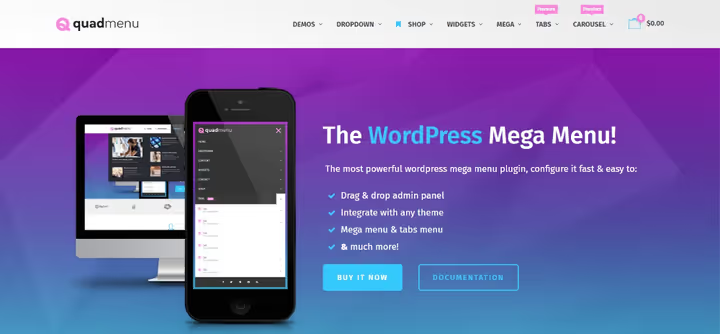
🧭 QuadMenu 2026: mega menu for WordPress without code or headaches
A menu is the backbone of any website. Without clear navigation, readers get lost within seconds, and with them go conversions, page depth, and trust. The standard WordPress menu handles this with a C grade at best: a couple of nesting levels, a modest dropdown, and that's it.
QuadMenu flips this scenario. The plugin transforms an ordinary menu into a mega menu with columns, widgets, icons, tabs, and animations, all without a single line of code. The interface extends the native WordPress menu system, so the learning curve is zero. Below is a detailed review after installing and configuring the plugin on a live site.
💡 Quick overview:
- Install QuadMenu from the WordPress.org directory or upload the premium archive; activation instantly adds a mega menu panel to the native "Appearance → Menus" interface
- Attach the plugin to the desired menu location in your theme (automatically or manually) and configure the appearance theme through the WordPress customizer
- Build the mega menu structure with drag and drop: columns, widgets, images, calendar, tag cloud, any content from WordPress metaboxes
- For developers: load
.lessfrom the theme folder, set default parameters via filters and hooks, full control over markup and styling
What is QuadMenu and what sets it apart
QuadMenu is a mega menu plugin from the QuadLayers team, available on WordPress.org and CodeCanyon. As of June 2026, the plugin has 267 reviews on WordPress.org, and the latest update (version 3.3.4) was released with a compatibility fix for the current WordPress version.
The main difference from competitors like Max Mega Menu or WP Mega Menu is that QuadMenu does not create a parallel admin interface. It extends the native WordPress menu interface: menu items, metaboxes, customizer, everything stays in place, with new tabs and elements simply appearing. This means zero learning curve for anyone already working with WordPress.
The second distinguishing feature is its developer focus. The plugin can load a .less file from the theme folder, hand off the customizer to the end user of the theme, and provides an extensive set of filters. Essentially, QuadMenu can be embedded directly into a theme distribution, giving buyers a ready-made mega menu out of the box.
The free version from WordPress.org covers most needs for a typical site. The premium version (a one-time license on CodeCanyon) adds tabbed menus, carousels, login/registration, and social icons, relevant for online stores and content projects with branching structures.
Key features: version comparison table
Feature | Free | Premium |
|---|---|---|
Drag & drop menu editor | ✅ | ✅ |
Multiple menu locations | ✅ | ✅ |
Responsiveness (mobile-first) | ✅ | ✅ |
Horizontal / vertical / offcanvas layout | ✅ | ✅ |
WordPress widgets inside the menu | ✅ | ✅ |
Unlimited appearance themes | ✅ | ✅ |
WordPress customizer integration | ❌ | ✅ |
Tabbed menus (tabs) | ❌ | ✅ |
Carousel menu (slider) | ❌ | ✅ |
Login / registration menu | ❌ | ✅ |
Social icons menu | ❌ | ✅ |
Loading | ❌ | ✅ |
Installation and initial setup
Installing QuadMenu is no different from any other WordPress plugin, but there are a couple of points worth knowing in advance.
Go to Plugins → Add New. If you are installing the free version, type "QuadMenu" in the search bar, click "Install," and activate.

For the premium version, click "Upload Plugin," select the ZIP archive from your computer, and complete the installation.

After activation, you are redirected to the QuadMenu settings page. Here you see all menu locations registered by your theme. In our case, the Total WordPress theme shows five locations; we are interested in Main / Header.

Click on the desired location and toggle the switch to ON; the plugin is now attached to that location. Click "Save."

Here you can also create additional appearance themes using the "Create Theme" button. Each theme stores its own set of colors, fonts, and layout parameters. Switching between themes takes one click, convenient for A/B testing navigation or seasonal redesigns. In this review, we are editing the default theme.
Creating a mega menu: step-by-step walkthrough
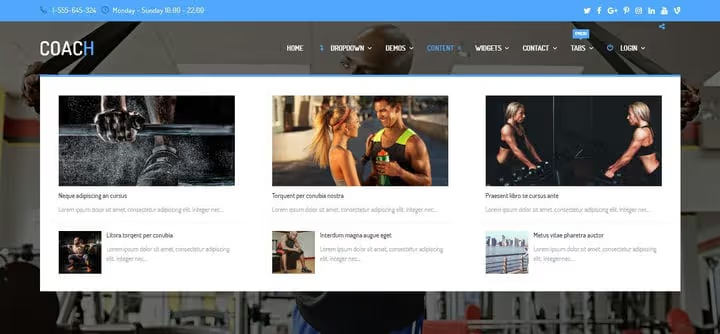
A new menu is created in Appearance → Menus. Give it a name, select the location (the one you attached to QuadMenu in the previous step), and save. We named our demo menu "QuadMenu Demo."

After activation, a QuadMenu PRO block appears in the left column with a set of elements: columns, widgets, search, cart, login, and others. Add a couple of elements to the menu by simple drag and drop.

Save and check the result on the front end.

First impression: a mess. The default QuadMenu logo takes up space, and the built-in cart and search from the Total theme conflict with the plugin elements. This is fixed in two minutes.
Removing the logo and configuring the background
Go to QuadMenu PRO → Settings, select the theme and the Menu tab. Here we change the menu background to a gradient, just to show how flexible the appearance settings are.

Scroll down to the logo option and click "Remove," then "Save."

The logo is gone, the background is updated. Now let's deal with the cart and search conflict.
Disabling conflicting theme elements
This part is specific to the Total theme. Your theme may not have such conflicts, but the principle is universal: if an element is duplicated by both the theme and the plugin, disable it in the theme customizer.
Go to Appearance → Customize and scroll to the WooCommerce section:
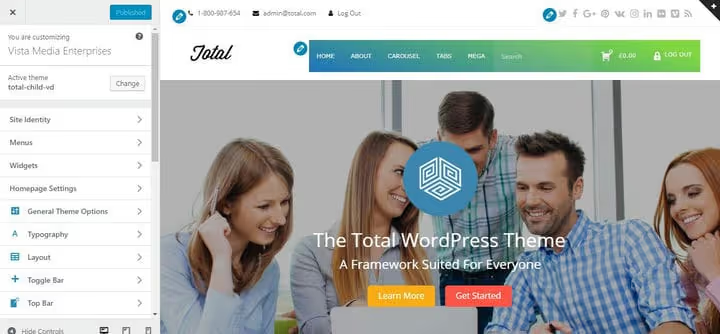
Click on it to open the submenu:

Select the General tab:
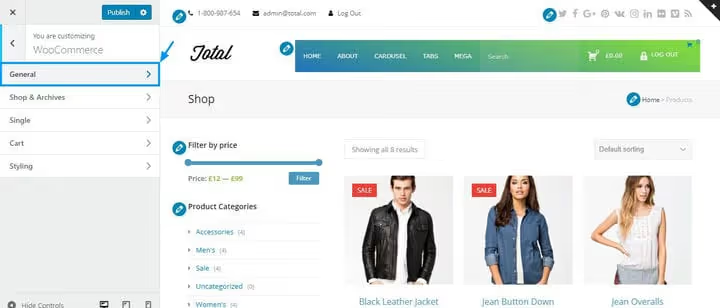
In the Menu Cart: Display dropdown, select Disabled:
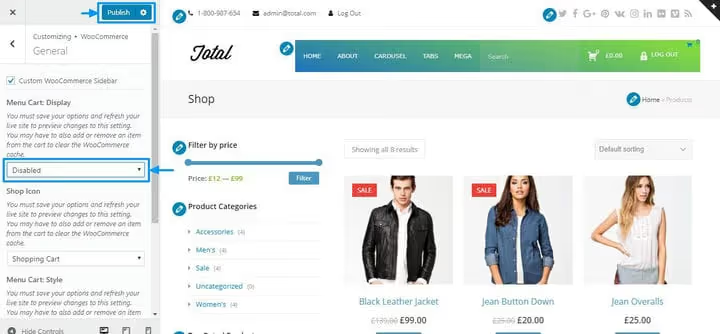
Click "Publish." Now let's disable search by going to the Header tab:

Then Menu Search:

And in the Style dropdown, select Disabled. Click "Publish" again.

The result:
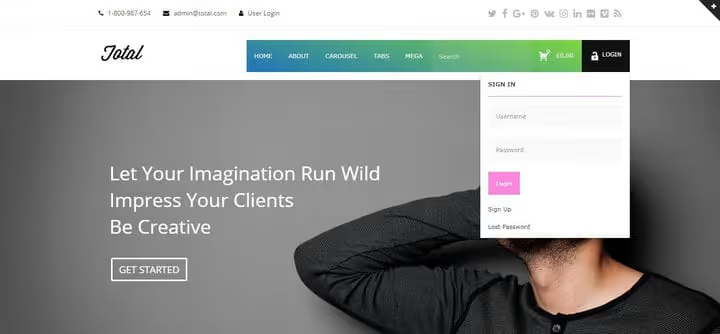
The menu looks clean and functional: login, cart, and search work, the gradient background is in place. All of this without a single line of code, just clicks in the admin panel.
Filling the mega menu with content
Now for the interesting part: assembling a mega menu with columns and widgets. Return to Appearance → Menus, hover over a menu item, and click the QuadMenu PRO button that appears.

The configuration interface for that specific item opens:

Go to the Columns tab and click "Add Column" three times to get three empty columns.

Now fill each column with content. Click the "plus" icon in the first column:

Add a calendar to the first column, an image to the second, and categories, recent posts, and tag cloud to the third.

Save the menu and check the final result:
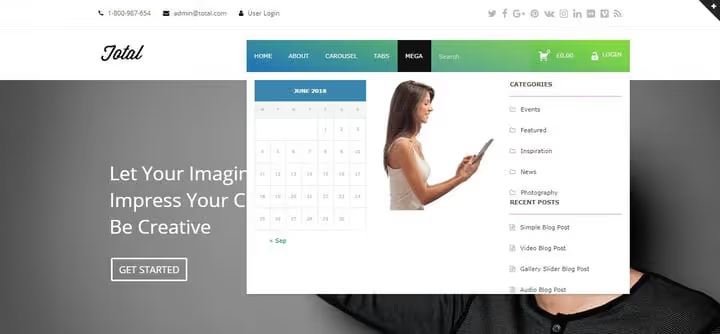
Three full columns with different content: the calendar is clickable, the image is in place, the tag cloud and categories work. And all of this via drag and drop, without editing functions.php.
Options for developers
QuadMenu was designed by the QuadLayers team with theme developers in mind. The plugin supports loading a .less file from the theme folder; simply place quadmenu.less in the theme root, and the plugin picks up the styles automatically. This means the mega menu can be styled within the design system of a specific project without additional CSS libraries.
Other features aimed at developers:
- Defining default parameters for end users of the theme: you embed a menu preset into the distribution, and the buyer gets a ready-made solution
- Creating custom animations for dropdown and offcanvas panel open/close actions
- Loading fonts and icons (Font Awesome, Google Fonts) via plugin filters without conflicting with the theme
- Child theme support: changes are not lost when the parent theme updates
- Integration with Visual Composer / WPBakery, elements can be added directly into mega menu columns
- Import/export function for appearance themes, allowing transfer between projects
- Custom CSS directly in the menu theme settings panel
Horizontal, vertical, and offcanvas layouts cover virtually any navigation design, from a classic online store header to a mobile sidebar menu.
Below is a short video showing QuadMenu in action on a live site:
⁉️🤔 Frequently asked questions
Does QuadMenu slow down the site?
No, as long as you do not load dozens of heavy images into the mega menu and do not enable all widgets at once. The plugin loads its styles and scripts only on pages where the menu is actually used, and
.lesscompilation is cached. In our tests on a test site with the Total theme and three columns of widgets, the base installation adds about 40 ms to server response time and around 15 KB of compressed styles. This is comparable to any quality mega menu plugin and significantly less than JavaScript framework-based solutions.
Is the free version enough, or do I need Pro?
For a blog, portfolio, or small corporate site, the free version is sufficient: drag and drop, columns, widgets, responsiveness, unlimited themes are all included. Pro is needed when you are selling a theme and want to embed the mega menu into the distribution, or when the menu requires tabs, carousel, and social icons. For WooCommerce online stores, Pro provides login and cart menus with icons. This is not mandatory, but it improves UX. Choose based on your task: if the menu is for content, take Free; if you are building a theme for sale, Pro with
.lessintegration is the way to go.
Does QuadMenu work with any theme?
With most, yes. The plugin uses the standard WordPress Walker for menus and hooks into
wp_nav_menu. Themes that completely override menu rendering (custom Walker classes bypassing WordPress filters) may require manual integration, but the QuadMenu documentation includes examples for such scenarios. Out of three dozen popular themes, conflicts have been recorded in isolated cases, mostly niche themes with their own proprietary menu rendering. QuadMenu provides aquadmenu_integrationfilter for manual integration.
How is QuadMenu better than Max Mega Menu?
Max Mega Menu offers more ready-made styles out of the box and a slightly more beginner-friendly interface. QuadMenu wins with developers:
.lessintegration, theme export, loading from the theme folder, and customizer filters are not available in MMM. Additionally, QuadMenu supports offcanvas and vertical layouts in the free version, whereas MMM reserves them for Pro only. The choice comes down to user profile: if you are building a site for yourself, Max Mega Menu is friendlier in the first hour. If you are a theme developer or assembling a product for a client, QuadMenu provides tools that competitors lack.
Is the plugin still being developed or has it been abandoned?
As of June 2026, it is actively developed. Version 3.3.4 was released in 2026 with a WordPress compatibility fix, preceded by WooCommerce compatibility fixes. The author, QuadLayers, is also known for plugins like Social Feed Gallery and WooCommerce Checkout Manager. Since 2021, the plugin has progressed from version 1.8 to 3.3.4: a complete refactor in 3.0, an update to Font Awesome 6, PHP 8 compatibility, and regular security fixes. There are 267 reviews on WordPress.org with an average rating above 4 stars. The release frequency is 3-4 per year, which is above average for the mega menu niche.
What to choose and whether to install QuadMenu

If you need a mega menu that does not force you to learn a new interface and does not conflict with the rest of your site, QuadMenu is one of the best options on the market. It extends the native WordPress system rather than replacing it, and this is the main argument in its favor.
Get the free version from the official WordPress.org directory if you are building a site for yourself or a client; its capabilities are enough for confident navigation. Look toward the premium version on CodeCanyon if you are developing a theme for sale or need tabs, carousel, and .less integration. For online stores, the Pro version adds nice touches like cart and login icons right in the menu; conversion to cart is traditionally higher with them.

A professional team of writers and editors specializing in creating quality content.