













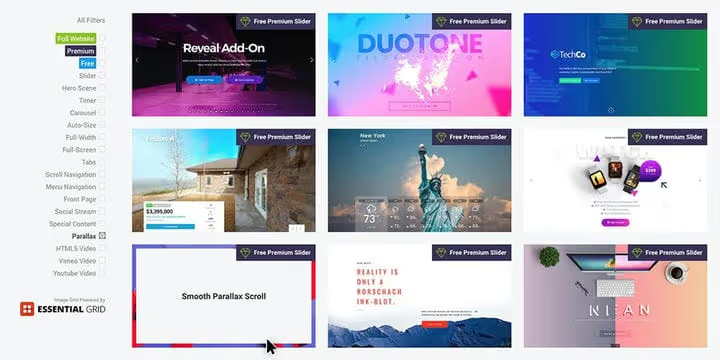
💡 What is the parallax effect and how to add it to a WordPress site
Flat design websites get read. Parallax websites get remembered. Same content, same layout, but the background moves slower than the foreground, and the page gains depth, breathing room, and a cinematic quality. The user isn't just scrolling through text, they're scrolling through a story.
The problem is that most WordPress sites look the same: header, grid, sidebar, footer. Parallax breaks that template without restructuring the layout, without changing the theme, sometimes without plugins at all. But not every parallax implementation works properly: janky scrolling on mobile, performance issues, accessibility conflicts, you know the drill.
Below, a complete breakdown: what parallax scrolling is, when it pays off, which themes and plugins deliver ready-made results, and how to avoid tanking performance. With step-by-step screenshots, tool comparisons, and answers to common questions.
💡 Quick overview:
- Understand how parallax scrolling works and why your site needs it
- Assess the risks: mobile performance, accessibility, background selection
- Choose a theme with built-in parallax or add Slider Revolution for sliders
- Install free plugin Advanced WordPress Backgrounds (AWB), a universal solution for Gutenberg, Classic Editor, and WPBakery
What parallax effect is
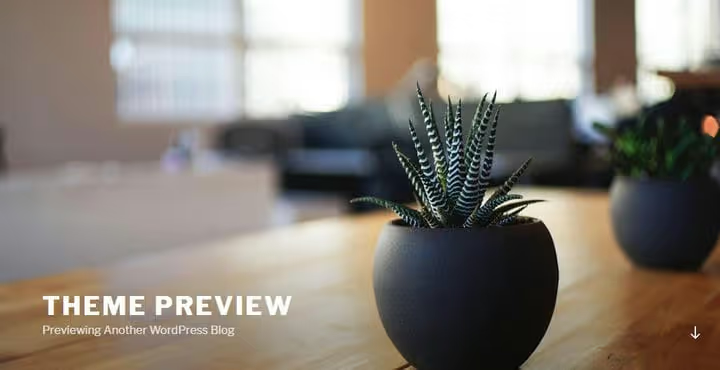
Parallax effect is a technique where the background of a web page scrolls slower than the content in the foreground. It creates an illusion of depth: the content appears to float above the image, and the page gains a three-dimensional quality.
The technique migrated to web design from the gaming industry, where parallax had been used for years to create background layers in platformers. Today it's a standard feature in premium themes, page builders, and standalone plugins. Even the free Twenty Seventeen theme that shipped with WordPress by default had built-in parallax.
Modern web design has gone further: the CSS property scroll-timeline allows you to create parallax without JavaScript at all, using pure animation tied to scroll progress. But for quick deployment on production sites, plugins and builders remain more practical.
The video above is a complete guide to adding parallax in WordPress (EN, 12 minutes). The author shows installation, speed configuration, disabling on mobile, and working with background images in real time.
Why use parallax on your site
First and most obvious, visual wow factor. Parallax makes a site modern, stylish, and memorable. When a user scrolls the page and the background moves at a different speed, it grabs attention. Content pops.
But the benefits don't stop at aesthetics. Parallax breaks the page into readable sections, especially on landing pages and home pages where you need to guide the visitor from headline to CTA. A section with a parallax background naturally separates one content block from another, directing attention.
Third reason, engagement and time on site. Visitors linger longer on pages with interactive scrolling, which indirectly improves behavioral metrics and conversion. This works especially well on single-page sites, portfolios, and product landing pages.
What to consider before implementing parallax
Every coin has two sides. Here's what to keep in mind before adding parallax sections.
Choosing a background image
The background image is the key element. It should be relevant to the page topic and the brand as a whole. If you're placing text or headings over the background, it's better to use a muted pattern or a color overlay rather than a detailed photo. Content shouldn't compete with the background.
For photos, high resolution only. A blurry or pixelated full-screen background kills the professional look. We've compiled a collection of stock photo sites with free and premium images in a separate review of 35 photo stock sites.
Parallax on mobile devices
On phones and tablets, parallax works unreliably. Gesture-based scrolling (swipe) differs from a mouse wheel, the effect can stutter, lag, or not display at all. Most modern plugins and themes let you disable parallax for mobile with a single checkbox, and that's the best option from a UX perspective.
Accessibility
Moving backgrounds create problems for users with vestibular disorders: motion sickness, nausea, difficulty focusing. The media query prefers-reduced-motion allows you to automatically disable parallax animations for such visitors. If your plugin or theme doesn't support it, at minimum disable the effect on mobile.
Choosing a theme with built-in parallax

For those starting a project from scratch, the easiest route is to pick a theme with parallax already built in. Most premium WordPress themes include this feature at least for the home page. If you need parallax on different pages of the site, look toward multipurpose themes with an advanced builder.
Three proven options:
- Divi by Elegant Themes, a visual builder with a built-in parallax background option for any section;
- Ultra by Themify, a multipurpose theme with Themify Builder and flexible parallax settings;
- Total by WPExplorer, a multipurpose theme based on WPBakery with advanced parallax options (speed, direction, mobile disable).
Adding a parallax background in Total (WPBakery)
Below is a step-by-step example of configuring parallax in the Total theme. Total uses WPBakery for building pages, but similar options exist in most WordPress page builders.
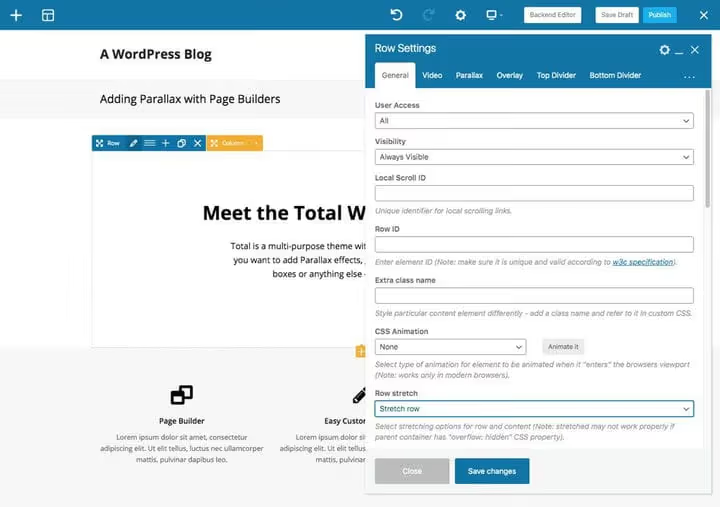
First insert a row and add content to it. Click the pencil icon to edit the row. If the design has no sidebar, enable the "Stretch row" option so the parallax background fills the row at full width. Total also has a fullscreen mode that stretches the background across the entire browser window.
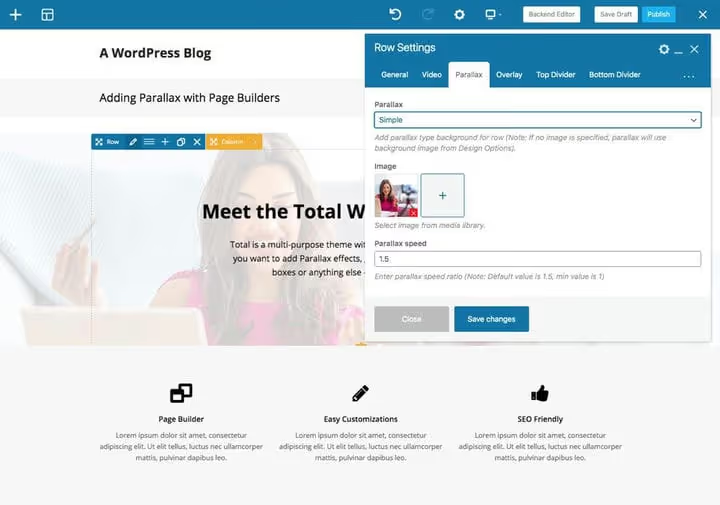
In the "Parallax" section, add a background image and set the scroll speed. The higher the number, the more the image shifts and the higher resolution it requires.
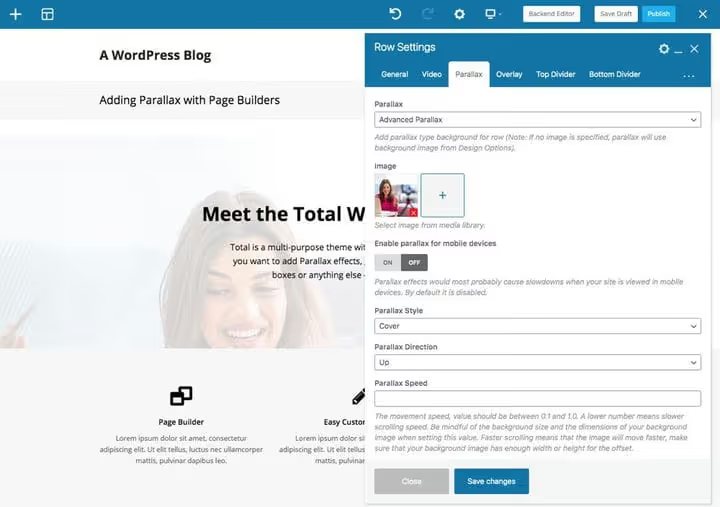
In the advanced parallax settings you can enable or disable the effect on mobile devices, choose the image style (cover, fixed, repeat), movement direction, and precise speed.
For contrast between the background and content, use the "Overlay" tab, for example, a semi-transparent white fill over the image. Save the row and page changes.
Parallax sliders with Slider Revolution
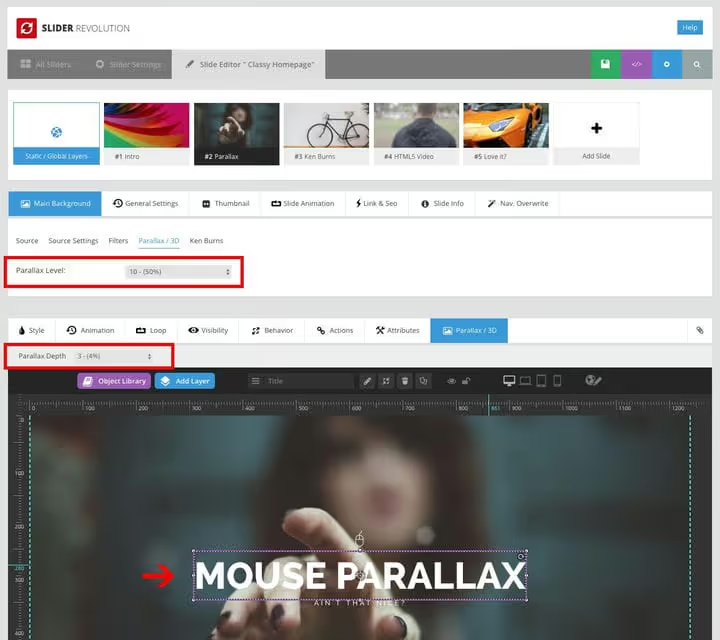
When you need not a static background but a full slider with parallax effect, the best tool is Slider Revolution. The premium plugin includes hundreds of options: fonts, layers, transition effects, layouts, and of course, multi-layer parallax. A detailed Slider Revolution guide is in a separate article.
How to enable parallax in Slider Revolution
Install the plugin and either import a ready-made slider template or create a slider from scratch.
Edit the main background of the slide: add the source image and go to the "Parallax / 3D" tab to assign the parallax level. Then when adding layers (text, images, buttons), select the Parallax / 3D option for each layer, parallax depth will bring elements to life independently of each other.
The finished slider is inserted via shortcode into any post or page. If you're using WPBakery, simply drag the Slider Revolution element onto the page and select the slider from the dropdown list.
Free plugin Advanced WordPress Backgrounds (AWB)
If you already have a theme installed that doesn't support parallax, you don't need to change it. Advanced WordPress Backgrounds (AWB) is a free plugin from the official WordPress.org directory that adds parallax backgrounds to any page element: block, heading, or entire section. The plugin is actively developed: latest update, June 2026, compatibility with WordPress 7.0 confirmed.
AWB supports three background types: color, image, and video (YouTube/Vimeo/self-hosted). Works with Gutenberg, Classic Editor, and WPBakery.
Installing AWB
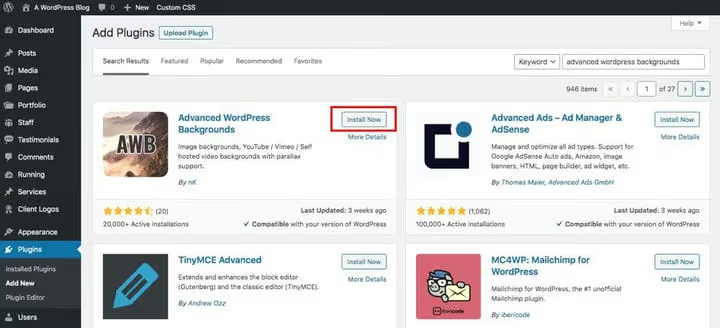
Go to the WordPress admin: Plugins → Add New. In the search, type "Advanced WordPress Backgrounds", click Install → Activate.
The method for adding a background depends on the editor. According to the plugin description on WordPress.org, all three editors have access to: background type (color, image, or video), display size (cover, contain, or pattern), background position with percentages, overlay with color selection and transparency via Alpha selector, parallax scrolling with speed setting, scaling and transparency, and mouse parallax (background slightly shifts with the cursor).

In the menu Settings → AWB there's a tab with global parameters. Here you can disable parallax and video effects for mobile devices and specific browsers.
AWB in Gutenberg
AWB is fully compatible with the block editor and provides its own block.
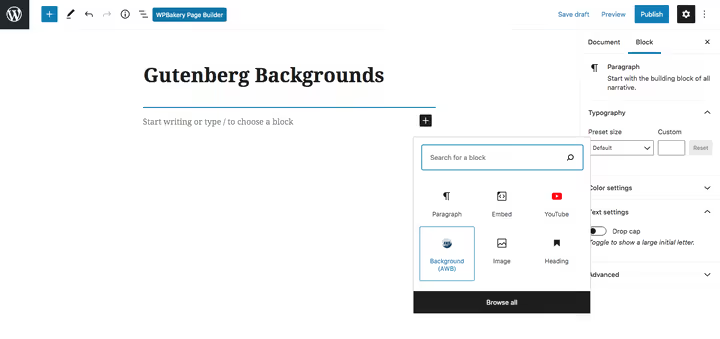
Insert an AWB block, then add any other blocks with your content inside it.
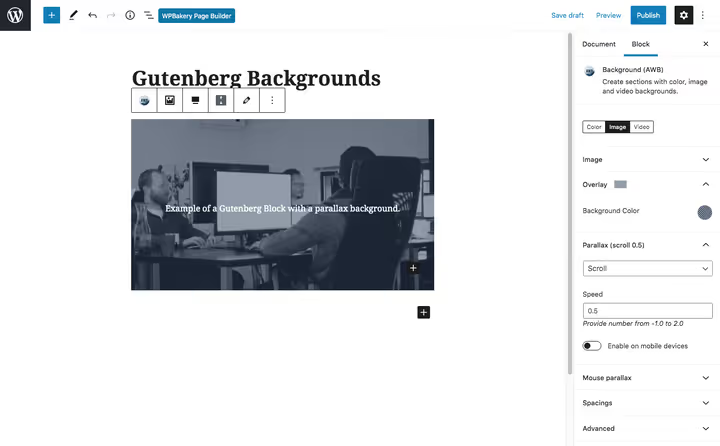
Click on the AWB block and go to the "Block" tab in the right panel. Here you configure all background parameters: type, image, parallax, overlay.
AWB in Classic Editor
In the classic editor, AWB works through a shortcode. Select the text that needs a parallax background and click the AWB icon in the editor toolbar.
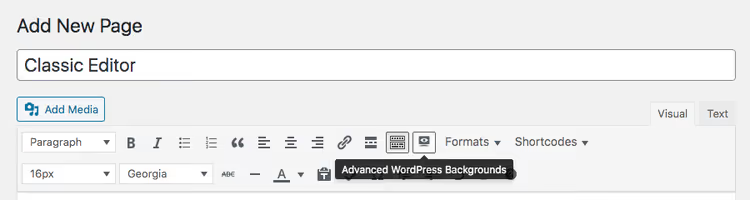
Choose a background image and configure the other parameters: overlay color, parallax type, speed. Click "Insert".

The shortcode looks something like this:
1 [nk_awb awb_type="image" awb_image="1234" awb_image_size="full" awb_image_background_size="cover" awb_image_background_position="50% 50%" awb_parallax="scroll" awb_parallax_speed="0.5"]Your content inside the parallax background[/nk_awb]
The downside of the shortcode approach is that background settings aren't visible in the visual editor, you have to edit the code manually. For comfortable work, it's better to use Gutenberg or WPBakery.
AWB with WPBakery

With WPBakery, integration is maximally simple. An additional "Backgrounds (AWB)" tab appears in any row settings, where you can create and configure a parallax background without shortcodes, everything visual.
⁉️🤔 Frequently asked questions
Do I have to change my theme for parallax?
No. If your current theme doesn't support parallax, the free AWB plugin is enough. It adds the effect to any element on any page through a convenient interface without touching the rest of the theme. Changing the theme only makes sense if you're starting from scratch anyway and want built-in parallax out of the box.
Does parallax slow down the site?
With careful configuration, only slightly. AWB uses the lightweight Jarallax library (without jQuery since version 1.11), and modern browsers optimize
transformon GPU. The main factor for slowdown is an overly heavy background image. Optimize photos to WebP or AVIF, keep the size within 200-300 KB, and speed won't suffer.
Does parallax work on iPhones and Android?
Depends on the implementation. On iOS, web parallax is traditionally problematic: fixed background (
background-attachment: fixed) is ignored by Safari. The AWB plugin solves this through JavaScript animation, works stably. But the best practice for mobile is to disable parallax entirely (checkbox in AWB or theme settings): on a small screen the effect is barely noticeable, and battery resources are conserved.
Can you create parallax without plugins at all?
You can. The CSS property
animation-timeline: scroll()allows you to tie parallax animation to scroll progress without a single line of JavaScript. However, browser support is still incomplete (Safari included in 2024, Firefox since 2025). For compatibility with older browsers, a plugin is still more reliable.
What makes AWB better than other free parallax plugins?
AWB stands out in three ways: first, support for three editors (Gutenberg, Classic, WPBakery) without conflicts; second, regular updates, the plugin is tested up to WordPress 7.0; third, mouse parallax and video backgrounds in the free version, these are often Pro features in competitors.
Is parallax needed for SEO?
Not directly. Parallax is a visual technique, not a ranking factor. But indirectly it can help: longer time on page, lower bounce rate, search engines take that into account. The main thing is not to sacrifice loading speed and text readability for the effect.
Which tool to choose for your task
If your theme already supports parallax, use the built-in settings, that's enough for home and landing pages.
If your theme has no parallax, AWB covers most typical scenarios for free: Quick installation, intuitive interface, works with Gutenberg and WPBakery, global disable on mobile. For sliders with multi-layer parallax, Slider Revolution is unmatched in animation flexibility.
Parallax isn't a panacea. On sites with dense text content (long reads, documentation), it hinders more than helps. But for a landing page, portfolio, product promo page, the technique remains one of the strongest in web design. The user will forget the text but remember how the page "breathed" as they scrolled.

A professional team of writers and editors specializing in creating quality content.