














🚀 How to reduce WordPress page load time
A slow WordPress site loses visitors, search rankings, and money. Page speed is a Google ranking signal, and Core Web Vitals became part of the algorithm in 2021. The benchmark is 2.5 seconds for LCP (Largest Contentful Paint), and every extra second cuts conversions by 4-7% according to Portent.
Good news: WordPress can be accelerated to the promised 1-2 seconds without magic or rebuilding the site from scratch. This guide covers 13 proven techniques, from choosing the right hosting to cleaning up database clutter. Each has been tested on real projects.
💡 Quick overview:
- Choose managed WordPress hosting or a quality VPS; the server accounts for 40-50% of speed (Kinsta research)
- Enable page caching and connect a CDN so static files are served from the node closest to the user
- Compress and convert images to WebP/AVIF before uploading to the site
- Minify CSS, JS, and HTML; enable Gzip or Brotli on the server
- Review your plugins: disable unused ones and replace duplicates
- Move scripts to the footer and keep stylesheets in the head; this changes perceived speed
Choosing hosting: the foundation where everything begins
The server is the main factor in response time (TTFB, Time to First Byte). If your hosting is overloaded or outdated, other optimizations will yield only marginal gains. That's why the recommendation "start with hosting" is not a cliché but an engineering truth.
Managed WordPress hosting (WP Engine, Kinsta, Cloudways) provides three things out of the box: server optimization, built-in caching, and CDN. Budget shared hosting at $3-5 per month won't offer this. The difference in TTFB: 300-800 ms for cheap shared hosting versus 80-150 ms for managed (Kinsta data, 2025).
A VPS or dedicated server gives more control but requires configuration. Choose NVMe drives and at least 2 GB of RAM for a medium-traffic site.
How to test your hosting? Open PageSpeed Insights and check the TTFB. A value above 600 ms is a reason to change your plan or provider. GTmetrix in the Waterfall tab will show server delay before the first byte.
Caching and CDN: two accelerators that work together
Caching means saving a ready HTML copy of the page. Instead of assembling it on every visit (PHP + database + plugins), the server delivers static HTML. For WordPress, this provides a 2-5x speed increase.
Three time-tested caching plugins:
W3 Total Cache, a veteran with maximum fine-tuning options. Detailed guide.
WP Super Cache, from Automattic, easier to configure. Setup instructions.
WP Fastest Cache, minimalist interface, quick activation. Good for beginners.
WP Rocket (premium, from $59/year) is the sweet spot: caching, minification, lazy load, and deferred JS loading in one plugin. If your budget allows, install it and cover most items with a single setup.

CDN (Content Delivery Network) is a network of servers around the world. Your site is in one data center; a visitor from another continent loses time on fiber optics. CDN solves this: static files are distributed across nodes and served from the server closest to the user.
Cloudflare is the most popular free CDN for WordPress. Registration, DNS change, and basic caching are included. jsDelivr is an alternative for external libraries: free, multi-CDN, auto-minification.
Image optimization: heavy images are enemy number one
Images account for an average of 45-60% of a WordPress page's weight (HTTP Archive, 2025). An unoptimized camera photo can weigh 3-7 MB, as much as the entire rest of the site. The rule is simple: no image goes on the site without compression and conversion to a modern format.

Tools and plugins that do this automatically:
ShortPixel Image Optimizer compresses PNG, JPEG, GIF and converts to WebP/AVIF on the fly, with a free limit of 100 images per month.
EWWW Image Optimizer optimizes on your server without quantity limits and has supported AVIF since 2024.
Imagify, from the WP Rocket developers, offers three compression levels, with 20 MB free per month.
Formats: WebP compresses 25-35% better than JPEG. AVIF is another 20-30% more efficient plus HDR, but encodes slower. If your server allows it, choose AVIF; if you need speed, use WebP.
Don't upload images larger than the required resolution. A post card at 400×300 doesn't need a 2000×1500 photo; browser scaling only slows things down. Crop to target dimensions before uploading. More details in our review of ten solutions.
Gzip and Brotli: server-level compression
Gzip is a veteran of web compression from the 1990s. The server compresses HTML, CSS, JS, and SVG before sending, and the browser decompresses. File size is reduced by 60-80%.
Brotli is Gzip's successor from Google (2015). It compresses 15-25% better with the same decompression time. If your server supports it, enable Brotli.
Ways to enable it:
- Through a caching plugin: WP Rocket, W3 Total Cache, WP Super Cache enable compression with a single checkbox in settings.
- Through.htaccess (Apache): add
AddOutputFilterByType DEFLATEdirectives for the required MIME types. - Through Nginx: the
ngx_http_gzip_module(Gzip) orngx_brotli(Brotli) module in server configuration.
The old method through /wp-admin/options.php (the gzipcompression field) was removed from WordPress core many years ago. Use server-side compression or a plugin.
Minification: remove unnecessary bytes from code
Minification means removing spaces, line breaks, comments, and insignificant characters from HTML, CSS, and JavaScript. The browser doesn't care how nicely the code is formatted; it cares about validity and parsing speed.
One plugin covers all three areas:
Autoptimize minifies HTML, CSS, and JS; aggregates and inlines critical styles. Free, with an active install base of 1+ million sites. Works great with caching plugins.
WP Rocket (premium) includes minification out of the box, along with caching, compression, and lazy loading.
Typical gains: 15-25% of CSS size and 20-35% of JS size (GTmetrix measurements, 2025). On mobile 3G, this saves 0.3-0.8 seconds.
Stylesheets in the head, scripts before the closing body
The order of resource loading directly affects perceived speed (Google's Core Web Vitals recommendation):
**CSS goes in **
<head>: styles load before rendering. Styles at the bottom of the page = "naked" HTML without styling (FOUC, Flash of Unstyled Content), which hurts the impression more than an extra 200 ms of loading.**JavaScript goes before **
</body>: scripts block rendering. Widgets, trackers, and external APIs should load after the content is rendered. The user won't click the "Share" button until they've read the text.

Additionally, use the defer attribute (script executes after HTML loads but in order) and async (script executes as soon as it loads, order not guaranteed) for external scripts. For Google Analytics, Facebook Pixel, and similar tools, use defer. For independent widgets, use async.
Limit external scripts: every button has a cost
Every external script is an HTTP request to a third-party server. One request: 50-200 ms, ten scripts: a second or more. On slow connections, the cascade of delays stretches to 3-5 seconds.
Typical sources of external scripts:
- Social media buttons (Facebook, Twitter, Pinterest)
- Video players (YouTube, Vimeo, use
loading="lazy"or a facade) - Comment systems (Disqus)
- Live chat (JivoSite, Intercom, Tidio)
- External fonts (Google Fonts, host locally)
- Subscription forms, popups, A/B testing
The approach: keep only what affects the business. Pingdom Speed Test shows the request waterfall; sort by duration and remove the slowest ones.
Plugin audit: less means faster
Plugins are both WordPress's strength and weakness. Each active plugin adds its own CSS and JS to every page, even if its functionality isn't needed there. Some make HTTP requests to external APIs on every page load.
Principles for working with plugins:
Remove unused ones. A demo data import plugin after site launch? Remove it.
Don't duplicate functionality. Yoast SEO and Rank Math aren't needed simultaneously.
Replace a plugin with code in your child theme's
functions.phpif it's just a few lines. Guide to child themes.Keep quality ones: well-known developers, regular updates. A plugin without updates for two years is a red flag.
How to properly clean up plugins on a WordPress site is a separate article with step-by-step instructions.
WordPress theme: code quality matters
A poorly written theme negates all optimizations. Typical problems: dozens of unused scripts, giant libraries for a single animation, fonts in four weights instead of two, unoptimized background images.
Criteria for a fast theme:
- Active updates: a theme without updates for over a year is a risk for security and speed.
- Minimalist design: Kadence, GeneratePress, Astra, Blocksy are lightweight builders where you assemble exactly what your site needs.
- No hard dependency on page builders: if a theme pulls in half the internet's scripts, that's not speed.
A child theme allows you to modify behavior without losing updates. Any visual shortcoming can be fixed with custom CSS rather than switching themes.
Database: regular cleanup
WordPress stores everything: posts, drafts, revisions, spam comments, transient options, trash. Over time, the database bloats and queries slow down.
Trash. By default, WordPress cleans the trash every 30 days. Reduce it to 7 days by adding to wp-config.php:
1 define( 'EMPTY_TRASH_DAYS', 7 );
If you don't need the trash at all (content is deleted permanently and immediately):
1 define( 'EMPTY_TRASH_DAYS', 0 );
Post revisions. Every autosave creates a record in wp_posts. After a year of active blogging, revisions can take up a significant portion of the database (according to WP-Optimize estimates, up to 20-40% of volume). Limit the number:
1 define( 'WP_POST_REVISIONS', 3 );
Cleanup tools. The WP-Optimize plugin removes revisions, spam, transient options, and optimizes tables. Advanced Database Cleaner is an alternative for finer control.
Advertising on the site: balancing revenue and speed
Ad networks work through external scripts. Google AdSense, display networks, RTB auctions all load from external servers and add 1-3 seconds to page weight.
What you can do:
- Reduce the number of ad blocks. Two banners instead of five give the same reach with better speed.
- Use local banners. A direct link with an optimized image works faster than an external script. For tracking clicks, use Pretty Links (a free link shortening and tracking plugin).
- Lazy load ads. Banners below the fold load only on scroll. Implemented through the
loading="lazy"attribute or plugins like Ad Inserter.
Trade-off: a text link to a partner gets fewer clicks than a display banner but has virtually no impact on speed. For blogs with content-based revenue, this is a workable option.
HTTP requests: fewer files, higher speed
Every file on the page (CSS, JS, font, icon, image) requires a separate HTTP request. HTTP/2 and HTTP/3 multiplex requests, but overhead remains.
Quick wins:
- Combine CSS and JS. Instead of five small CSS files, use one. Instead of ten JS files, use one or two. Autoptimize automates this.
- CSS sprites for icons. One image instead of twenty = twenty saved requests.
- Disable styles and scripts selectively. The contact form plugin is only needed on the form page. Asset CleanUp or Perfmatters selectively disable CSS/JS.
- Host fonts locally. Google Fonts requires an additional DNS request. Download the weights you need and serve them from your own server.
Jetpack: disable unnecessary modules
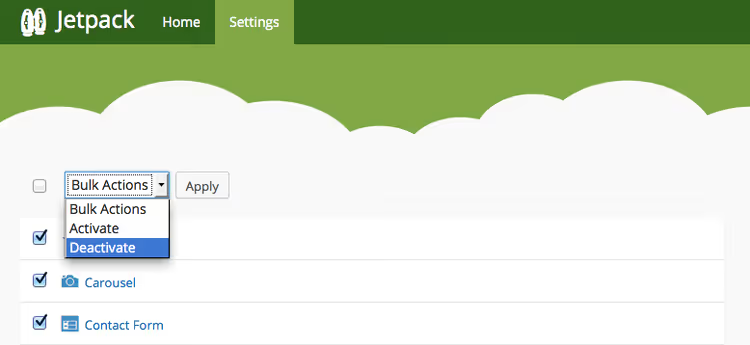
Jetpack from Automattic is a Swiss army knife: statistics, image CDN, related posts, social buttons. But each module adds scripts and styles. Enable everything at once and you get an extra 200-500 ms.
Keep 2-4 modules you actually use (Site Stats, Brute Force Protection). Disable the rest. On one of our projects, this resulted in 0.7 seconds less load time.
In conclusion: compress, remove the unnecessary, start with the foundation
The general principle of WordPress acceleration is minimalism. Not in the sense of "a bare site without features," but in the sense of "nothing extra without a conscious reason." Every plugin has a cost in milliseconds. Every image is bytes. Every external script is a dependency on someone else's server.
Start with hosting and caching; this will give 60-70% of the improvement. Then go through images and minification for another 20-25%. The rest is fine-tuning that adds up to an excellent result. YouTube plugins for WordPress will help speed up video embedding; use lazy loading instead of a direct iframe.
⁉️🤔 Frequently asked questions
How many WordPress plugins is "too many"?
It's not the quantity that matters but the quality. Twenty well-written plugins from verified developers can load a site less than three "buggy" ones. Focus not on the number but on the waterfall in GTmetrix: if a plugin adds more than 100 ms, consider whether you really need it.
What's better: free CDN from Cloudflare or paid?
Free Cloudflare is sufficient for the vast majority of sites. Paid plans (from $20/month) add Polish (image compression), Mirage (mobile optimization), and Argo Smart Routing. If your site generates revenue and every second of conversion counts, the upgrade is justified.
Can you get by without a caching plugin?
You can if you use hosting with built-in server-level caching (Kinsta, WP Engine, Cloudways via Varnish or Nginx FastCGI Cache). Otherwise, a caching plugin is the fastest way to speed up your site without code changes.
Is it worth switching to Brotli instead of Gzip?
Yes, if your server supports it. Brotli compresses noticeably more efficiently than Gzip at comparable times (detailed figures in the Gzip and Brotli section above). Check the server response headers:
content-encoding: brmeans Brotli,content-encoding: gzipmeans Gzip. Ifbris missing, contact your host.
How often should you clean the WordPress database?
Once a month for an actively updated site, once a quarter for a business card or landing page. Always back up the database before each cleanup.
What to do today to make your WordPress site load faster
Don't wait for the weekend and don't procrastinate. Three steps that will give you a noticeable speed boost in the next couple of hours:
Enable caching. Install WP Fastest Cache (free), check three boxes, and save. The speed improvement is noticeable and almost guaranteed.
Run it through an analyzer. Open GTmetrix or PageSpeed Insights and look at TTFB and LCP. If the server responds longer than 600 ms, contact your host or change your plan.
Remove clutter. Deactivate plugins you haven't used for more than a month. Empty the trash. Check how many revisions are stored in the database.
If after these three steps your site still loads longer than 3 seconds, return to the full list of techniques and work through them in order. A systematic approach always beats one-off fixes.

A professional team of writers and editors specializing in creating quality content.